Redwood: Support Sales Repository Contracts
You can create and manage sales repository contracts in the Redwood contract authoring experience. A sales repository contract is a sell-intent Enterprise Contract that doesn't contain contract lines.
This feature brings commonly used contract authoring capabilities to Redwood for sales contracts without lines, including contract creation, editing, document management, parties and contacts, approvals, signatures, amendments, assignment, and user status transitions.
The new navigator menu Contracts (New) is available on the home page under Contract Management. To view this menu, enable the opt-in Redwood Contract Management. You can access the contracts Redwood list page by selecting this menu. For more details, refer to the Redwood: Search and Manage Contracts from List Page in Oracle Fusion Cloud Sales Force Automation What's New, Update 26A. The contract visibility on the list page is controlled through Access Group object-sharing rules, refer the Access Requirements section.
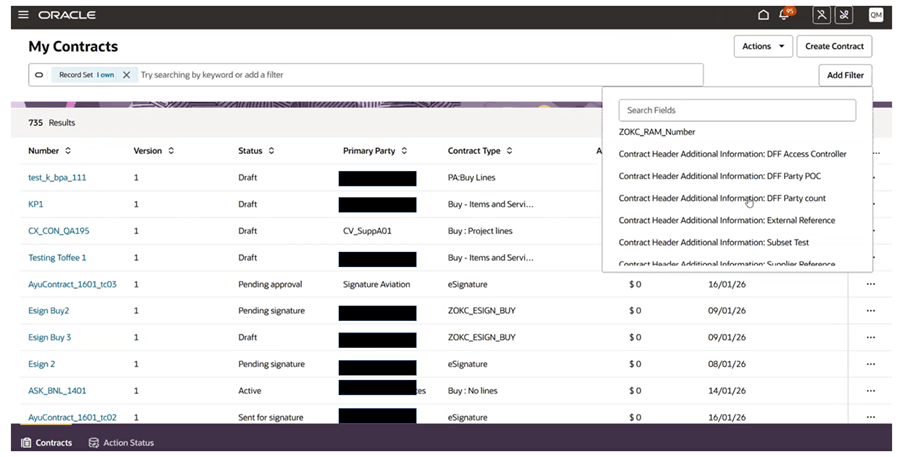
Contracts (New)
Supported Contract Types
This feature applies to contract types with these attributes:
- Class - Enterprise Contracts
- Intent - Sell
- Lines - No, with Allow Lines unchecked
Contract list and search - Users can view sell-intent contracts in the My Contracts list and search results. The list shows only the latest contract version. Sell repository contracts will open in Redwood UI and non-sell repository sales contracts continue to open in the classic ADF UI.
Contract creation - Create sales repository contracts from a Redwood drawer using required contract attributes such as business unit, legal entity, contract type, number, primary party, start date, currency, and authoring party.
Contract editing - Open compatible sell-intent contracts in Redwood and manage contract overview information, terms, key terms, parties, contacts, documents, history, notes, related contracts, and custom child objects.
Parties and contacts- Manage sell-intent party roles, customer information, contract owners, internal contacts, customer contacts, and supported custom roles.
Documents - Manage primary contract documents, signed contract documents, contract documents, supporting documents, and uploaded revisions.
Contract actions - Use supported actions such as Preview, Validate, Submit for Approval, Stop Approval, Duplicate, Amend, Revert, Close, Reopen, Delete, Extract Key Terms, Sign Contract, Manage Signature, and Summarize Contract.
Electronic signature - DocuSign electronic signature, and Adobe Sign electronic signature when the applicable setup and opt-in choices are enabled.
Assignment - Assign a contract to a resource or resource organization, remove an assigned user, optionally add the assignee to the contract team, and notify the assignee.
User status transitions- Use configured user status actions to move a contract through custom internal lifecycle stages, such as legal review or finance review.
Contract Advisor - AI-powered chat assistant that provides insights into contract terms across the contract lifecycle by answering user questions about:
- Both Procurement contracts and Sales contracts
- Documents related to the contracts, including primary contract documents (PCD) and contract documents
- Standard clauses from the terms library
Assign User
Users with edit access can assign a draft contract to a resource or resource organization from the Redwood Actions menu. This helps route contracts to other teams, such as legal or sales, for follow-up work. The Assign User action is available only for the latest version of a draft contract.
During assignment, users can:
- Select an assignee type and name.
- Add the assignee to the contract team.
- Select a contract team role when adding the assignee to the team.
- Notify the assignee by email and worklist notification.
- Add a comment.
Assignment changes are reflected in the contract history.
User Status Transitions
Contract user statuses let organizations configure custom lifecycle stages while keeping the contract in its current contract status. For example, a contract can remain in Draft while moving through internal user statuses such as Legal Review or Finance Review.
User statuses and transitions are configured in Setup and Maintenance under Enterprise Contracts using Manage User Status and Transitions. Configured user status actions can appear in the contract Actions menu. Depending on setup, a user status action can also launch assignment or validation flows.
Enhanced Search Using Descriptive Flexfields (DFF)
The Contracts list page search experience is enhanced for Buy and Sell Intent contracts to support searching and filtering using Descriptive Flexfield (DFF) attributes. Users can also add these attributes as columns in the contracts list table, making it easier to view, manage, and identify relevant contracts directly from the list page.
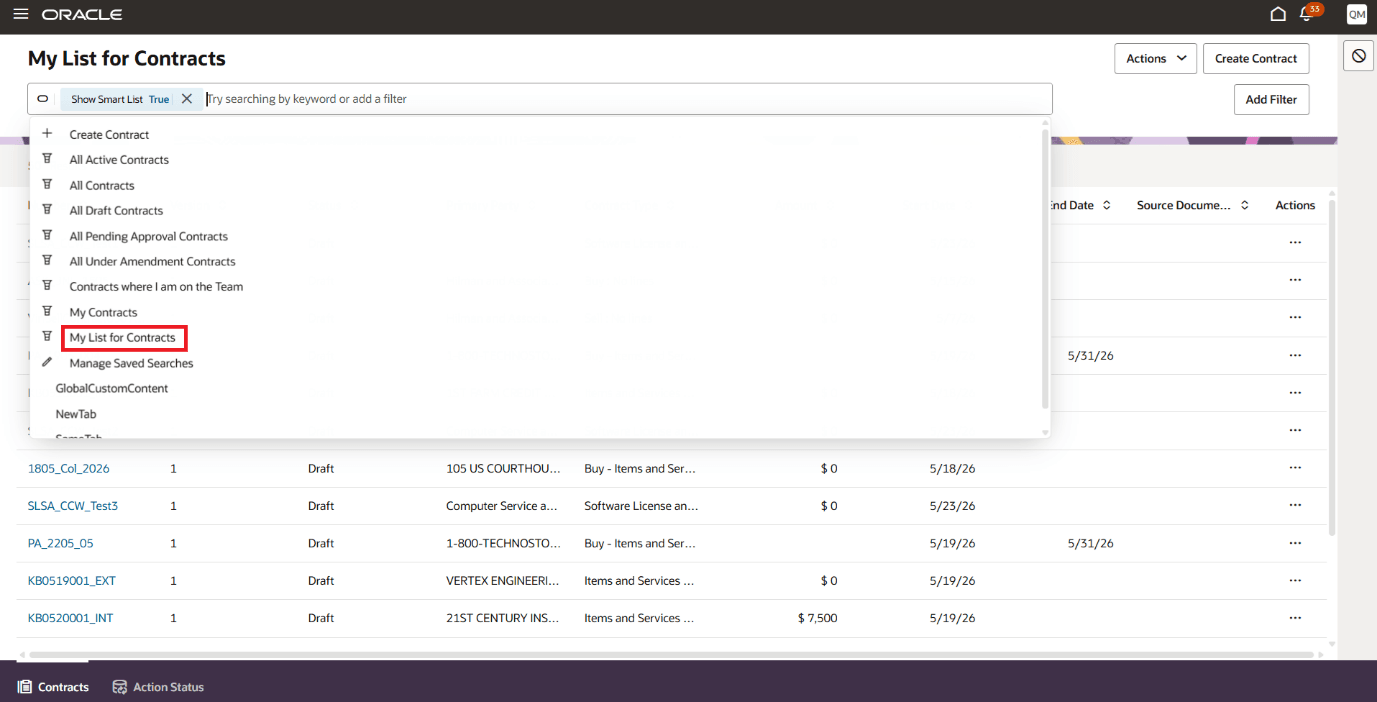
Descriptive Flexfields under Add Filter
My List for Contracts
A new seeded saved search, My List for Contracts, is now available in the Contracts list page search dropdown. This feature helps users quickly return to recently accessed buy and sell intent contracts without performing repeat searches.
The list is personalized for the logged-in user and intelligently prioritizes contracts based on recent and frequent access patterns, improving efficiency in everyday contract management tasks.
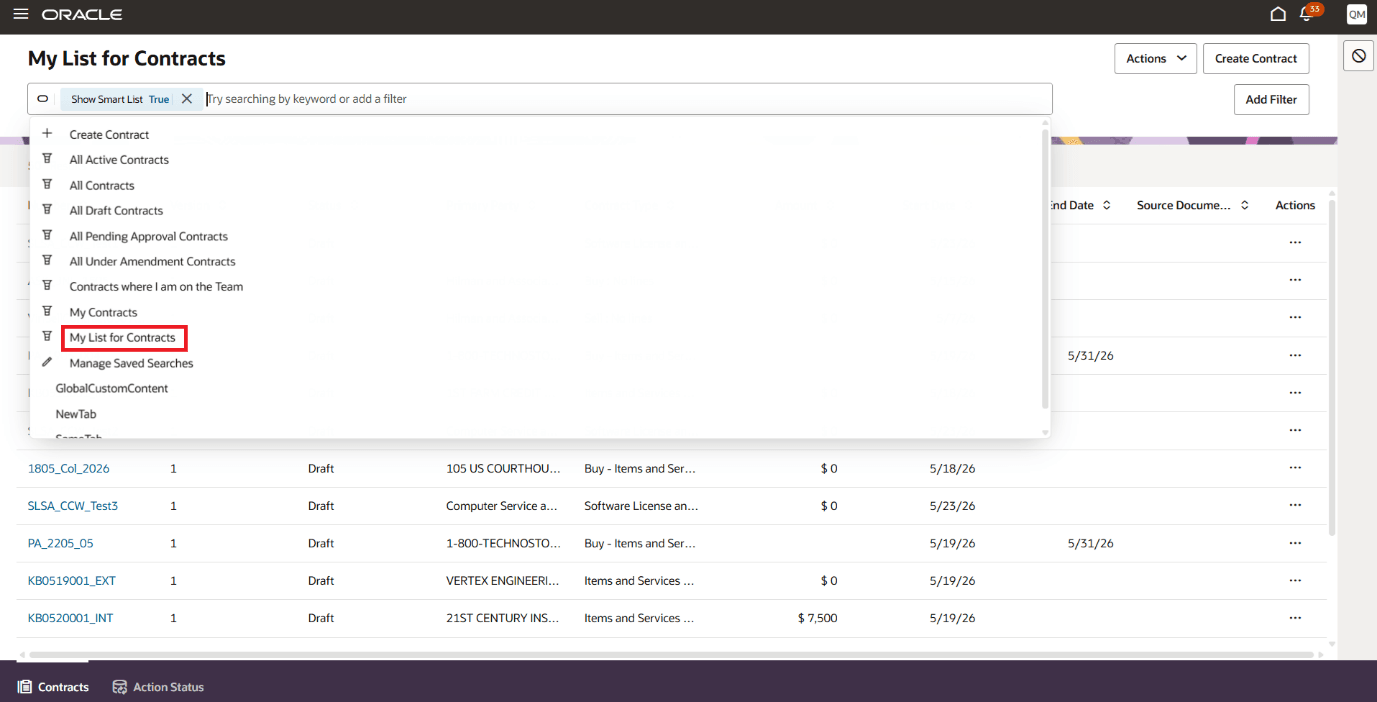
My List for Contracts
This enhancement helps organizations manage sales repository contracts in a modern Redwood experience while maintaining existing contract controls, statuses, signatures, security, and approval behavior.
Key benefits include:
- A consistent Redwood authoring experience for sell-intent repository contracts.
- Easier creation and maintenance of sales contracts without lines.
- Centralized access to contract documents, parties, contacts, notes, history, and related contracts.
- Improved collaboration through assignment, notifications, and user status transitions.
- Faster access to recently used contracts with My List for Contracts.
Steps to enable and configure
Setup Considerations
Administrators should review these setup areas before using this feature:
- Contract Types - Confirm that sell-intent Enterprise Contract types without lines are active and assigned to the appropriate business unit set.
- Terms Authoring - Enable terms authoring for contract types that require the Contract Terms tab.
- Signature Setup - Enable manual or electronic signature options for contract types that require signature flows.
- AI Features - Enable Extract Key Terms or Generate Contract Summary opt-ins if those actions should be available.
- User Statuses - Configure user statuses, transitions, and event models for internal lifecycle tracking.
- Security - Confirm that job roles, data grants, and contract team access provide the intended edit or read-only access.
Create Custom Action for User Status Transition
1. Setup user statuses and transitions
2. Add custom status in event Model
Refer the documentation How To setup User Statuses and User Transitions and Defining User Statuses
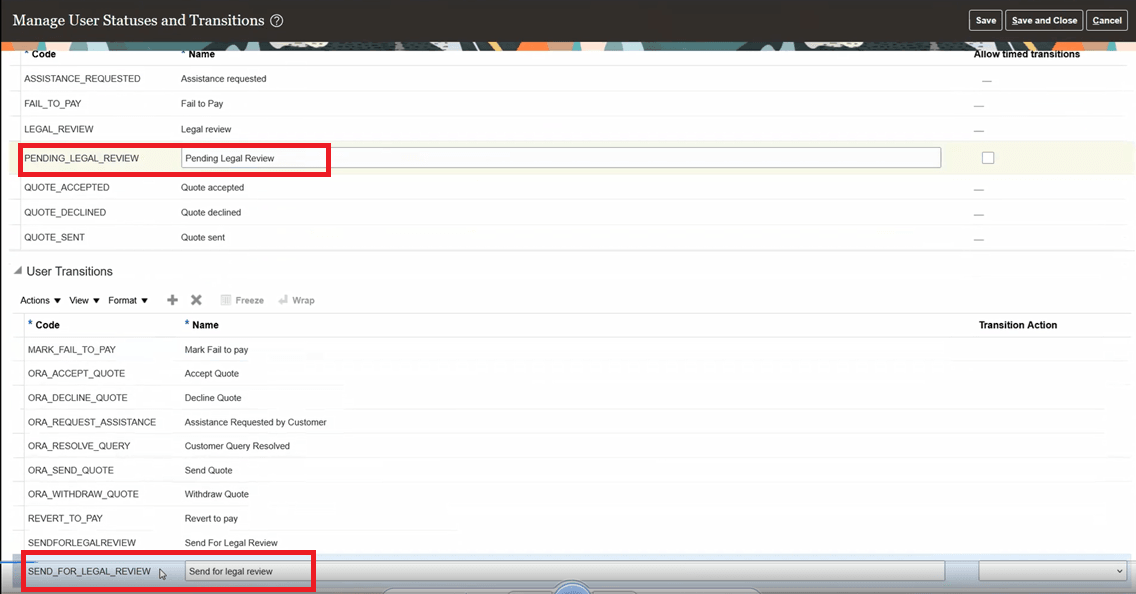
Setup User Status and Transition
Add custom status in event model
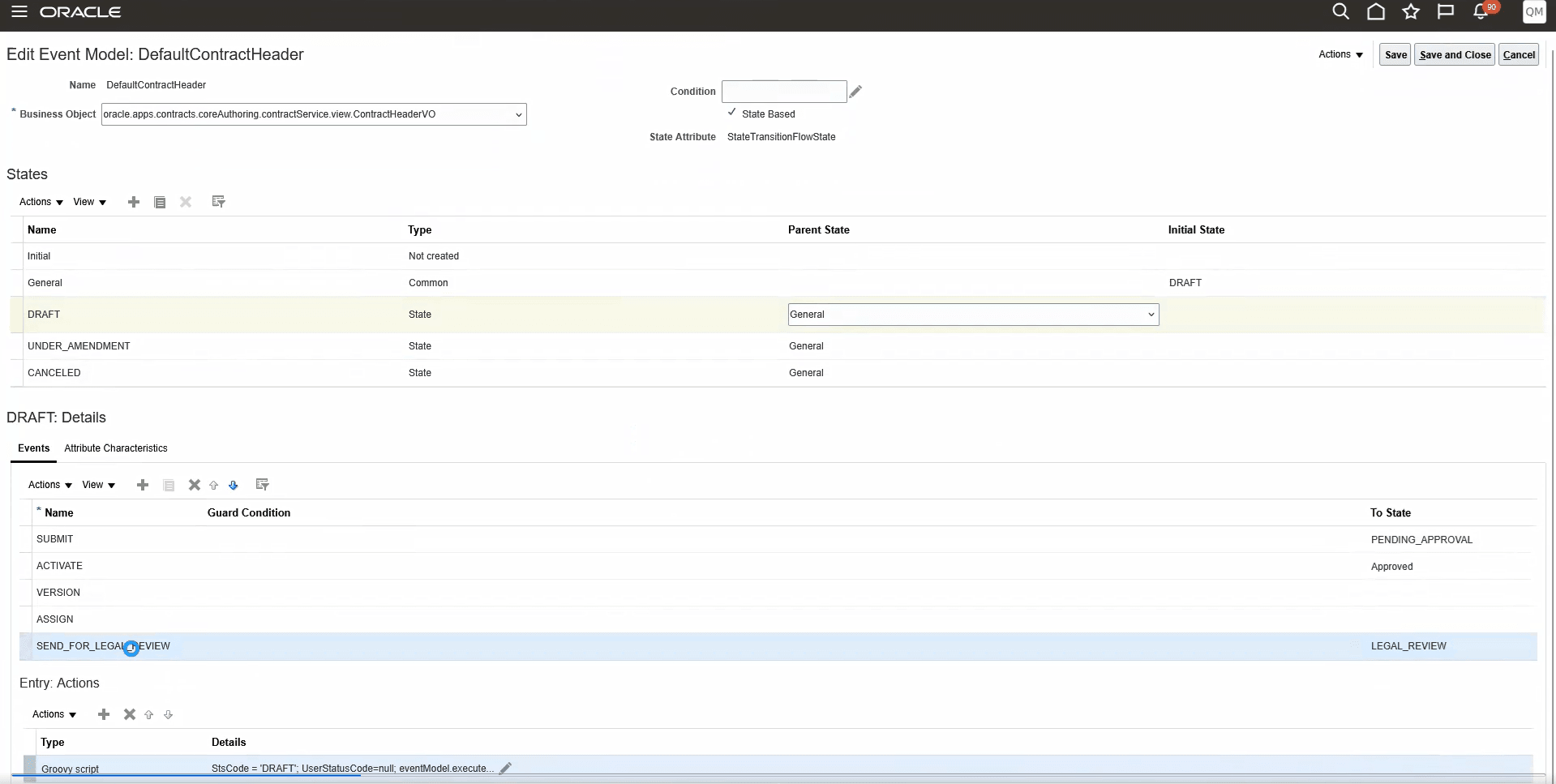
Event Model
3.Create and Activate Sandbox and enable Application Composer
Refer the documentation for creating and activating sandboxes How to create and activate sandboxes
4. In the application composer, select Smart Actions
Select the option 'Create a REST-based action'
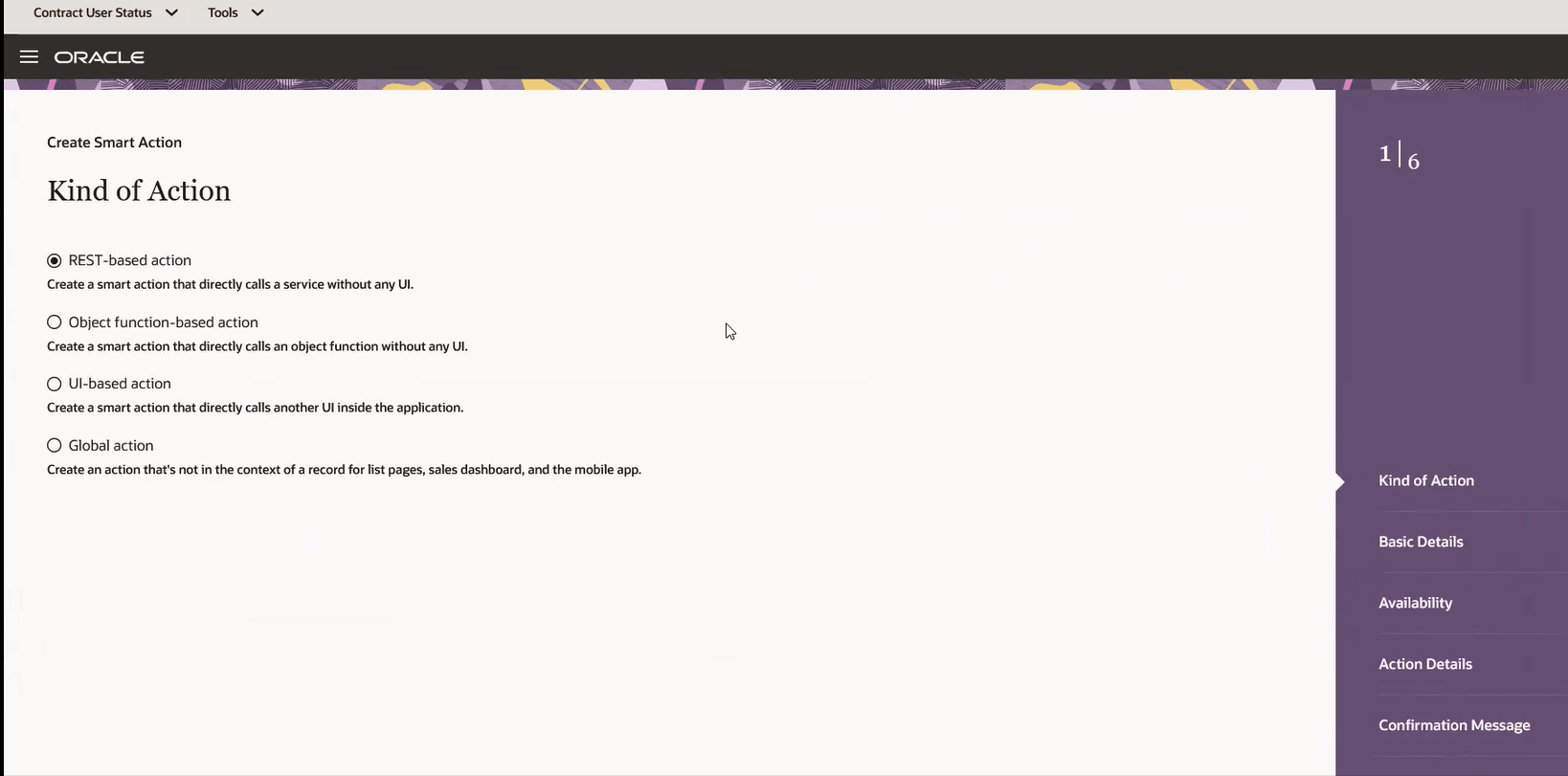
Create Smart Action
5. Add basic details
- Name - Name of the smart action (Menu name the user will see in the Edit contract UI)
- Object - Select object as Contract
- Action ID - Auto-populated
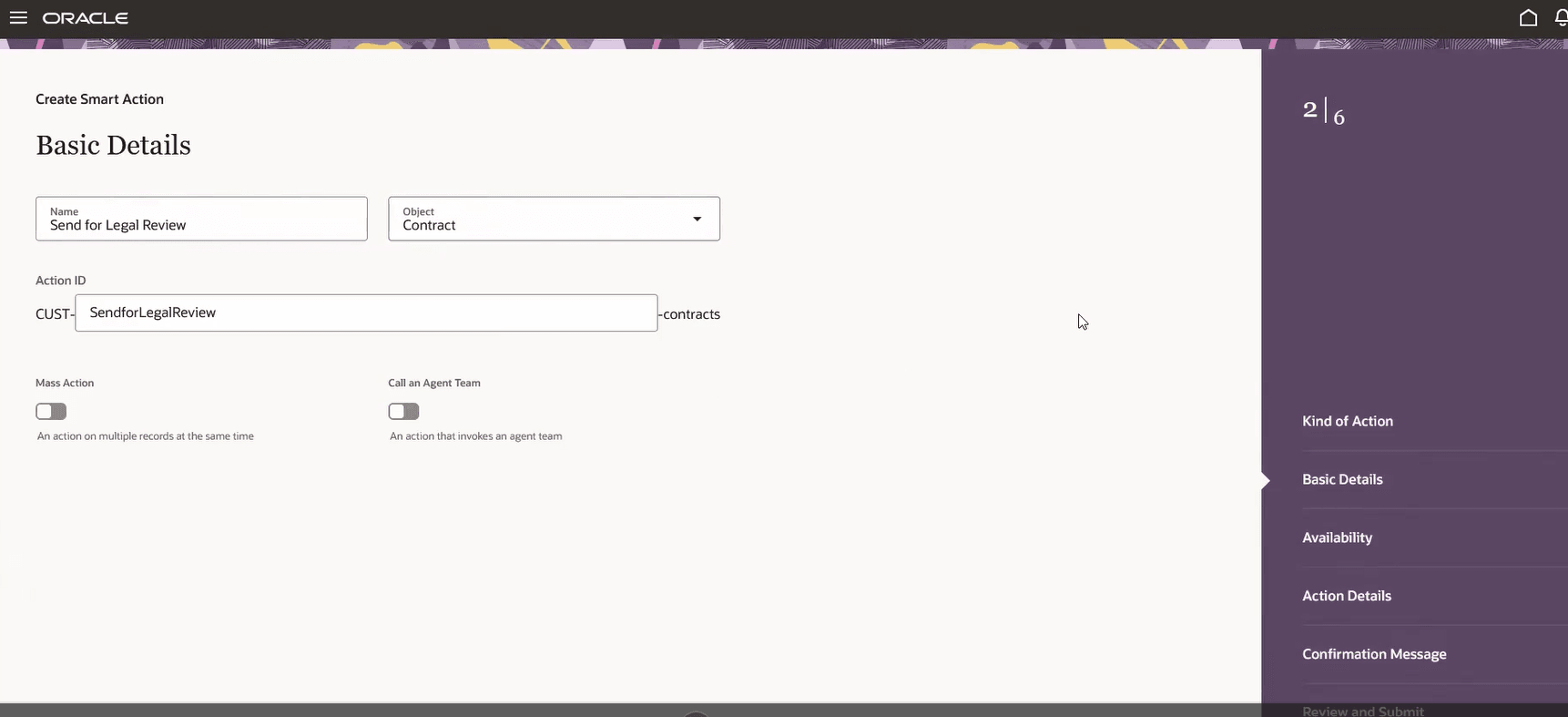
Add Basic Details
6. Availability
In this step, specify in which UI and on what conditions, the smart action should be available
- Application - Contracts
- Attribute - Select UserTransitionCodes
- Operator - Contains
- Value - SEND_FOR_LEGAL_REVIEW (Enter the User Transition code entered in Step 2)
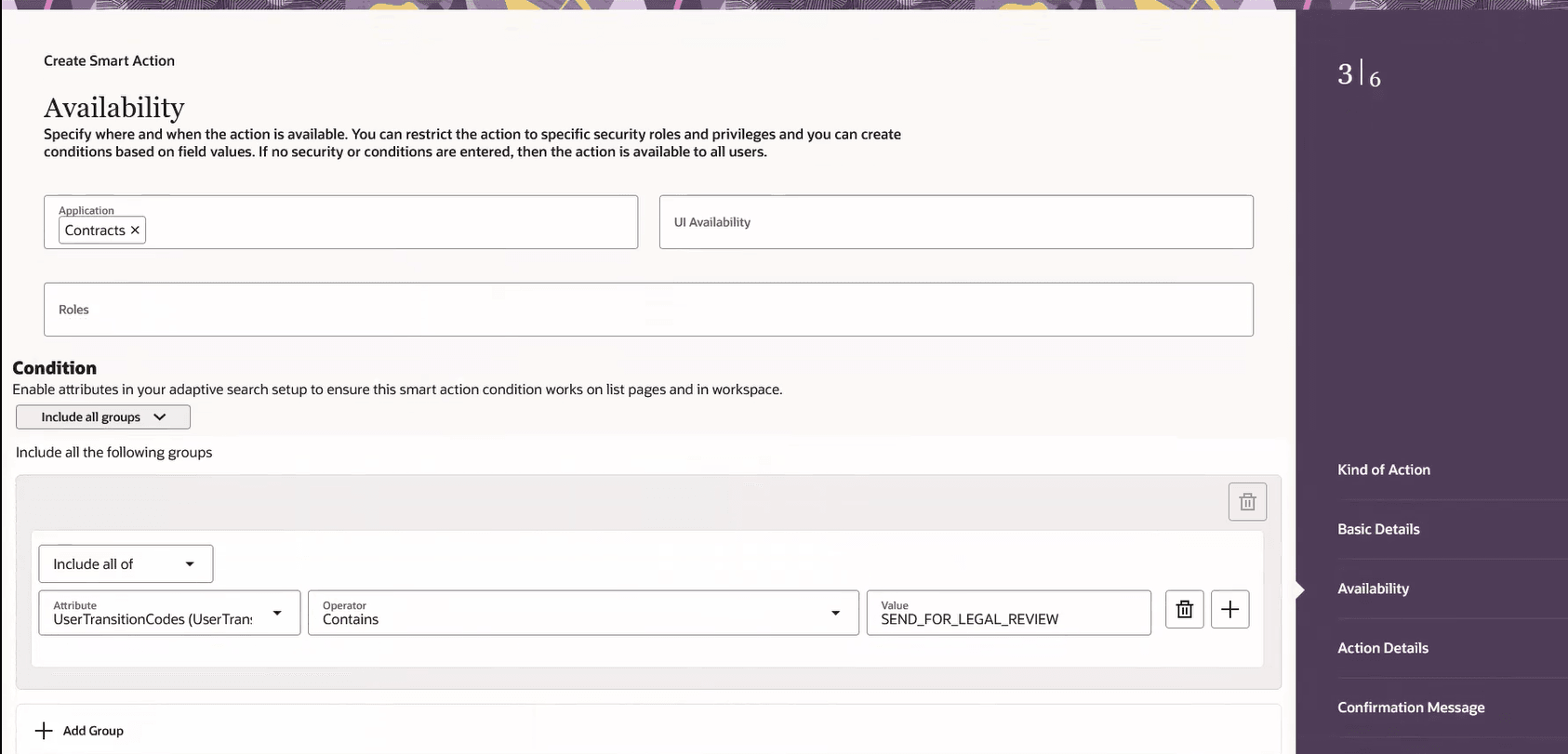
Availability
7. Action Details
- Path - /fscmRestApi/resources/11.13.18.05/contracts/{contracts_Id}/action/raiseUserTransitionEvent
- Method - POST
- Path Parameters - Enter the value for parameter contracts_id as ContractId
- Request Body Parameters - Name - userTransitionCode, Value - SEND_FOR_LEGAL_REVIEW (Enter the User Transition code entered in Step 2)
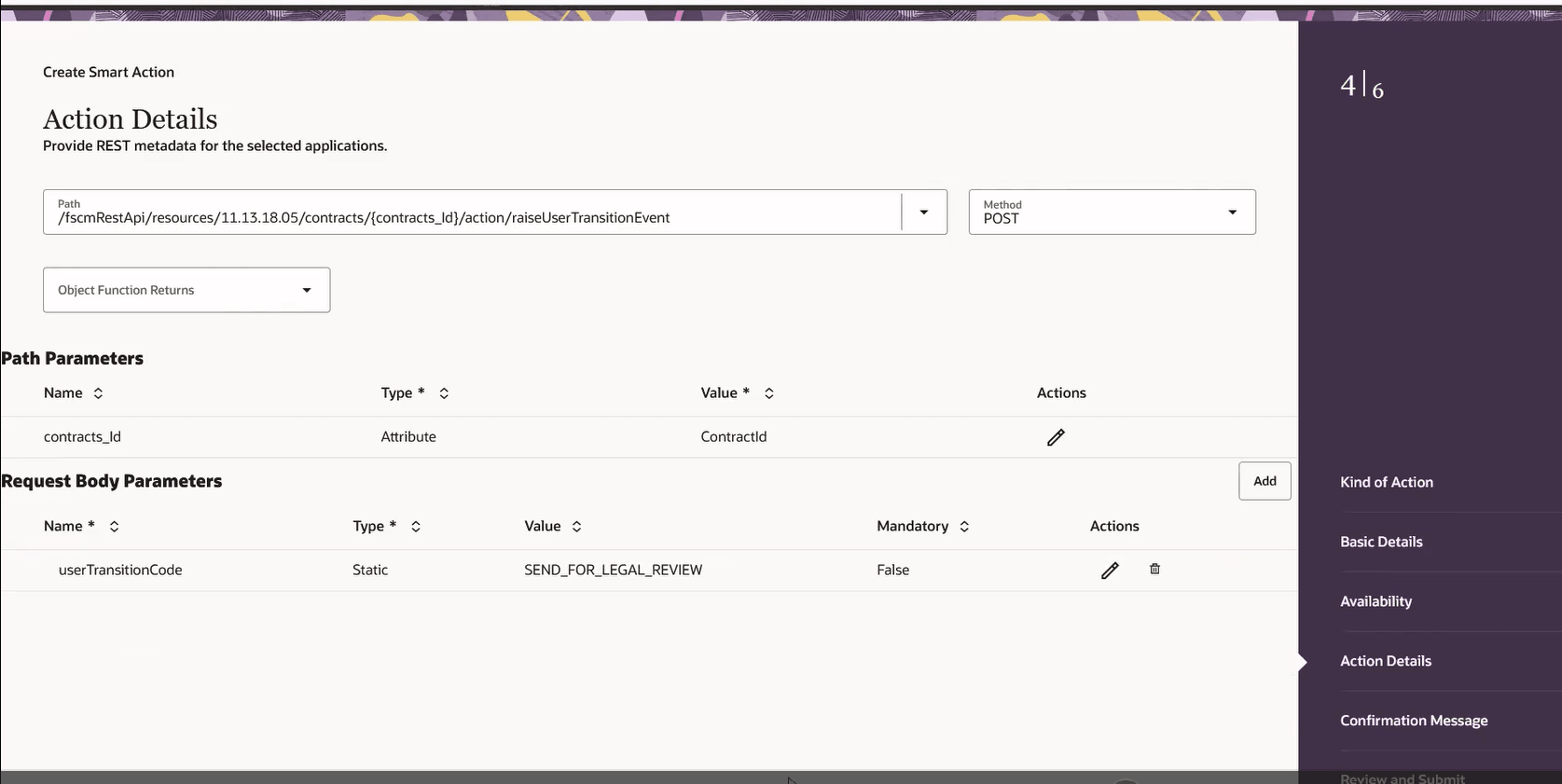
Action Details
8. Confirmation Message
Optionally enter the confirmation message to be displayed in the UI when user clicks on this smart action.
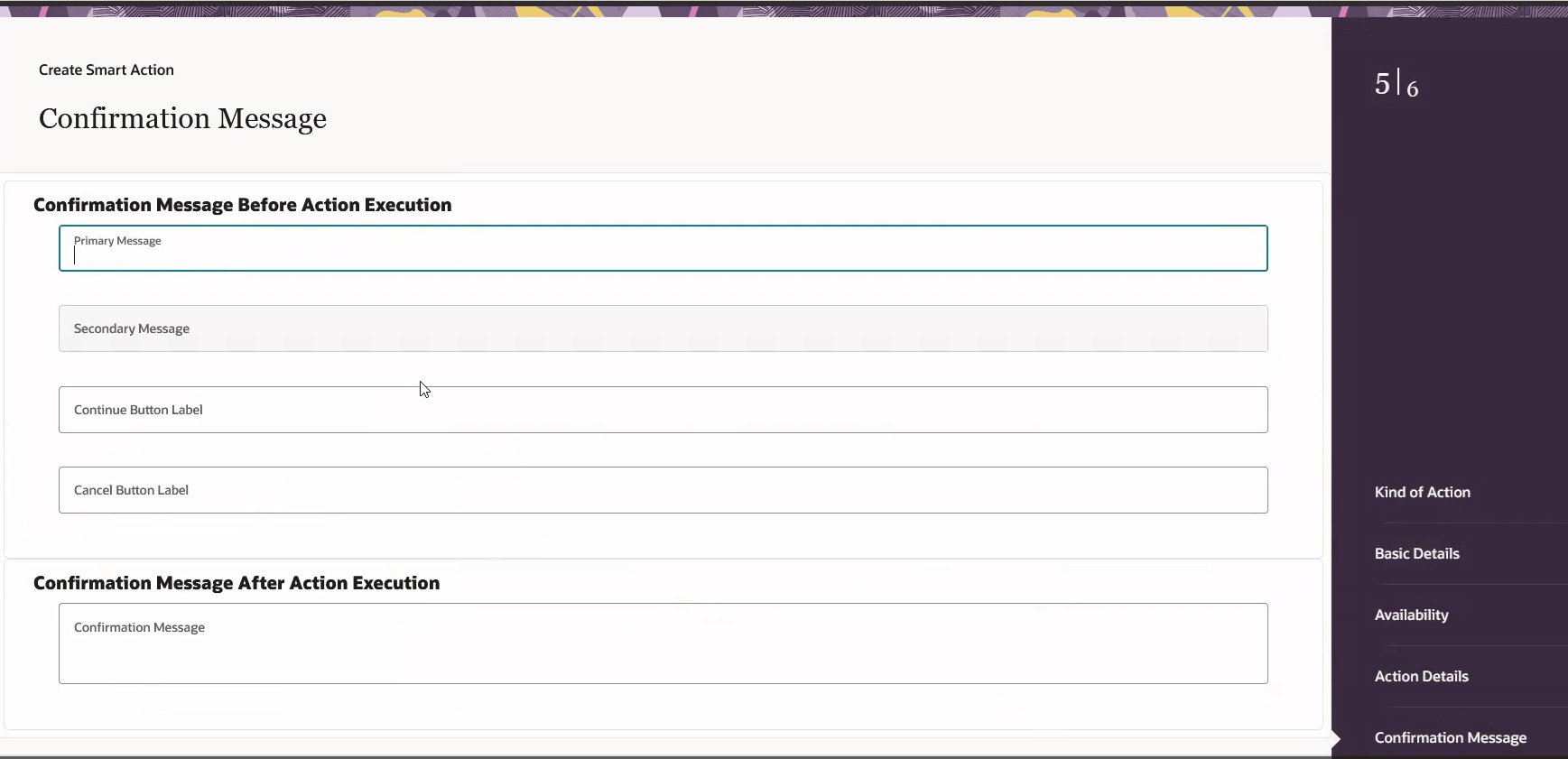
Confirmation Message
9. Review and Submit
Click on Submit after verifying the information.
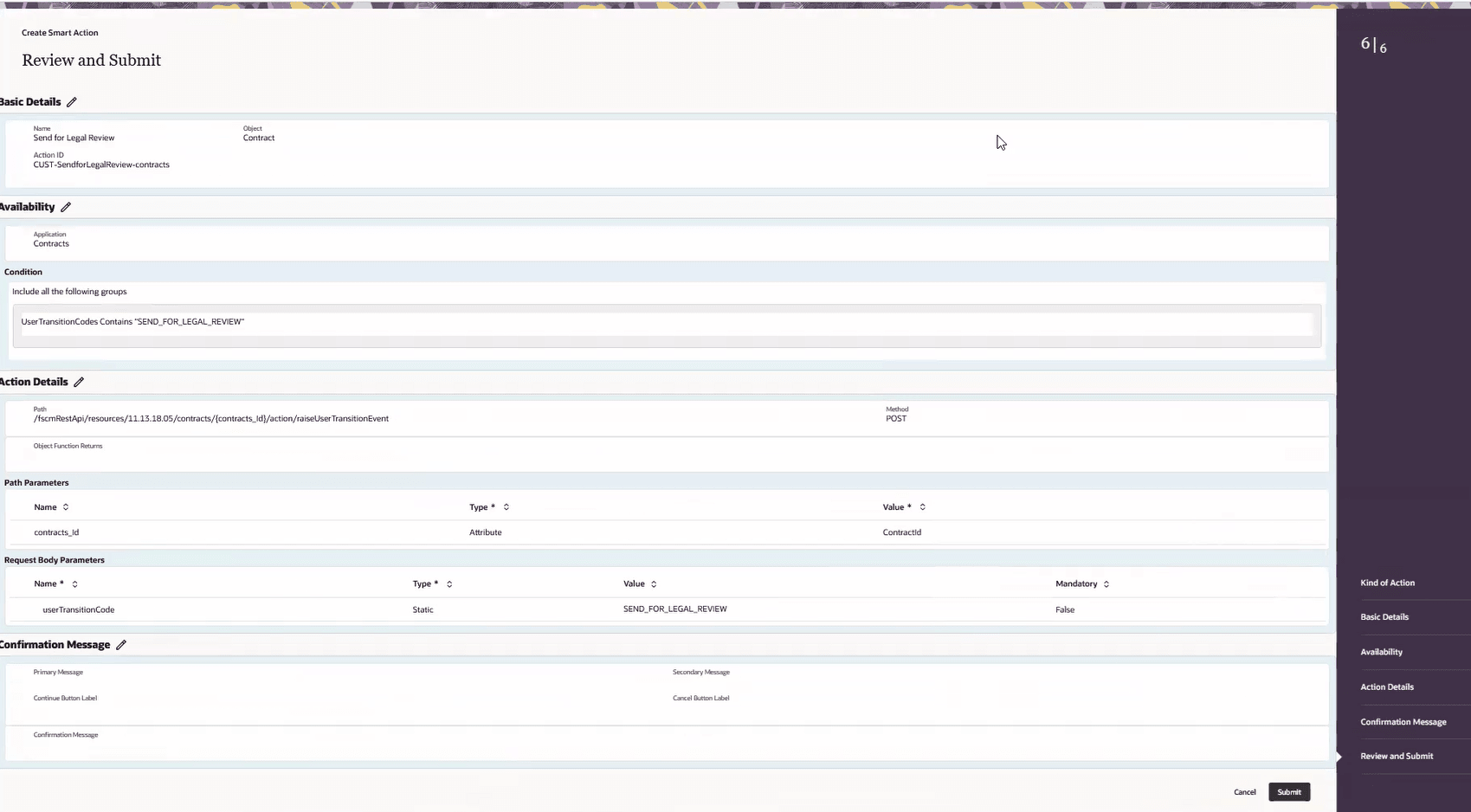
Review
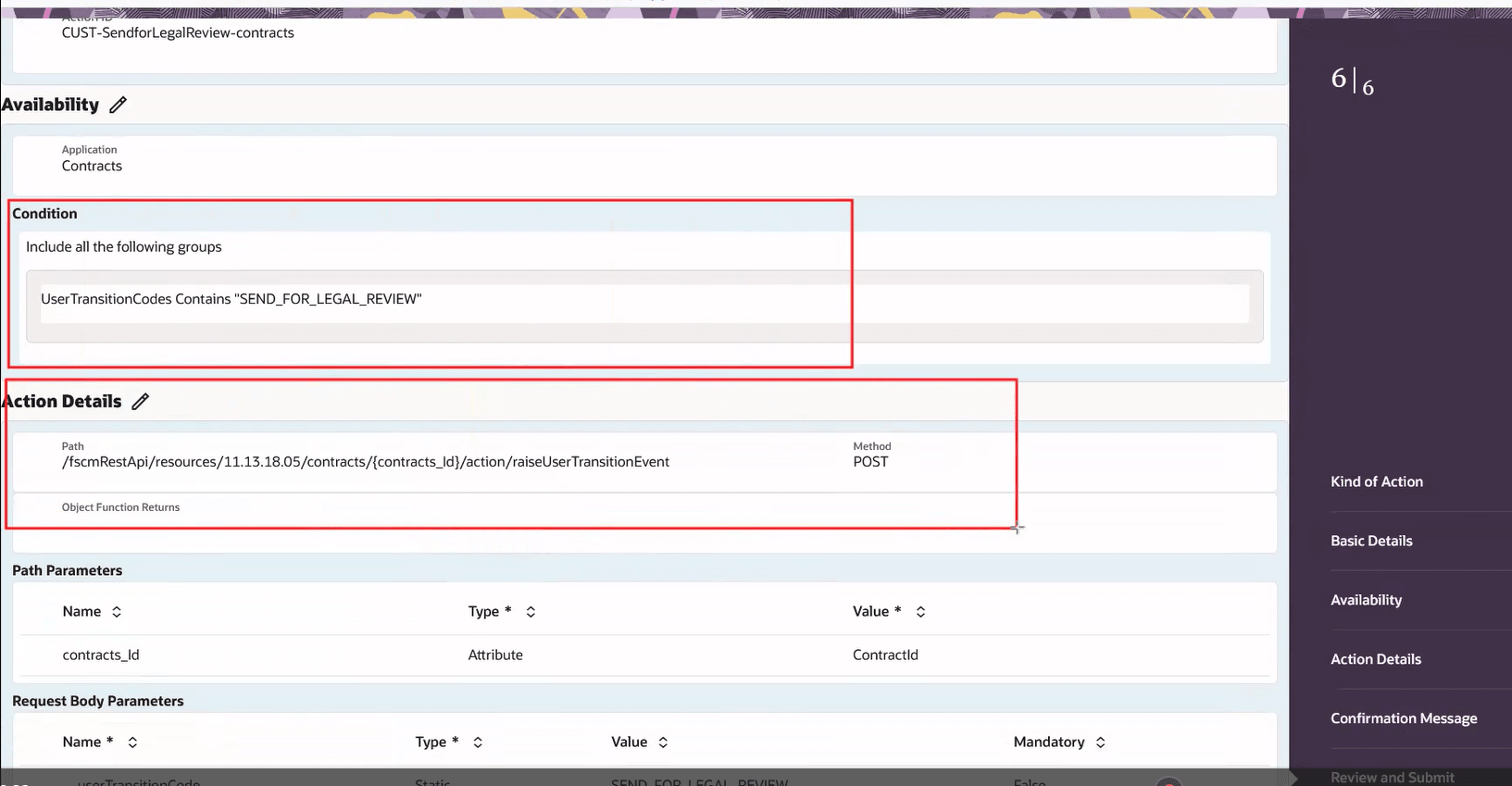
Review and Submit
10. The new smart action 'Send for Legal Review' is available in the Edit contract UI
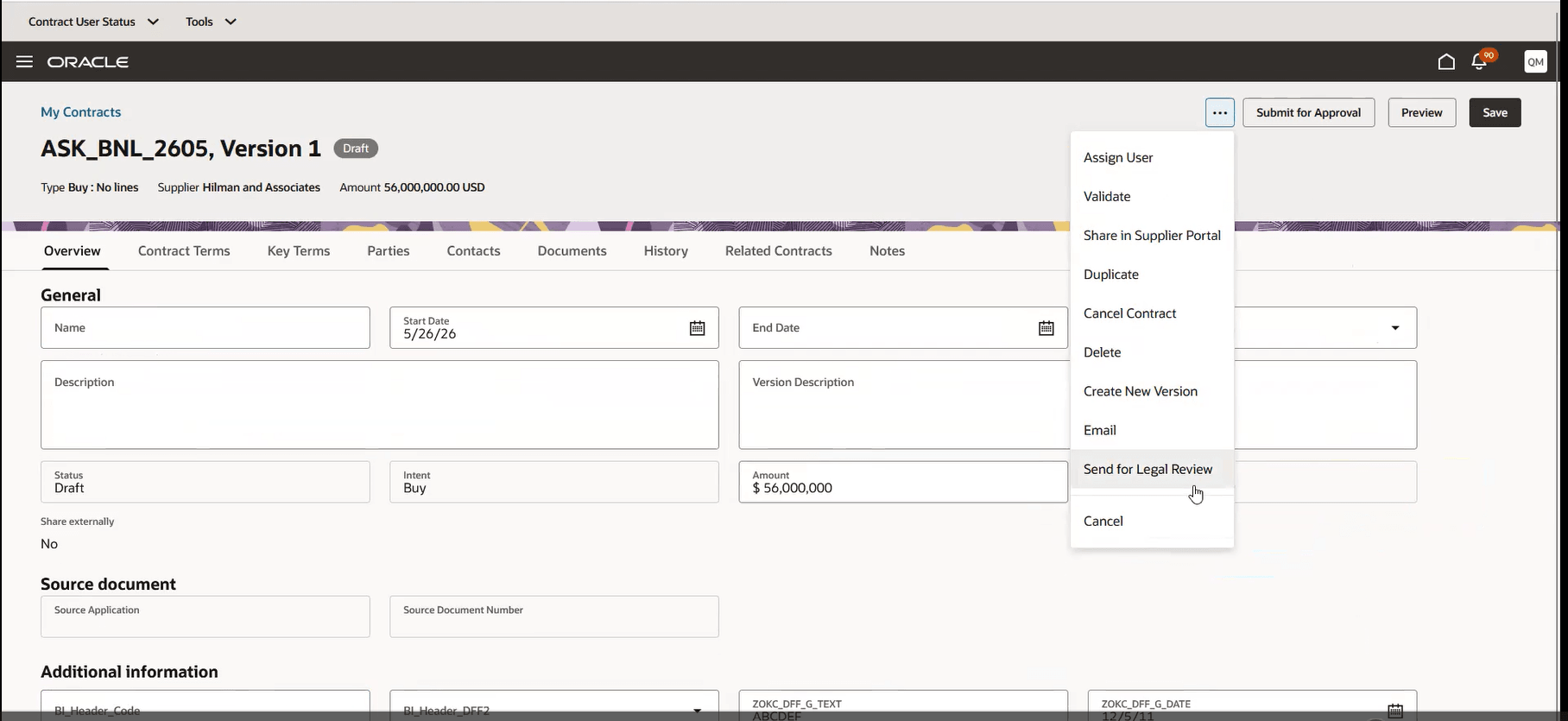
Smart action in contract
11. Verify the user status
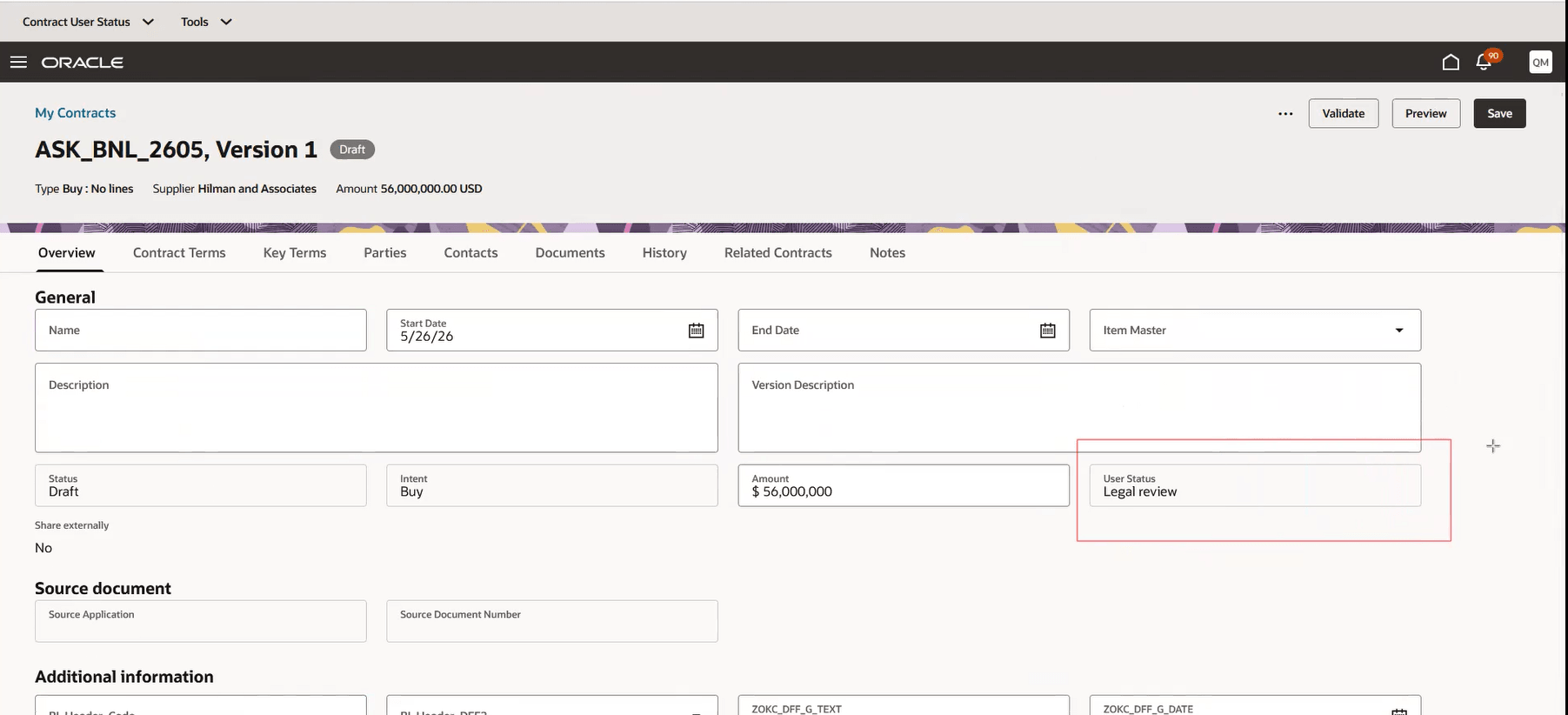
User status in contract
12. After verifying, publish the sandbox
Access requirements
Privileges and Access
Users need the appropriate functional privileges and data access to create, edit, assign, approve, amend, close, delete, or manage signatures for contracts.
Functional Privilege (Required)
Users must be granted the following privilege:
- OKC_VIEW_CONTRACT_PRIV – Allows users to view contract records.
Object Sharing Rules (Minimum of one rule required)
- Contract visibility on the list page is controlled through Access Group object-sharing rules. Users must have at least one applicable Access Group rule assigned, such as All Contracts, Contract Owner Read Access, Contract Owner Full Access, or any other rule configured by your organization, in order to see the relevant contract records on the Contracts list page.
For Additional Information refer to : https://docs.oracle.com/en/cloud/saas/sales/fasrd/run-setup-assistant.html#u30250326
- They are contract team members with read-only team access.
- They have only contract search and view access at the business unit level.
Read-only users can view contracts but can't make changes.