View product associations for coverage and subscriptions
Sales users can identify how coverage and subscription products are associated with order lines or assets directly in Oracle CPQ. The Products Line Item Grid makes product relationships visible in the quote line grid and in the Manage Association drawer, helping users understand association context without manual lookup.
This feature is available for Standard ABO.
Use product associations visibility to:
- See when a product line has an associated product relationship.
- Review coverage and subscription relationships for current quote, prior booked quote, and asset scenarios.
- Confirm the latest selected association in the Manage Association drawer when revisiting an associated line.
- Validate association details before taking action in quoting, renewal, or support scenarios.
This feature improves transparency into product relationships so users can make faster, more accurate decisions during quoting, renewals, and support scenarios. Centralizing association details reduces ambiguity and helps users validate product relationships before taking action.
Steps to enable and configure
To enable this feature, administrators must add the Standard Process Associate Product action. Refer to the following procedures:
- Enable Standard ABO. Refer to the Steps to Enable for Access to Standard Asset-Based Ordering.
- Add the Associate Product action to the transaction/quote layout using the Redwood Quote UI. Refer to Quote Designer Actions in the Oracle CPQ Administration Online Help.
Once enabled, sales users can perform the following:
- Create a new quote or open an existing quote and select a coverage or subscription product in the Line Item Grid.
- Click the Associate Product action for the line item.
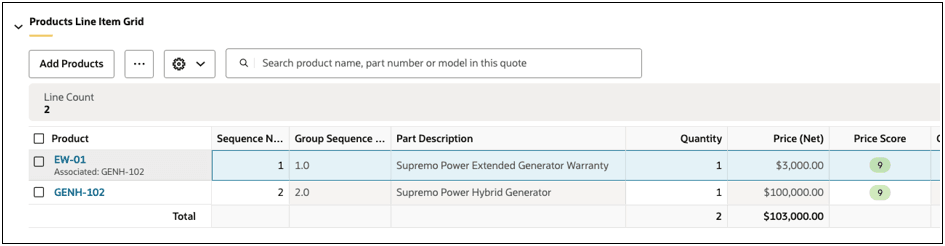
- Once a selection is made and saved, the association is reflected in the Line Item Grid below the product name.
- To reselect a product, select a product line that displays a product association indicator.
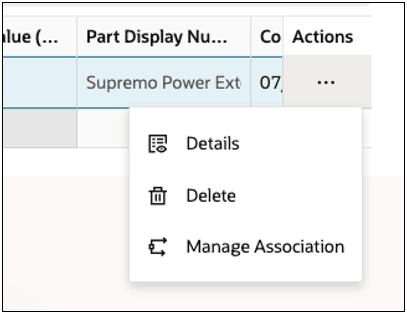
- Select Manage Association action from the Actions drop-down menu for the product line, or select Associate Product action again.
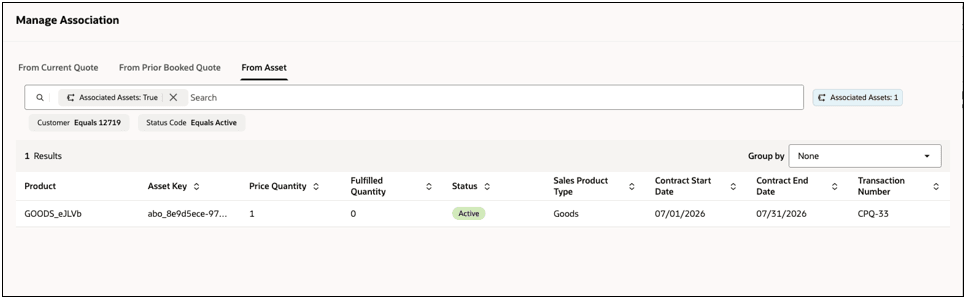
- Review the associated products in the Manage Association drawer an re-select a different product as need.
Tips and considerations
- The Product Associations indicator appears only when a supported association exists for the line.
- The Manage Association drawer shows the latest selected association when users reopen it.
- Users are able to re-select a product by removing the associated filter.
- Each line is treated as a coverage, subscription, or goods line for association handling; unsupported association combinations are excluded.