Increase the Number of Forecasted Combinations in a Plan
The time taken to run a plan in Oracle Demand Management is proportional to the number of forecasted combinations. A combination refers to the lowest level of dimensional data for which a forecast is generated. For example, you can have individual forecasts for combinations of customer sites, ship-from organizations, and items.
Through techniques such as parallelization, the number of combinations that you can forecast for in a plan is now approximately double the previous limit for the same time buckets and granularity. Using this feature, you can forecast for your enterprise in a single plan without any additional work and experience productivity improvements, such as less IT maintenance, reduced planning cycle times due to a smaller number of batch processes, and improved visibility into demand across the enterprise.
Forecasted combinations refer to the unique item, organization, customer site, and demand class combinations in a single demand plan for which demand data exists and not all the possible combinations of these levels. These combinations are primarily determined by historical demand. However, if you’re also forecasting for new products for which there’s no historical demand, these products are included in the count of forecasted combinations.
With this update, after you enable this feature, the recommended maximum number of forecasted combinations for a demand plan increases to the following:
| Planning Time Level | 2 Years’ History + 1 Year’s Forecast | 3 Years' History + 2 Years’ Forecast |
|---|---|---|
| Month-level and period-level plans | 1.6 million | 1.2 million |
| Week-level and Hybrid-time-level plans | 1 million | 600,000 |
| Day-level plans | 160,000 | 120,000 |
For demand plans for configure-to-order (CTO) products, these recommendations apply; however, the items must include the model bills of material (BOMs), option classes, and options.
These recommended limits aren’t enforced in Demand Management. However, if you exceed these limits, you will likely experience a degradation in performance.
Steps to Enable and Configure
To support backward compatibility and avoid any adverse impact on plan runtime, this feature is delivered disabled by default. You can enable this feature for any demand plan.
If you're using the Redwood UI, to enable this feature for your demand plan, follow these steps:
- In your demand plan, click More Actions > View More.
The Actions drawer opens.
- Click Edit Plan Options in the Plan Actions section.
The guided process for editing the plan opens on a new tab.
- Navigate to the Technical options step.
- On the Demand Control Parameters tab, in the Demand Parameter Overrides field, enter the following:
partitioningAndReorderingOfDYDTables=true
You must enter this value exactly as shown and with no spaces.
If there are other entries in the field, then enter this value at the end with a number sign (#) to separate the value from the existing values (for example, REFRESH=TRUE#partitioningAndReorderingOfDYDTables=true).
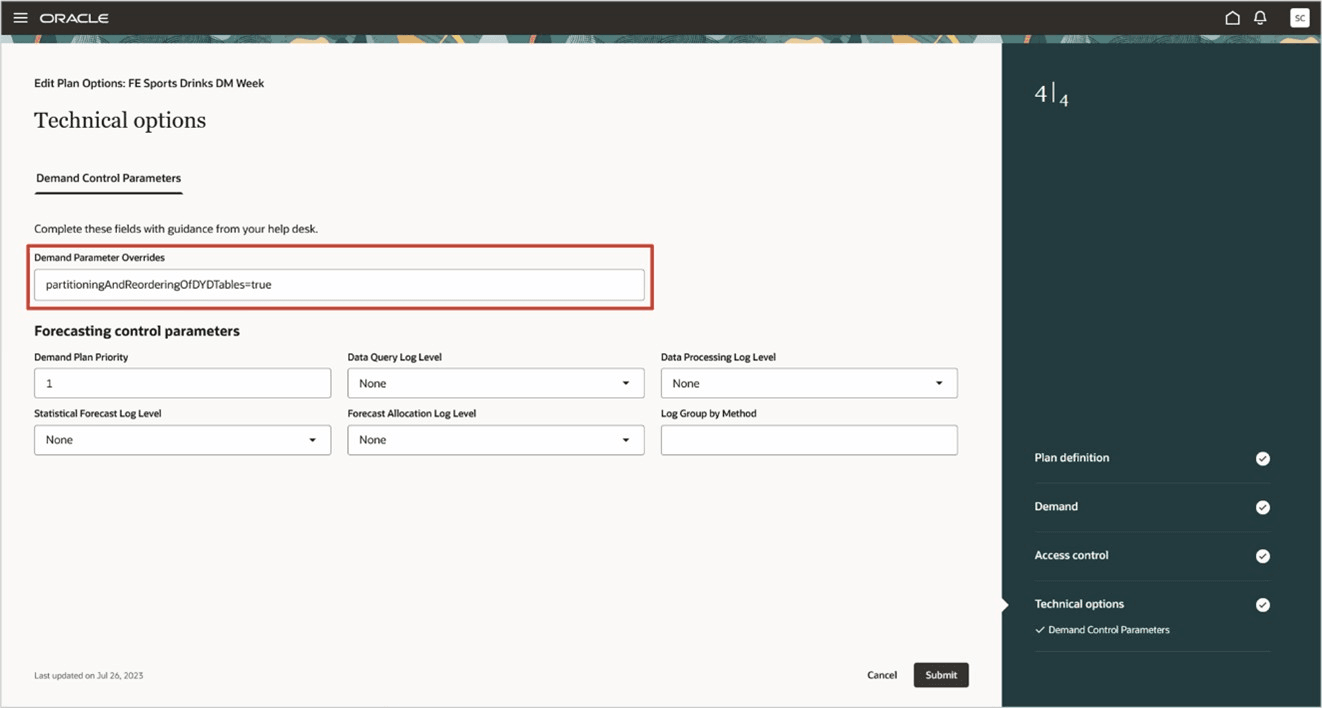
Demand Parameter Overrides Field in Technical Options Step of Guided Process
- Click Submit.
- In your demand plan, click More Actions > Run.
The Run plan drawer opens.
- Run your plan with the Refresh with current data option selected.
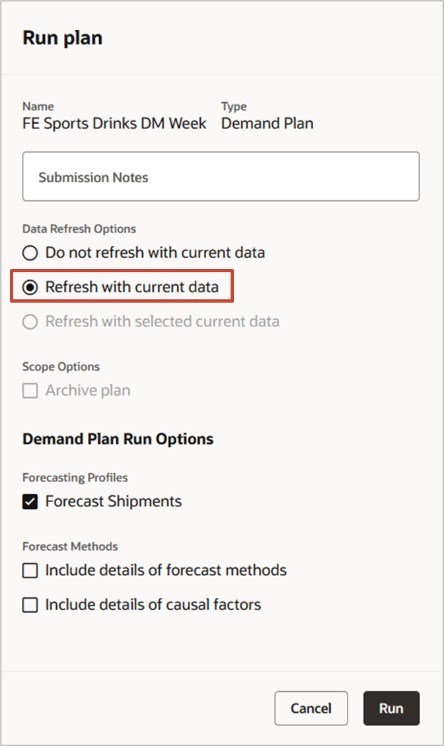
Run Plan Drawer
If you’re using the classic UI, to enable this feature for your demand plan, follow these steps:
- On the Demand tab on the Plan Options page for your demand plan, click Select Advanced Options.
The Demand: Advanced Options dialog box opens.
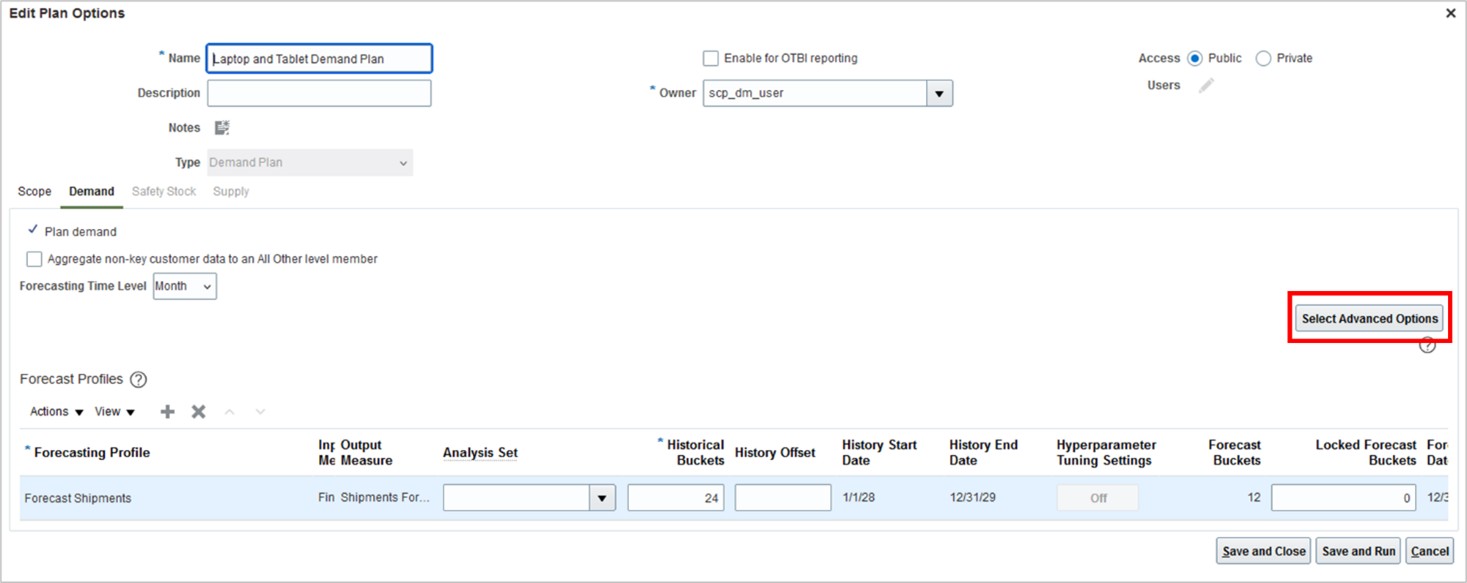
Demand Tab on Plan Options Page
- In the section named Forecasting Control Parameters, in the Parameter Overrides field, enter the following:
partitioningAndReorderingOfDYDTables=true
You must enter this value exactly as shown and with no spaces.
If there are other entries in the field, then enter this value at the end with a number sign (#) to separate the value from the existing values (for example, REFRESH=TRUE#partitioningAndReorderingOfDYDTables=true).
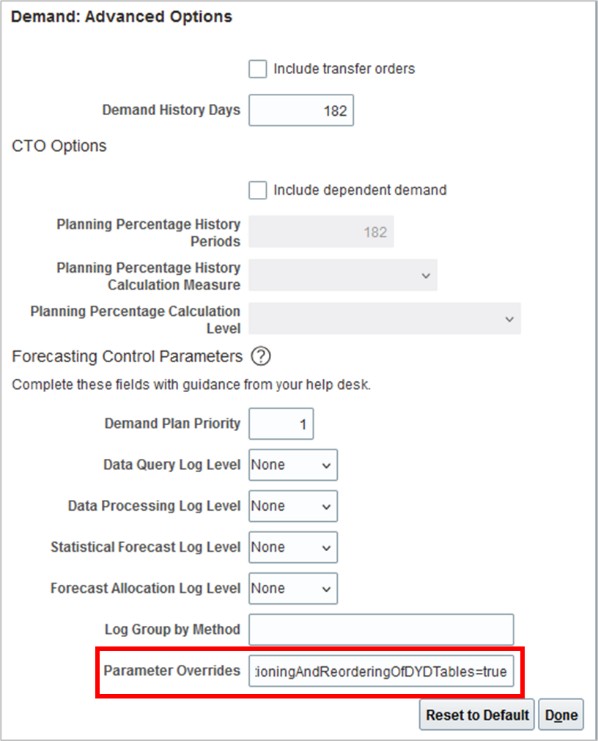
Demand: Advanced Options Dialog Box
- Click Done.
- Save your plan.
- Run your plan with the Refresh with current data option selected on the Parameters tab in the Run Plan dialog box.
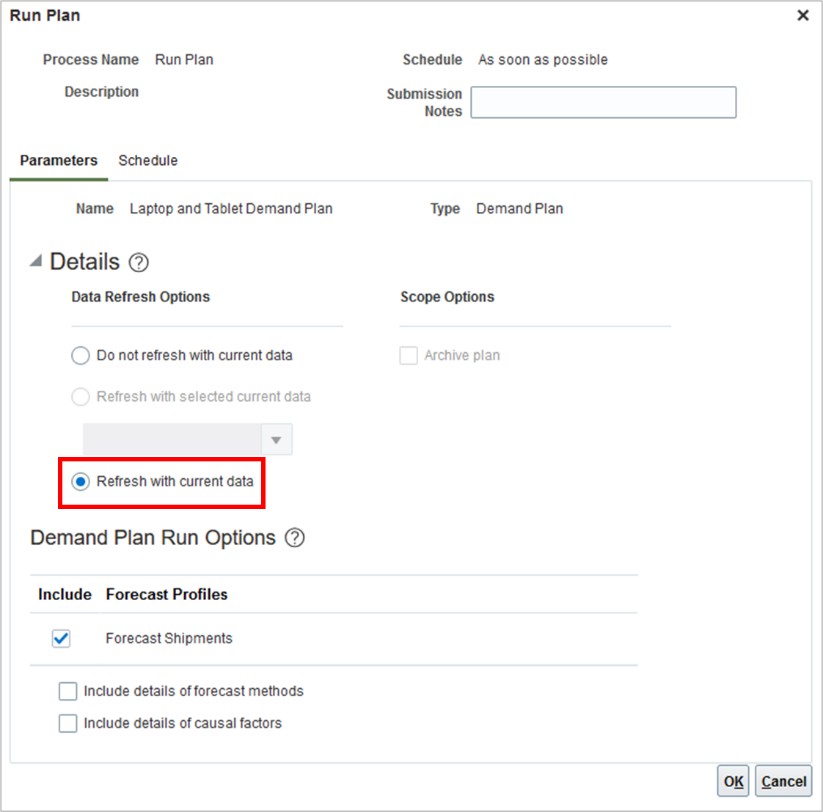
Run Plan Dialog Box
During the plan run, the database tables that store the measure data for the plan will be partitioned by product. This partitioning has been shown to improve the interactive performance of tables and graphs. The level of improvement will vary on the basis of the amount of data being retrieved and the filters being used. Tables and graphs that are filtered by product or product and organization will see the greatest improvement in performance.
Once the plan has been run successfully, you can optionally remove the parameter for enabling the feature from the Demand Parameter Overrides or Parameter Overrides field. Subsequent plan runs will retain the partitioning of database tables regardless of whether this parameter remains. There’s no adverse impact of leaving the parameter in place.
Tips And Considerations
If you discover any negative impacts after enabling this feature, you can disable it for your demand plan by entering this parameter in the Demand Parameter Overrides or Parameter Overrides field:
partitioningAndReorderingOfDYDTables=true,#DMUTL=unpartition=DMUTL#
You must enter this value exactly as shown and with no spaces. If the value for enabling the feature is present, the value should be replaced by the value for disabling the feature. If there are other entries in the field, then enter the value for disabling the feature at the end with a number sign (#) to separate the value from the existing values.
After making the changes, run your plan with the Refresh with current data option selected as previously described.
During the plan run, partitions will be removed from the database tables that store measure data for the plan.
Once the plan has been run successfully, you can optionally remove the parameter for disabling the feature from the Demand Parameter Overrides or Parameter Overrides field. There’s no adverse impact of leaving the parameter in place.
Access Requirements
Users who are assigned a configured job role that contains these privileges can access this feature:
- Monitor Demand Management Work Area (MSC_MONITOR_DEMAND_MANAGEMENT_WORK_AREA_PRIV)
- Run Plan with Snapshot (MSC_RUN_PLAN_WITH_SNAPSHOT_PRIV)
These privileges were available prior to this update.