Redwood: Eliminate Customer Setup for Order to Cash Messaging
Use the Redwood B2B Documents task to set up default B2B connections for outbound PO acknowledgments and ASNs. B2B messaging can now use the default settings to route messages, eliminating the need to configure connection details for each customer.
Here are the messages covered by this feature:
- Purchase Order Acknowledgment - Outbound
- Purchase Order Change Acknowledgment - Outbound
- Advance Ship Notice - Outbound
- Purchase Order - Inbound
- Purchase Order Change - Inbound
- Purchase Order Cancellation - Inbound
You can reduce the setup time as you can define a default connection for each outbound document and get partner identification from the message payload. If you're using a single service provider, there is no other customer-specific setup required to send acknowledgments or shipments. You'll just need an active connection and partner properties for inbound orders.
Steps to enable and configure
Enable the feature Simplify Configuration and Processing for B2B Messaging to access this functionality. This will migrate and enable all documents with transactions in the last 90 days. If there aren’t any, you'll have to enable the documents you need manually by going to the B2B Documents page.
If you have enabled the feature prior to this release, you'll need to run the scheduled process Maintain Collaboration Messaging Data and select the action Migrate additional documents for simplified B2B messaging.
Perform the following high-level tasks to set up your documents:
- Define your providers (direct and service providers).
- Configure your delivery methods.
- Create connections.
- Assign connections and properties to your documents.
- Add B2B partner properties.
Define Your Providers
- Select B2B Connections from the Task Panel.
- Select the Providers tab to add a new provider.
- Select Direct or Service Provider as the Provider Type and add the remaining details.
- Click Save.
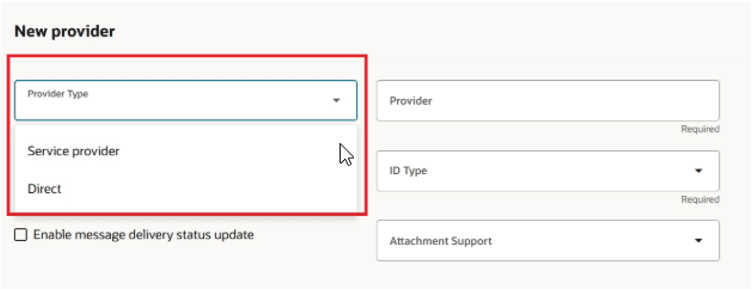
Add a Provider
Configure a Delivery Method
- Select B2B Connections from the Task Panel.
- Select the Delivery Methods tab and add a new delivery method. Enter details for the delivery method.
- Delivery methods that are associated with a provider can only be used for that provider when creating connections. You don’t need to create delivery methods for B2B Adapter or Business Event. When you’re creating connections, you can select one of the values below for these delivery method types:
- ORA_B2BAdapter
- ORA_BusinessEvent
- Click Save.
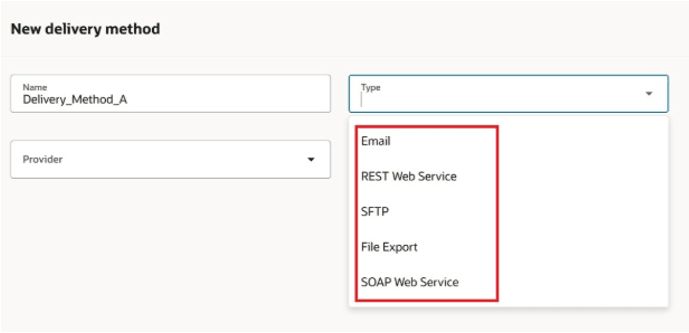
Add a New Delivery Method
Create a Connection for Each of the Documents You Exchange
- Select B2B Connections from the Task Panel.
- Select the Connections tab.
- Click Add to add a new connection and enter the details. Set the status to Active and click Submit.
- Repeat this process to create connections for all your order-to-cash documents.
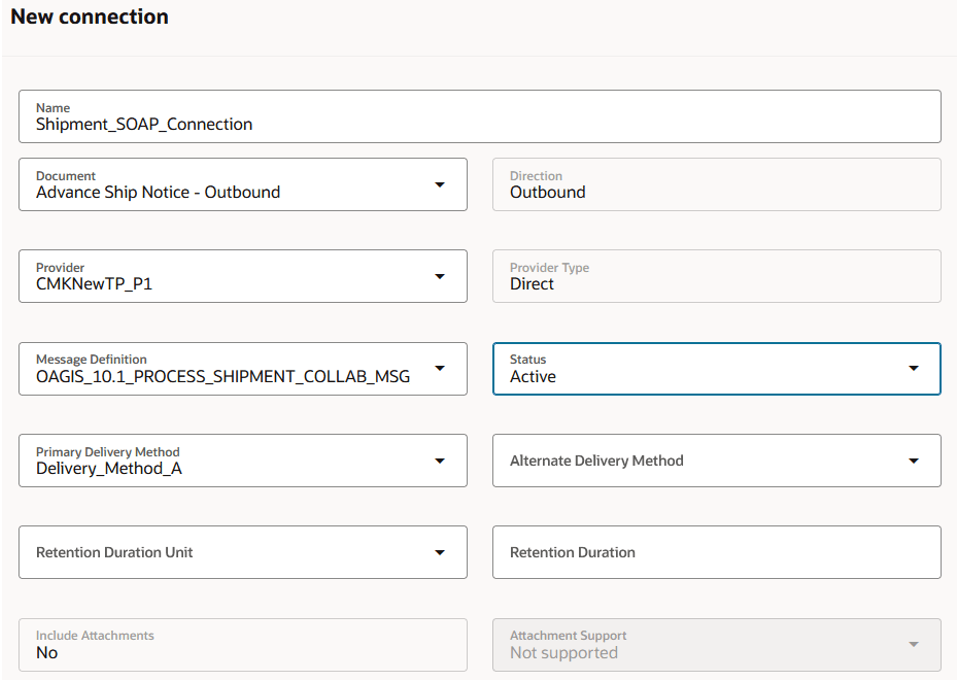
Add a Connection
Assign Connections to Documents
- Select B2B Documents from the Task Panel.
- Select each order-to-cash document and set the Enabled field to Yes. Select Configure Document Properties to define any properties specific to the selected document.
- For outbound documents, you can configure the document so that you get the partner information from the payload for message processing.
- Enable the property group Partner identification from payload.
- Select Edit Properties and enter a value for Partner ID path. You can also enter a value for Partner ID type path. If you don’t enter a value, the partner ID type Generic is used.
- Click Submit.
- For order-to-cash inbound documents, you can configure the document so that the Load Interface File for Import scheduled process is submitted on receipt of purchase orders.
- Enable the property group Document properties.
- Select Edit Properties
- Select Initiate Load Interface File for Import on receipt of orders. Click Edit. Select Yes.
- Click Submit.
- On the B2B Documents page, select the outbound document you are configuring and click Assign Connections.
- On the Assign Connections page, select a default connection for the document and enable it. You can also assign a customer connection.
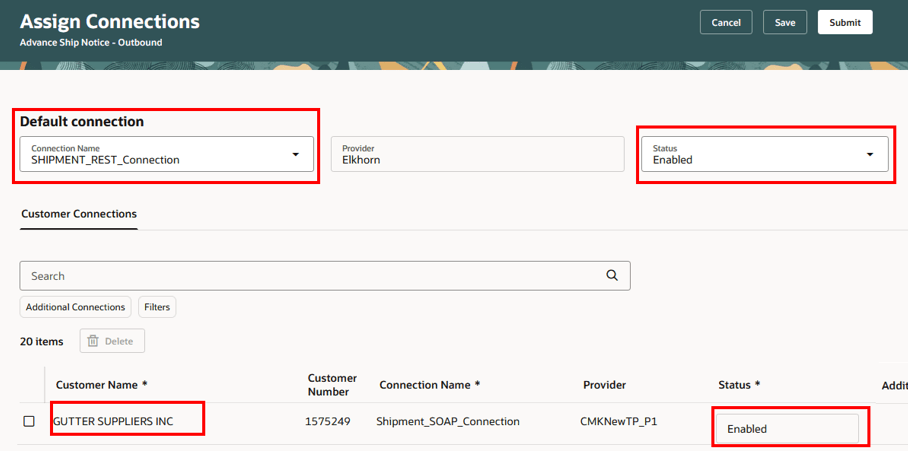
Default and Customer Connection
- You can’t assign connections to inbound documents, but you must have active connections for each of your inbound documents.
Set Up B2B Partner Properties
You can define B2B properties for the following use cases:
- Associate the BU for the inbound orders.
- Associate domain value maps to your customers.
- When you're using a service provider and you haven’t configured the document property to get partner identification from payload, you'll need to add B2B properties to define partner information.
Here’s how you add B2B properties:
- Select B2B Partners from the Task Panel.
- Click Add on the Customer B2B Properties tab.
- Enter the customer details on the Add customer B2B properties drawer. Note that the customer account is not needed.
- Click Save.
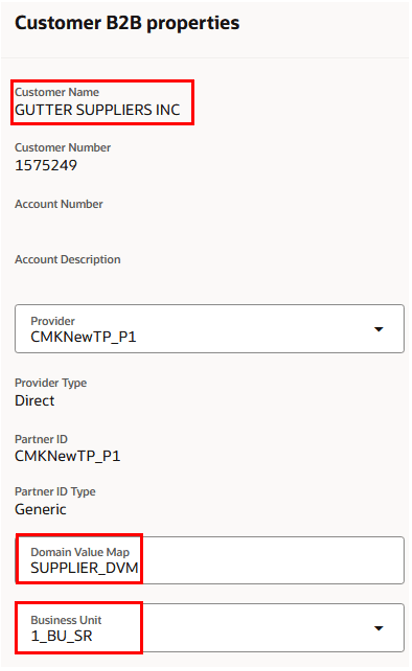
Add Customer B2B Properties
Tips and considerations
- Order-to-cash inbound documents require Customer B2B properties for proper partner and BU identification and processing.
- UBL-2-1-InvoiceApplicationResponse-In (Invoice Acknowledgment - Inbound) is no longer available as of this update. Use the message UBL-2-1-ConfirmMessageReceipt-In (B2B Message Processing Result - Inbound).
Access requirements
Users who are assigned a configured job role that contains these privileges can access this feature:
- Manage Collaboration Message Definitions by Web Service (CMK_MANAGE_COLLAB_MESG_DEFINITION_WEB_SERVICE_PRIV)
- View Collaboration Message Definitions by Web Service (CMK_VIEW_COLLAB_MESG_DEFINITION_WEB_SERVICE_PRIV)
These privileges were available prior to this update.