Redwood: Reassign Items to a Catalog Category
You can efficiently reassign multiple items to the relevant catalog category in a single action using the mass reassign items to catalog categories guided task flow. This streamlines catalog management by reducing the time and effort needed to reassign items one by one.
On the Product Management page, click the View all actions link in the Actions section as shown in the following screenshot.
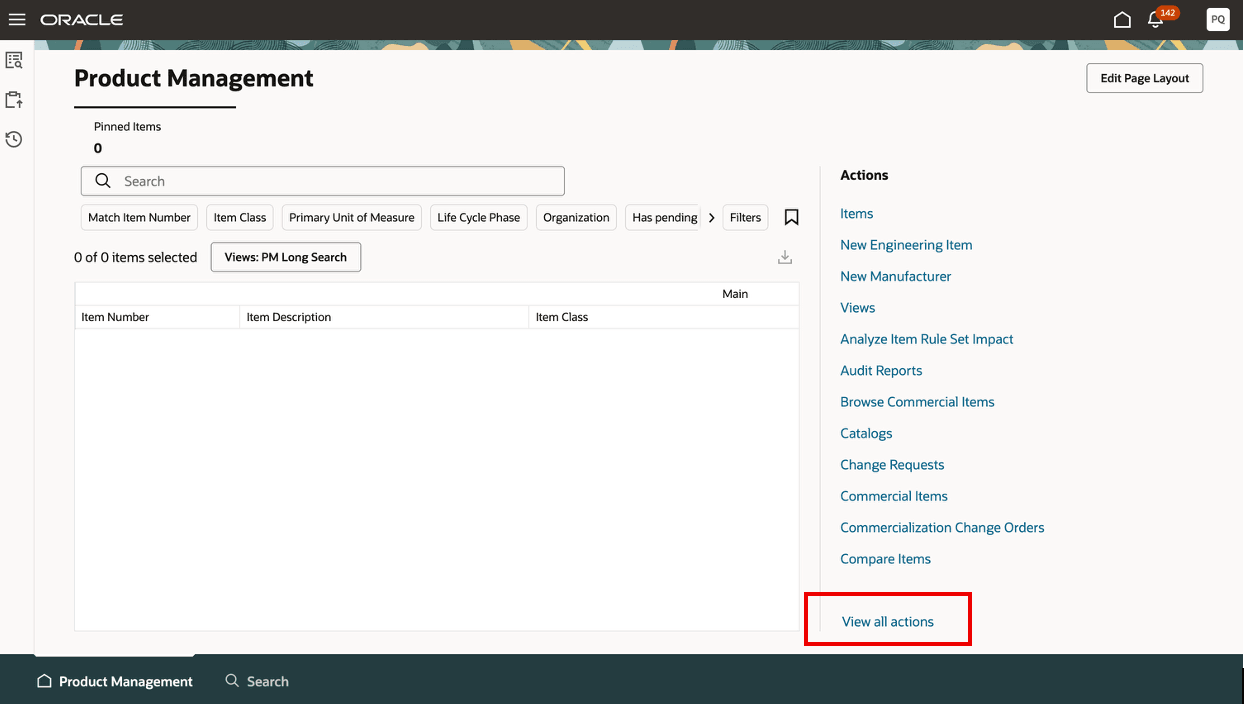
Product Management Page – View All Actions Link
The Actions drawer is displayed. Search for and select Guided Tasks as shown in the following screenshot.
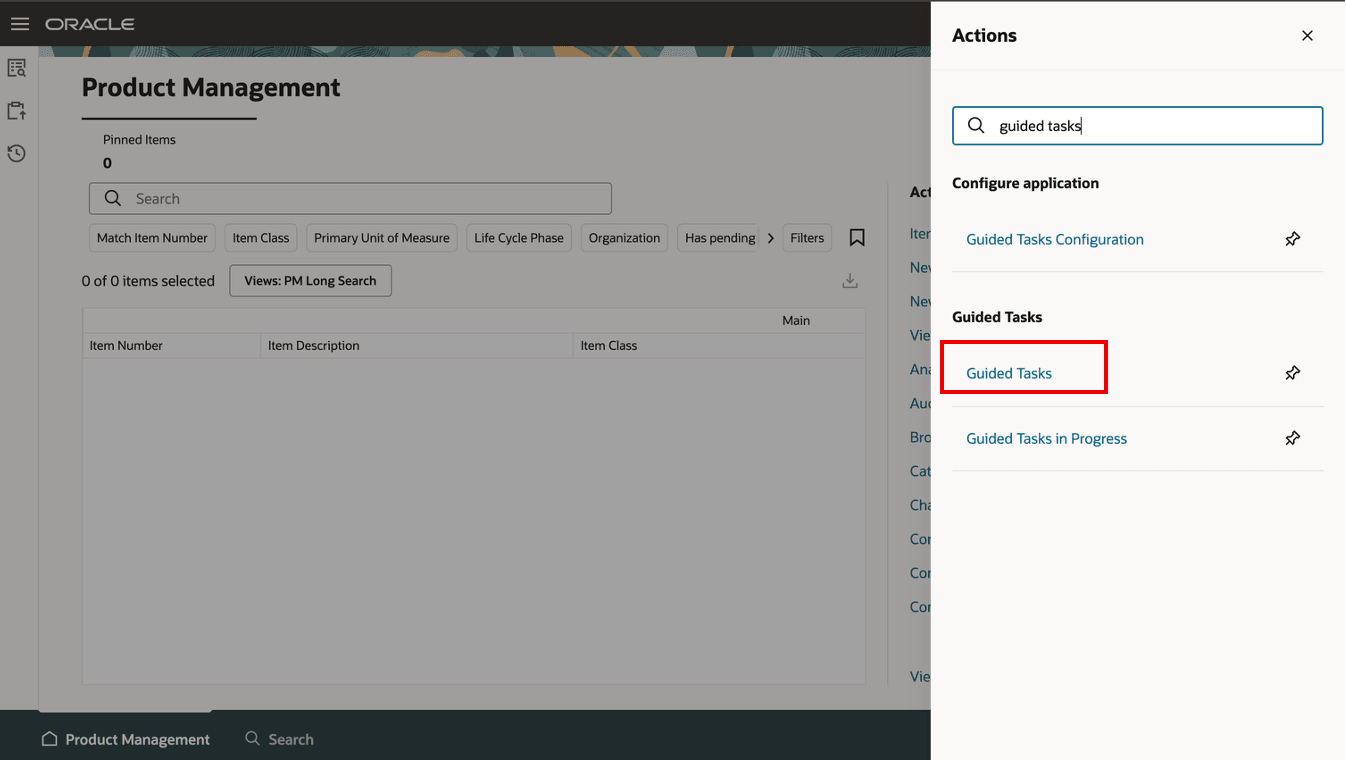
Actions Drawer – Guided Tasks
The Perform Guided Tasks page displays the available guided task flows.
On the Perform Guided Tasks page, you can use guided task flows under the Reassign Items to Catalog Categories category to efficiently assign multiple items to appropriate catalog categories in a single action. To help you find the relevant guided task, you can apply the suggested filters located beneath the search box. In this example, the Reassign Items to Catalog Categories guided task flow is named Demo_Test_Reassign.
Each Reassign Items to Catalog Categories guided task flow, at minimum, includes the following tasks:
- Select replacement catalog category
- Select items to be assigned
- Review and submit
- View item batch status
When running the task flow, you must navigate to each task in the same order it’s listed. To complete a task, click Done for each task. However, until you complete the Review and submit task, you can’t revisit any of the prior tasks in the task flow and make changes.
To mass assign items to catalog categories, you must initiate the specific task flow from the library and then run the task. The detailed steps are:
- Initiate a predefined task flow for the Reassign Items to Catalog Categories Process
- Run the mandatory tasks
Initiate a Predefined Task Flow for the Reassign Items to Catalog Category Process
- On the Perform Guided Tasks page, click the guided task flow belonging to the Reassign Items to Catalog Categories category. In this example, click the Demo_Test_Reassign task flow.
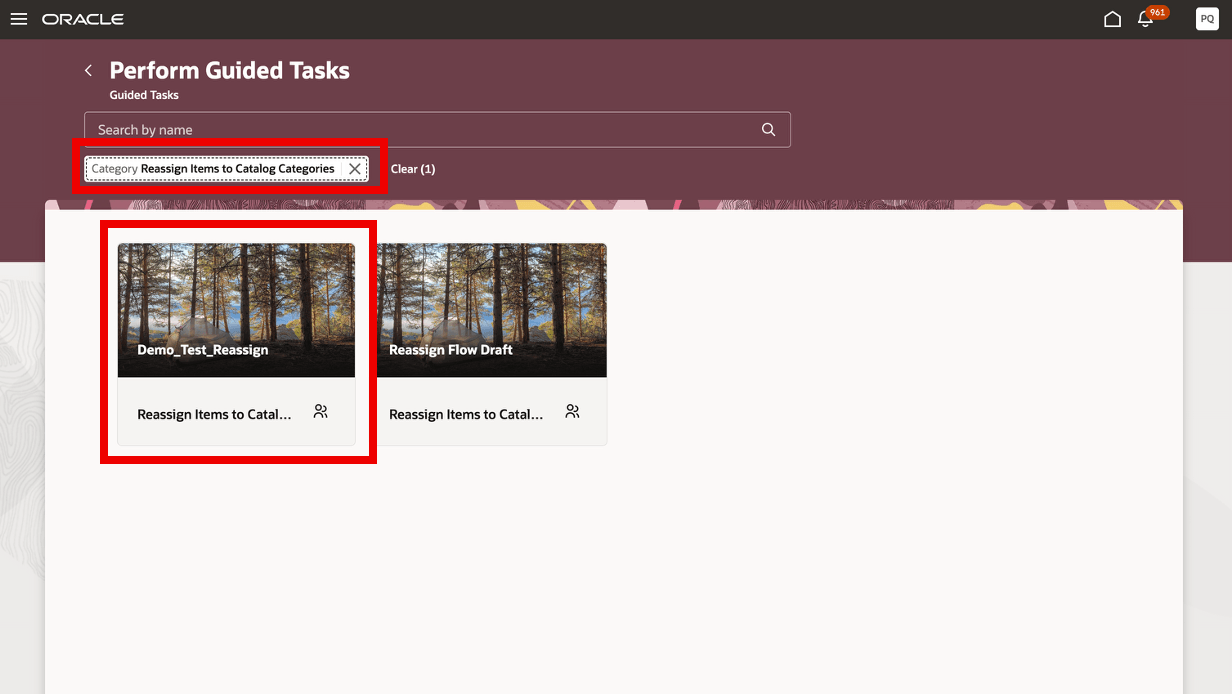
Demo Test Reassign Task Flow
- Click Start Guided Task as shown in the following screenshot.
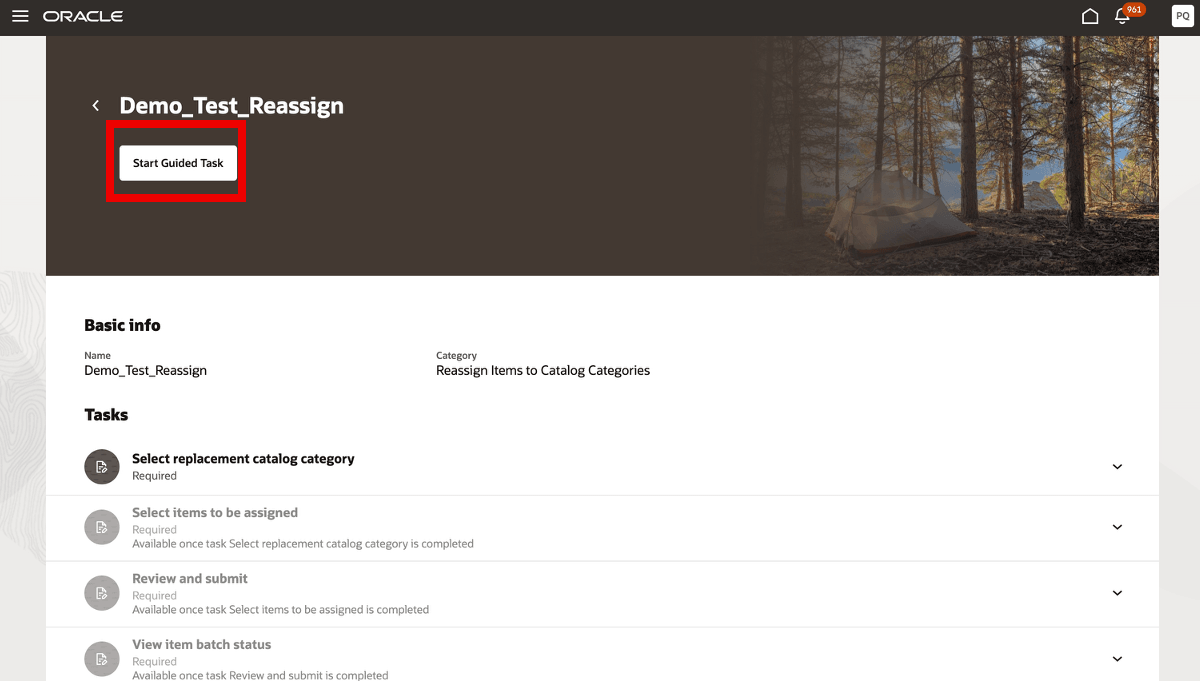
Start Guided Task
This completes the initiation phase.
Run Mandatory Tasks
- Click the Select replacement catalog category task as shown in the following screenshot.
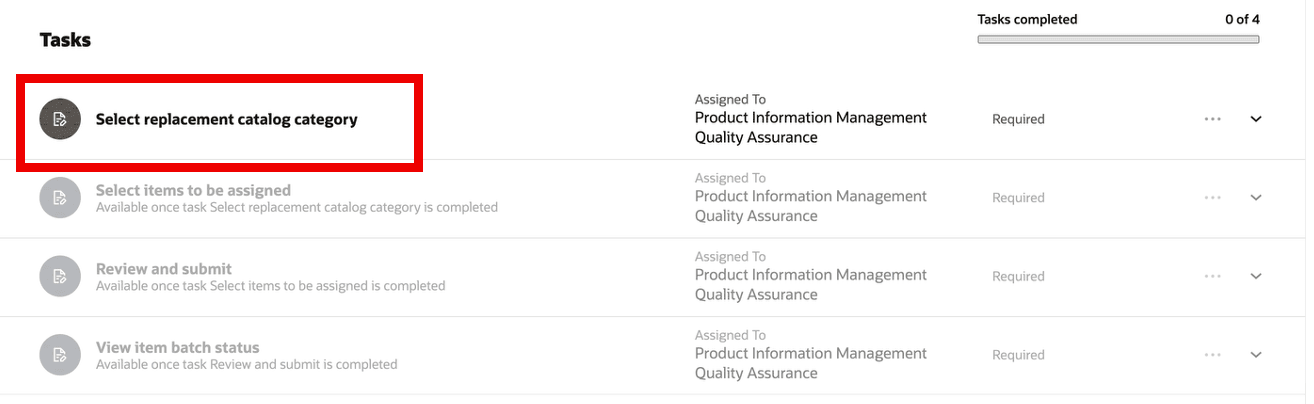
Task: Select Replacement Catalog Category
- Select the origin and target catalog category you want to reassign the items from and to. Click Done.
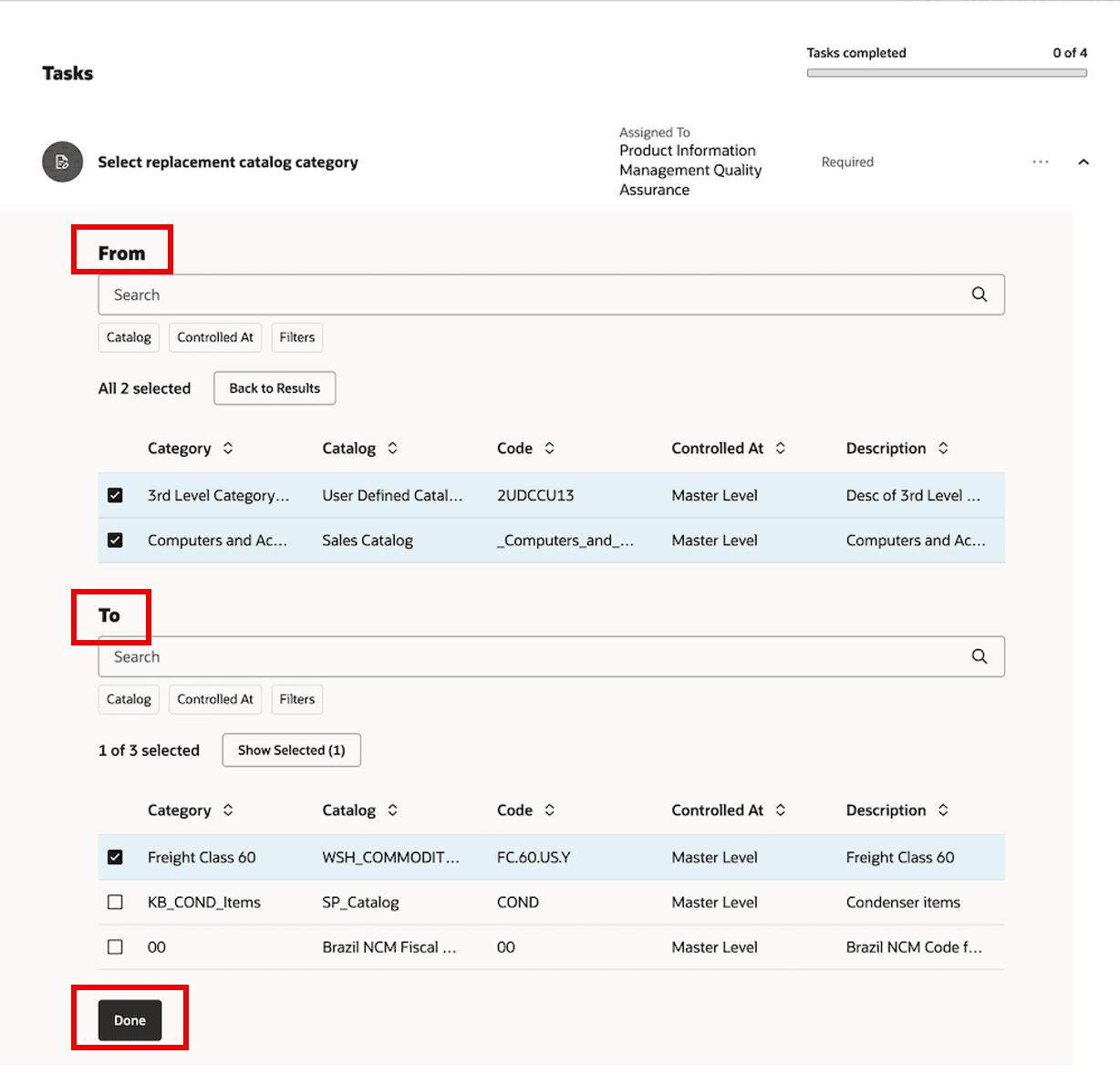
Task: Select Catalog Categories
- Click the Select items to be assigned task.
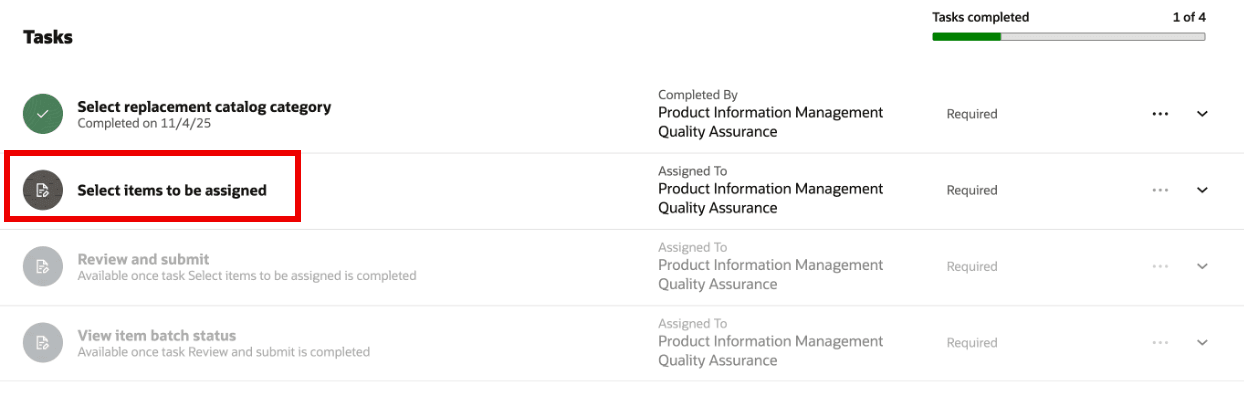
Task: Select Items to be Assigned
- Select items that need to be reassigned and click Done.
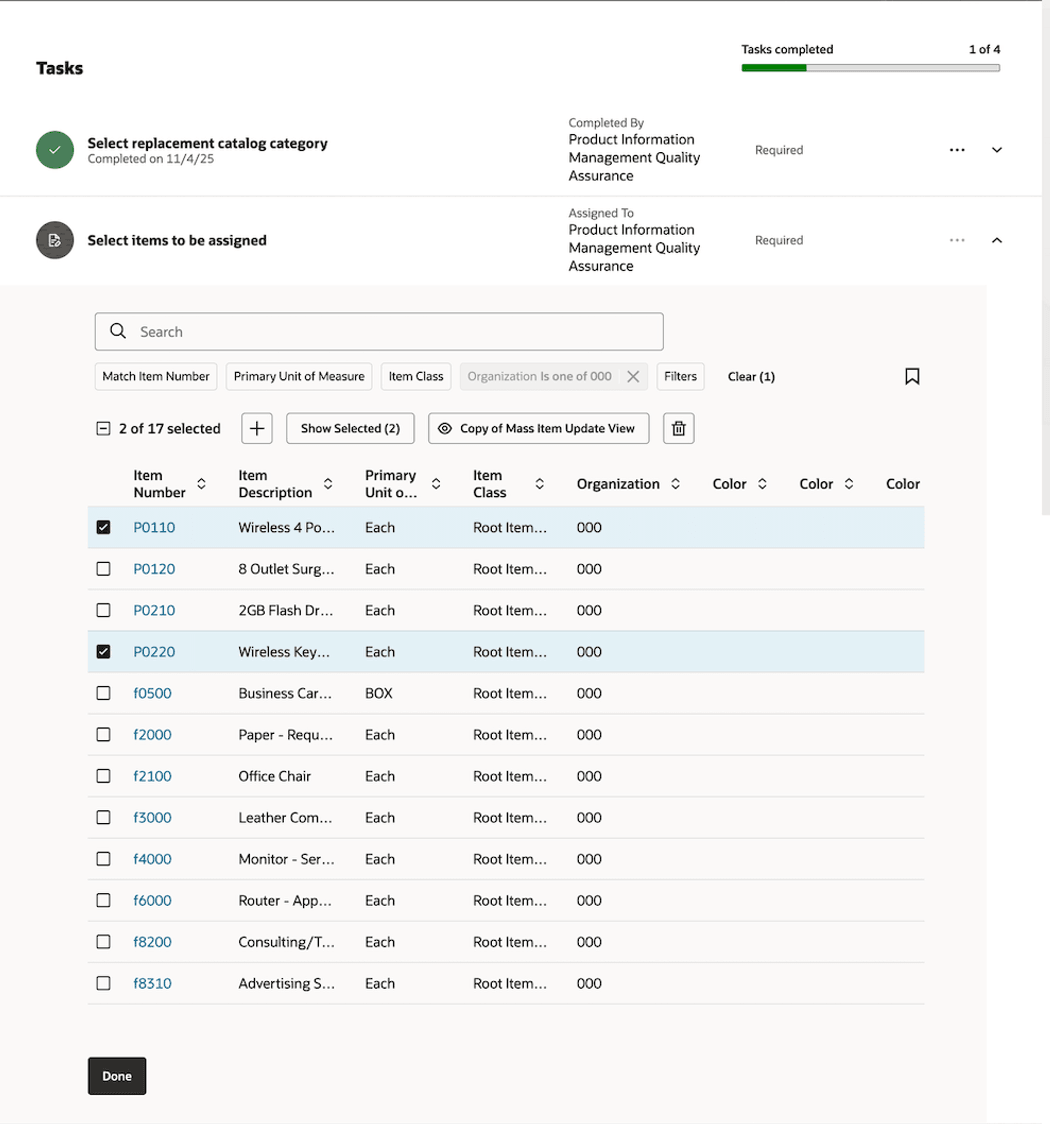
Selected Items to be Assigned
- Click the Review and Submit task. Review the selections and choices you’ve made. If there are no changes, click Done. This will submit the Item Import scheduled process.
Note: If you want to change any of your selections, click the respective task and do the changes. View the updated changes in the Review and Submit task and click Done.
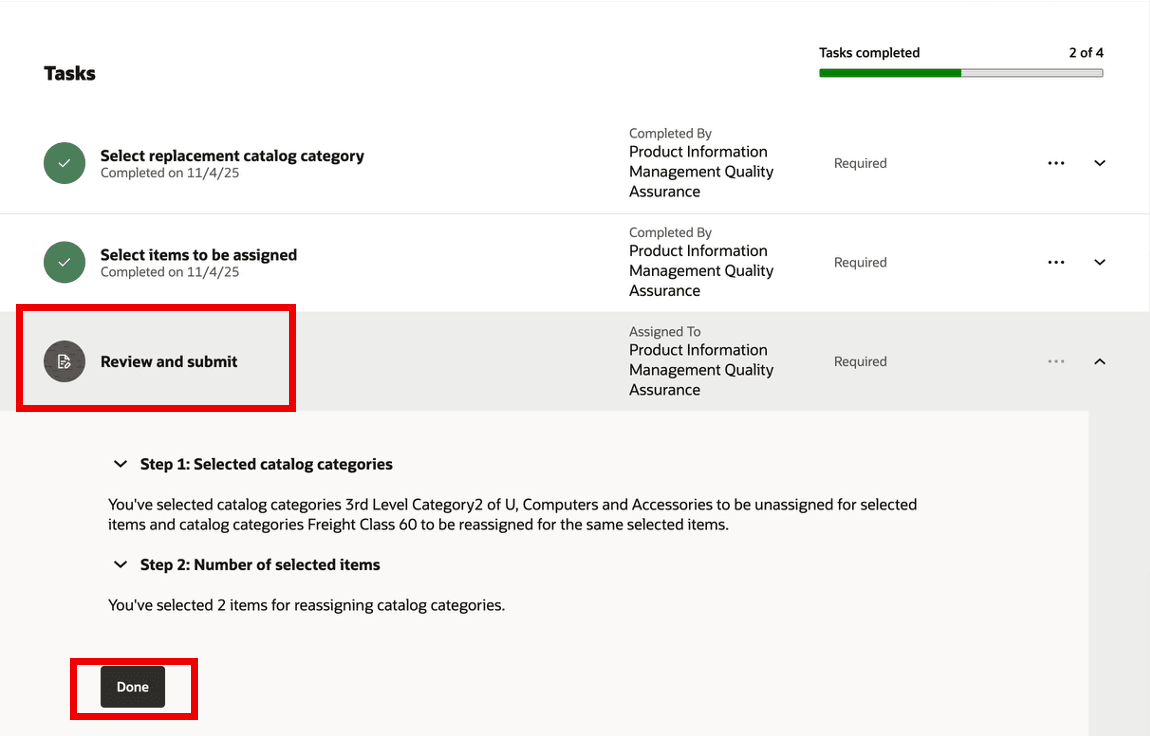
Task: Review and Submit
- Click the View item batch status task.
You can use this task to view the Job ID, Job Status, Submitted Date, and Batch Name of the scheduled process Item Import. You can click Refresh to view the progress of the scheduled process. When the Job Status changes to Succeeded, you’ve successfully completed the guided task flow. If the batch fails, then you can rerun the task flow after resolving the issue.
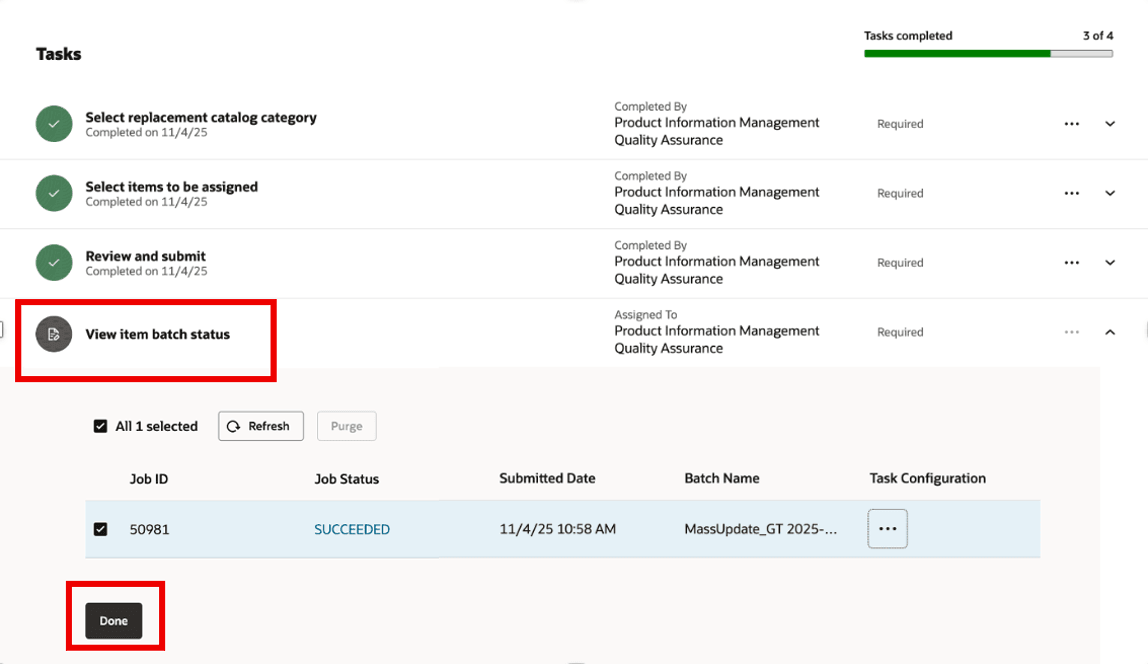
Task: View Item Batch Status
The following screenshot shows all the completed tasks.
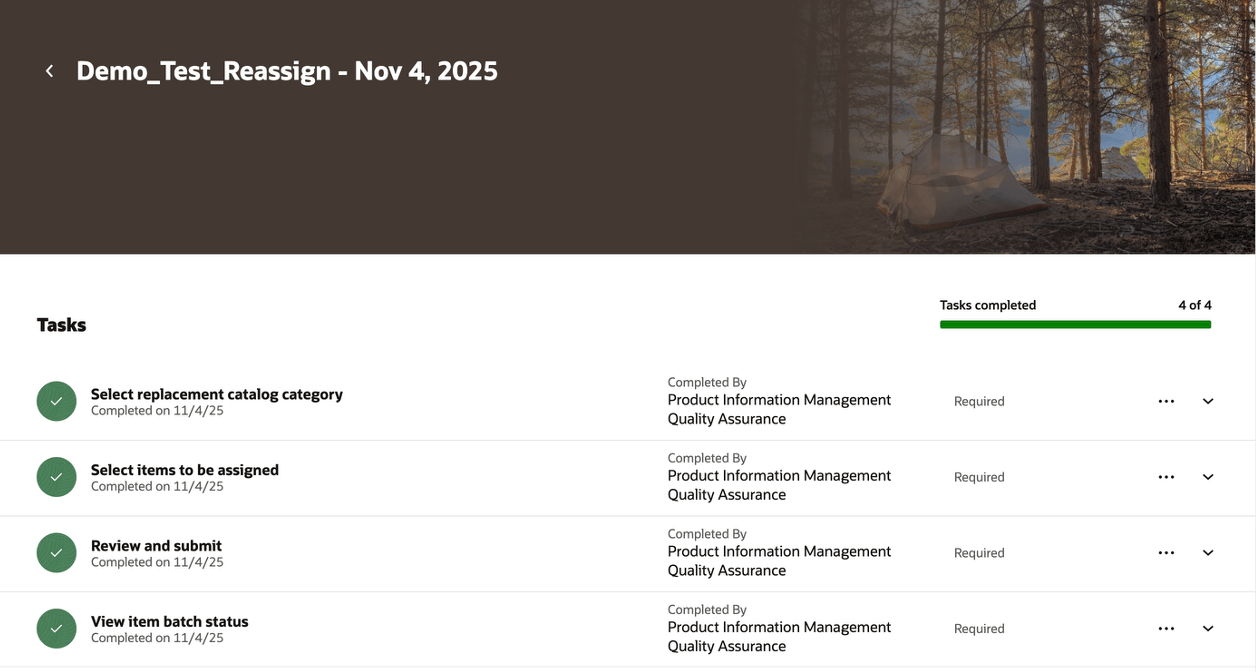
All Tasks Completed
This feature benefits your business by providing the following:
- Optimized catalog organization with accurate and well-organized product catalog maintenance
- Agility to swiftly update and manage product catalog categories in response to evolving business needs, seasonal changes, and regulatory requirements
- Reduced manual work and manual errors promotes faster product launches
- Enhanced customer experience as accurate and up-to-date product offerings are more easily and consistently presented to the market
Steps to Enable and Configure
Create and Configure the Reassign Items to Catalog Categories Guided Task Flow
To create and configure the Reassign Items to Catalog Categories process:
- On the Product Management page, in the Actions section, click View all actions and then click Guided Tasks Configuration. The Configure Guided Tasks page is displayed as shown.
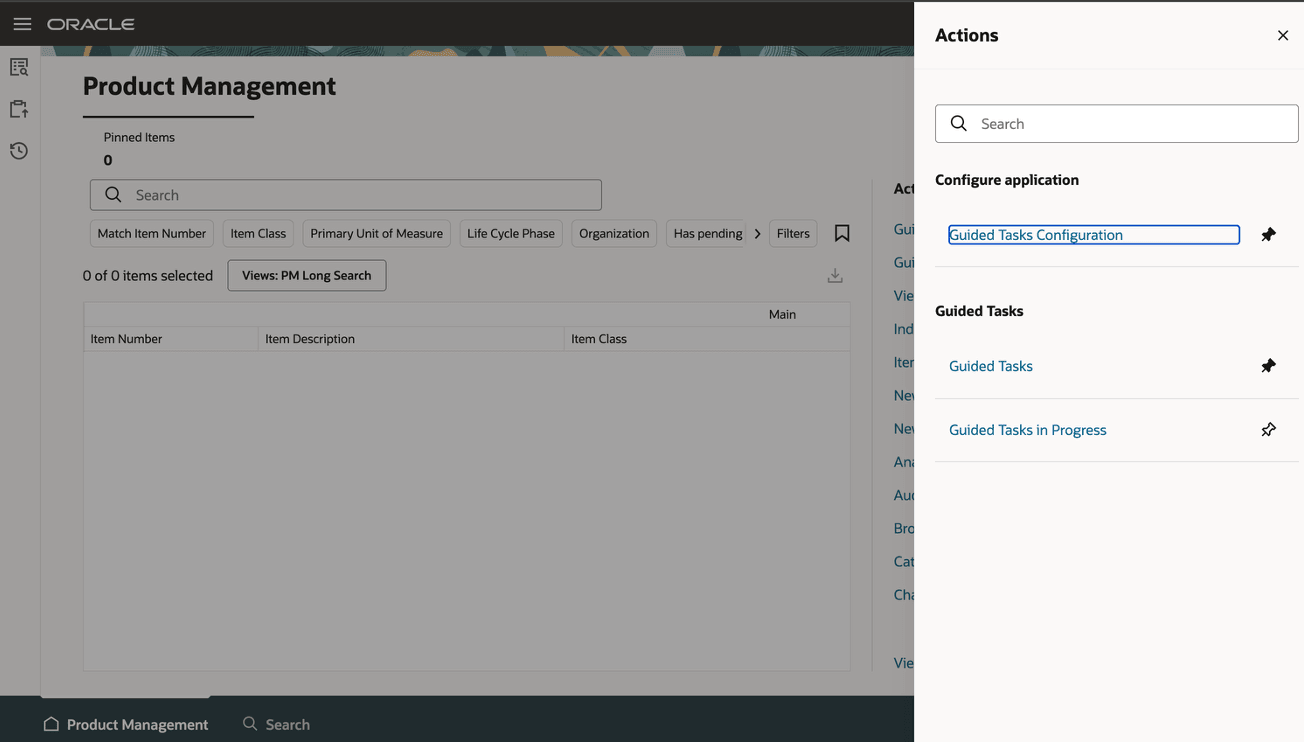
Actions Drawer
- Click Create. The New Guided Task drawer appears. Here, you must provide the details as shown in the following screenshot for the guided task you're creating. Select the Category as Reassign Items to Catalog Categories. In the Name field, specify the task flow name for your specific business process. For example, Demo_Test_Reassign is a task flow name to be used to reassign items to a catalog category. After adding all the details, click Create Draft.
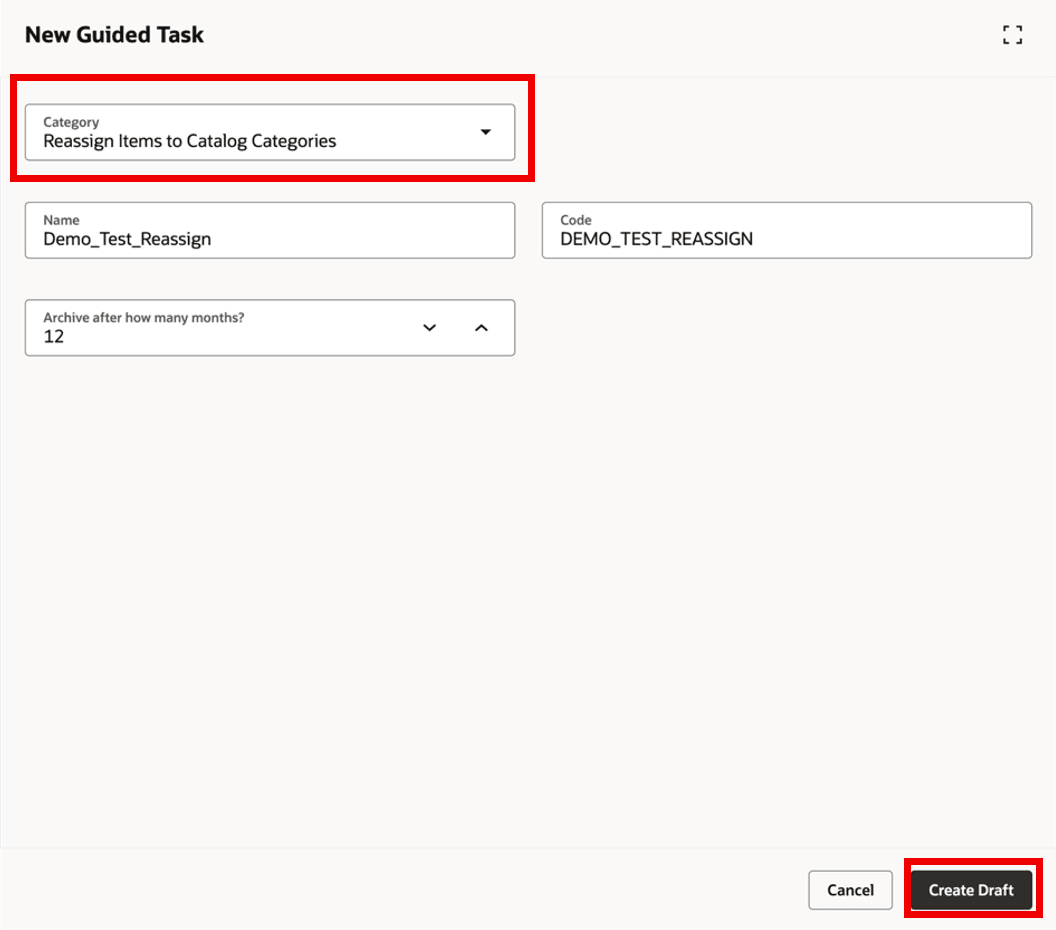
Guided Task Panel
The <Guided Task Name> page is displayed in draft mode with a list of mandatory tasks. In this example, the guided task name is Demo_Test_Reassign. For the Reassign Items to Catalog Categories category, the mandatory tasks in the task flow are:
- Select replacement catalog category
- Select items to be assigned
- Review and submit
- View item batch status
- Click the Edit Task icon for each task, populate the relevant fields, and click Save. After you’ve updated all the steps, click Activate to make the task flow available for your users. The details for each task are outlined in the next few steps.
- From the Select replacement catalog category drop-down list, select all the catalog categories that are relevant to this task flow. This is mandatory. You can also choose to restrict these selections so that the user can only select from the specified catalog categories in the runtime.
- Click Save.
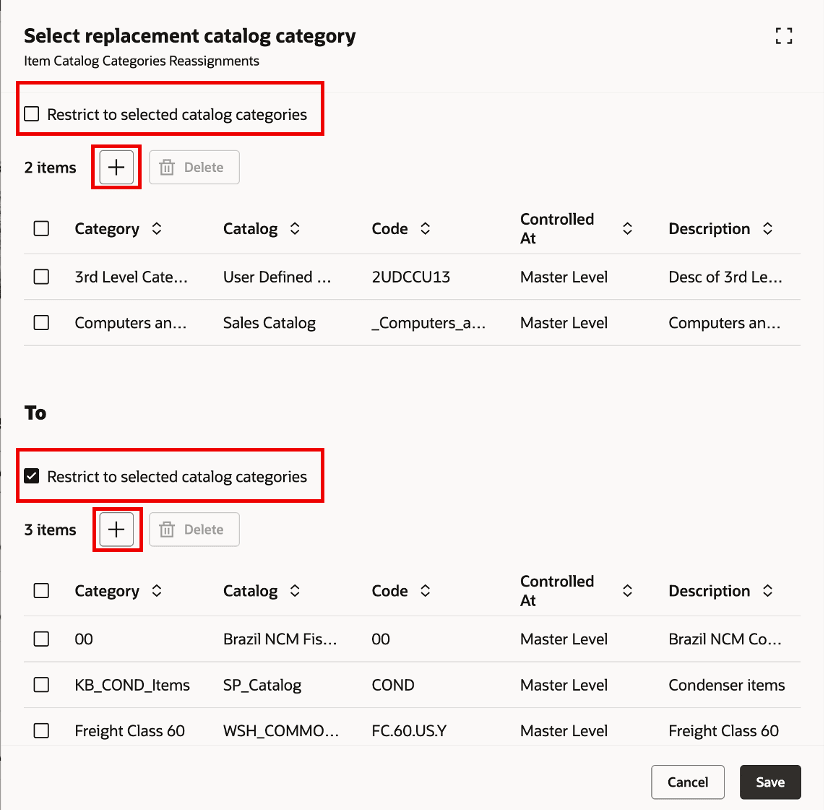
Task: Select Replacement Catalog Category
- Update the Select items to be assigned task. In this task, you specify the master organization from which the items must be selected for assignment
- Click the Edit Task icon for the Select items to be assigned task. From the Master organization drop-down list, select the master organization from which you want to select the items. This is mandatory.
- Click Save.
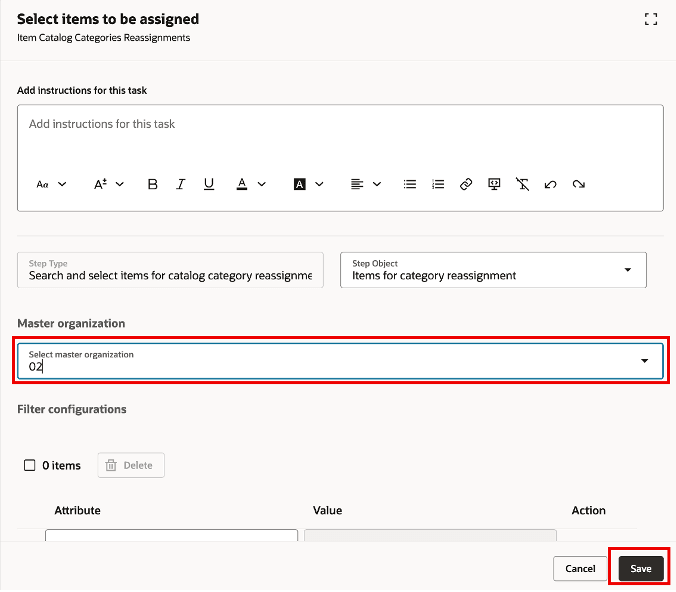
Task: Select Items to be Assigned
- Update the Review and submit task. In this task, you can edit the specify the task expiry days.
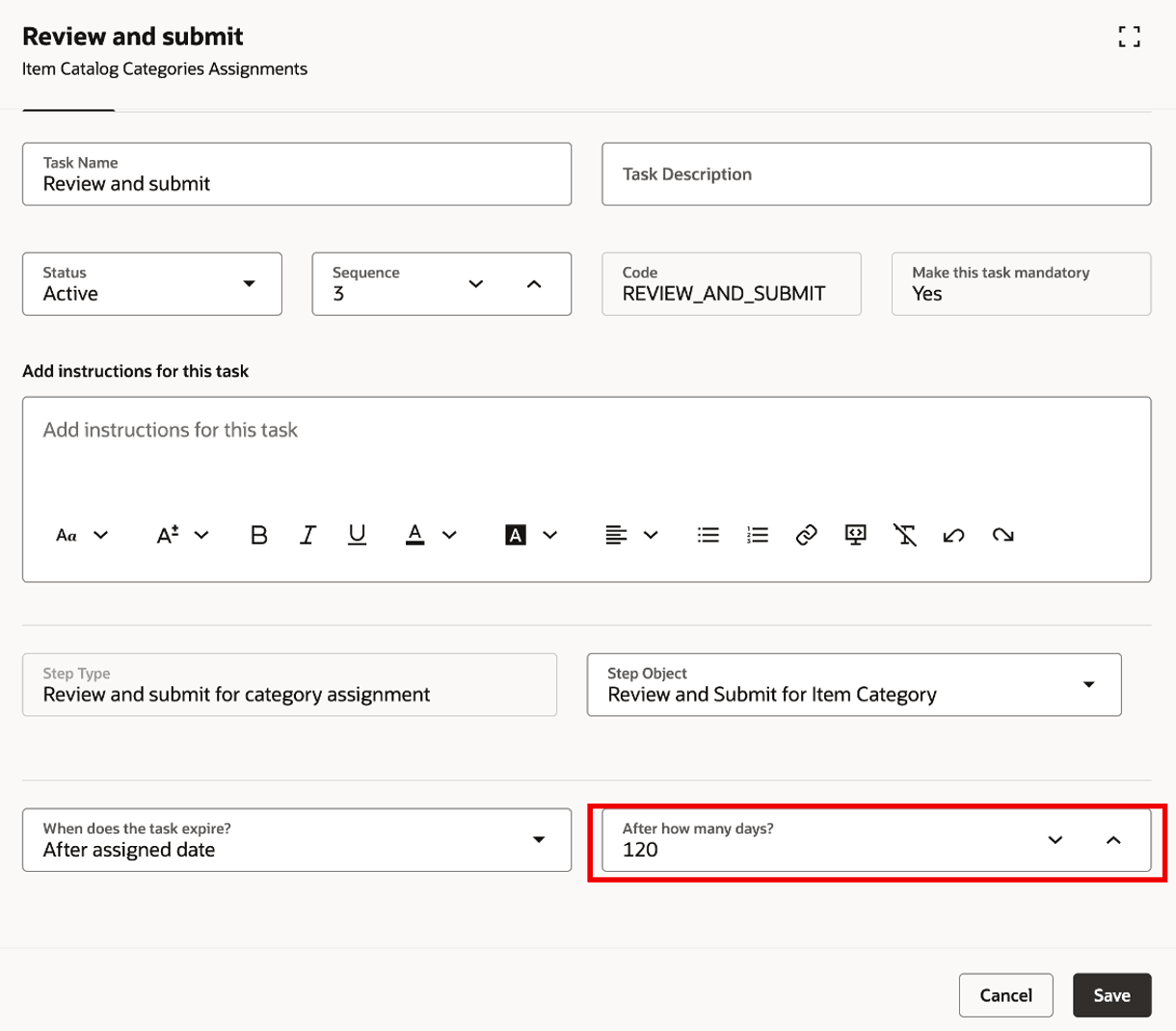
Task: Review and Submit
-
Update the View item batch status task. In this task you specify the task expiry days.
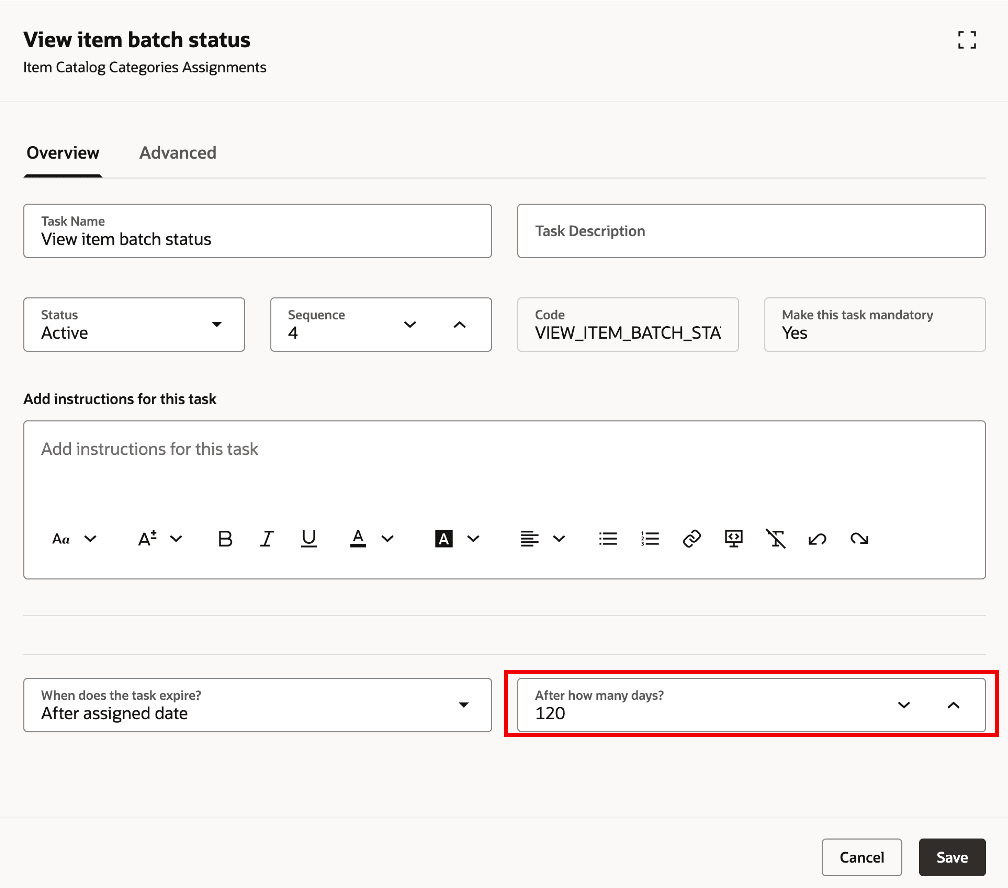
Task: View Item Batch Status
- Click Activate to activate the task flow you have configured. After the task flow is activated, your users will be able access this task flow from the Guided Task flow library.
Tips And Considerations
- You can reassign items only to categories within the same catalog.
- When the item is reassigned to another category in the catalog, the assignment is removed from the current category it's assigned to.
Key Resources
- Refer to Perform Guided Task Flows in the Oracle Fusion Cloud SCM: Using Product Master Data Management guide, available on the Oracle Help Center.
Access Requirements
Users who are assigned a configured job role that contains these privileges can access this feature:
Configure Guided Tasks:
- Guided Task Builder (ORA_EGI_GUIDED_TASKS_BUILDER_DUTY)
- Guided Task Builder (ORA_EGI_GUIDED_TASKS_BUILDER_DUTY_HCM)
- Manage Guided Task Builder (EGP_MANAGE_GUIDED_TASK_BUILDER_PRIV)
- Manage Product Management Guided Task Categories (PER_SCM_MANAGE_PRODUCT_MANAGEMENT_GUIDED_TASK_CATEGORIES_PRIV)
- Explore Product Management Guided Tasks (PER_SCM_EXPLORE_PRODUCT_MANAGEMENT_GUIDED_TASKS_PRIV)
- Manage Change Orders (ACA_MANAGE_CHANGE_ORDERS_PRIV)
Perform Guided Tasks:
- Guided Tasks Run Time (ORA_EGI_GUIDED_TASKS_RUN_TIME_DUTY)
- Guided Tasks Run Time (ORA_EGI_GUIDED_TASKS_RUN_TIME_DUTY_HCM)
- Run Guided Tasks (EGP_RUN_GUIDED_TASKS_PRIV)
- Manage Change Orders (ACA_MANAGE_CHANGE_ORDERS_PRIV)
- Monitor Product Management Workflow Objects (ACA_MONITOR_PRODUCT_MANAGEMENT_WORFLOW_OBJECTS_PRIV)
- Access User (EGP_ACCESS_USERS)
View Guided Tasks:
- Guided Tasks View (ORA_EGI_GUIDED_TASKS_VIEW_DUTY)
- Guided Tasks View (ORA_EGI_GUIDED_TASKS_VIEW_DUTY_HCM)
Other Privileges for this flow:
- Access Guided Tasks Reassign Items within categories (EGP_GT_REASSIGN_ITEMS_TO_CAT): Gives access to users to Mass Reassign Items to Category with a catalog guided task flow.