Redwood: Use Additional Capabilities to Manage Planning Cycles
The Redwood user experience now offers enhanced capabilities to make planning cycle management more intuitive and efficient. You can link tasks directly to specific tables, graphs, pages, or page groups enabling participants to open the correct plan context in a new browser tab without additional navigation. Task owners can easily re-sequence tasks within activities using drag-and-drop, and the updated order is automatically saved with the cycle. You can also add external links to tasks, giving teams seamless access to supporting content or references outside the application. Redwood-style notifications keep participants updated on assigned tasks and required actions. These capabilities improve collaboration, maintain context, and increase overall planning cycle execution efficiency.
Task links have been enhanced to create internal links to tables, graphs, pages, page groups, and external links.
Link Planning Cycle Tasks to Tables, Graphs, Pages, and Page Groups
You can link planning cycle activities, tasks, action items, and decision items to relevant dashboards or reports to support task completion. Additionally, you can link to tables, graphs, pages, and page groups.
To create a planning cycle link to an internal visualization, follow these steps:
- In Link Type, select Internal.
- In Visualization Type, select Table, Graph, Page, or Page group.
- In Link, search and select the name of the visualization in the filtered list.
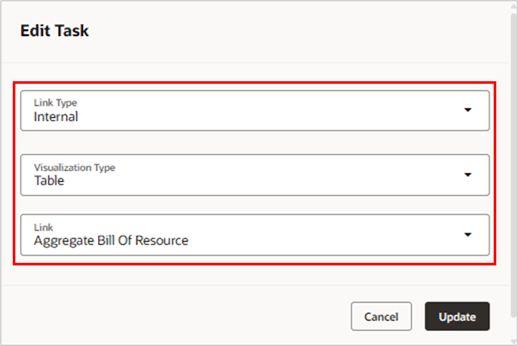
Setup Internal Link for a Planning Cycle Task
To open an internal link from a planning cycle, click the task link within the open planning cycle. The link opens a drawer where you can select a plan associated with the planning cycle. A visualization can be enabled for multiple plan types, and alternative plans may share the same plan type. The selected plan opens in a new browser tab with the visualization context.
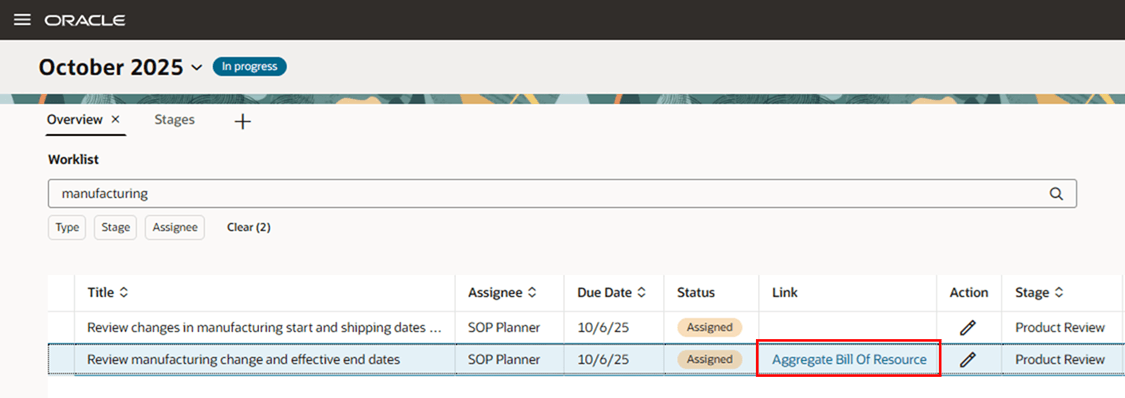
Internal Link for a Planning Cycle Task in the Worklist
Link Planning Cycle Tasks to External Systems
You can link planning cycle activities, tasks, action items, and decision items to external systems outside Oracle Fusion Cloud Supply Chain Planning. From an open planning cycle task, you can select a configured link to open it in a new browser tab.
For example, if you have a task to review and adjust the financial forecast in Oracle Fusion Cloud Enterprise Performance Management (EPM), you can configure a task link to your EPM application.
To create a planning cycle link to an external system, follow these steps:
- In Link Type, select External.
- In Link Name, enter the link to view when you navigate from a planning cycle task.
- In Application Name, select the name that you create in Manage Integration of Additional Applications. The name must start with SCP_EXT_LINK_. Refer to the Set Up the Application Integration for an External System topic in Using Sales and Operations Planning guide for further instructions.
- In Base URL, the base URL that was configured for the Application Name is displayed.
- In Page Path, enter the remaining URL path.
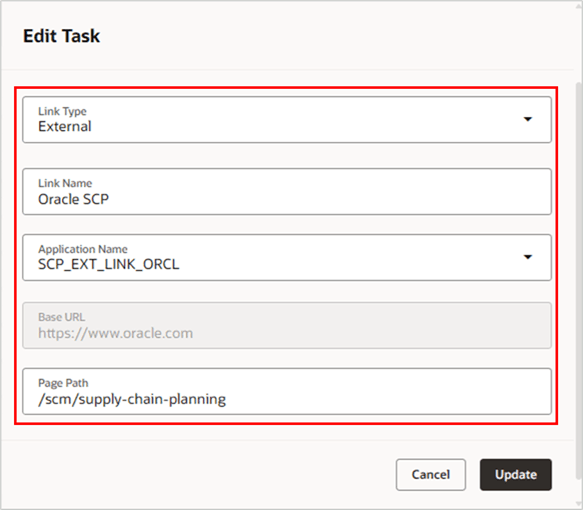
Setup External Link for a Planning Cycle Task
To open an external link from a planning cycle, click the task link in the open planning cycle. The URL opens in a new browser tab.
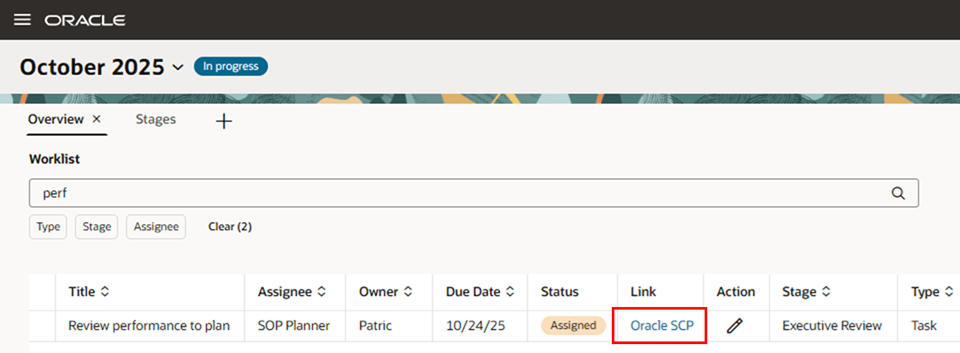
External Link for a Planning Cycle Task in the Worklist
Change Task Sequence in an Activity
To change the sequence of tasks in an activity while editing a planning cycle from the Redwood Planning Cycles page, follow these steps:
1. Search for the planning cycle using keywords or filters.
2. Select a planning cycle row, then click Edit.
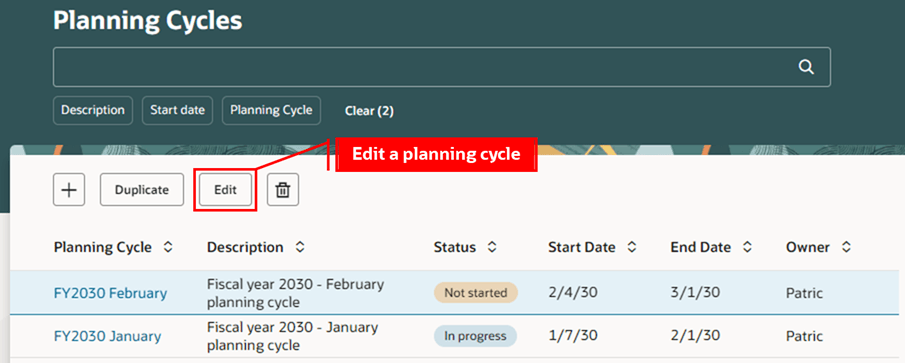
Edit a Planning Cycle
3. Click the Activities and Tasks step in the guided process.
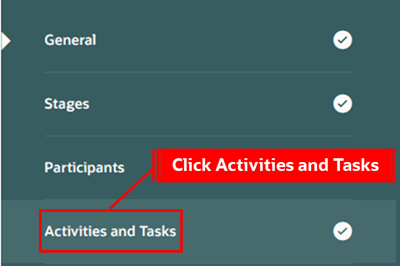
Click the Activities and Tasks Step in the Guided Process
4. Expand an activity and select a task row. The pointer changes to a hand icon.
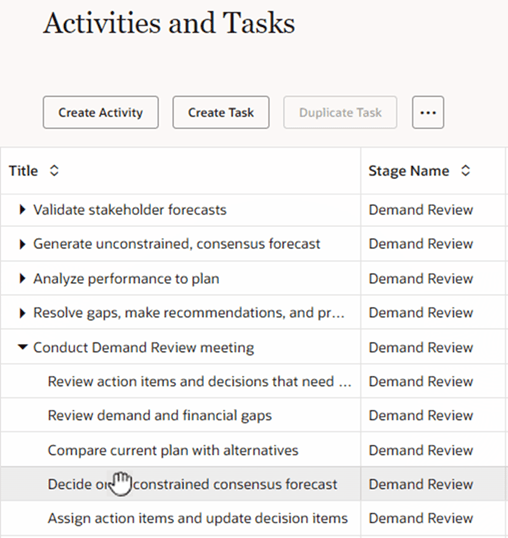
Select a Task in an Activity in the Activities and Tasks Step
5. Drag and drop the task within the activity. You can only move a task within an activity, and not between activities.
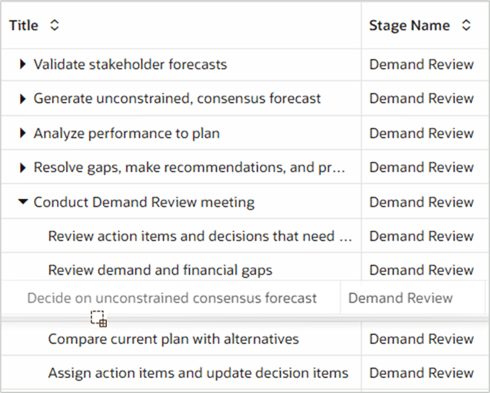
Drag and Drop an Activity Row in a Stage
6. Review the adjusted sequence of tasks in the activity.
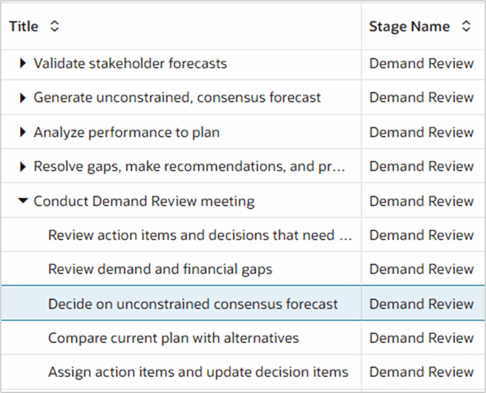
Adjusted Sequence of Tasks in an Activity
You can also change the sequence of activities and tasks when creating or duplicating a planning cycle from the Redwood Planning Cycles page.
Steps to enable and configure
You don't need to do anything to enable this feature.
Tips and considerations
- You can change the sequence of tasks within an activity, but not between activities.
- You can’t change the sequence of tasks in an open planning cycle. The Redwood Planning Cycles page provides a guided process for creating and editing planning cycles. You can edit the sequence of activities and tasks in the Activities and Tasks step of this guided process.
Key resources
- Refer to the Cloud Applications Readiness content for the following Sales and Operations Planning What's New 25B feature for information on Planning Cycles:
- Redwood: Manage Planning Cycles Using a New User Experience
- Refer to the Cloud Applications Readiness content for the following Sales and Operations Planning What's New 25D feature for more information on Planning Cycles:
- Redwood: Manage Planning Cycles with Additional Capabilities
Access requirements
Users who are assigned a configured job role that contains these privileges can access this feature:
- Monitor Sales and Operations Planning Work Area (MSC_MONITOR_SALES_AND_OPERATIONS_PLANNING_WORK_AREA_PRIV)
- Administer Planning Cycles (MSC_MANAGE_PLANNING_CYCLES_PRIV)
- If a user has MSC_MANAGE_PLANNING_CYCLES_PRIV privilege, then the Redwood Planning Cycles page is selectable to manage planning cycles.
- Review Planning Cycles (MSC_REVIEW_PLANNING_CYCLES_PRIV)
- If a user has MSC_REVIEW_PLANNING_CYCLES_PRIV privilege, then planning cycles can be opened in the Supply Chain Planning work area.
- View Planning Objects Using REST Service (MSC_VIEW_PLANNING_OBJECTS_REST_SERVICE_PRIV)
- Use REST Service - Workers List of Values (PER_REST_SERVICE_ACCESS_WORKERS_LOV_PRIV)
- If a user has MSC_MANAGE_PLANNING_CYCLES_PRIV privilege, then PER_REST_SERVICE_ACCESS_WORKERS_LOV_PRIV privilege is required to select the owner and participants in a planning cycle.
- Sales and Operations Planner job role inherits the HCM duty role Use REST Service - Workers List of Values (ORA_PER_WORKERS_LOV_REST_SERVICE_DSPS). This duty role contains the PER_REST_SERVICE_ACCESS_WORKERS_LOV_PRIV privilege.
These privileges were available prior to this update.