AI Agent: Planning Cycle Assistant
The Planning Cycle Assistant helps sales and operations planning participants manage planning cycle tasks directly within the Redwood Supply Chain Planning workspace. Users can retrieve, review, and update tasks without switching between dashboards or work areas. The agent enables you to create action items or update decision items tied to product, demand, supply, or financial plan reviews and submit them for downstream executive approval. Both planners and non-planners can collaborate in real time, update task statuses, and track progress efficiently. This capability improves execution speed, reduces delays, and strengthens cross-functional alignment.
The Planning Cycle Assistant is an AI agent that provides participant with access to planning cycle worklists through a simple chat experience. This agent provides a list of tasks and action items for a given planning cycle stage and retrieves them using generative AI.
The Planning Cycle Assistant is available using a predefined AI Agent template available in the AI Agent Studio, listed under the SCM family of templates within Oracle Fusion Cloud Supply Chain Planning.
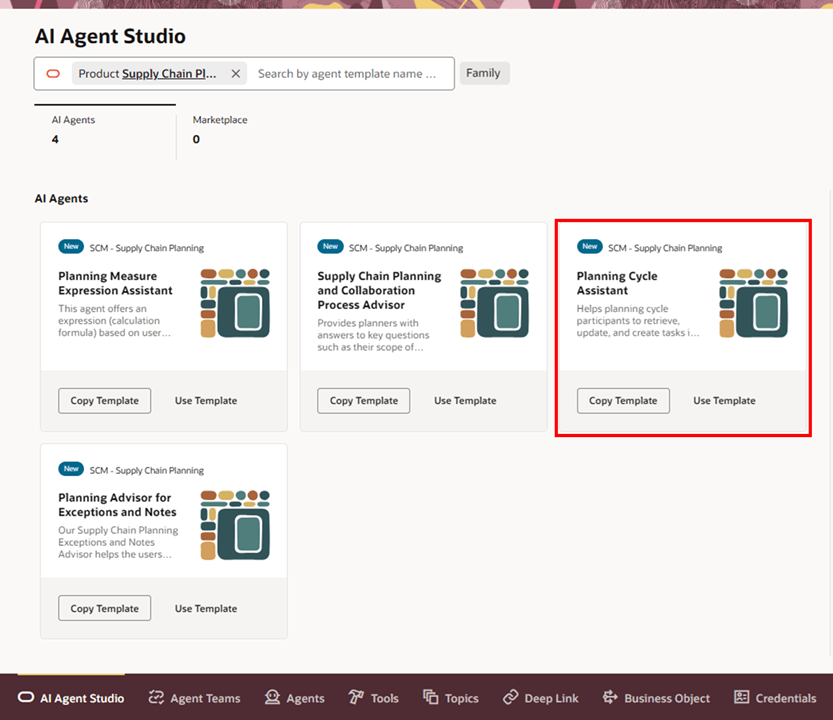
Planning Cycle Assistant Template in AI Agent Studio
You can make a copy of the template, refine the prompts as needed, and then publish it. The Planning Cycle Assistant can be integrated directly into a plan’s primary action menu using Planning Advisor.
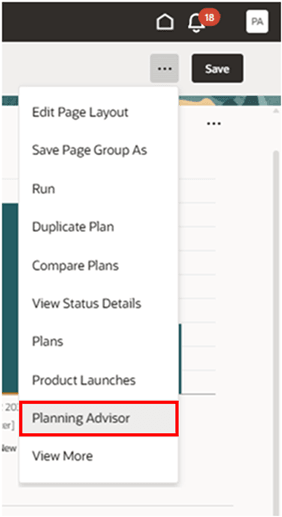
Planning Advisor Action
Click Planning Advisor to open the drawer. When the Planning Cycle Assistant is enabled through Edit Page in Visual Builder Studio (see Steps to Enable), it appears in the Planning advisor drawer.
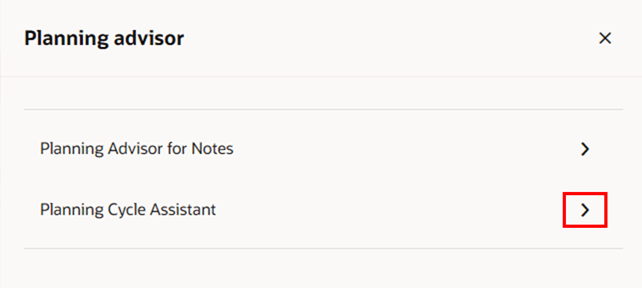
Planning Cycle Assistant in Planning Advisor Drawer
Select Planning Cycle Assistant to open the AI chat experience. Click a starter question to learn more about planning cycles.
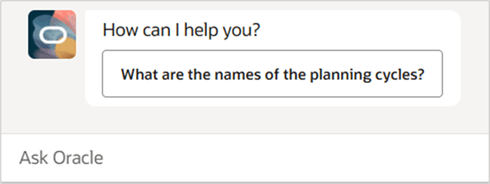
Starter Question for Planning Cycle Assistant
The agent guides you by suggesting additional queries.
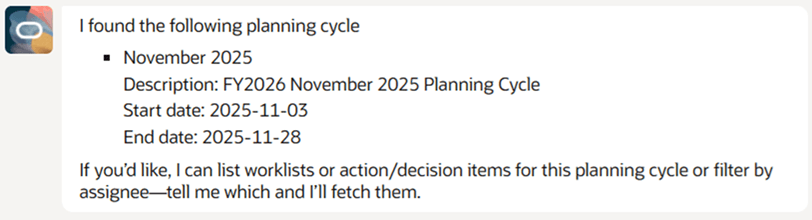
Planning Cycle Assistant Query Result
Type your questions in the input box, and the AI agent will respond with information about planning cycles. For example, you can ask:
- What is the worklist assigned to me in the November 2025 planning cycle?
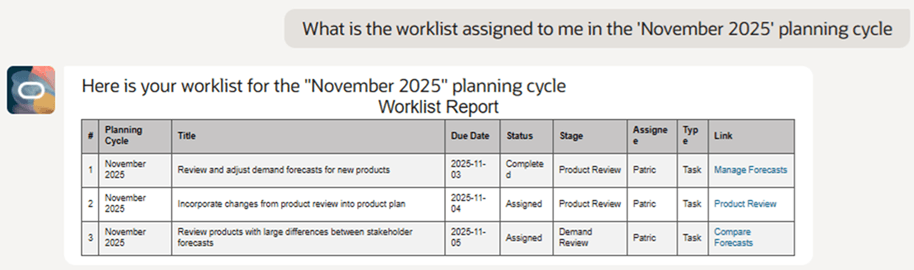
Worklist Tasks in a Planning Cycle
The Link column in the Worklist displays hyperlinks for external links related to planning cycle tasks. Click a link to open it, or right-click to open in a new browser tab.
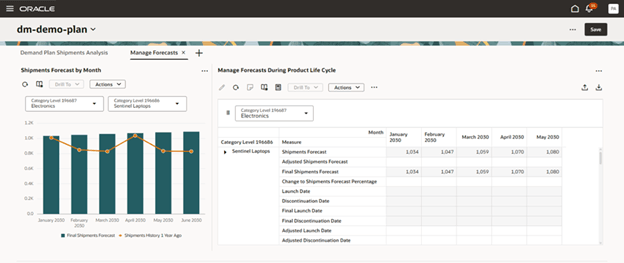
Deep Link to a Page in a Demand Plan
You can update the status of your worklist tasks in a planning cycle. For example:
- Update the status of the Review and adjust demand forecasts for new products task in the Product Review stage in November 2025 to Completed status.

Update Task Status for a Planning Cycle Task
A planning cycle is a collaborative process that requires cross-functional alignment. You can create and assign action items, and create or update decision items for prioritized issues, opportunities, or recommendations that arise during the planning cycle for review and approval.
You can create and assign an action item. For example:
- Create an action item with Add note for marketing forecast increase to VR Trainers family title in the Product Review stage of November 2025 with a due date of 2025-11-04 and assign to Meg Fitzimmons.
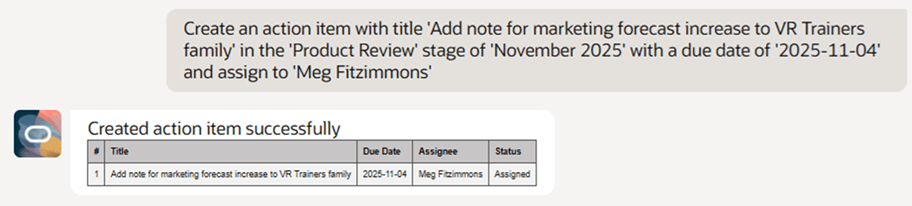
Create Action Item in a Planning Cycle
You can create a decision item, For example:
- Create a decision item with Defer Project Finity to Q4FY26 title in the Product Review stage of November 2025.
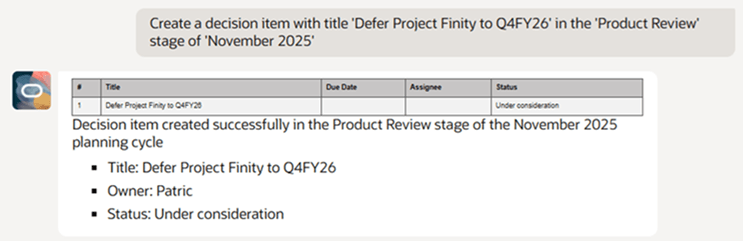
Create Decision Item in a Planning Cycle
You can update a decision item with a comment. For example:
- Update the comment for Defer Project Finity to Q4FY26 decision item in the Product Review stage of November 2025 to Current capacity insufficient to support launch.
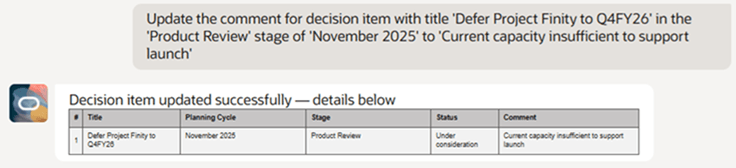
Update Decision Item in a Planning Cycle
Additional sample queries:
- What are the plans in the November 2025 planning cycle?
- Who are the participants in the Demand Review stage in the November 2025 planning cycle?
- What is the worklist assigned to Meg Fitzimmons in the November 2025 planning cycle?
- What are the action and decision items in the Product Review stage in the November 2025 planning cycle?
The Planning Cycle Assistant helps you complete your worklist tasks and collaborate with other participants in a planning cycle.
Here's the demo of these capabilities:
Steps to enable and configure
An administrator can enable the Planning Cycle Assistant by following these steps:
- Copy the Planning Cycle Assistant template in the AI Agent Studio. Enter an Agent Team Suffix and save the copied template.
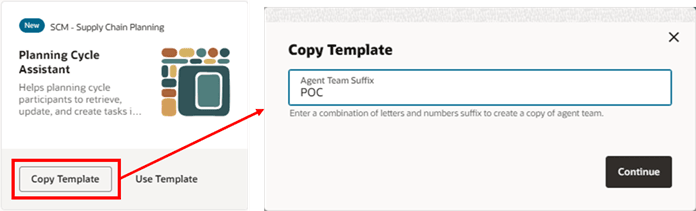
Copy Planning Cycle Assistant Template in AI Agent Studio
- Copy the Agent Team Code from the draft template. Refine the agent prompts in the draft as needed, then publish the agent team.
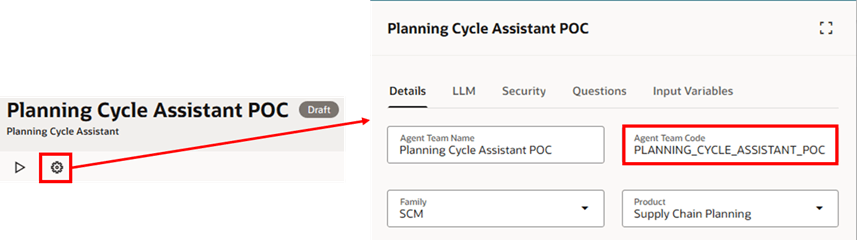
Agent Team Code in AI Agent Studio
- Click Edit Page in Visual Builder Studio in the Supply Chain Planning work area. A new tab opens and loads Oracle Visual Builder Studio, displaying the Business Rules panel. Scroll to the PlanningCycleAssistantAgentCode constant and paste the Agent Team Code copied from the AI Agent Studio.
- You can configure multiple agents by setting additional Agent Team Codes. For example, to use both the Planning Advisor for Notes and the Planning Cycle Assistant, copy the Agent Team Code from the Notes template and paste it in the DemandManagementAgentTeamCode constant. This allows you to use both the Planning Advisor for Notes and the Planning Cycle Assistant in a demand plan.
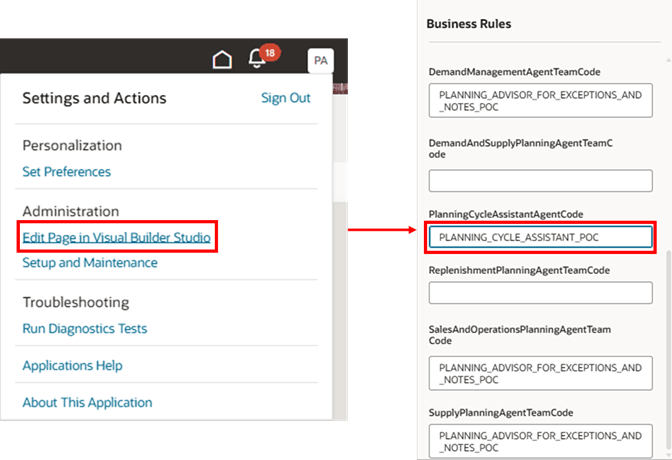
Edit Page in Visual Builder Studio and Set the PlanningCycleAssistantAgentCode Constant
- Save and publish the changes in Visual Builder Studio.
- Confirm that the Planning Cycle Assistant appears in the Planning advisor drawer in your plan and that the starter question and chat input box are visible.
Tips and considerations
- When querying a planning cycle, include context like the cycle name, stage, task title, and participant name for better responses.
- Avoid duplicate task titles, as they can confuse the assistant.
- Use external links for your planning cycle tasks to generate hyperlinks in the worklists retrieved by the Planning Cycle Assistant. You can click external links in the worklist whereas you need to request deep links for internal links and provide plan context.
- You can specify external links for planning cycle tasks that are deep links to planning pages and visualizations. For example, the following path opens a page in a plan:
- Page Path = /fscmUI/redwood/supply-chain-planning/scp-workarea?startPage=Manage Forecasts&startPlan=dm-demo-plan
- You can request a deep link for a task with an internal link using a query like the following:
- Give me the deep link only for 'Review and adjust marketing forecast' in the 'Demand Review' stage in the 'November 2025' planning cycle for the 'sop-demo-plan'
- You can specify external links for planning cycle tasks that are deep links to planning pages and visualizations. For example, the following path opens a page in a plan:
- Planning cycle participants must have a Sales and Operations Planning license. The AI Assistant doesn’t grant a license.
- AI-generated output may not always be unique, accurate, or complete.
- Errors may appear as: Sorry, the assistant is unavailable right now. If the issue persists, contact your help desk. This can happen, for example, when trying to create the same action item twice.
Key resources
- Refer to the Cloud Applications Readiness content for the following Sales and Operations Planning What's New 26A feature for more information on Planning Cycles:
- Redwood: Use Additional Capabilities to Manage Planning Cycles
- Redwood: Manage Deep Links to Planning Pages and Visualizations
- Refer to the Cloud Applications Readiness content for the following Sales and Operations Planning What's New 25D feature for more information on Planning Advisor for Notes:
- AI Agent: Planning Advisor for Notes
Access requirements
To access the Oracle AI Agent Studio for Fusion Applications and manage SCM AI agents, users must be assigned a configured job role that contains these duty roles:
- SCM Intelligent Agent Management Duty (ORA_RCS_SCM_AI_AGENT_MANAGEMENT_DUTY)
- Fai Genai Agent SCM Administrator Duty (ORA_DR_FAI_GENERATIVE_AI_AGENT_SCM_ADMINISTRATOR_DUTY)
To interact with AI agents in product pages, users must be assigned a configured job role that contains this duty role:
- Fai Genai Agent Runtime Duty (ORA_DR_FAI_GENERATIVE_AI_AGENT_RUNTIME_DUTY)
To allow users to interact with agents, you must also enable permission groups in the Security Console on those users' configured job roles that contain the Fai Genai Agent Runtime Duty role. You can enable permission groups when you manage the basic information of your configured job roles.
Users' configured job roles must also contain privileges that allow access to the pages where AI agents are enabled.
To enable the Planning Cycle Assistant by assigning the AI Agent Team Code value to the business rule constant in the Page Properties section available when using the Edit Page in Visual Builder Studio, users must have one of these predefined standard job roles:
- Application Administrator (ORA_FND_APPLICATION_ADMINISTRATOR_JOB)
- Application Developer (ORA_FND_APPLICATION_DEVELOPER_JOB)
Planning cycle participants require the following privilege that is only available with a Sales and Operations Planning license:
- Review Planning Cycles (MSC_REVIEW_PLANNING_CYCLES_PRIV)
These roles and privileges were available prior to this update.