Redwood: Manage Levels and Attributes Using a New User Experience
You can use the Levels and Attributes page to view and configure levels and attributes for dimension hierarchies. On this page, you can:
- Override the level name to display in tables and graphs.
- Select the member identifier to display for consistent presentation across plans and users.
- Add and delete item and organization attributes, and edit their labels.
Using this page, you can also search for records dimension, hierarchy, and level.
You can open the Levels and Attributes page from a demand, demand and supply, replenishment, sales and operations, or supply plan or the Plan Inputs.
To open the Levels and Attributes page, on the More Actions menu, select View More, and in the Actions drawer, in Configuration, select Levels and Attributes. The page will open on a new browser tab.
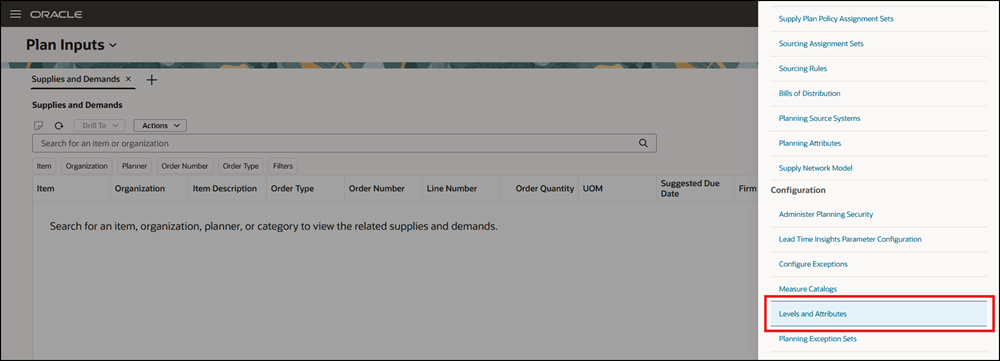
Actions Drawer
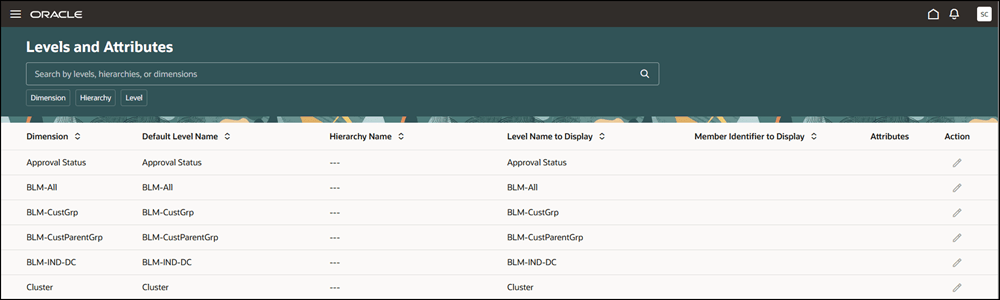
Levels and Attributes Page
On the page you can use the search bar to search for records by level, hierarchy, or dimension. You can also use the suggested filters for dimensions, hierarchies, and levels.
You can select the Edit icon for a record to edit it.
Change the Display Name
For any level except the lowest levels, you can use the field in the Level Name to Display column to change the name that’s displayed in tables and graphs for the level.
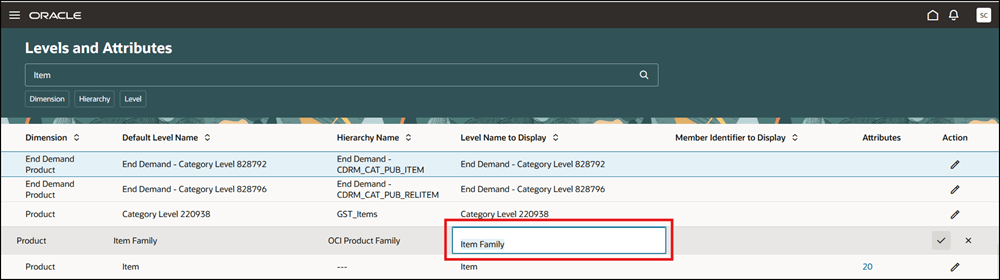
Field for Editing Display Name for Level
Select the Member Identifier
You can use the list in the Member Identifier to Display column to configure how a level is displayed for the following:
- Item level of the Product dimension
- Organization level of the Organization dimension
- Resource, Work Center, Work Area, and Organization levels of the Resource dimension
The available choices vary by the level being edited.
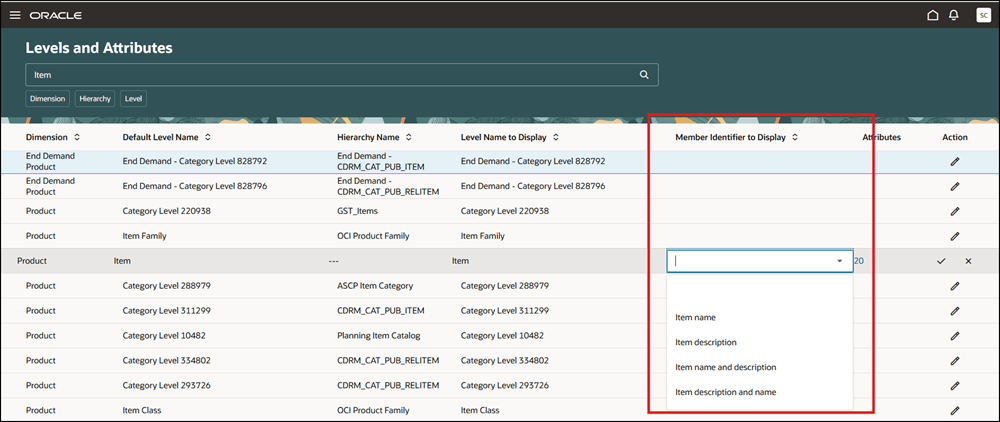
List for Configuring Member Identifier
Edit the Attributes
You can edit the attributes for the following:
- Item level of the Product dimension
- Organization level of the Organization dimension
When you select the number in the Attributes column, the Attributes drawer will open, in which you can add, edit, and remove attributes for the level.
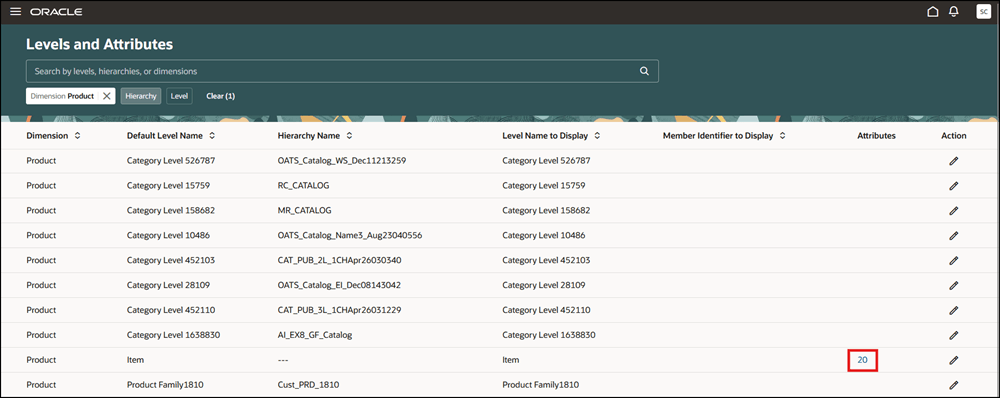
Number in Attributes Column
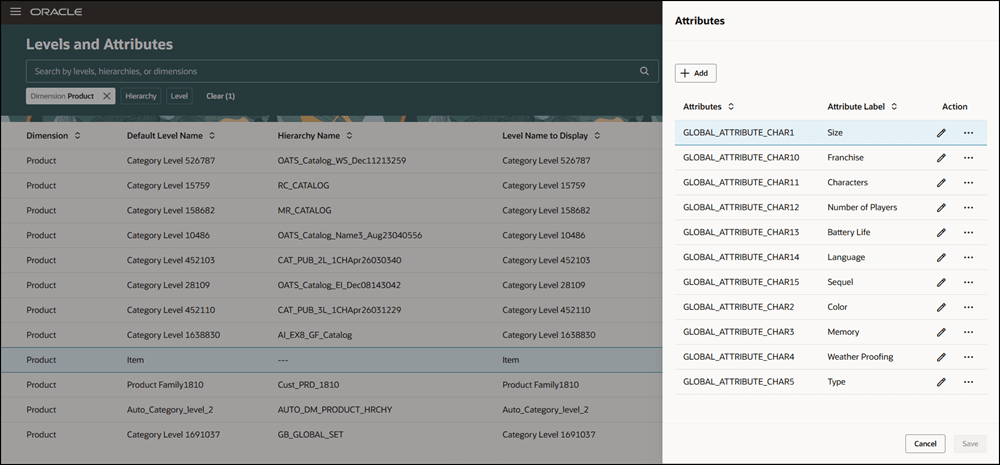
Attributes Drawer
Steps to enable and configure
Use the Opt In UI to enable this feature. For instructions, refer to the Optional Uptake of New Features section of this document.
Offering: Supply Chain Planning
Tips and considerations
If you want to use the Redwood: Manage Levels and Attributes Using a New User Experience feature, then you must opt in to its parent feature: Replenishment Planning. If you’ve already opted in to this parent feature, then you don’t have to opt in again.
Key resources
Visit https://www.redwood.oracle.com/ for more information about the Redwood experience.
Access requirements
Users who are assigned a configured job role that contains these privileges can access this feature:
- Edit Planning Analytics Configuration (MSC_EDIT_PLANNING_ANALYTICS_CONFIGURATION_PRIV)
- View Planning Analytics Configuration (MSC_VIEW_PLANNING_ANALYTICS_CONFIGURATION_PRIV)
These privileges were available prior to this update.