Redwood: Collect Planning Data Using a New User Experience
You can use the Redwood user experience’s guided process to collect and review planning data from Oracle Fusion Cloud Supply Chain Management. This includes reference data, demand data, and supply planning data. You can refine scope using collection filters and save selections as templates for consistent, repeatable runs. This update improves usability, governance, and operational efficiency across planning data collections.
Use View More to open the Collect Planning Data process in the Redwood Supply Chain Planning work area. You can run this process from these functional areas:
- Supply Planning
- Replenishment Planning
- Demand Management
- Sales and Operations Planning
- Backlog Management
- Production Scheduling
- Global Order Promising
- Plan Inputs
The data collection process consists of two steps:
- Pull data into staging tables - The process retrieves data from the Fusion Applications source system and loads it into staging tables.
- Load data into planning repository - The process transfers the data from the staging tables into the planning data repository.
On the Collect Planning Data page, use the following tabs to specify the data to collect:
- Reference Data
- Demand Data
- Supply Data
- Data Options
- Collection Filters
Most reference data consists of global entities, which are shared across all source systems. For example, Units of Measure (UOM) is common to all source systems. Supply and demand data are transactional data, which mostly consist of local entities specific to each source system. For example, on hand quantity is specific to an individual source system.
You can use collection filters to further refine the data you want to collect. You can save or update your selections as collection templates and manage the templates by selecting Manage Templates.
When you select Collect Planning Data a new guided page opens.
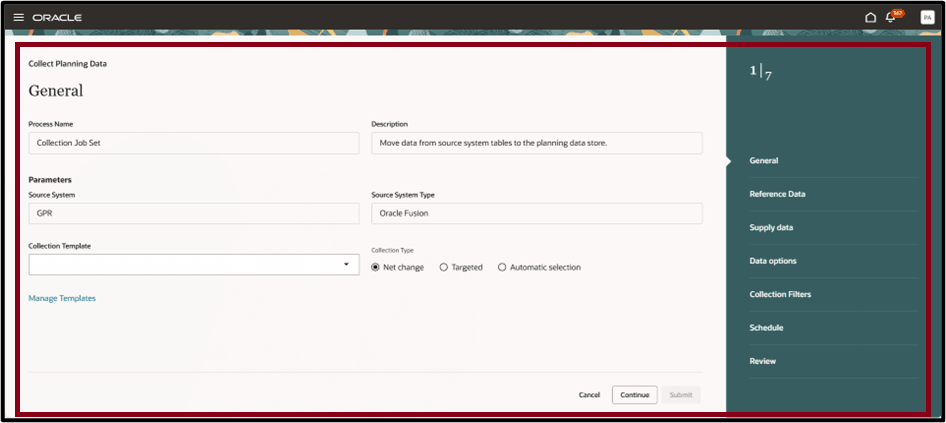
Collect Planning Data Guided Page
Manage Templates
Select Manage Templates on the General tab to manage existing templates. This action opens the Collection Templates drawer, where you can duplicate, delete, or edit template attributes.
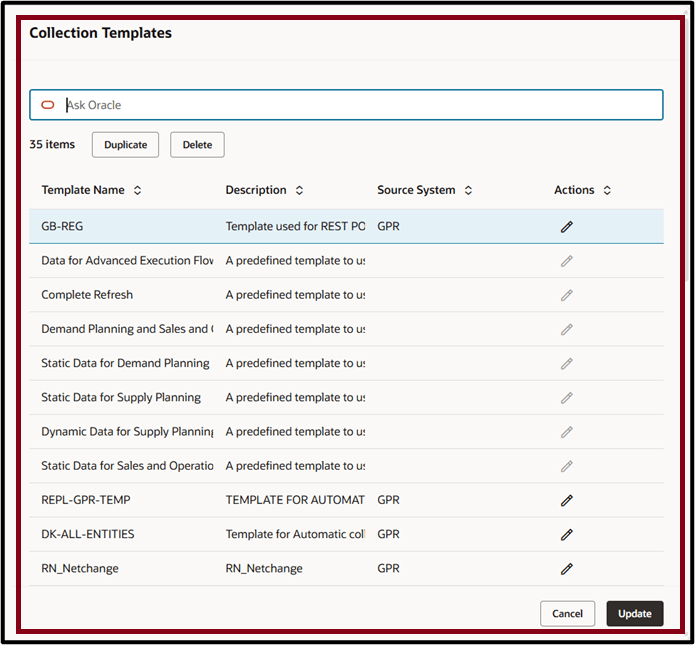
Collection Templates Drawer
Collection Filters
Select Collection filters to limit data collection to entities that are relevant to your business requirements. Applying filters can improve the runtime performance of the collection process.
The following screenshot shows the Collection Filter drawer for the Item entity.
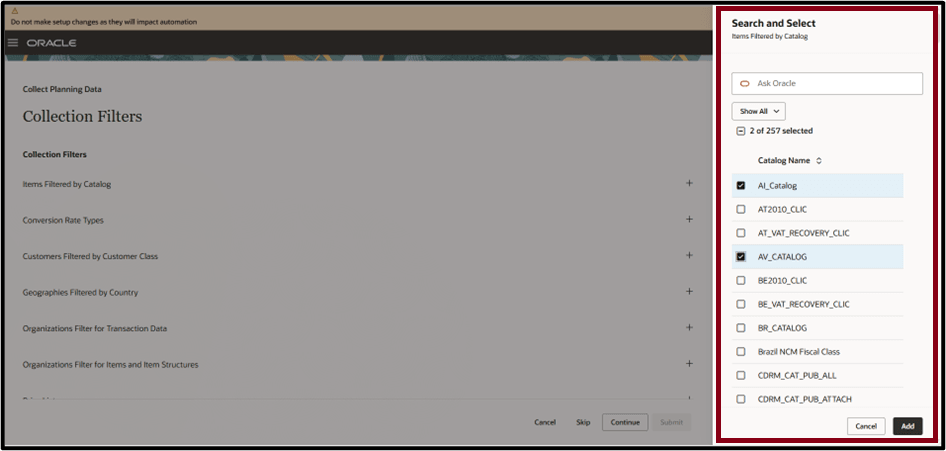
Collect Planning Data Filter Drawer
Steps to enable and configure
Use the Opt In UI to enable this feature. For instructions, refer to the Optional Uptake of New Features section of this document.
Offering: Supply Chain Planning
Tips and considerations
If you want to use the Redwood: Collect Planning Data Using a New User Experience feature, then you must opt in to its parent feature: Replenishment Planning. If you’ve already opted in to this parent feature, then you don’t have to opt in again
Key resources
See the Update 25B Redwood: Analyze Supply Plans Using a Configurable Redwood Page feature.
Access requirements
Users who are assigned a configured job role that contains these privileges can access this feature:
- Submit Collect Planning Data (MSP_PERFORM_ORDER_ORCHESTRATION_AND_PLANNING_DATA_COLLECTION_PRIV)
Submit Collect Planning Data from Flat Files privilege was available prior to this update.