Redwood: Load Planning Data from Flat Files Using a New User Experience
You can use the Redwood user experience to load data from external systems using predefined templates for various entities required for planning such as items, organizations, planning measures, and related data. This update improves usability, governance, and operational efficiency across planning data loads.
Load Planning Data from Flat Files
Use the Load Planning Data from Files scheduled process to collect planning data from an external source system. When submitted, data from the CSV files is first loaded into staging tables and then transferred to the planning data repository.
To load planning data using CSV files, follow these steps:
- Create the CSV files using the predefined File-Based Data Import (FBDI) templates.
- Navigate to File Import and Export and create a new import. Set the account to scm/planningDataLoader/Import to import the CSV files.
- Submit the Load Planning Data from Files scheduled process to load the data into the planning repository.
You can now launch the Load Planning Data from Files process directly by selecting View More in the Redwood Oracle Fusion Supply Chain Planning work area.
This process is available from the following functional areas:
- Supply Planning
- Replenishment Planning
- Demand Management
- Sales and Operations Planning
- Backlog Management
- Production Scheduling
- Global Order Promising
- Plan Inputs
When you select Load Planning Data from Files, the following drawer opens.
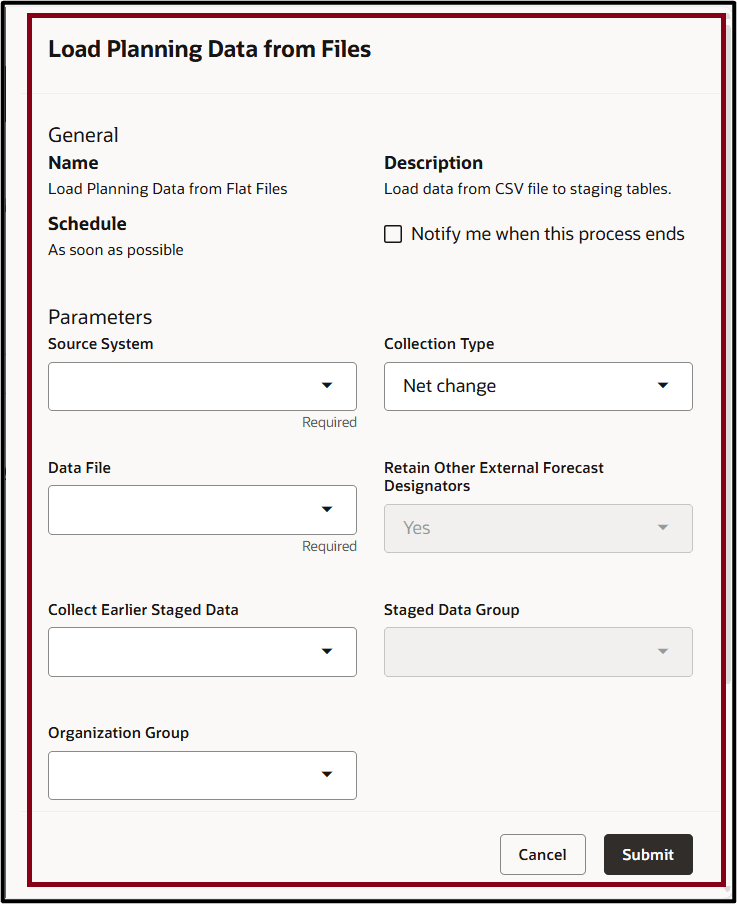
Load Planning Data from Files Drawer
After running the File Import and Export process for the specified data files, the files appear in the Load Planning Data from Files drawer within the Data File list of values (LOV). The most recently imported files are displayed first.
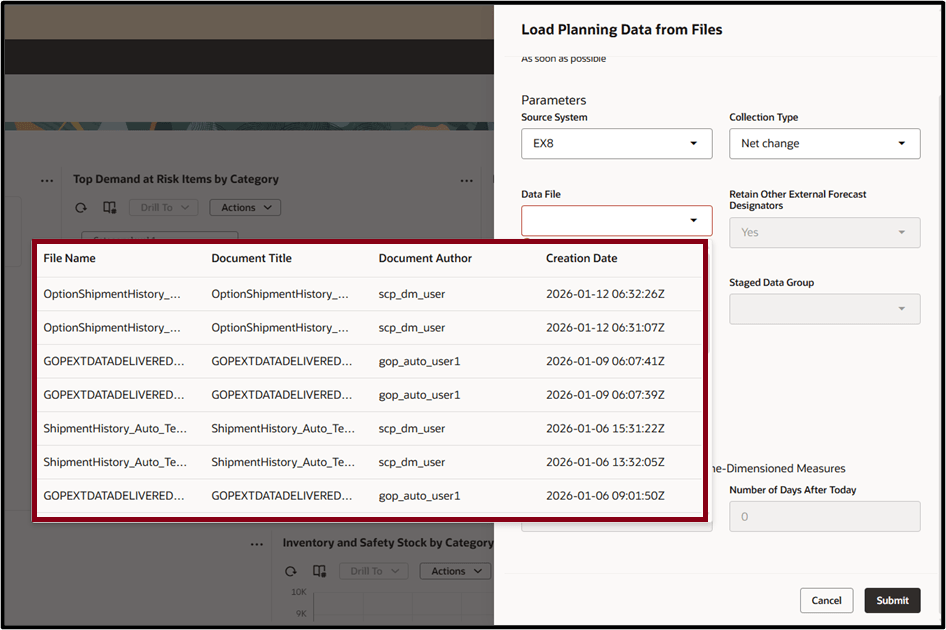
Data File LOV for Load Planning Data from Files
Steps to enable and configure
You don't need to do anything to enable this feature.
Tips and considerations
- Provide values for both Source System and Data File before submitting the Load Planning Data from Files process.
- The Retain Other External Forecast Designators option is enabled only when the Collection Type is set to Target.
- The Staged Data Group field remains inactive if you don’t select any value for the Collect Earlier Staged Data parameter.
- The Purge Options parameters related to time-dimensioned measures are enabled only when you select Enable Data Range for Purging Time-Dimensioned Measures.
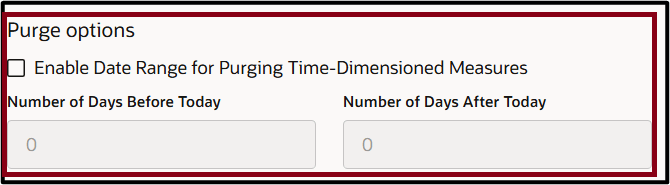
Enable Data Range for Purging Time-Dimensioned Measures
Key resources
See the Update 25B Redwood: Analyze Supply Plans Using a Configurable Redwood Page feature.
Access requirements
Users who are assigned a configured job role that contains these privileges can access this feature:
- Submit Load Planning Data from Flat Files (MSP_PERFORM_ORDER_ORCHESTRATION_AND_PLANNING_DATA_LOAD_PRIV)
Submit Load Planning Data from Flat Files privilege was available prior to this update.