AI Agent: Change Order Auditor
You can now use an AI-powered, user-configurable audit tool that parses human-defined rules (from a PDF file), creates specialized validation agents, and orchestrates REST APIs to check for compliance issues for a change order in real-time. When discrepancies are detected, the tool automatically compiles and delivers a comprehensive summary report by email, enabling users to promptly address and correct violations.
Here are the steps to run this agent:
-
Initiate audit:
-
Open the change order you want to audit.
-
Click Actions and select Audit Change Order.
-
The Audit Change Order action is available only after completing the steps in the Steps to Enable section.
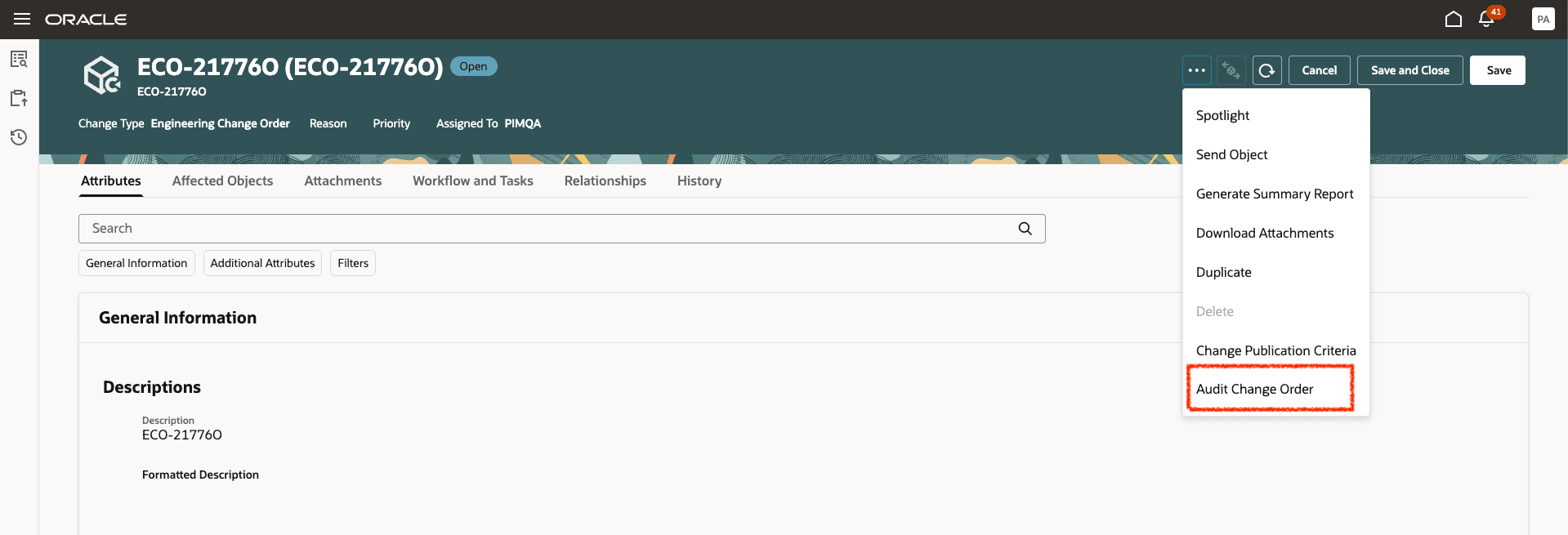
Click Audit Change Order to Trigger the AI Agent
-
-
A confirmation message appears indicating that the action has been successfully launched.
-
-
Review the results:
Once the agent completes the audit, you will receive an email with the following details:
-
Audit Summary Report:
-
Overall audit result (includes failures and warnings).
-
Detailed analysis of each issue and suggested actions.
-
Link to the change order for easy navigation to make the required corrections.
- Entry and Exit Criteria Report:
-
Current status of the change order and any violations (including failures and warnings).
-
Failure details for the current and next status and warning details for the future statuses.
- Custom Audit Rule Report:
-
Current status of the change order.
-
Specific rule violations and compliance details.
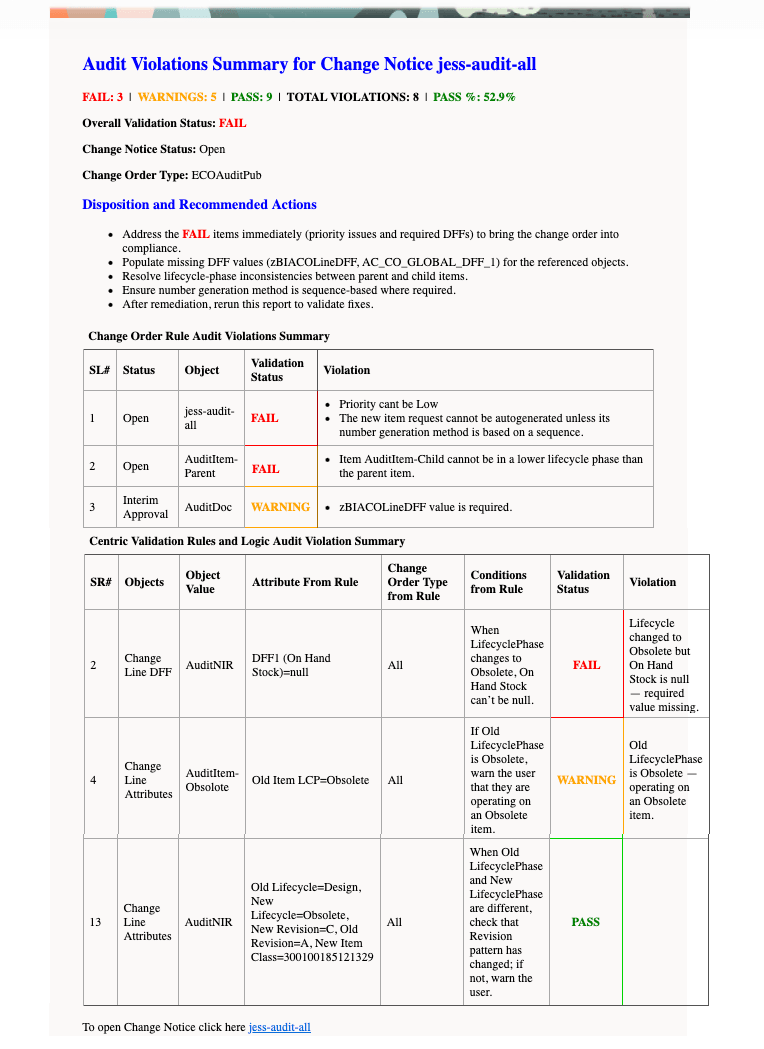
An Image of the Audit Report Sent in an Email
What the Agent Does During an Audit:
-
Reviews the selected change order and retrieves related information, including change header details, descriptive and extensible flexfields, affected objects, and line-level descriptive flexfields for the affected objects.
-
Audits the entry and exit criteria configured for the change order.
-
Reads and parses the Audit Rules document you uploaded in the PDF format.
-
Applies the parsed rules to the change order.
-
Audits the change order against the custom rules.
-
Summarizes the results and recommendations in a structured email report.
-
Delivers findings to the designated recipients for prompt follow-up.
Note: You can review the Agent Teams detailed flow in AI Agent Studio to understand how it works.
This table shows an example of the audit rules uploaded in the document tool in PDF format.
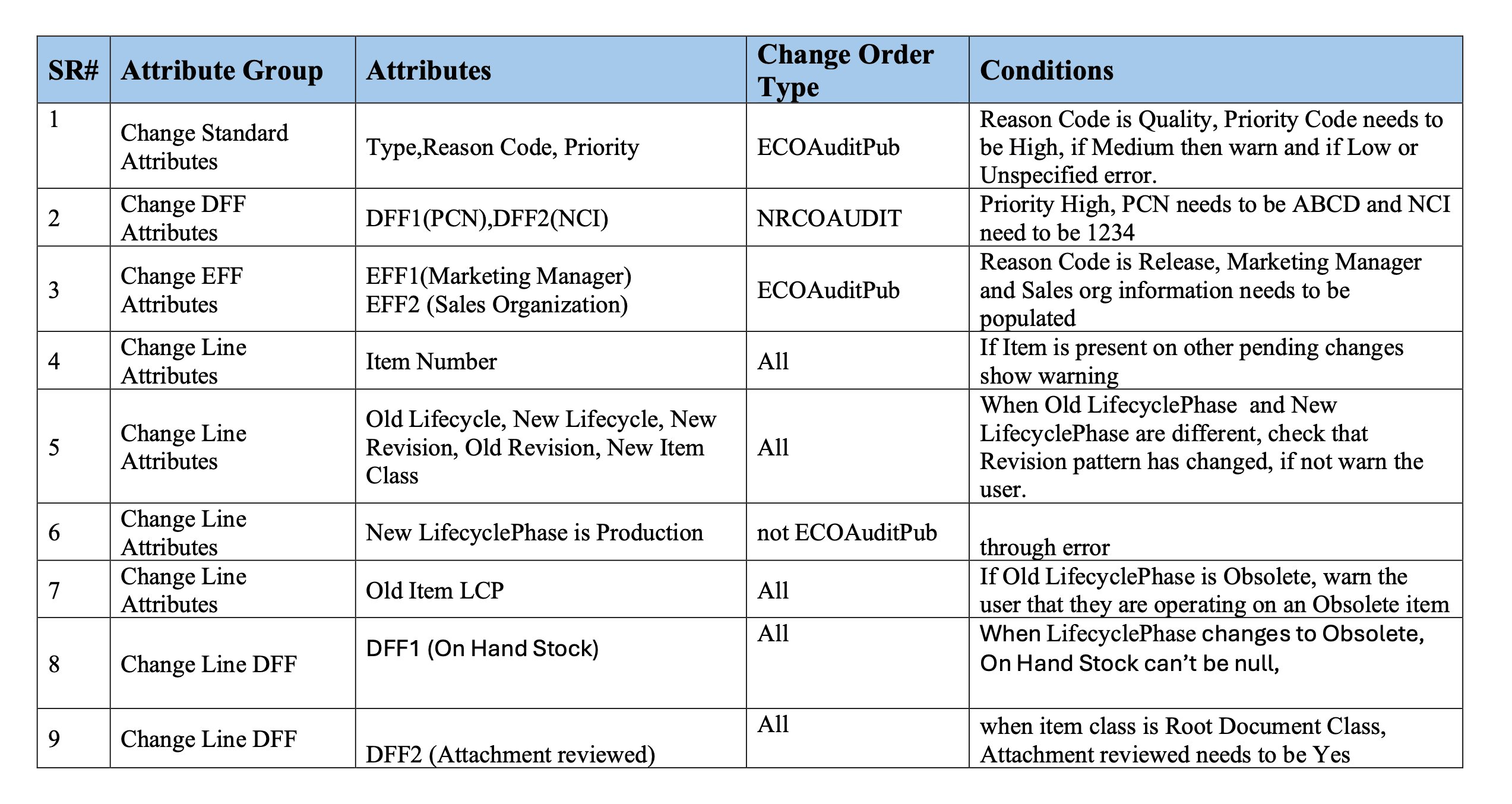
An Image of the Audit Rules Uploaded in the Document Tool in PDF format
This feature benefits your business by the following:
-
Faster change cycles with fewer rejections and less manual rework.
-
Higher data quality through consistent, rules-based validation.
-
Empowered business users to define and evolve governance without code.
-
Improved compliance and audit readiness via structured and trackable corrections.
Steps to enable and configure
-
Copy and Configure the AI Agent.
-
In the AI Agent Studio, copy the Change Order Auditor agent template and assign a unique suffix.
-
By default, audit results are emailed to the user who triggered the audit. But you can update the recipient list in the Email node Send Change Order Audit Violations Report, if required.
-
Upload your configured audit rule in the PDF format in the document tool:
-
In AI Agent Studio, navigate to Tools tab, search for and open Upload Custom Change Order Audit Rules.
-
Upload the rule document, ensuring only one document exists. Set the status to Ready to publish.
-
Use Scheduled Processes to start Process Agent Documents and wait for completion.
-
-
-
Enable the Audit Change Order action.
-
Create a new extension business rule using Visual Builder. Set condition to a change order type on which you want to enable the Audit Change Order action. Then in the Change Order Auditor Code field enter the Agent Team Code of your copied agent. This will enable the Audit Change Order action on change orders created in the change order type.
-
Change Order Auditor Code: the Agent Team Code of the Change Order Auditor in the AI Studio with the unique suffix.
-
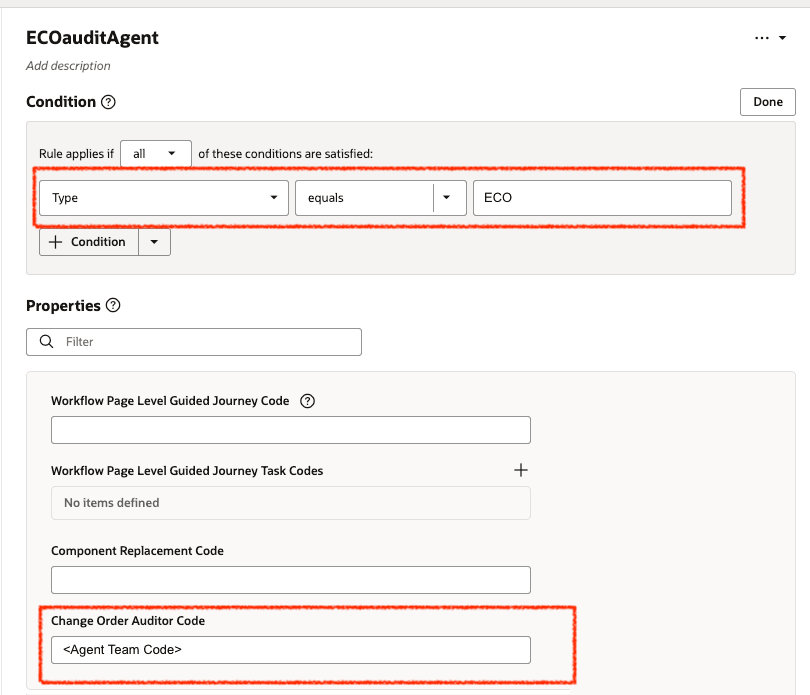
Enable Audit Change Order Action Using Business Rules in Visual Builder
-
Test the AI agent from the Redwood page:
-
Open a change order in Redwood and verify that the Audit Change Order action is available.
-
Trigger the audit and review the audit report email for content accuracy.
-
Tips and considerations
-
Audit change order currently is limited to support change orders only and doesn’t support change requests, problem reports, or corrective actions.
-
You can use Business Rules in Visual Builder to configure who can run the audit and which change type supports audit.
-
Configured Audit Rule
-
You must configure the audit rule using the same format specified in the table.
-
-
Email configuration
-
By default, the audit result will be sent to user who initiated the audit by email. You can configure the mailing list to add other recipients in the To and the Cc fields.
-
Key resources
Oracle AI for Fusion Applications
Access requirements
Users who are assigned a configured job role that contains these functional privileges can access this feature:
To access the AI Agent Studio:
-
SCM Intelligent Agent Management Duty (ORA_RCS_SCM_AI_AGENT_MANAGEMENT_DUTY)
To access change order:
-
View Change Order (ACA_VIEW_CHANGE_ORDERS_PRIV) or
-
Manage Change Order (ACA_MANAGE_CHANGE_ORDERS_PRIV)
To create business rules using Visual Builder Studio in express mode, ensure that your user account is linked to this job role:
-
Application Implementation Consultant (ORA_ASM_APPLICATION_IMPLEMENTATION_CONSULTANT_JOB)
These privileges were available prior to this update.