AI Agent: B2B Message Converter - Enrich Workflow Features Along with Upload and Download Capabilities
You can use the B2B Message Converter AI agent to streamline the conversion of B2B messages such as shipments from a Fusion Application REST resource into industry-standard formats. Shipments are currently supported in OAGIS 10.1.
Users can perform a complete sequence of messaging conversion steps within the agent, including uploading and downloading mapping files.
All actions, ranging from entering instructions and uploading mapping files, to initiating conversions and downloading outputs are performed through the AI Agent Studio chat interface.
Sample Prompts
- Convert Shipment Number 67891 to OAGIS
Once the request is successfully completed, you have the option to download documents and access the message definition and message log for further review.
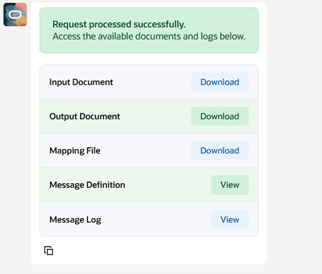
Download and View Options
Input Document (InputDocument): The content is provided in standard JSON format specifically sourced from an Oracle Fusion REST API response.
Outbound Document (OutputDocument): This file includes the transformed message in OAGIS format.
Mapping File (EventPayload): This file defines the data transformation rules for converting a Shipment from a JSON format into a standard XML format such as OAGIS.
Message Definition: This is a configuration artifact that defines how messages are transformed between Oracle applications and trading partners, specifying the transformation logic for exchanged messages.
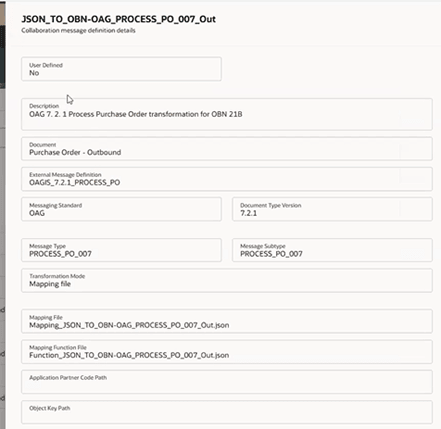
Collaboration Message Definition Details
Message Log: It displays the outcome of the transformation on the B2B Messages page. While a message ID is associated with it, no actual message is processed. The log serves solely as a record of the transformation performed by the Converter agent into the OAGIS format.
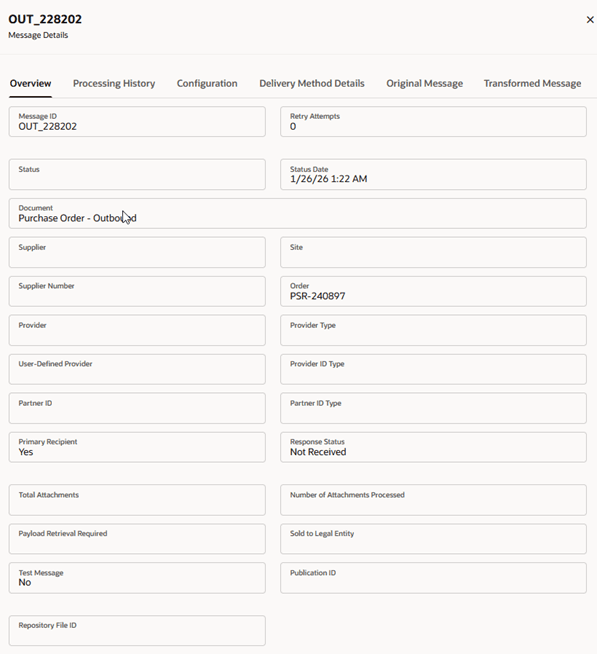
Message Details
If you want the agent to use a customized mapping file, click the paperclip icon and upload your JSON mapping file. The agent will then use your uploaded mapping file to convert a shipment number into the OAGIS format.
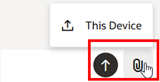
Upload File
Node and Node Types
The B2B Message Converter agent uses these nodes and node types:
| Node Name | Node Type | Description |
|---|---|---|
| Process User Input | LLM | This LLM is parsing a user's prompt to extract relevant document details, validating input, identifying required formats, and managing errors. It responds with structured feedback to ensure users can correct issues promptly and proceed with their document conversion workflow. |
| Verify User Input | IF conditional | This condition checks for input errors. |
| Request Additional Details | Human Approval | This node indicates that some required input has not been provided. The user is asked to provide the missing information. |
|
Is File Upload Required |
IF conditional |
This node is used to check whether a mapping file was detected or indicated as present during the processing of user input. |
|
File Processor |
Agent |
If a file is present, the agent uploads it using the Multi-File Processor tool, which returns the file content to Set File Content node. |
|
Set File Content |
Code |
This code checks if a mapping file was successfully found and read. If found, it cleans up the file content (removing extra quotes if present) and includes it as a new option in the message options string. The updated string can then be used for further processing or sent to downstream systems. |
|
Convert Document |
Business Object Function |
This node contains a REST call to perform the conversion. |
|
Conversion Summary Response |
LLM |
This node checks if the document conversion worked and displays either a list of document or download links and a success message, or an error message with details. |
The agent leverages message definitions to automate and standardize message transformations, while the B2B Messages page logs the results of each conversion.
Steps to enable and configure
You can use AI Agent Studio to use or copy a preconfigured agent template to create Agents for your business processes. To automatically add a suffix to all artifacts in your agent team, you can Copy Template instead of Use Template. When you copy a template, you're directly taken to the agent team canvas where you can edit the agent team settings, agents, tools, and topics. The Use Template option takes you through a step-by-step process for configuring each artifact in the agent team.
Agent Template: B2B Message Converter
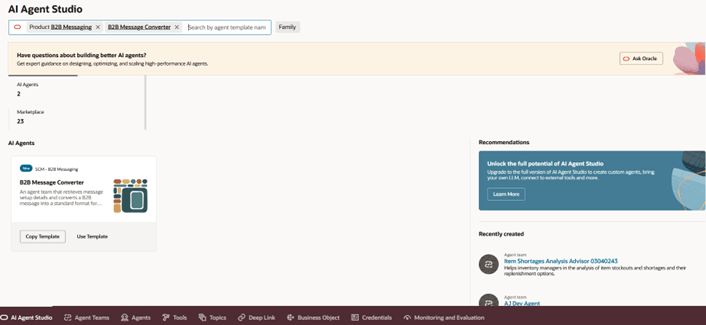
B2B Message Converter Template
For information on using AI Agent Studio, see How do I use AI Agent Studio?
Tips and considerations
- In this update, the B2B Message Converter AI agent supports the Advance Ship Notice document type.
- The shipment number you provide in the prompt may not exist as a message in Collaboration Messaging. It only needs to exist in the environment where the prompt is executed.
- The prompt needs to include both the document type and the corresponding document number.
- The agent does not establish any new connections, perform additional setup, or send messages to trading partners. The message definitions are used solely to determine the required output format, while the B2B Messages page is used to record all conversions performed by the agent.
- The agent uses the following JSON-based mapping message definition: OAGIS_10.1_PROCESS_SHIPMENT_OUT
Note: If you have customized any of these mapping files and created a duplicate message definition to upload your changes, the agent will use the most recent duplicate message definition during conversion.
Access requirements
To access the Oracle AI Agent Studio for Fusion Applications and manage SCM AI agents, users must be assigned a configured job role that contains these duty roles:
-
SCM Intelligent Agent Management Duty (ORA_RCS_SCM_AI_AGENT_MANAGEMENT_DUTY and ORA_RCS_SCM_AI_AGENT_MANAGEMENT_DUTY_HCM – both duty role codes are required)
-
Fai Genai Agent SCM Administrator Duty (ORA_DR_FAI_GENERATIVE_AI_AGENT_SCM_ADMINISTRATOR_DUTY)
In the Security Console, filter by Roles and Privileges to find the SCM Intelligent Agent Management Duty role. Filter by Roles and Permission Groups to find the Fai Genai Agent SCM Administrator Duty role.
To interact with AI agents in product pages, users must be assigned a configured job role that contains this duty role:
-
Fai Genai Agent Runtime Duty (ORA_DR_FAI_GENERATIVE_AI_AGENT_RUNTIME_DUTY)
In the Security Console, filter by Roles and Permission Groups to find this duty role.
To allow users to interact with agents, you must also enable permission groups in the Security Console on those users’ configured job roles that contain the Fai Genai Agent Runtime Duty role. You can enable permission groups when you manage the basic information of your configured job roles.
Users’ configured job roles must also contain privileges that allow access to the pages where AI agents are enabled.