Use Safety Stock from an Inventory Optimization Plan in Replenishment Planning
Many enterprises use inventory optimization to minimize total inventory holding costs while improving service levels across their supply chain networks. By treating the entire network wholistically rather than as individual locations (such as plant, warehouse, and store), inventory optimization reduces redundant safety stocks, lowers operating costs, and increases resilience to variability to demand and supply.
Safety stock recommendations from Oracle Inventory Optimization Planning are fed into Oracle Replenishment Planning to enhance tactical supply chain decisions. The integration matches safety stock quantities by item and organization. If there are multiple safety stock quantities for a planning bucket, the safety stock value closest to the plan start date is selected.
You can use the calculated safety stock targets for items and organizations across all supply chain echelons from an inventory optimization plan for policy computation in a replenishment plan.
Currently, replenishment planning computes static safety stock, Minimum Quantity, Maximum Quantity, and Reorder Point values. The static safety stock value is computed first and then it’s used to compute static Minimum Quantity, Maximum Quantity, and Reorder Point policy values. Hence, although the inventory optimization plan provides time-phased safety stock values, the replenishment plan will read only one static safety stock value: the one available closest to the replenishment plan run date. This static safety stock value will then be used for computing Minimum Quantity, Maximum Quantity, and Reorder Point policy values.
Add Demand Schedule to a Replenishment Plan
You must add an inventory optimization plan as a demand schedule to use its safety stock targets for planning supply and inventory in a replenishment plan.
To add a demand schedule to a replenishment plan:
- Select a replenishment plan from the list of values in the Supply Chain Planning work area plan selector. The Calculate Policy Parameters checkbox must be enabled for this plan.
- Select More Actions > Edit Plan Options.
- In the Supply step, select Demand Schedules.
- Select Add and then select an inventory optimization plan in the demand schedule drawer.
- Select Add to associate the demand schedule with the plan and close the drawer.
Notice that the Use for Policy Parameters checkbox is selected by default and the Use for Demand Schedule checkbox isn’t selected. Both of these checkboxes aren’t available to edit.
- Select Submit to save the plan options.
- You must run the replenishment plan and refresh with current data to use the Final Safety Stock Quantity measure from an inventory optimization plan as the Safety Stock value in the replenishment plan.
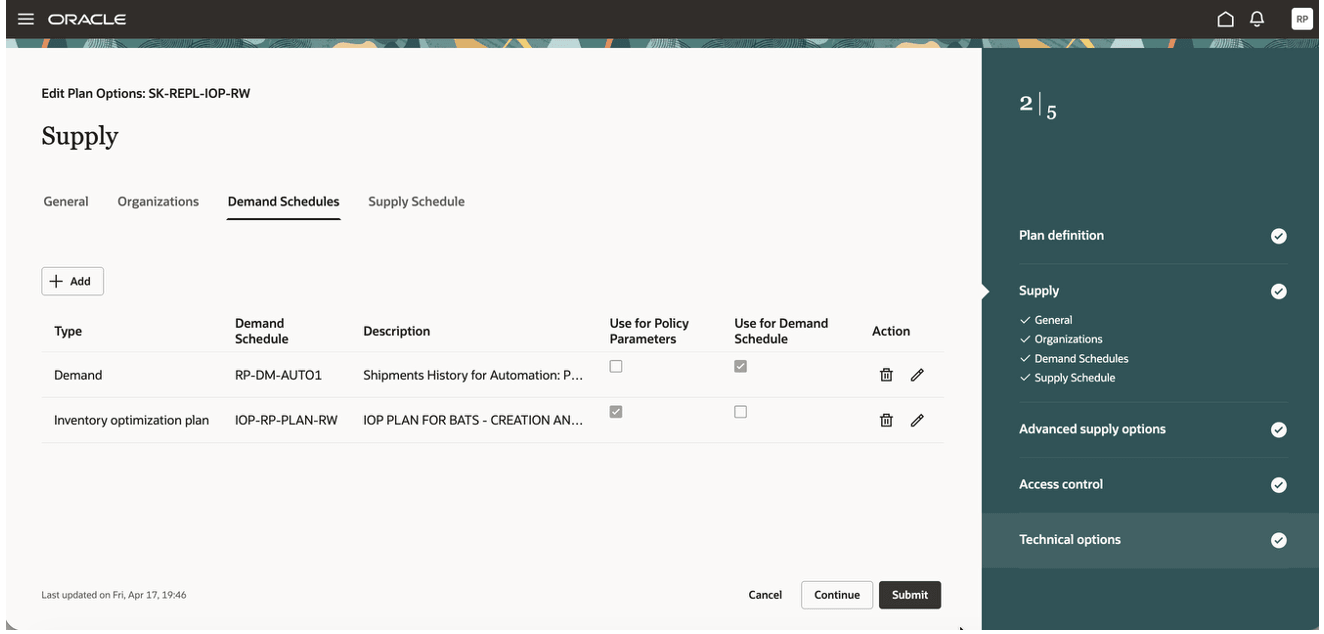
Replenishment Planning Plan Options Page
You can remove a demand schedule by selecting the Delete icon.
Policy Calculation
For every item-location combination within the replenishment plan, a static safety stock value from the inventory optimization plan is read, using whichever value is closest to the plan run date. Closest value means the safety stock value from the inventory optimization plan that’s in effect on the replenishment plan run date or the future effective value which is closer to the replenishment plan run date. This value can be verified on the Items page for a replenishment plan.
While computing policies, this safety stock value is then used to compute Minimum Quantity, Maximum Quantity, and Reorder Point policy values.
If an item-location combination doesn’t have a safety stock value in the inventory optimization plan, or if the policy UOM is set to days for that item-location combination, then safety stock is still computed within the replenishment plan, the same as it was done prior to this update.
Steps to enable and configure
You don't need to do anything to enable this feature.
Key resources
-
Refer to the Cloud Applications Readiness content for the following 26C feature for Oracle Fusion Cloud Supply Chain Planning: Optimize Inventory Levels Across Multiple Echelons.
Access requirements
Users who are assigned a configured job role that contains these privileges can access this feature:
- Manage Segments (MSC_MANAGE_SEGMENTS_PRIV)
- Monitor Replenishment Planning Work Area (MSC_MONITOR_REPLENISHMENT_PLANNING_WORK_AREA_PRIV)
These privileges were available prior to this update.