Streamline the Import and Export of Messaging Setup Data
You can now export and import Oracle Collaboration Messaging setup data to migrate your configuration across pods and environments like development, test, and production. Setup data includes messaging providers, connections, and partner configurations for both suppliers and customers.
You now have:
- Faster environment provisioning: Quickly replicate a known good configuration from one pod to another without rebuilding setups manually.
- Reduced manual effort and fewer errors: Eliminate repetitive data entry and lower the risk of misconfiguration.
Steps to enable and configure
After you enable the Simplify Configuration and Processing for B2B Messaging feature, perform the following high-level tasks:
- Create an implementation project.
- Create a configuration package.
- Export setup data.
- Upload a configuration package.
Create an Implementation Project
- From the Setup and Maintenance work area, click the Tasks icon and select Manage Implementation Projects.
- Select Create.
- Enter the required details, then select Save and Open Project.
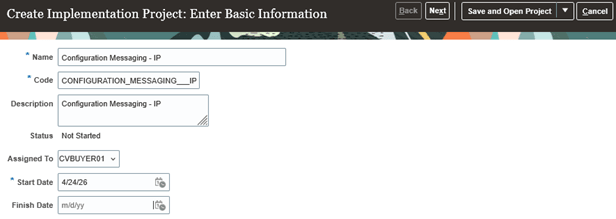
Create Implementation Project
- On the newly created implementation project, Select and Add.
- In the search fields, enter:
- Search = Tasks
- Name = Manage Simplified Collaboration Messaging Configuration
- Select Apply.
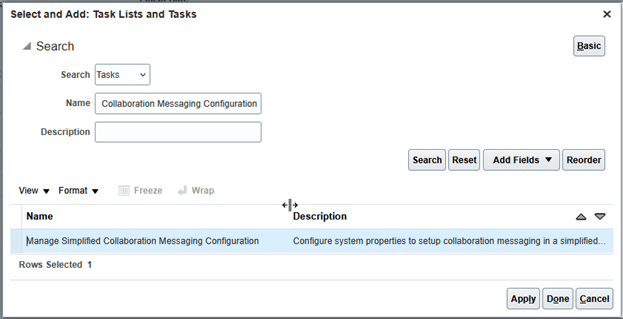
Select and Add Tasks
- In the search fields, enter:
- Search = Tasks
- Name = Manage Collaboration Messaging Service Providers
- Select Apply and Done.
- On the Implementation Project page, select Done.
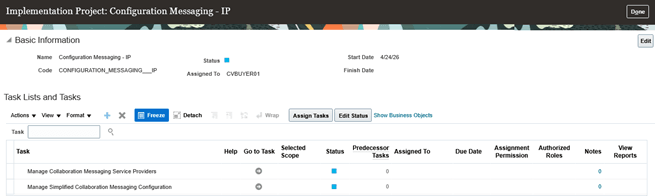
Implementation Project
Create a Configuration Package
- From the Setup and Maintenance work area, click the Tasks icon and select Manage Configuration Packages.
- Select Create.
- In the Name field, select the implementation project that was previously created and select Yes in the warning dialog.
- Enter the required details. Select Save and Close.
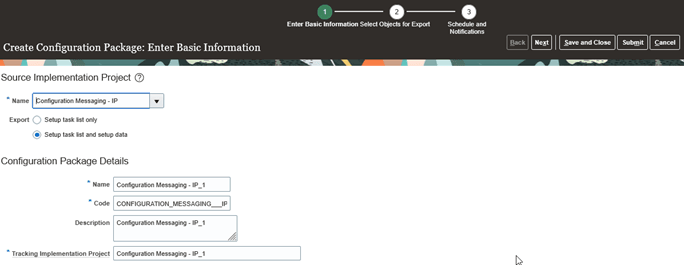
Create Configuration Package
Export Setup Data
- On the Manage Configuration Packages page, select the package you just created, then select Export Setup Data.
- On the Export Setup Data page, select Submit.
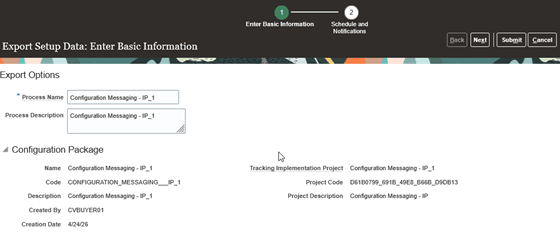
Export Setup Data
- On the Manage Configuration Packages page, the status shows Completed Successfully when the export finishes without errors.
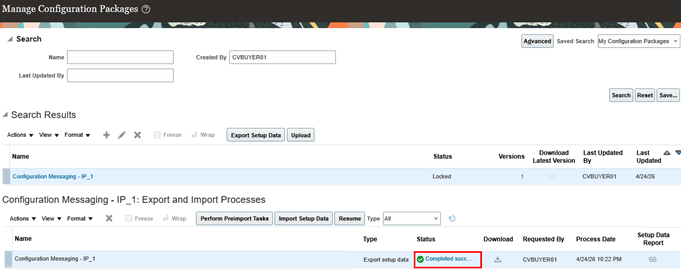
Manage Configuration Packages – Export Status
- Download the configuration package by clicking Download > Download Configuration Package.

Download Configuration Package
Upload a Configuration Package
- On the destination pod where the data will be imported, go to the Setup and Maintenance work area. Select the Tasks icon, select Manage Configuration Packages and Upload.
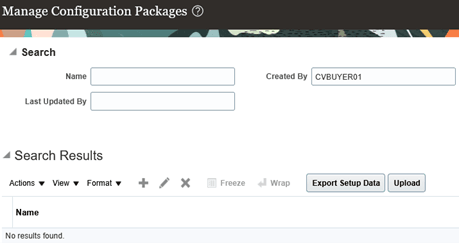
Manage Configuration Packages - Upload
- Browse for the configuration package .zip file, and select Get Details and Submit.

Upload Configuration Package Details
- On the Manage Configuration Packages page, the status shows Completed Successfully when the upload finishes without errors.
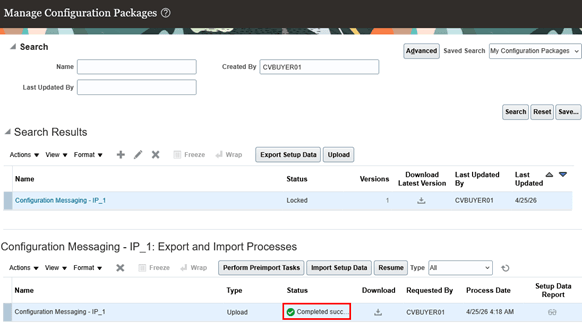
Manage Configuration Packages – Upload Successful
- Select Import Setup Data.
- On the Import Setup Data page, select Submit.
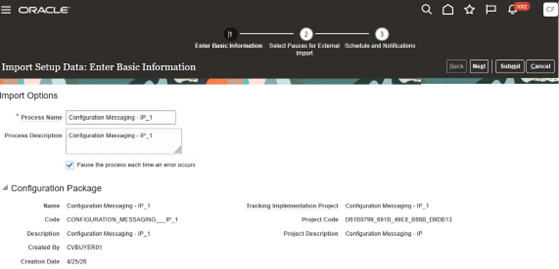
Import Setup Data – Submit
- On to the Manage Configuration Packages page, the status shows Completed Successfully when the import finishes without errors.
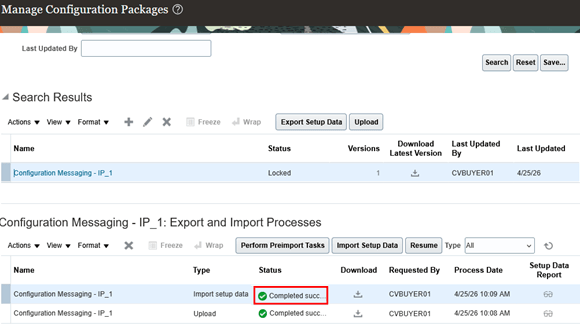
Manage Configuration Packages – Import Successful
Tips and considerations
- To migrate the Collaboration Messaging configuration data of all the objects, you need to add:
-
- Manage Simplified Collaboration Message Configuration
- Manage Collaboration Messaging Service Providers
- Any errors that get detected during the data export, upload, or import will be reported on the Export and Import Process Results page.
Key resources
For more information, refer to these resources on the Oracle Help Center.
Setup Data Export and Import chapter of the Using Functional Setup Manager guide.
Access requirements
You can work with Functional Setup Manager (FSM) if you have the Application Implementation Consultant role.