Contract Compliance Workspace
Contract Compliance Workspace is an agentic app that helps legal and contract teams identify actively negotiated contracts that need attention because of clause deviations and terms risk. The workspace uses agentic capabilities to analyze negotiation feedback, calculate contract terms risk severity, and surface contracts with high-priority deviations.
The workspace focuses on contracts that are still being negotiated with the other party and where requested contract term changes are shared by the other party in a spreadsheet. It helps users review the requested changes against the organization's playbook positions and directly update the contract clauses in the app
The workspace supports both buy-intent and sell-intent contracts through separate panels:
- Procurement Contract Drafts panel for buy intent contracts
- Sales Contract Drafts panel for sell intent contracts
There are four documents used in this feature
- Negotiation Feedback Document: Spreadsheet provided by the external party that captures requested changes to contract clauses. It includes clause title, rule details, standard position, fallback positions, risk, and required approvals.
- Contract Playbook: Defines the organization’s approved negotiation positions for key clauses, with separate playbooks for buy-intent and sell-intent contracts. It guides the AI in determining whether a requested change matches the standard position, an acceptable fallback, or requires review/escalation.
- Contract Risk Scoring Document: Defines how contract risk is evaluated using contract amount, clause deviations, and contract type. It assigns severity levels such as Critical, High Risk, Medium Risk, Low Risk, or No Risk based on sequential rules.
- Contract Compliance Workspace Filter: Defines which contracts appear in the Contract compliance workspace agentic app panels. Contracts are filtered based on criteria such as business unit, contract type, contract terms risk severity/score, and how long the contract has been with an assignee.
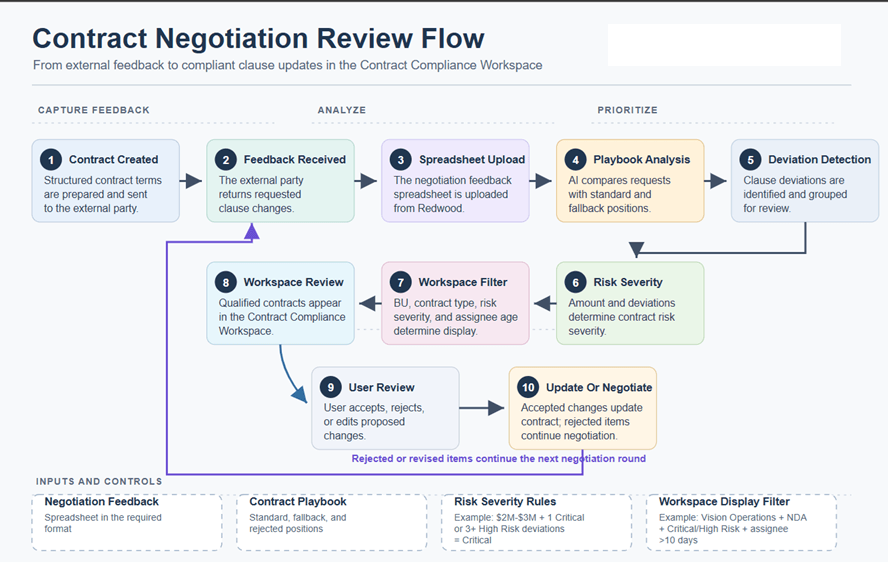
Neogtiation Review Flow Overview
Upload Negotiation Feedback
Users can upload external-party negotiation feedback document from the Redwood Edit Contract UI using the Upload Negotiation Feedback smart action.
The smart action is available when:
- Contract status is Draft or Under Amendment
- Contract version is Current version
- User has edit access to the contract
- Enable for Contract Compliance Workspace is selected for the contract type in the Manage Contract Type UI
- Structured terms template is attached to the contract
- Terms document is not edited in the Word add-in
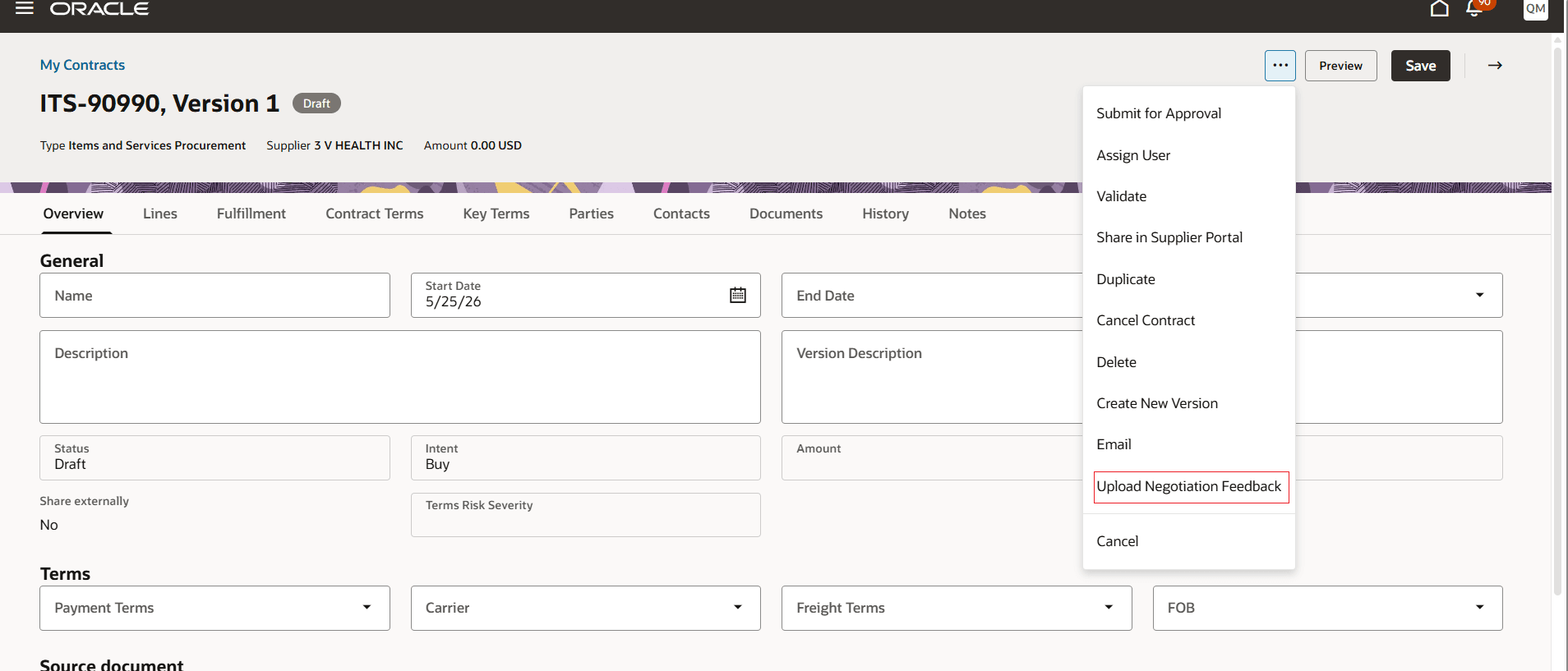
Upload Negotiation Feedback
The negotiation feedback document is provided by the external party and contains the requested changes to the contract document. The upload drawer supports one spreadsheet at a time, and the uploaded file must follow the specified spreadsheet format.
The requested changes must be captured using the following columns:
| Field | Details |
|---|---|
| ID * | Unique identifier of the row |
| Status * | Supported values are Open and Closed. |
| Clause Number | Clause number from the contract document |
| Clause Name * | Clause name from the contract document |
| Original Clause | Clause text |
| Supplier 1 or Customer 1 * |
The change requested or issue raised by the external party in the contract terms. The first round of negotiation will be marked with 1, and the subsequent rounds the number will be incremented to 2, 3 etc. In Buy intent contract, the negotiation starts from the supplier and Sell intent contract, the negotiation starts from the customer since we are comsidering only structured terms. |
| Reason | Reason for the requested change |
| Buyer 1 | Response by the internal party |
Fields marked as * are mandatory
The external party raises a change request through the negotiation feedback spreadsheet. The internal party reviews the request in the Contract Compliance Workspace agentic app and either accepts the change by updating the contract clause or rejects it by updating the issue status and response in the spreadsheet.The updated contract document and spreadsheet are then sent back to the external party. For the next negotiation round, the external party provides its response in the next available round column, such as Supplier 2 or Customer 2, and returns the spreadsheet.
The internal party uploads the revised spreadsheet to the contract again, and the system reanalyzes the latest negotiation round. The updated analysis is displayed in the Contract Compliance Workspace for review and action. This process can continue across multiple negotiation rounds. Rows marked as Closed will not be analyzed, so the internal party must ensure that each issue has the correct status before uploading the spreadsheet.
Sample Negotiation document
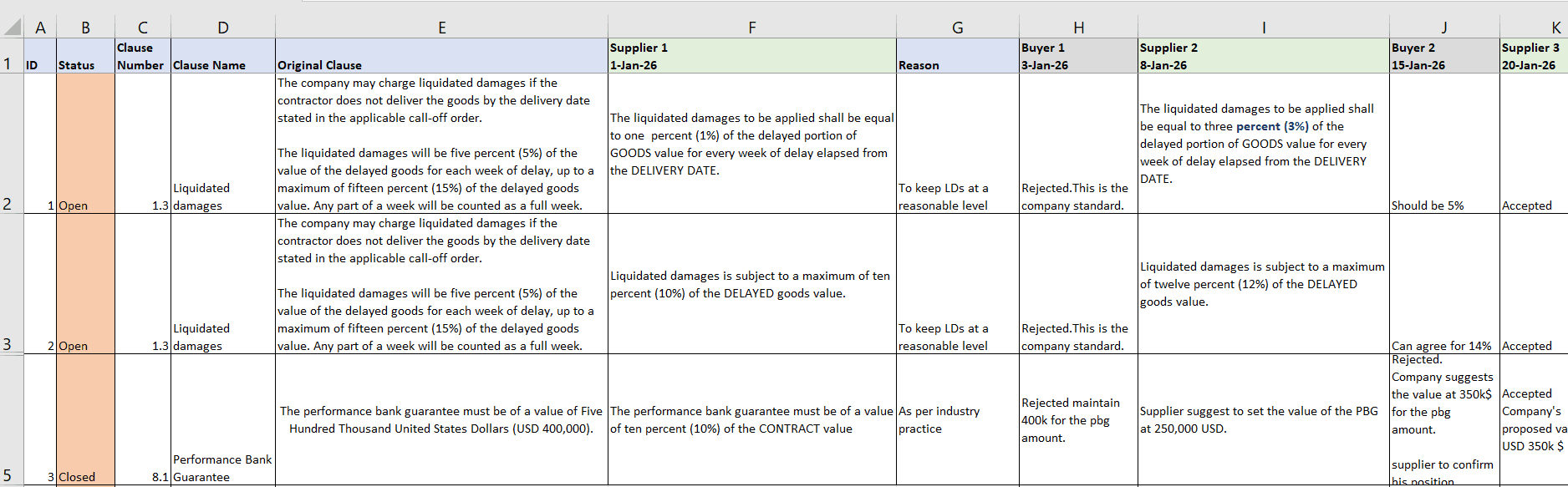
Negotiation Spreadsheet Format
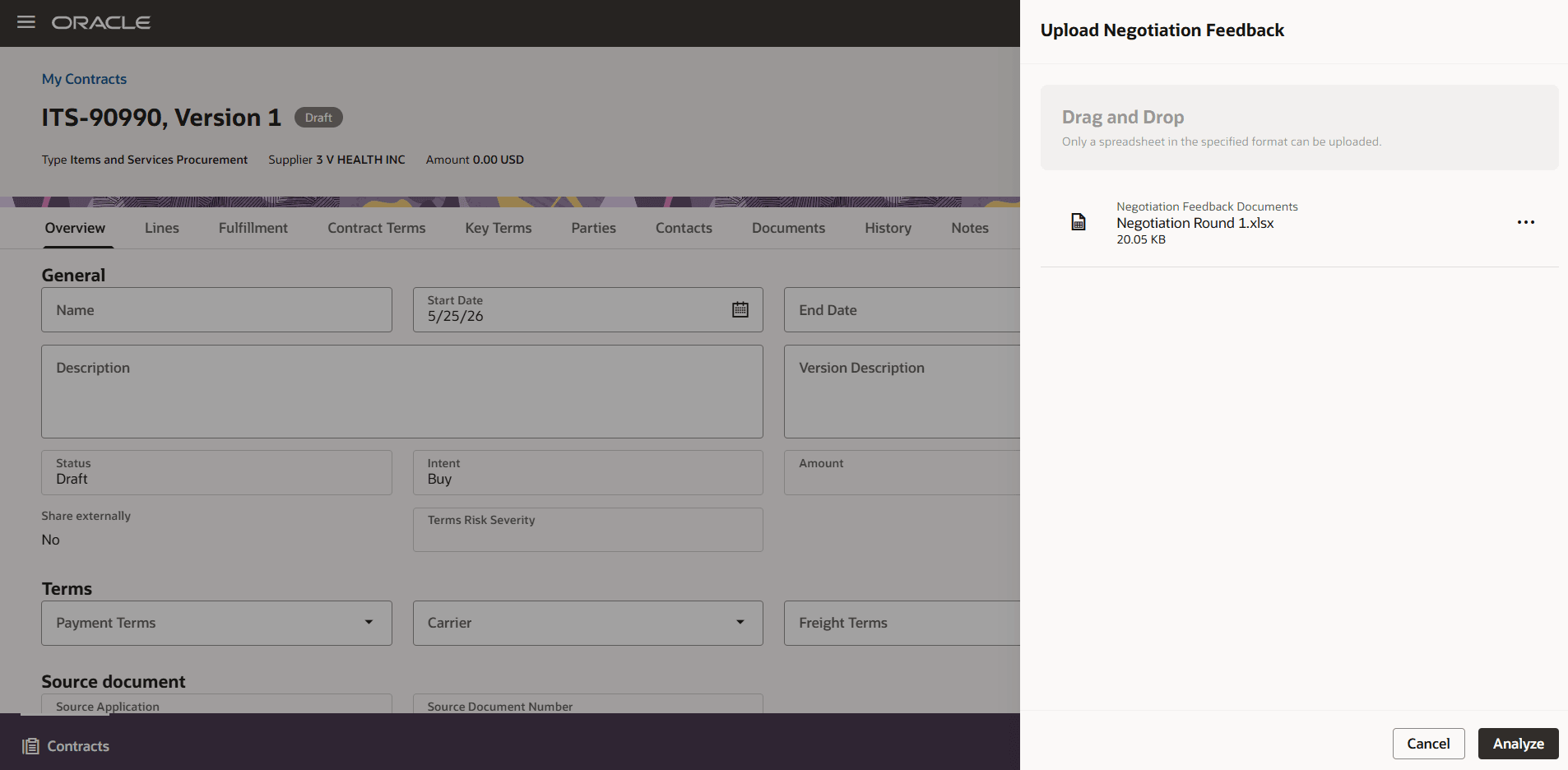
Upload Spreadsheet
When you click on Analyze,
- The document will be uploaded in the Documents tab, Negotiation Feedback Documents section
- The document will be compared against the playbook to identify deviations and deviation severity
- Based on the risk scoring criteria, contract terms risk severity will be evaluated and updated in the Overview tab 'Terms Risk Severity' field
Click on the Refresh button to see the status.
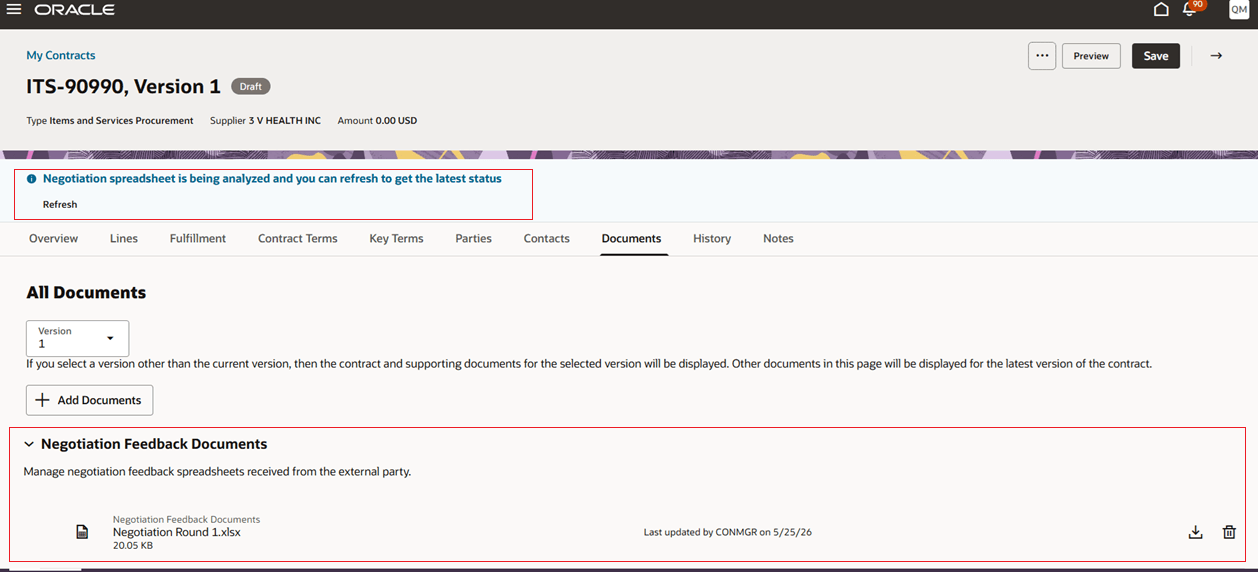
Negotiation Feedback Document Analysis is in Progress
If the analysis is completed successfully, you'll see the message "Spreadsheet analysis completed. View the details in the Contract Compliance Workspace agentic app." If the contract satisfies the conditions mentioned in the contract filtering criteria document, you can view the contract in the Contract Compliance Workspace agentic app.
In case of any errors, the user who analyzed the spreadsheet will get an email with the details of the error.
Error Scenarios Summary
-
Invalid or unsupported document (Negotiation spreadsheet document)
- The uploaded document is blank, contains only headers, is the wrong document, or does not use the required template.
- Missing rules or unsupported contract type (playbook)
- No rule is defined for the selected contract type, or mandatory contract-type-specific fields are missing. Note that the contract type is case sensitive.
- Missing mandatory fields
- Required fields are missing or blank in the playbook policy document or negotiation feedback spreadsheet.
- Mandatory playbook document fields
-
Clause title, Rule code, Rule description, Standard position, Contract type, and Fallback 1 position with corresponding fallback 1 risk
-
-
Mandatory negotiation feedback spreadsheet fields
-
ID, Status, Clause Name, and at least one supplier/customer response column such as Supplier_X or Customer_X.
-
- Invalid fallback details (playbook)
- If a fallback position is provided, the corresponding fallback risk is mandatory.
- Invalid risk values
-
Supported risk values are: No Risk, Low Risk,Medium Risk,High Risk, and Critical. Values are not case sensitive.
-
-
Invalid clause or data values
- Wrong clause numbers or incorrect values may exist, but some value-level correctness cannot be fully validated by the system.
Risk Scoring Error
The contract risk severity could not be evaluated for the listed contracts. Ensure that the Contract Risk Scoring evaluation document is uploaded, is not blank, contains rules for the relevant contract type, includes non-blank mandatory fields, and uses valid severity values.
Terms Risk Severity
Contract risk scoring happens automatically when a negotiation spreadsheet is uploaded. The terms risk severity is calculated based on contract amount and clause deviations. You can also run the scheduled process 'Evaluate Risk Severity for Contracts' to reevaluate the risk, if the contract amount is updated. The value helps the workspace prioritize contracts with higher risk. A new Terms Risk Severity field is available in the General section of the contract Overview tab which has the contract risk severity, Critical, High risk, Medium, risk, Low risk or No risk.
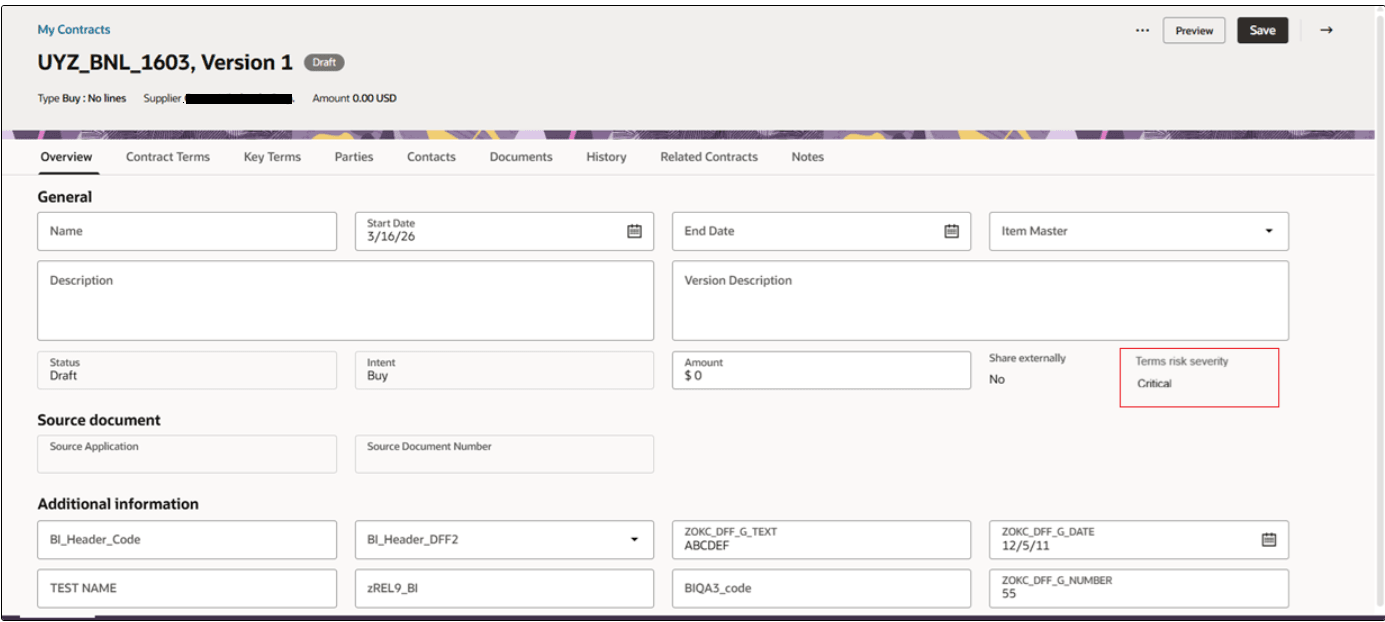
Contract Risk Severity
Contract Compliance Workspace Agentic App
The workspace focuses on contracts that are still being negotiated with the other party and where requested contract term changes are shared by the other party in a spreadsheet. It helps users review the requested changes against the organization's playbook positions. Refer to the Steps to Enable and Configure section for instructions on launching this agentic app from the Fusion Applications home page.
In the agentic app, users can
- View draft and under-amendment contracts with structured terms that have negotiation feedback and terms risk.
- Identify contracts with critical, high-risk, medium-risk, or low-risk clause deviations.
- Review the clauses impacted by external-party negotiation feedback.
- Compare requested changes with standard and fallback playbook positions.
- Accept a position, reject an external-party request, or edit proposed clause language.
- Preview the contract terms document with the current clause highlighted.
- Update contract clause language after reviewing and accepting proposed changes.
Contract Compliance Workspace Panels
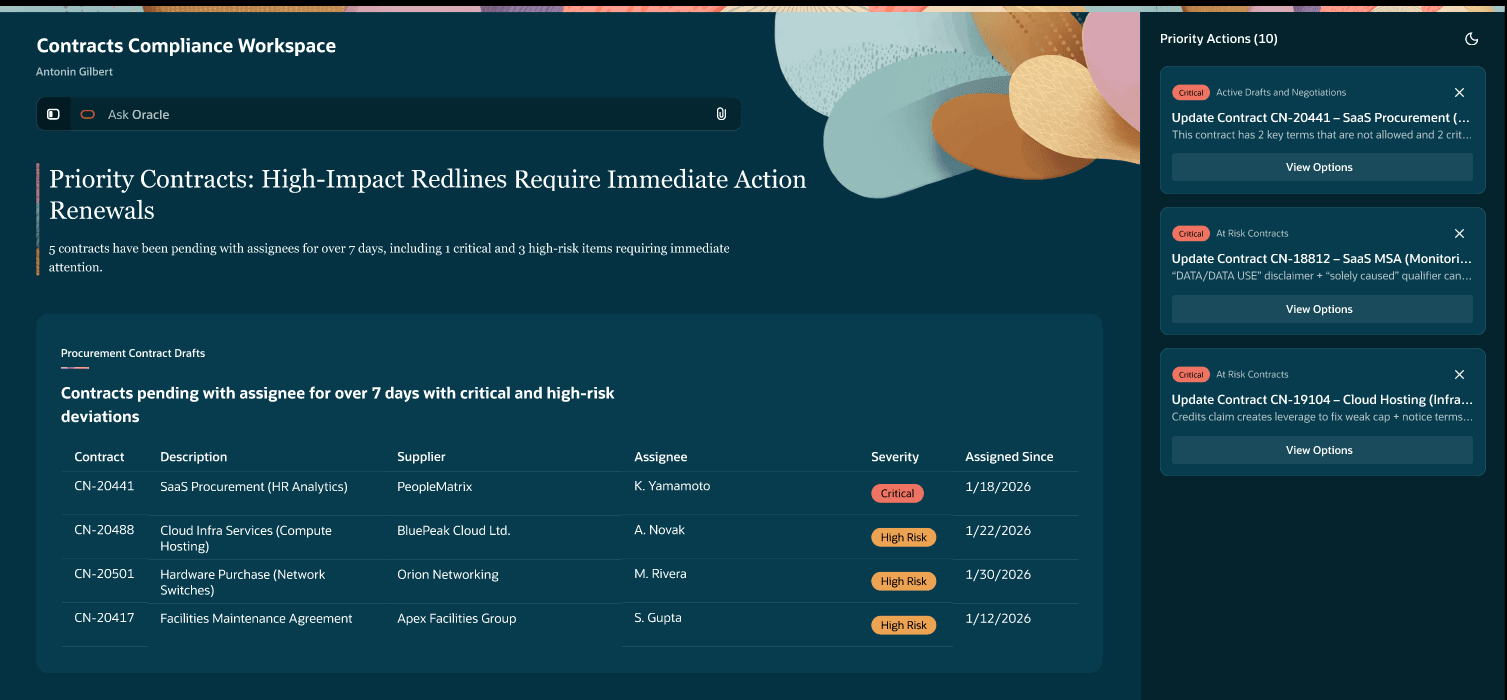
Contract Compliance Workspace Agentic App
The Procurement Contract Drafts and Sales Contract Drafts panels display actively negotiated contracts that satisfy configured filtering criteria.
Only these contracts are considered:
- Contract status - Draft or Under Amendment
- Version type - Current version
- Terms - Structured terms
- Terms document not edited using Word add-in
- Intent - Buy or Sell, depending on the selected panel
- Assignment - Assigned to a resource
The filtering criteria can include business unit, contract type, contract terms risk severity, and the number of days the contract has been with an assignee.
Contracts are sorted by severity first, from Critical to Low Risk, and then by assigned duration. Users can drill into a specific contract to review its clause deviations.
Clause Deviation Review
The clause details page shows all clauses with deviations for a selected contract. Deviations across all severity levels are shown and sorted by status and severity.
Each impacted clause can show:
- Clause - Clause name from the negotiation feedback spreadsheet.
- Requested Changes - Summary of the external party's requested changes from the negotiation feedback spreadsheet at the clause level
- Severity - Highest severity across the issues identified for the clause.
- Standard Position- Summary of the standard position of all the issues for the clause from the playbook.
- Status - Open, Reviewed, or Completed.
- Generated Using – Negotiation feedback spreadsheet of the contract used to generate the deviations.
- Review - Clicking on Review opens the panel with the issues for that specific clause
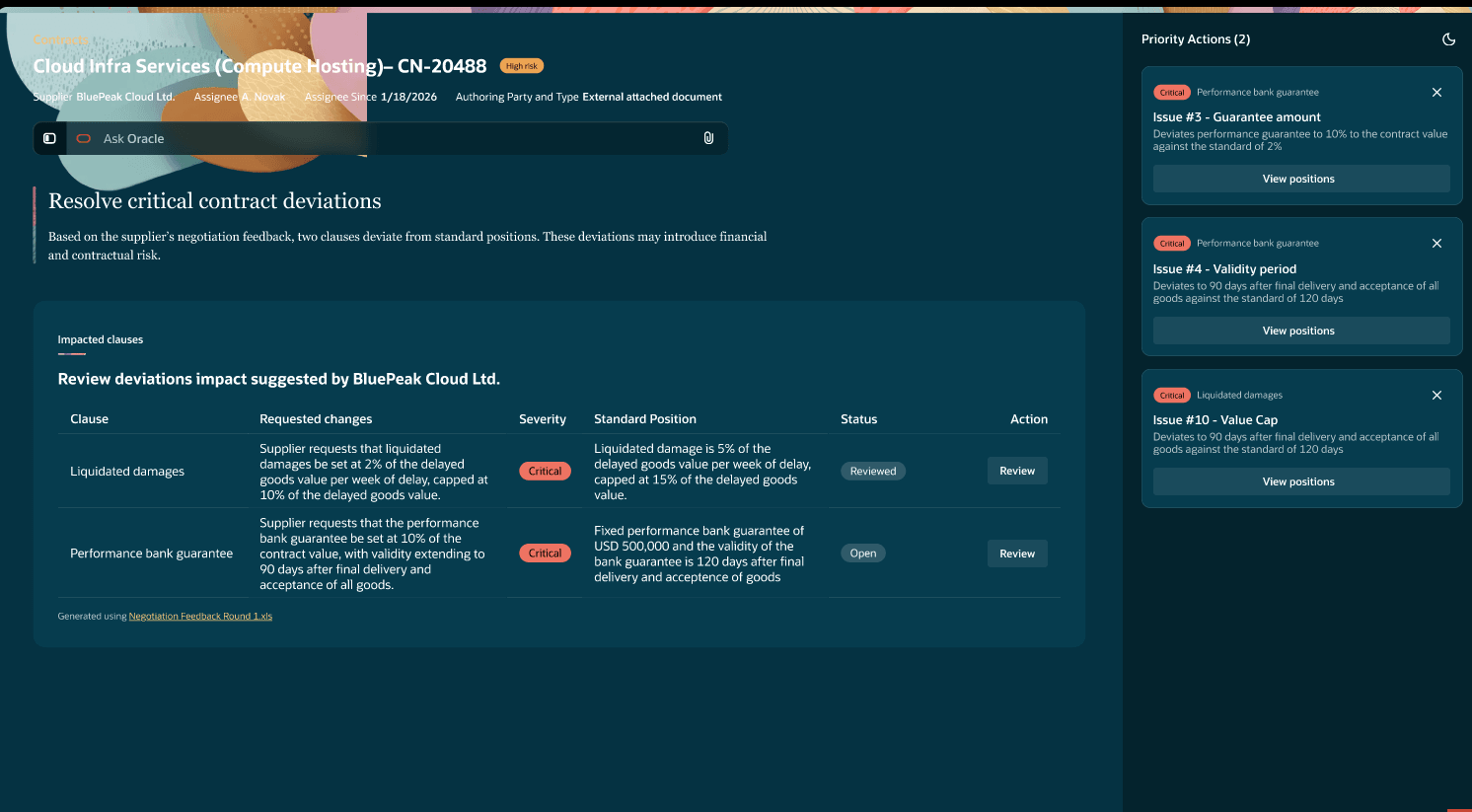
Deviations
Users can review individual issues for a clause and view applicable playbook options.
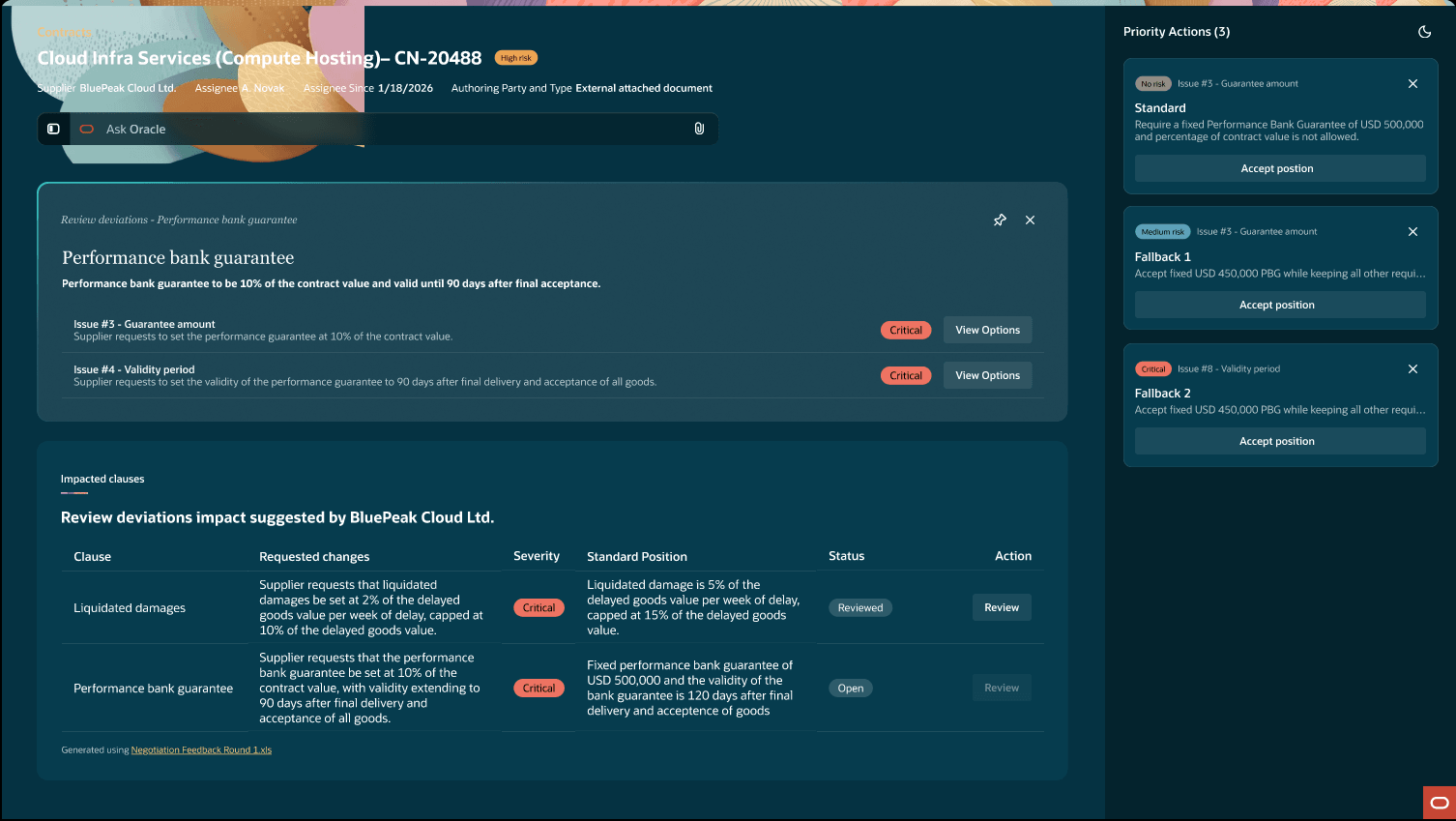
Issues
Positions for the issue from playbook
For each open issue, users can compare the external-party request with standard and fallback positions from the playbook.
The position review experience can show:
- The requested change from the supplier or customer.
- Standard and fallback positions.
- Approval details when required by the playbook.
- The risk severity for each position.
- Actions to accept a position or reject the external-party request.
When a user accepts a position or saves a rejection reason, the issue status is updated and a confirmation is shown.
Issue 1 example: Supplier request doesn't match any of the positions in the playbook
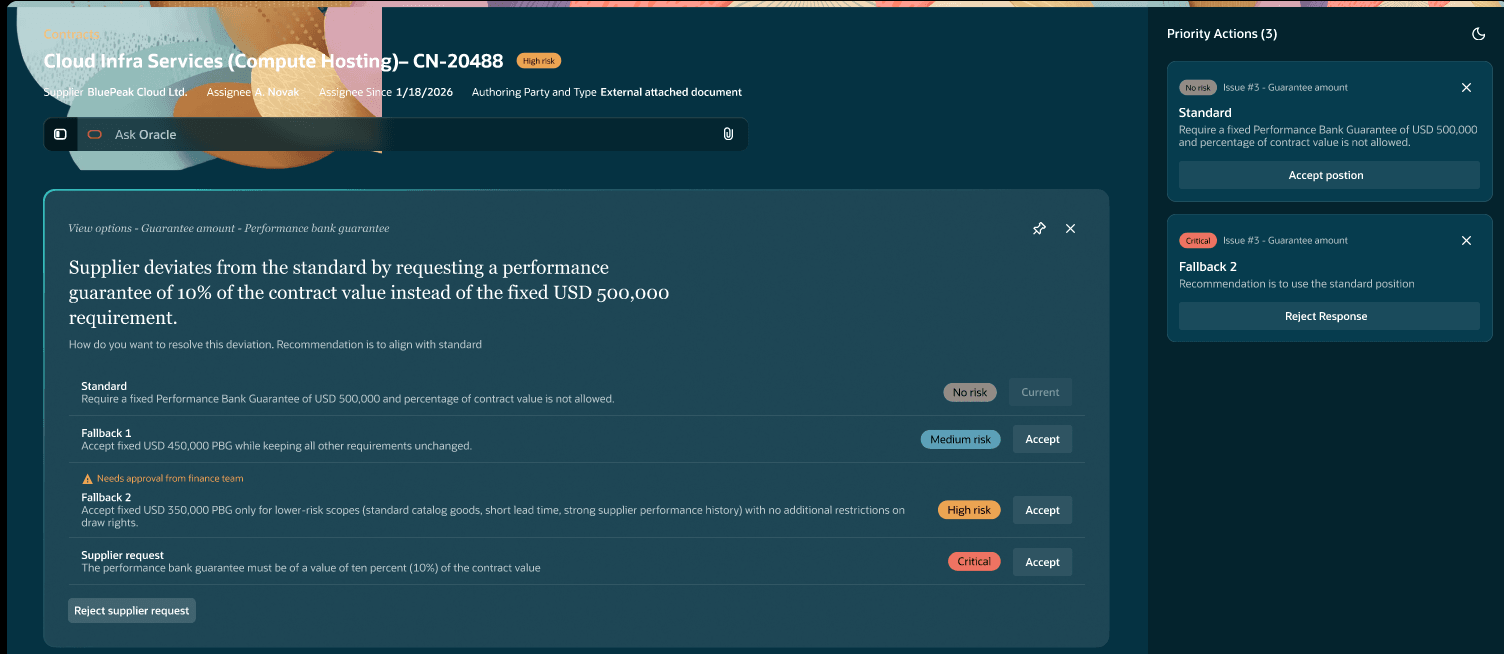
Positions from the playbook
Rejection Reason
User can choose to reject the issue raised by the other party and provide a reason for the rejection.
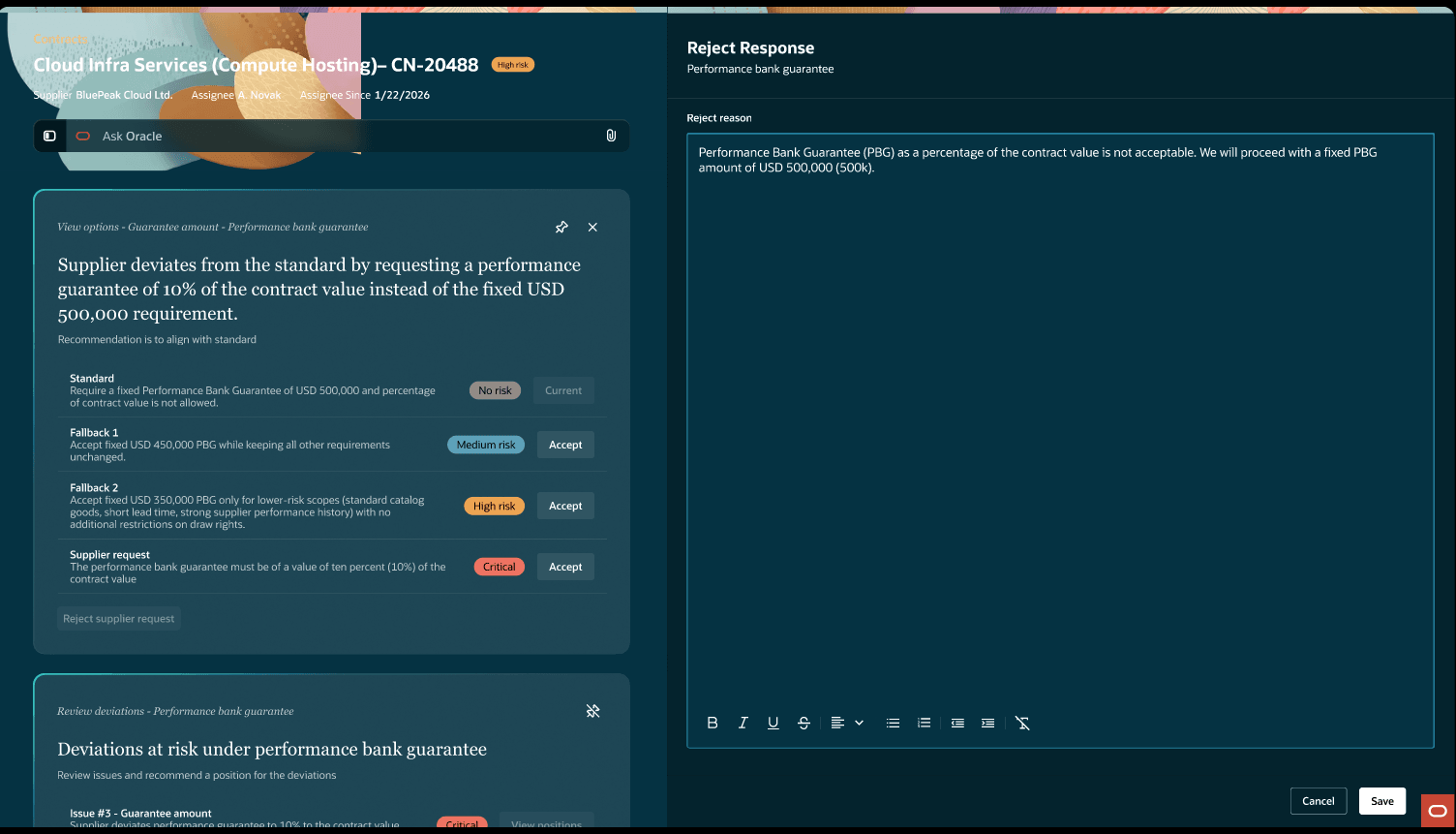
Rejection Reason
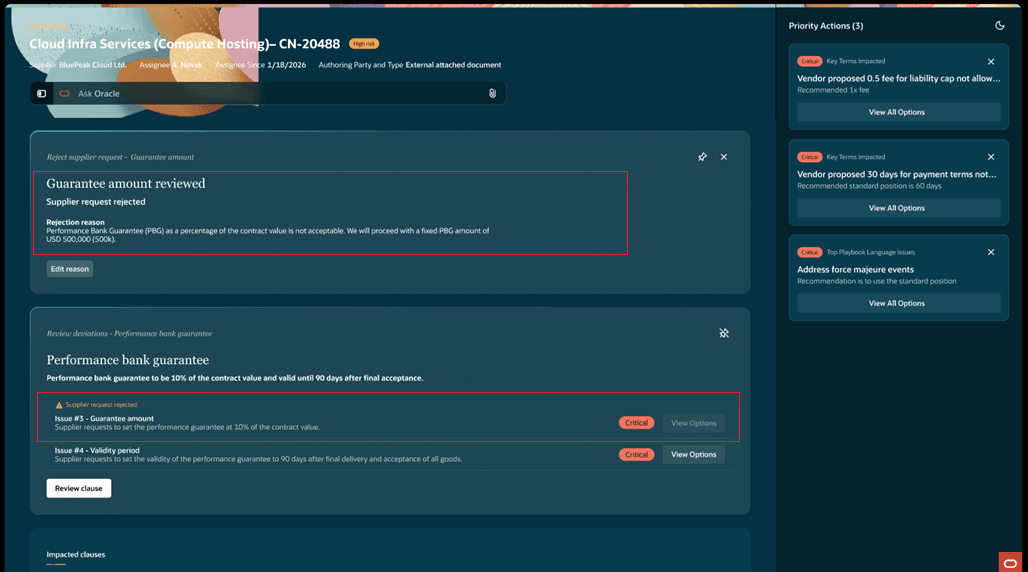
Rejection Reason Updated
Issue 2 example: Supplier requst matches Fallback 1 position in the playbook
The change requested by the supplier falls under one of the positions in the playbook and user accepts that by clicking on Accept button
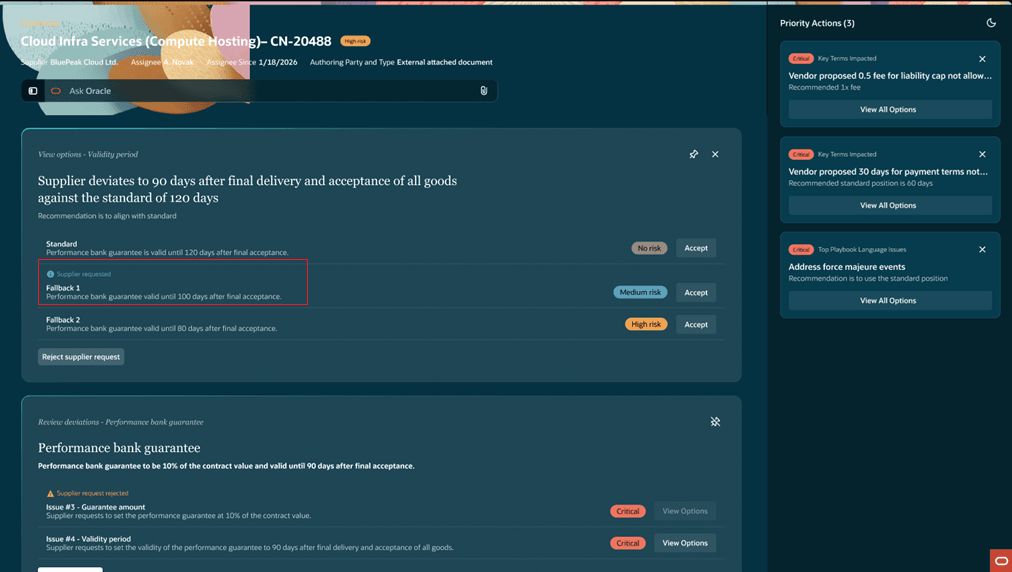
Supplier Request Matches Fallback
Confirmation message after accepting one of the positions
After accepting a position, confirmation message is displayed. Both the issues related to the clause are addressed, for issue 1, supplier's request is rejected, for issue 2, supplier's request is accepted.
Click on Review clause when all the issues are reviewed.
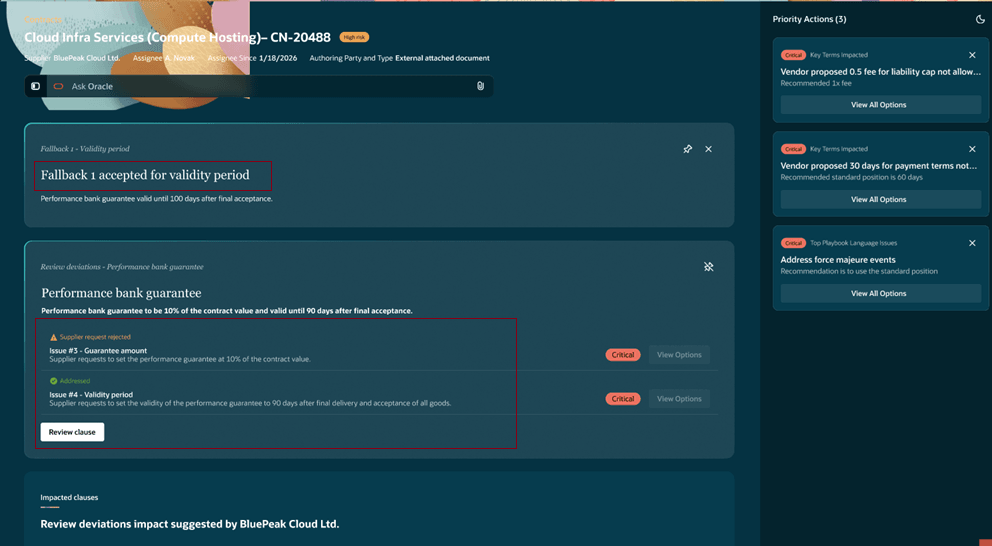
Confirmation Message
Review Clause
After reviewing issues for a clause, users can review the proposed clause language before applying it to the contract.
The review experience shows the key differences between the current and proposed language, including:
- Current clause language from the contract terms document.
- Proposed clause language based on accepted positions.
- Edit languate button - An option to edit proposed language.
- Preview contract button - An option to preview the contract terms document.
- Accept button - An option to accept and save the updated clause language.
When the user accepts the proposed language, the clause changes are saved to the contract.
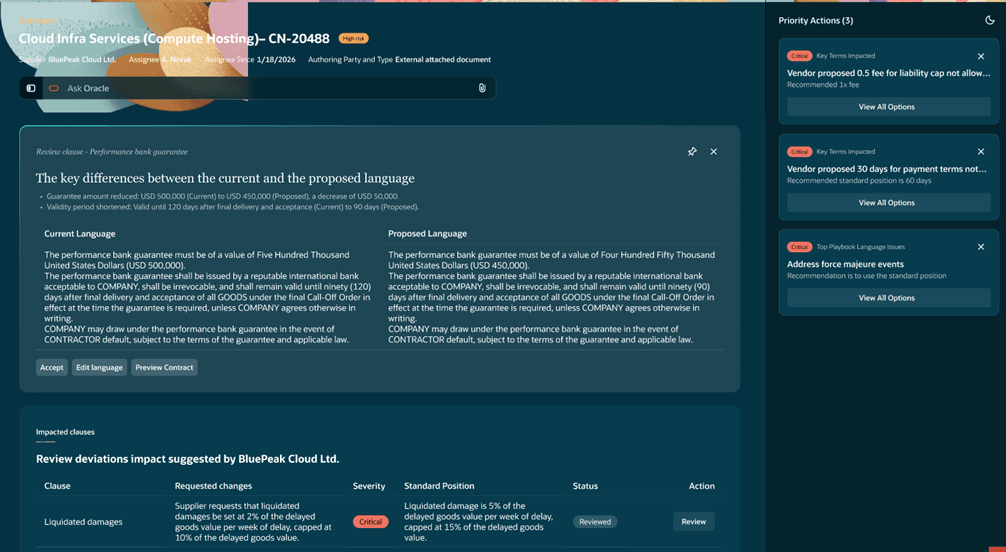
Current and Proposed Lanugage Comparison
Preview Contract
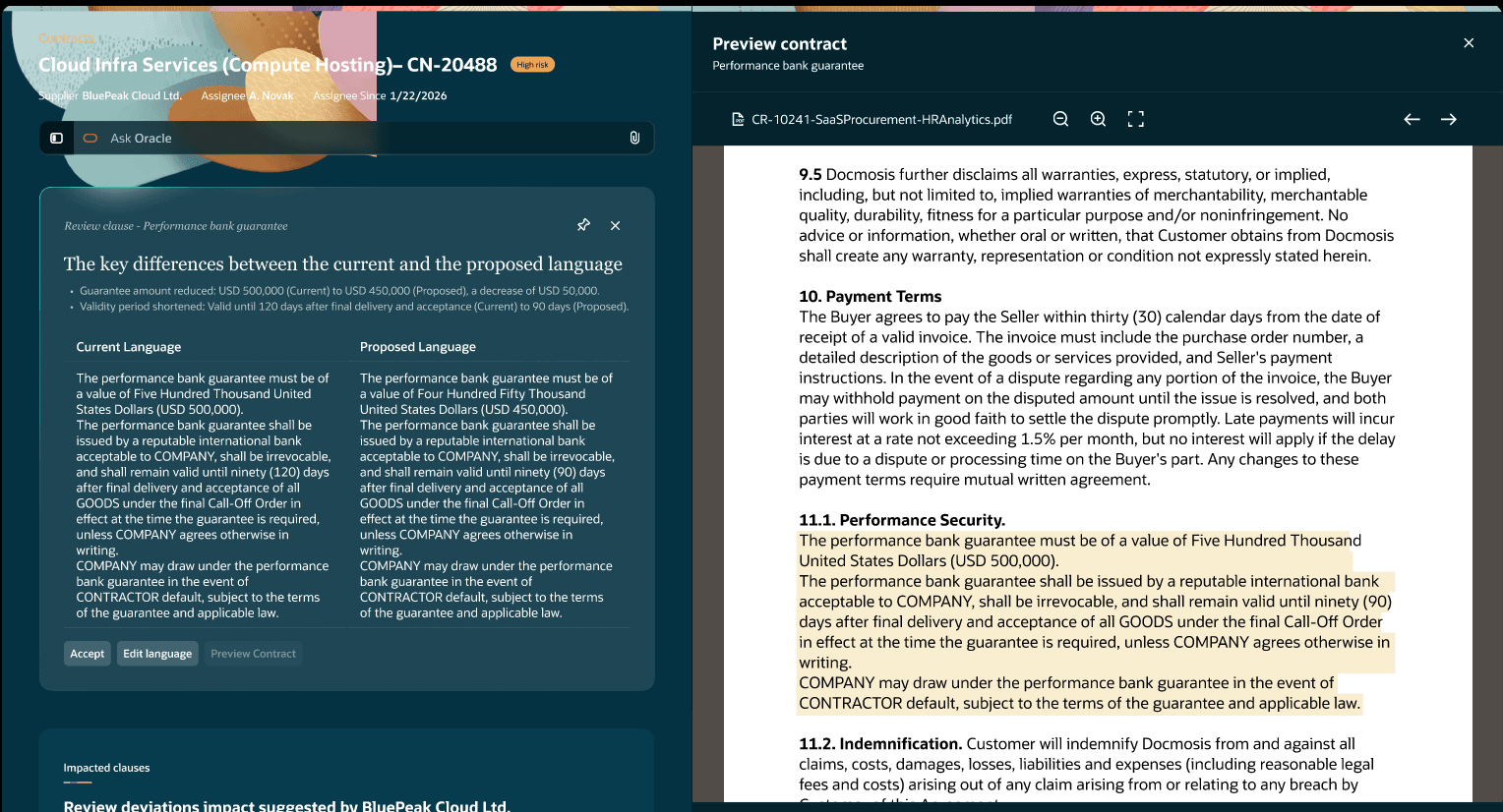
Preview Contract
Edit the AI proposed lauguage and save
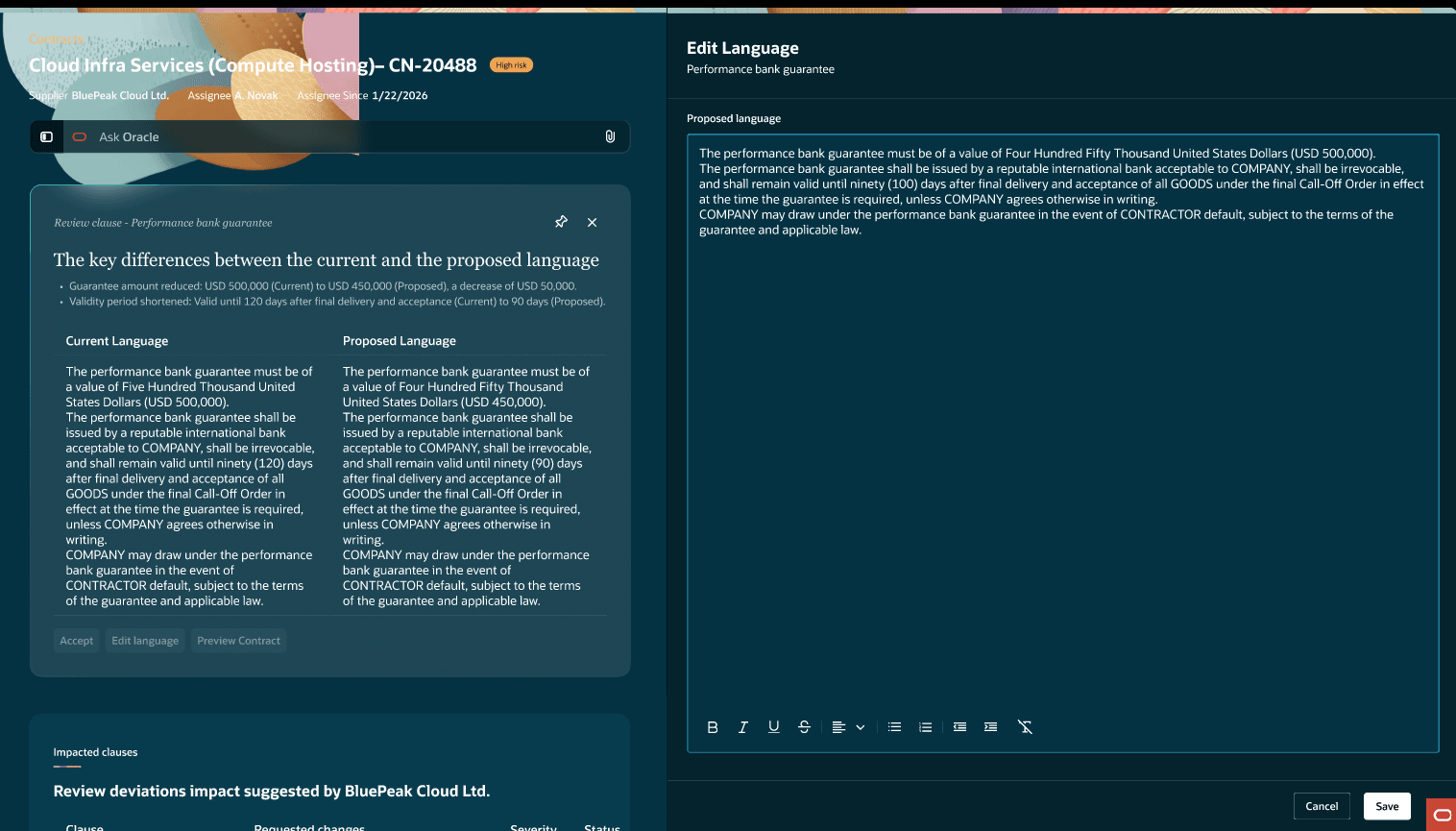
Edit Language and Save
Clicking on Accept updates the clause in the contract and a confirmation message is displayed
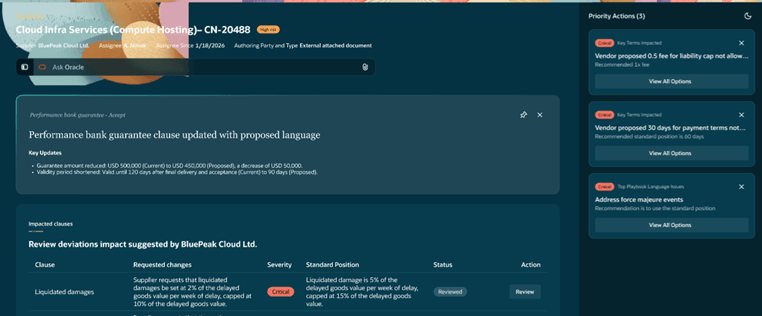
Clause Updated
After reviewing each issue, set its status to Closed in the negotiation spreadsheet.
For each closed issue, record either the rejection reason if the request is rejected, or the clause update details if the external party’s proposal is accepted.
Contract Compliance Workspace helps legal and contract teams focus on the contracts that need attention during negotiation.
Key benefits include:
- Faster identification of contracts with critical or high-risk deviations.
- A guided review flow for clause issues and playbook positions.
- Better visibility into negotiation feedback received through spreadsheets.
- More consistent handling of standard, fallback, and rejected positions.
- A contract-level Terms Risk Severity value that helps prioritize work.
- Reduced manual effort when reviewing requested clause changes and applying agreed language.
Steps to enable and configure
Manage Contract Type
Enable the contract type for Contract Compliance Workspace agentic app from the Manage Contract Type UI.
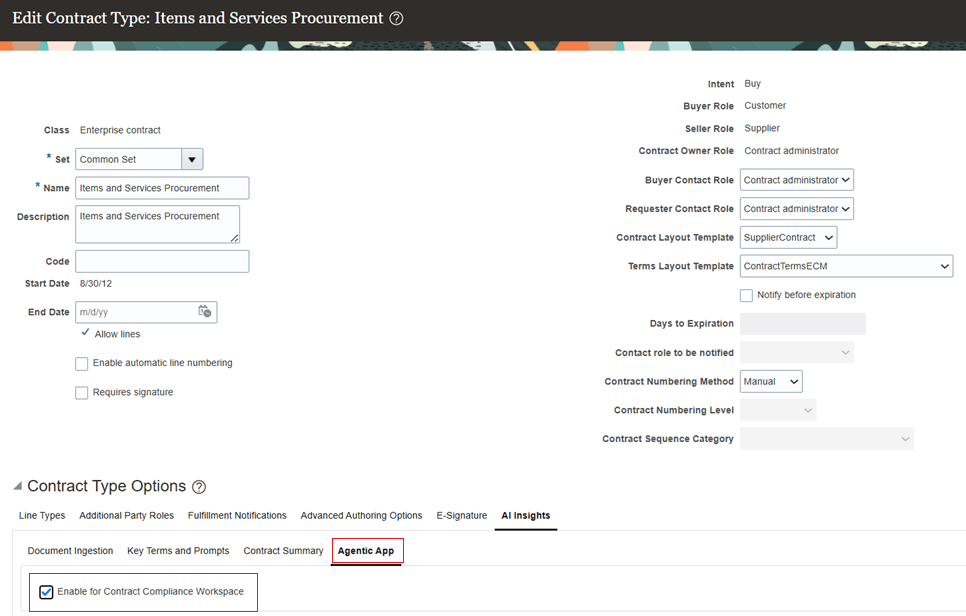
Contract Type
Contract Playbook
For this feature, a contract playbook acts as the rulebook that guides AI-assisted negotiation review. It defines the company’s standard position for each rule, acceptable fallback positions, associated risk levels, and any approvals required before accepting a fallback. You need to maintain a different playbook for procurement and sales contracts.
When the external party uploads a negotiation feedback spreadsheet, the system compares each requested change against the playbook. Based on the clause title, rule description, standard position, and fallback positions, the AI can determine whether the requested change matches an approved fallback, introduces additional risk, or requires legal, finance, or business approval.
Up to three fallback positions are supported for each rule. In the example below, two fallbacks are shown. 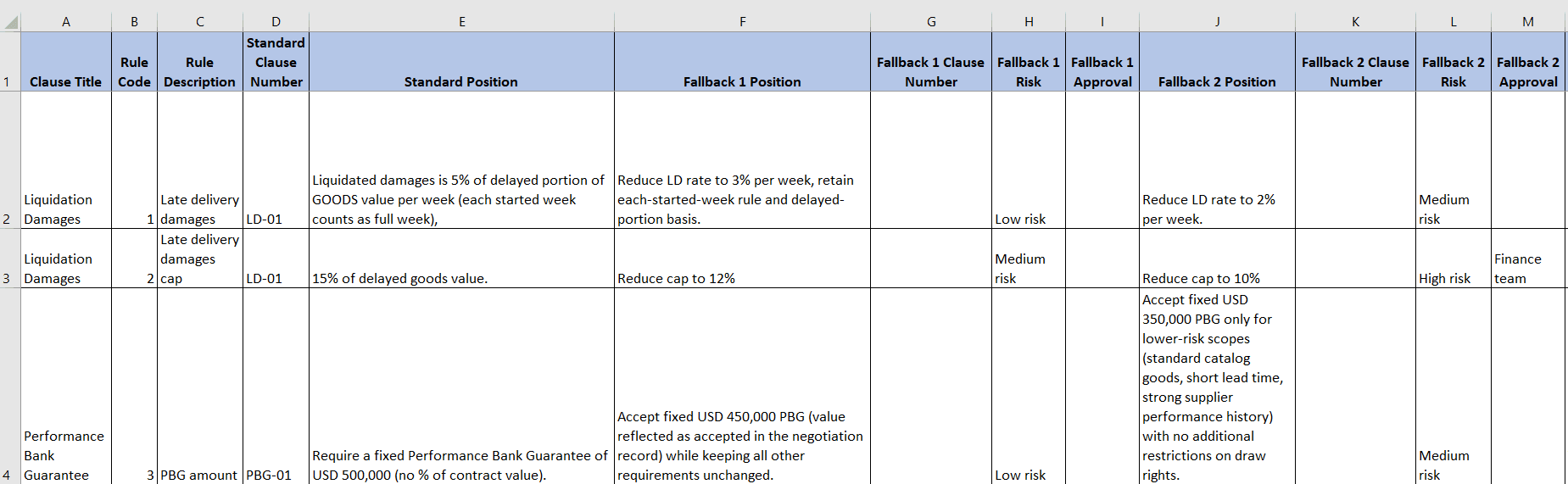
Contract Playbook Sample
Fields marked in * are mandatory
Contract Playbook Spreadsheet Field Details
Risk levels supported are Low risk, Medium risk, High risk and Critical. If a rule is applicable for multiple contract types, create a new row for each contract type.
| Column | Description |
|---|---|
| Clause Title * | The clause where the external party is requesting a change. Example: Liquidation Damages, Performance Bank Guarantee. |
| Rule Code * | Unique rule identifier for the requested change. Example: 1, 2, 3. |
| Rule Description * | Short description of the requested change or negotiation point. Example: Late delivery damages, Late delivery damages cap, PBG amount. |
| Standard Clause Number | Clause number from the standard contract template. Example: LD-01, PBG-01. |
| Standard Position * | The original contract position or standard term. Example: Liquidated damages is 5% of delayed portion of goods value per week. |
| Fallback 1 Position * | First acceptable fallback position if the standard position is not accepted. Example: Reduce LD rate to 3% per week. |
| Fallback 1 Clause Number | Clause number associated with the first fallback, if applicable. |
| Fallback 1 Risk * | Risk level for accepting fallback 1. Example: Low risk, Medium risk, High risk, Critical |
| Fallback 1 Approval | Approval required for fallback 1, if applicable. |
| Fallback 2 Position | Second acceptable fallback position. Example: Reduce LD rate to 2% per week. |
| Fallback 2 Clause Number | Clause number associated with the second fallback, if applicable. |
| Fallback 2 Risk | Risk level for accepting fallback 2. Example: Medium risk, High risk. |
| Fallback 2 Approval | Approval required for fallback 2, if applicable. Example: Finance team. |
| Contract Type * | Contract ype for which the rule is applicable |
Contract Risk Scoring
Contract risk scoring criteria has to be captured in a document in a specific format. It is mandatory to follow the below format. You can specify the contract types and your own conditions.
Evaluation criteria:
- Contract Amount
- Contract Deviations
- Contract Types (Mention the contract types for which risk severity needs to be evaluated)
Risk Severity Levels are as follows. Rules must be evaluated sequentially in the following order:
- Critical
- High Risk
- Medium Risk
- Low Risk
- No Risk
If a contract satisfies multiple conditions, the first matching severity will be assigned.
If a contract satisfies multiple conditions, the first matching severity will be assigned.
All the below rules are applicable for contract types: NDA and MSA
|
ID * |
Contract Amount * |
Clause Deviation Conditions * |
Risk Severity * |
|
1 |
Any amount |
If there are more than 2 critical deviations |
Critical |
|
2 |
>= $2,000,000 and < $3,000,000 |
If there is one more critical deviation OR 3 or more high risk deviations |
Critical |
|
3 |
>$3,000,000 |
At least 1 critical, high risk or medium risk deviation |
Critical |
|
4 |
>=$1,000,000 and <$2,000,000 |
> 3 high risk deviations |
High risk |
|
5 |
Any amount |
Any deviations related to limitation of liability clause |
High risk |
|
6 |
Any amount |
More than 2 medium risks |
Medium risk |
|
7 |
Any amount |
<= 2 medium risk deviations |
Low risk |
|
8 |
Any amount |
1 or more low risk deviations |
Low risk |
All the below rules are applicable for contract type: Item and services procurement
|
ID |
Contract Amount |
Clause Deviation Conditions |
Risk Severity |
|
1 |
Any amount |
If there is at least 1 critical deviation |
Critical |
|
2 |
Any amount |
If there is at least one high risk deviation |
High risk |
|
3 |
Any amount |
If there are more than 3 medium risk deviations |
High risk |
|
4 |
Any amount |
<= 3 medium risks |
Medium risk |
|
5 |
Any amount |
1 or more low risk deviations |
Low risk |
Contract Filtering Criteria for Contract Compliance Workspace
The purpose of this document is to define the filtering criteria used by the various panels in the Contract Compliance Workspace agentic app. Contracts that satisfy the configured filter conditions will be displayed in the applicable workspace panels.
Please find the sample document. It is mandatory to follow the below format. You can specify the contract types and your own conditions. It is not mandatory to use all 4 criteria. If you are not using the Assign User functionality in contracts, don't add that condition.
Add the filtering criteria for the panels Procurement Contract Drafts and Sales Contract Drafts.
Contract Filtering Criteria for Agentic App Procurement Contract Drafts
Only the following criteria are supported.
- Business Unit
- Contract Type
- Contract Terms Risk Severity
- Contract is with an assignee for more than X days
If one of the filter conditions are satisfied, the contract will be displayed in the panel.
|
Filter * |
Condition * |
|
1 |
Business Unit is Vision Operations AND Contract Type is NDA AND (Contract Terms Risk Severity is Critical OR High Risk) AND With assignee for more than 10 days |
|
2 |
Business Unit is Vision Services AND Contract Type is (Item and Services OR Master Agreement OR NDA) AND Contract Terms Risk Severity is Critical |
|
3 |
Business Unit is Vision India AND Contract Type is Item and Services AND Contract Terms Risk Severity is (Critical OR High Risk OR Medium Risk) AND With assignee for more than 7 days |
Sales Contract Drafts
Only the following criteria are supported.
- Business Unit
- Contract Type
- Contract Terms Risk Score
- Contract is with an assignee for more than X days
If one of the filter conditions are satisfied, the contract will be displayed in the panel.
|
Filter * |
Condition * |
|
1 |
Business Unit is Vision Operations AND Contract Type is SaaS contracts AND (Contract Terms Risk Score is Critical OR High Risk) AND With assignee for more than 10 days |
|
2 |
Business Unit is Vision Services AND Contract Type is AND Contract Terms Risk Score is Critical AND |
|
3 |
Business Unit is Vision India AND Contract Type is Item and Services AND Contract Terms Risk Score is (Critical OR High Risk OR Medium Risk) AND With assignee for more than 7 days |
The documents are to be uploaded in the Policy node in AI agent studio. User who uploads these documents should a custom role (refer the below section).
- Procurement Contract Deviation Policy - Contract playbook for procurement contracts
- Sales Contract Deviation Policy - Contract playbook for sales contracts
- Contract Risk Scoring Policy - Contract risk scoring document
- Contract Compliance Workspace Filter Policy - Contract filtering document for Contract Compliance Workspace
1. Create a new custom role
- Home page -> Tools -> Security Console -> Create a new role
- Provide role name, role code,
- Role Category -> “CRM - Job Roles”
- Enable Permission Groups -> enable checkbox
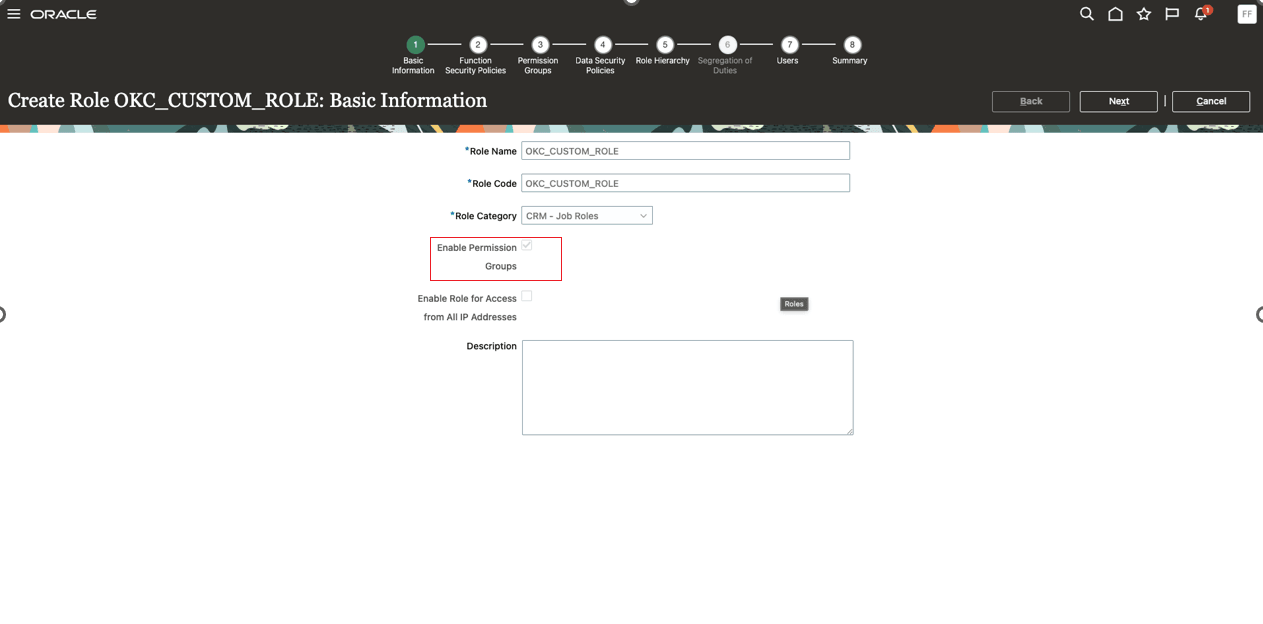
Create Custom Role to Upload Documents
2. Naviage to Function Security Policies tab and add the following privileges:
-
Manage AI Setups
-
Manage Generative AI Features in Sales
-
Use Generative AI Features in Sales
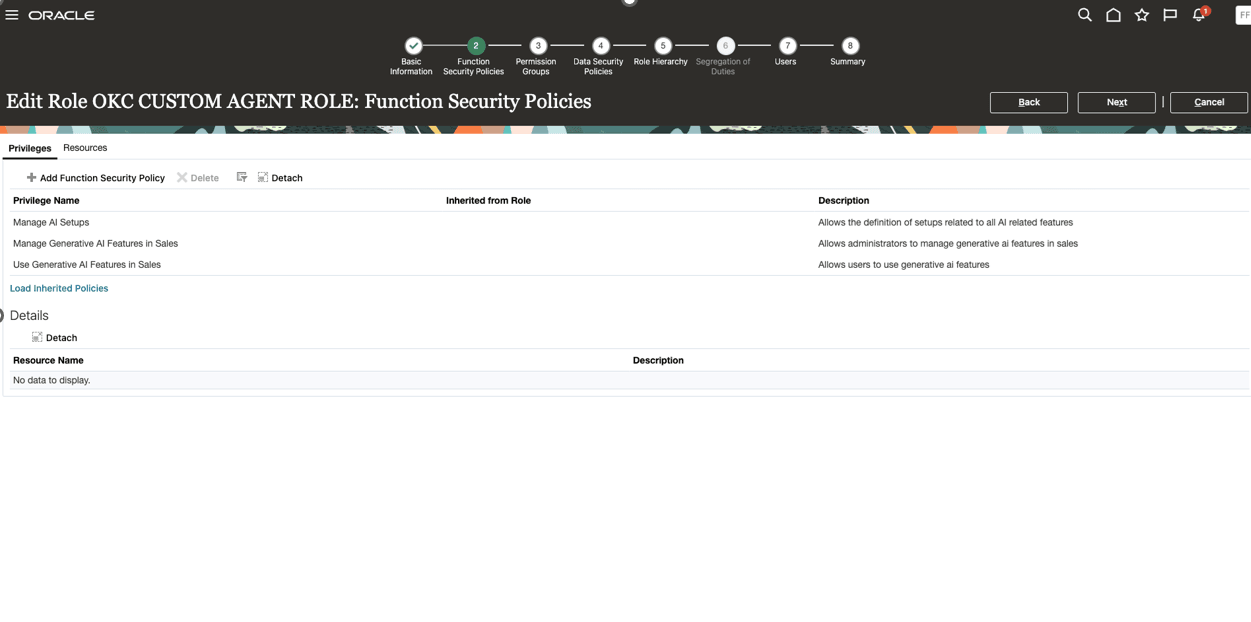
Add Privileges
3. Add permission groups
Navigate to Permission Groups tab and add the following permission groups
- create:FunctionTemplate
- delete:FunctionTemplate
- read:FunctionTemplate
- update:FunctionTemplate
- create:FunctionTemplateAttachment
- delete:FunctionTemplateAttachment
- read:FunctionTemplateAttachment
- update:FunctionTemplateAttachment
- create:PromptTemplate
- delete:PromptTemplate
- read:PromptTemplate
- update:PromptTemplate
Also add Security Views as "All Rows and All Fields" for each permission group.
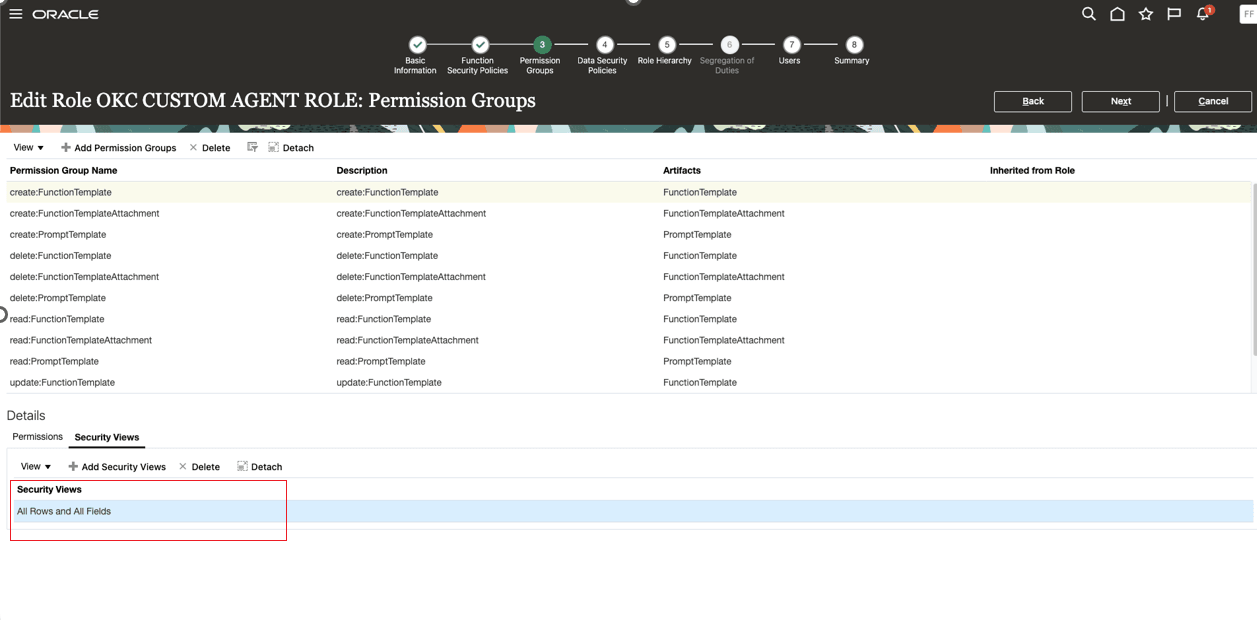
Add Permission Groups and Security View
4. Add Users
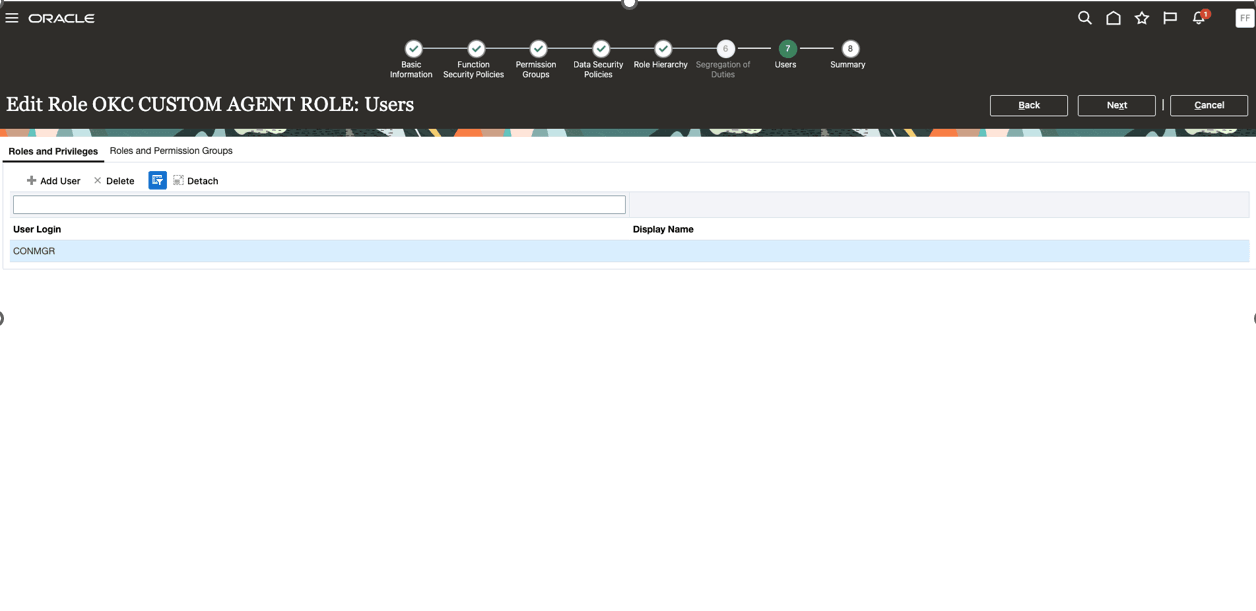
Add Users
Save and close and run “Import User and Role Application Security Data” scheduled process.
5. Upload the documents in the policies
- Procurement Contract Deviation Policy - Contract playbook for procurement contracts
- Sales Contract Deviation Policy - Contract playbook for sales contracts
- Contract Risk Scoring Policy - Contract risk scoring document
- Contract Compliance Workspace Filter Policy - Contract filtering document for Contract Compliance Workspace
Navigate to Home page->Tools->AI Studio
Click on Try Now
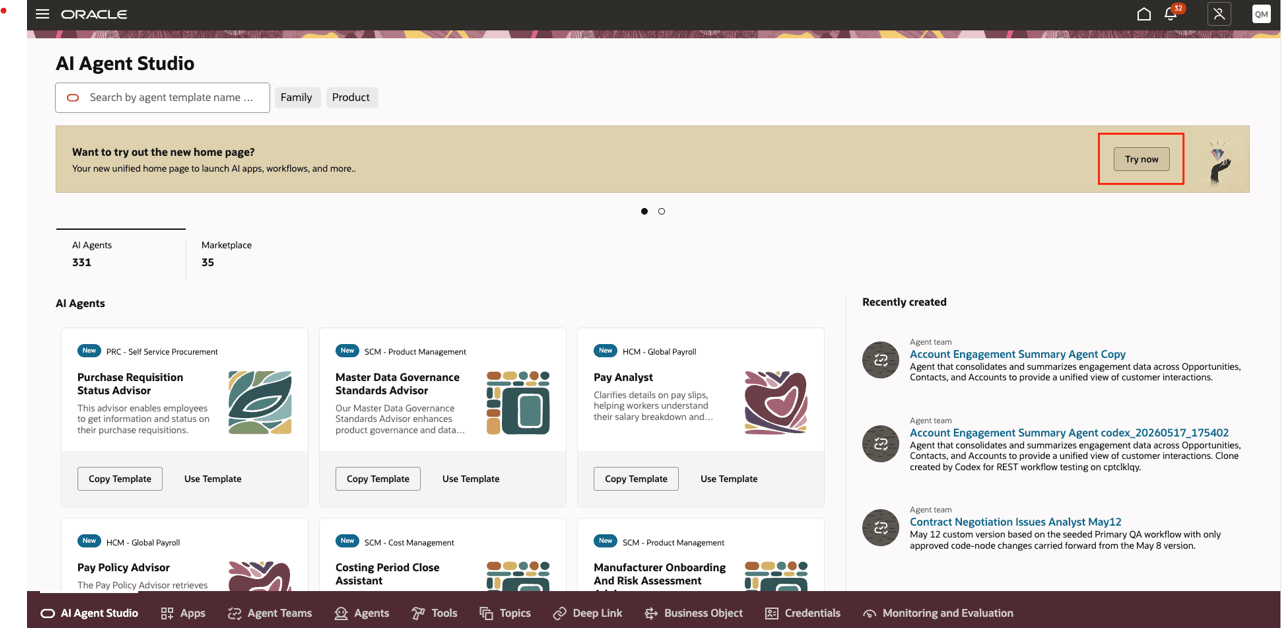
AI Agent Studio
Click on Policy on the right side and navigate tot he Policy tab.
Search for Contract Risk Scoring Policy and click on the eye icon.
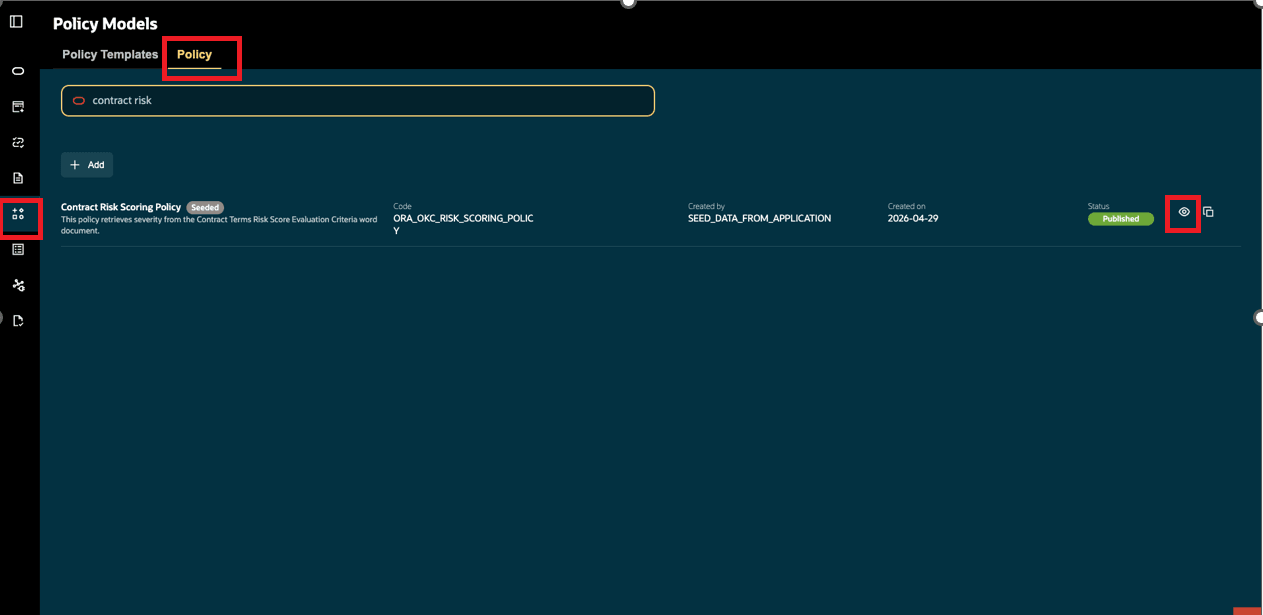
Policy
Click on Customize
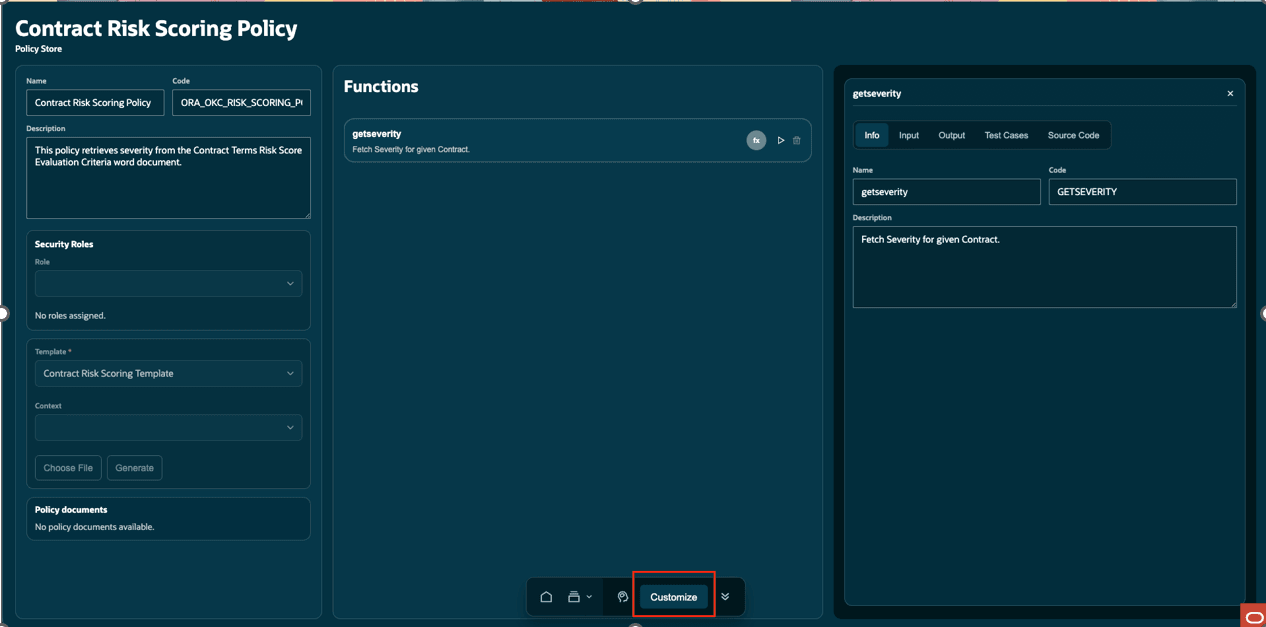
Customize the Policy
Upload file, add security roles and Generate the Policy
- Role - Select the custom role you had created
- Template - Don't make any change to this field
- Choose File - Upload the risk scoring criteria file
- Click on Generate button
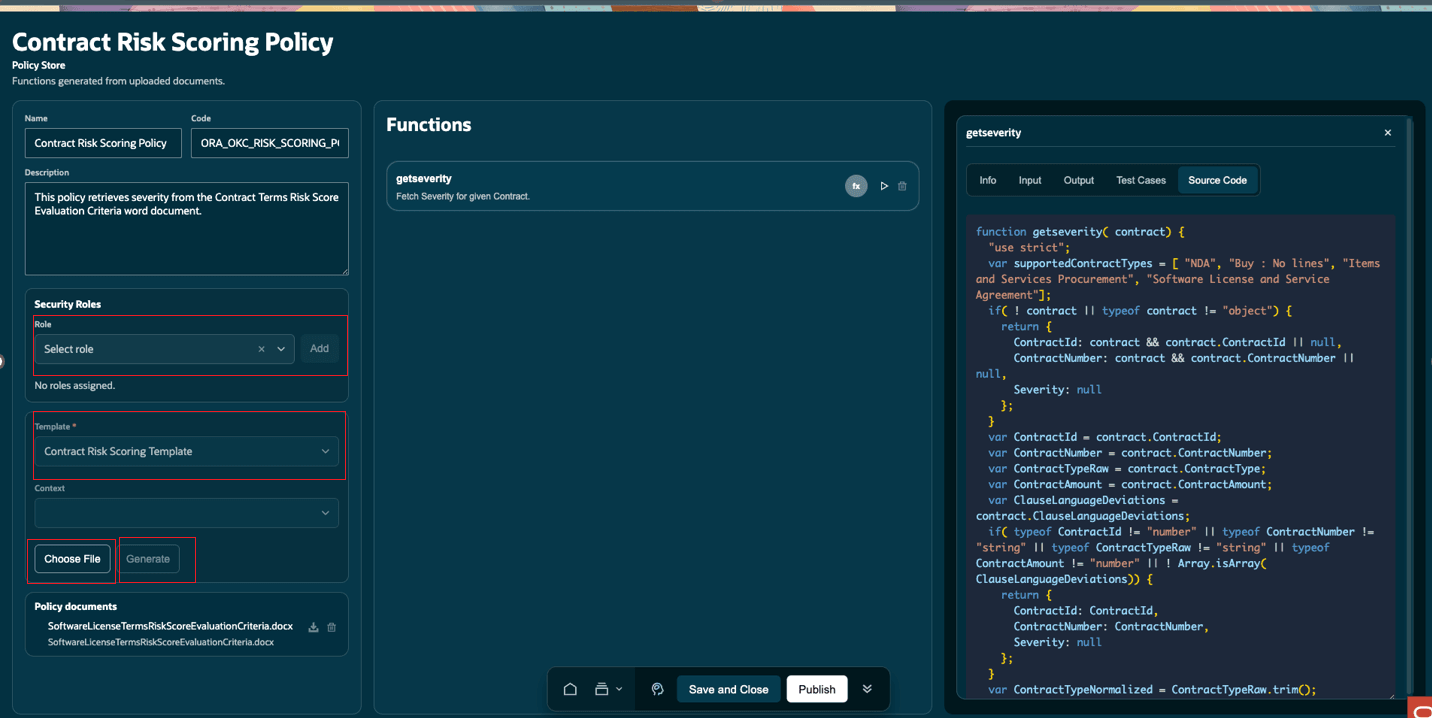
Generate Policy and Publish
Save and Publish the policy
Follow the same steps to upload files for
- Procurement Contract Deviation Policy
- Sales Contract Deviation Policy
- Contract Compliance Workspace Filter Policy
Enable Contract Compliance Workspace in Home Page
-
Activate a sandbox that has the Structure tool in it. Don't include spaces or special characters in the sandbox name.
-
Click Navigator > Configuration > Structure.
- Click on Create->Create Page Entry
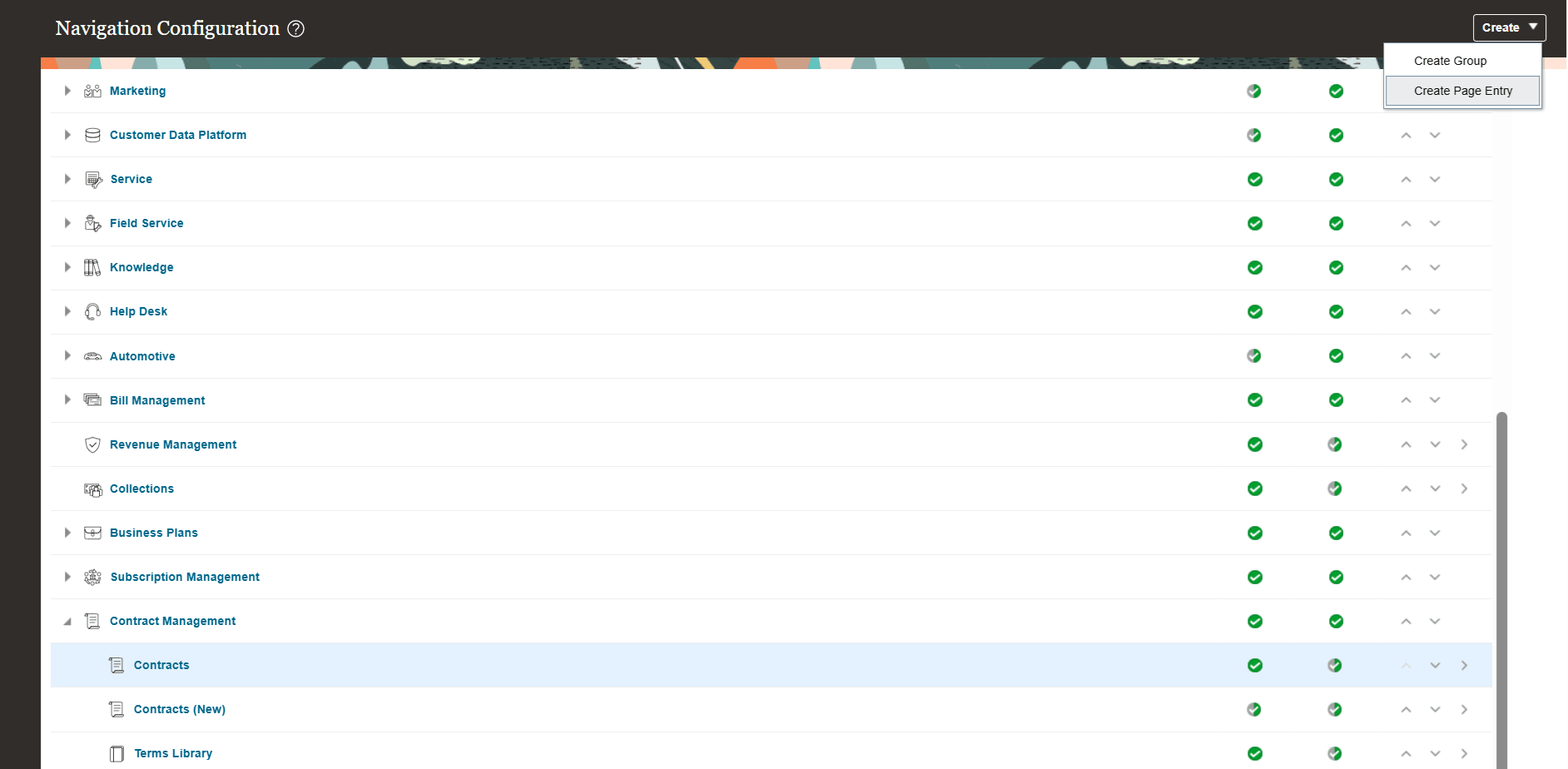
Create Page Entry
4. Enter the details
- Name - Contract Compliance Workspace
- Select an icon
- Select Group as Contract Management
- Set Yes to Show on Navigator and Show on Springboard
- Select Link Type as Static URL
- Click on the Pencil icon
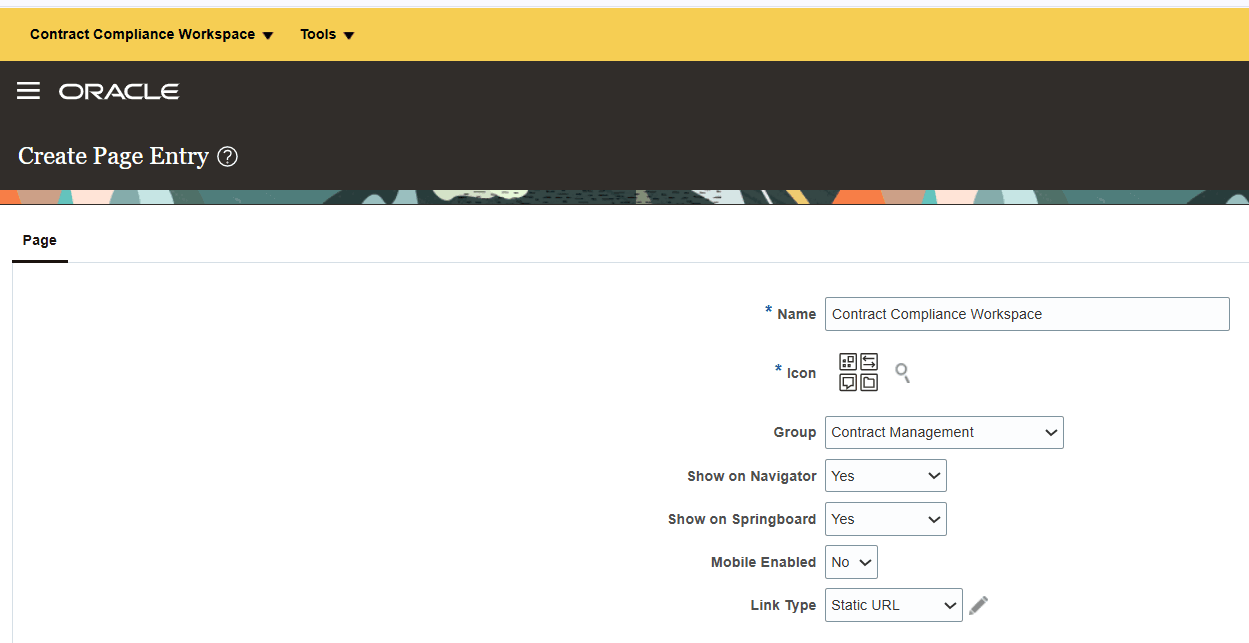
Page Details
Enter the below URL. Replace host with your env URL. Click Validate and OK. Click Save and Close.
https://<host>/hcmUI/redwoodAI/ora_contracts_compliance_workspace
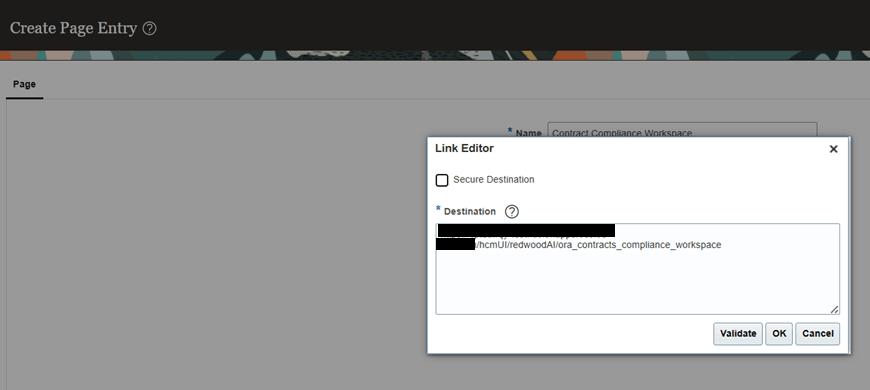
Link Editor
Save the page entry and publish the sandbox.
You can access the agentic app under Contract Management.
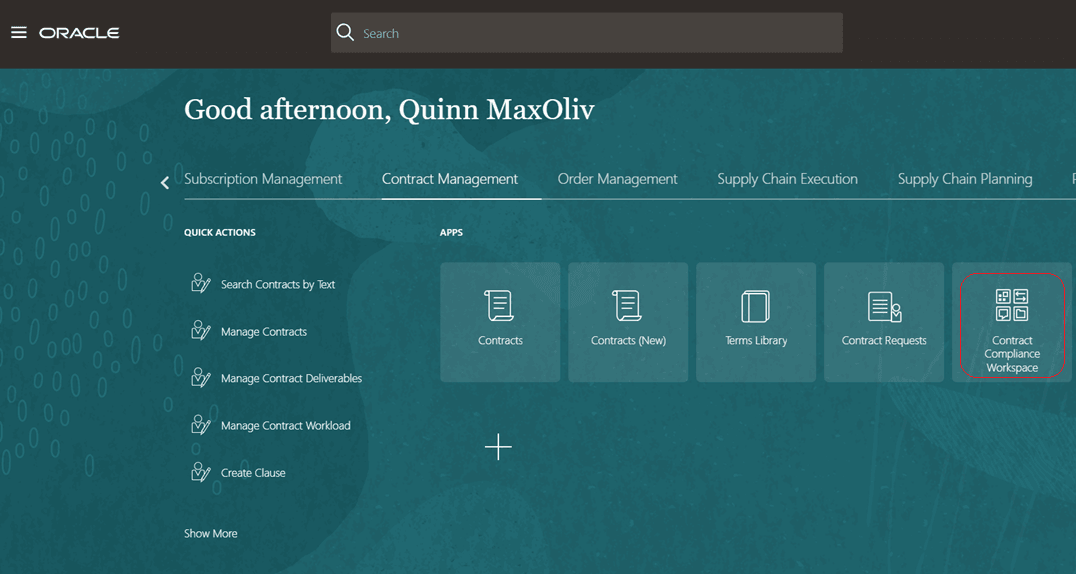
Contract Compliance Workspace
For more details on creating page entries refer Create and Edit Page Entries
Access requirements
Security and Access
The Contract Compliance Workspace uses contract intent and user privileges to determine available panels and actions.
- Procurement Contract Drafts Panel - Supplier Contract Manager
- Sales Contract Drafts - Customer Contract Manager
Users need contract edit access to upload negotiation feedback document and update contract clauses. Contracts shown in the workspace also respect the user's contract access.