Display Pegging Data Table
Seeing explicitly how individual supplies and demands are pegged to one another enhances schedule analysis capabilities and reduces scheduling cycle time. While pegging data was previously already used to visualize pegging links in the Gantt chart and for various interactive highlighting features between the Gantt chart and scheduling data tables, it can now be viewed explicitly in a table.
Pegging data is generated at the end of a solve action. When doing so, any reservations are respected, and all other nonreserved supplies and demands for items are pegged to one another in First In - First Out (FIFO) manner. Supplies can be on-hand inventory, inbound supplies, producing work orders, or shortage quantity, and consumers can be sales orders, outbound transfer orders, or work orders.
The new pegging table displays single-level upstream and downstream pegging data for a specific data element, which is specified in the Peg for and associated object selectors above the table.

Selecting a Specific Object in Pegging Table
Review downstream pegging to see, which consumers depend on a given supply, and review upstream pegging to understand, which supplies deliver the product for a given demand. An item’s on-hand, on-hold, and shortage quantities are pegged one level to their downstream consumers, analogous for purchase order lines or inbound transfer order lines. Sales order lines or outbound transfer order lines are pegged one level to upstream supplies. For a work order, all items consumed or produced by any of the work order operations are pegged one level upstream (for consumed items) and one level downstream (for produced items).
In the given example, work order SAHS101 consumes 25 each of item SAPS-HSC-1200 in operation OP10:10:10 and 75 each of SAPS-PK-1000 in operation Op30:30:20. The 25 each of item SAPS-HSC-1200 is supplied by two upstream work orders SAHSSUB103 and SAHSSUB101, while item SAPS-PK-1000 is from on-hand inventory. The produced item SAPS-HS-Chip of work order SAHS101 is pegged downstream to sales order 520312, order line 1:1.
The pegging data helps in explaining why a work order is scheduled where it is scheduled. For example, a pegged upstream supply might be later than expected, or a work order operation is pegged to shortage amount and the respective item has a long lead time, pushing the consuming work order operation out. While similar insights can be gained directly in the Gantt chart via pegging links or the loading of resources, this is not always the case. For example, when the relevant work order operation is scheduled on a multi-capacity resource, that is configured to be visualized just as pooled resource.
The display of pegging data can be triggered in following ways:
- Above the Pegging table, specify the Peg for selector, and then the corresponding object selector.
- In the Gantt chart, select a single work order operation and click the Show Pegging Data button in the Gantt toolbar. The tooltip for the button will indicate the specific work order that are pegged.
- In the Dispatch List, Inbound Supplies, On-hand Inventory, Work Orders, or Demands tables, select a single row, and click the Show Pegging Data button above the table. The tooltip for the button indicates the specific object that is pegged.
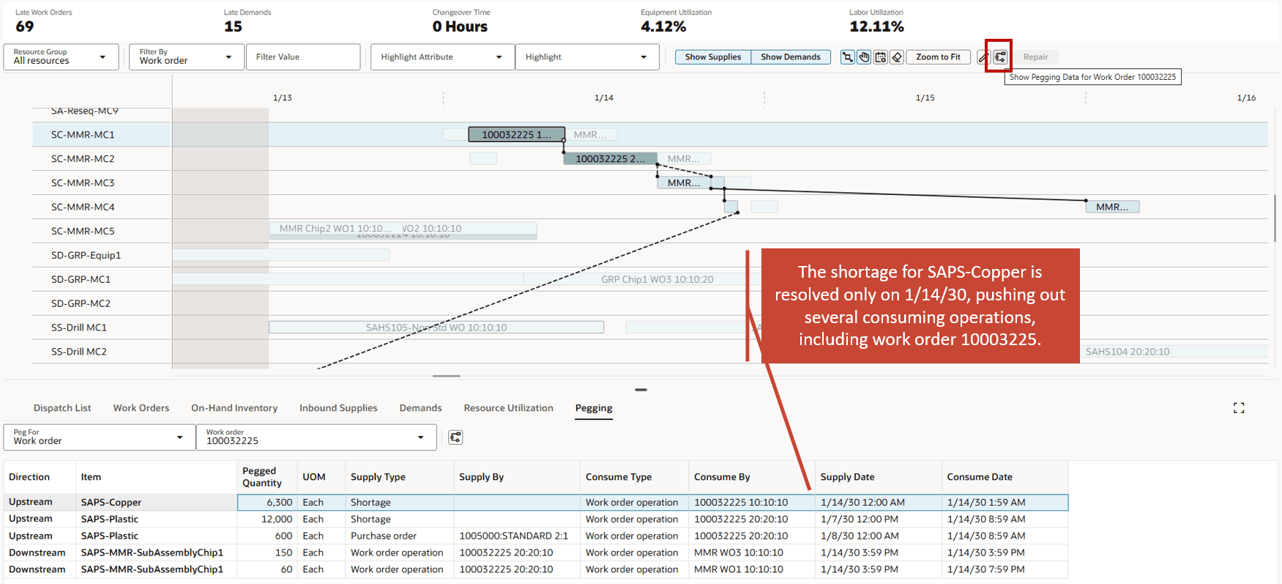
Initiating Pegging Data Display from Gantt Chart
You can select a single row in the pegging table and initiate further pegging. The tooltip for the Show Pegging Data button updates dynamically to always indicate the specific object that is pegged based on the current row selection:
If the selected row's Direction field is Upstream, then you can trigger the display of pegging data for the data element listed in Supply By field, which can be an inbound supply, a flow schedule, or a work order. In case Supply By is empty because the supply is an on-hand, on-hold, or shortage quantity, then you can trigger pegging data display for the item listed in the Item field to see, which other consumers are pegged to this item’s on-hand, on-hold, or shortage quantities.
In the following example, we are interested to see which other consumers are pegged to the shortage quantity for item SAPS-Copper.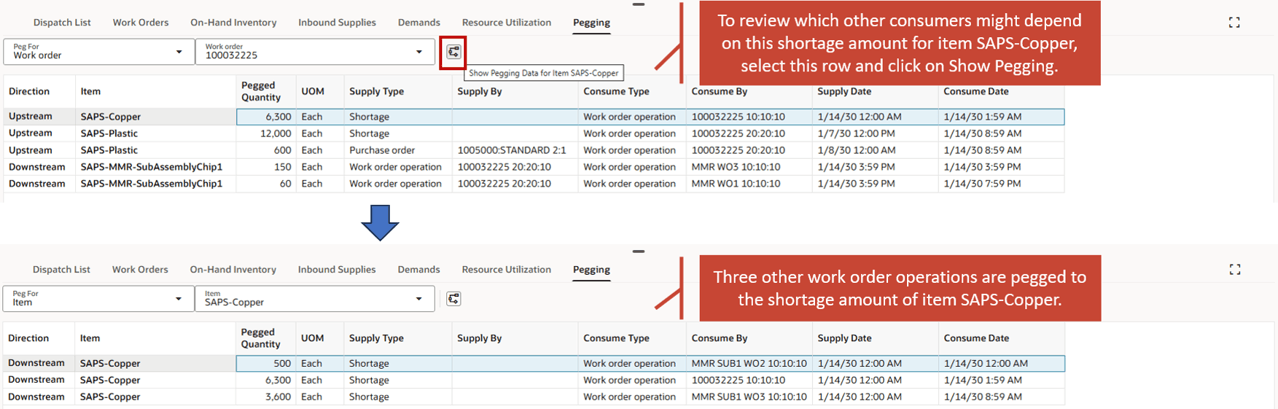
Evaluating Additional Pegging Data for Consumed Item’s SAPS-Copper Shortage Quantity
If the selected row's Direction field is Downstream, then you can trigger the display of pegging data for the data element listed in the Consume By field, which can be a demand, a flow schedule, or a work order.
In the following example, pegging data display for downstream work order MMR WO1 is triggered by selecting the last row and then selecting Show Pegging Data. This work order MMR WO1 ends up being pegged downstream to a sales order. Upstream pegging data to two purchase orders is also shown in addition to work order 100032225, from where it started.
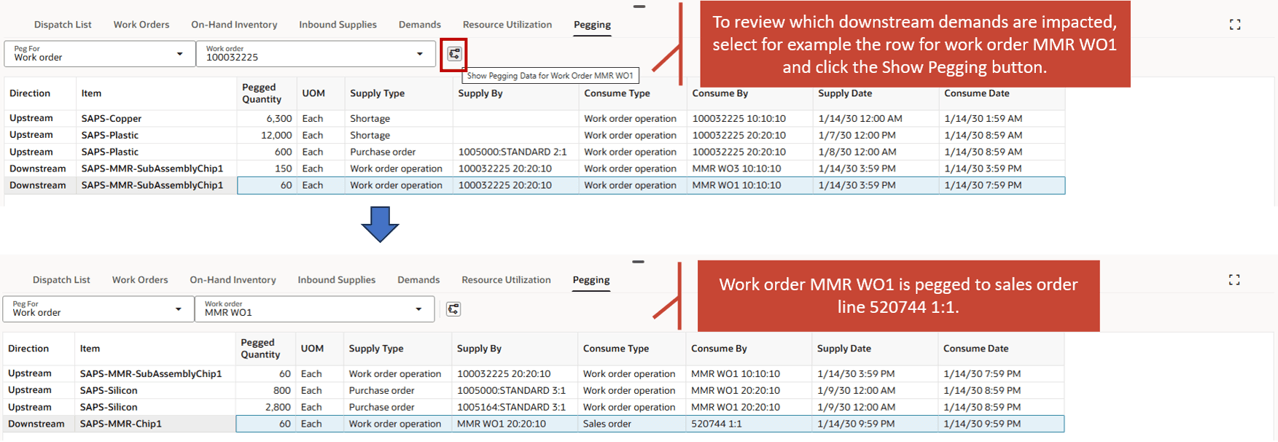
Evaluating Additional Pegging Data for Consuming Work Order MMR WO1
Note that the explicit pegging data is also available in the Dispatch List, that shows the end demands that are pegged to a work order. If there is only one pegged demand, then the order and order line of the demand are shown as a link. If there are more pegged demands, then the number of additional pegged demands is indicated. Clicking the link opens the side drawer with some demand details.
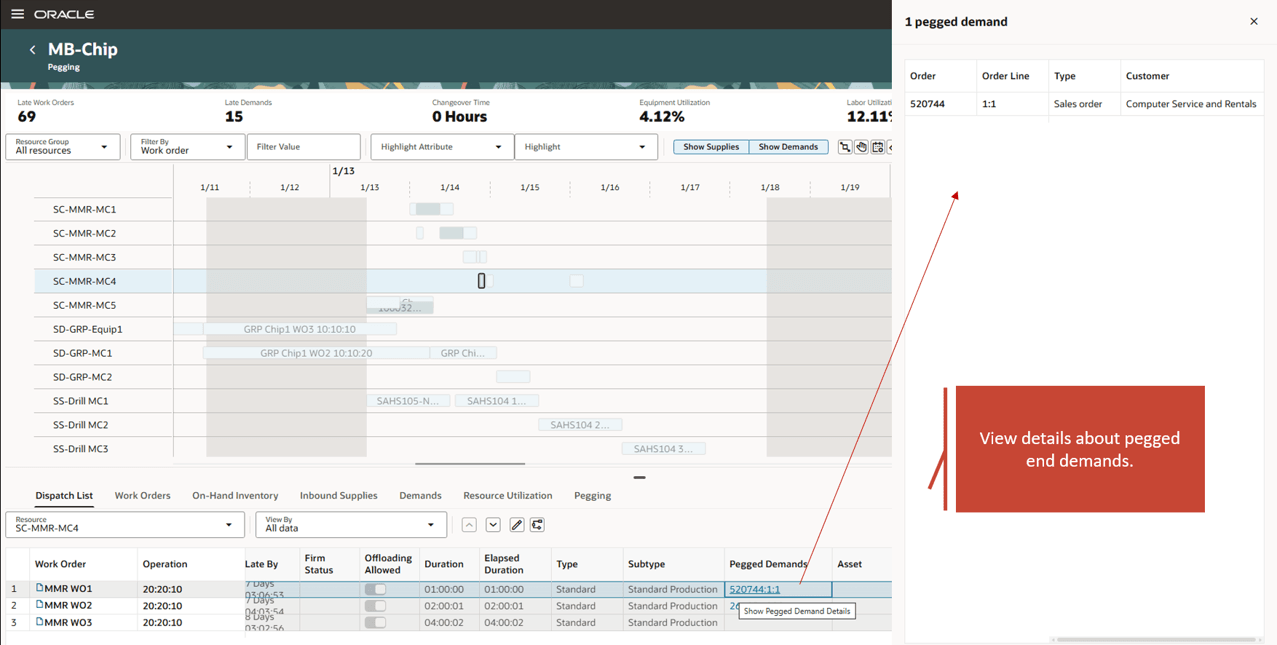
Displaying Pegged End Demands from Dispatch List in the Side Drawer
Steps to enable and configure
Use the Opt In UI to enable this feature. For instructions, refer to the Optional Uptake of New Features section of this document.
Offering: Supply Chain Planning
Tips and considerations
If you want to use the Display Pegging Data Table feature, then you must opt in to its parent feature, Oracle Production Scheduling. If you’ve already opted into this parent feature, then you don’t have to opt in again.
If there are shortages for an item inside the fixed time fence, then pegging data for that item is not reliable due to special handling of firm operations inside the fixed time fence.
Access requirements
Users who are assigned a configured job role that contains this privilege can access this feature:
Edit Production Schedule (MSC_EDIT_PRODUCTION_SCHEDULE_PRIV)
This privilege was available prior to this update.