Use Safety Stock from an Inventory Optimization Plan in a Sales and Operations Plan
Many enterprises use inventory optimization to minimize total inventory holding costs while improving service levels across their supply chain networks. By treating the entire network wholistically rather than as individual locations (such as plant, warehouse, and store), inventory optimization reduces redundant safety stocks, lowers operating costs, and increases resilience to variability to demand and supply.
Safety stock recommendations from Oracle Inventory Optimization Planning are fed into Oracle Sales and Operations Planning to enhance tactical supply chain decisions. The integration matches safety stock quantities by item, organization, and date in a sales and operations plan.
Aggregation and disaggregation of safety stock quantities occur based on differing planning buckets and calendars, ensuring accurate alignment between inventory optimization plans and sales and operations plans.
- Imported safety stock quantities replace sales and operations planning values.
- When multiple safety stock quantities exist for a planning bucket, the latest safety stock value in the bucket is selected.
- The integration respects existing overrides by ignoring time-phased safety stock quantities and item attributes but applies any safety stock quantity overrides.
You can use the calculated, time-phased safety stock targets for items and organizations across all supply chain echelons from an inventory optimization plan as a demand schedule in a sales and operations plan. This demand schedule can be used to plan supply and inventory in the sales and operations plan.
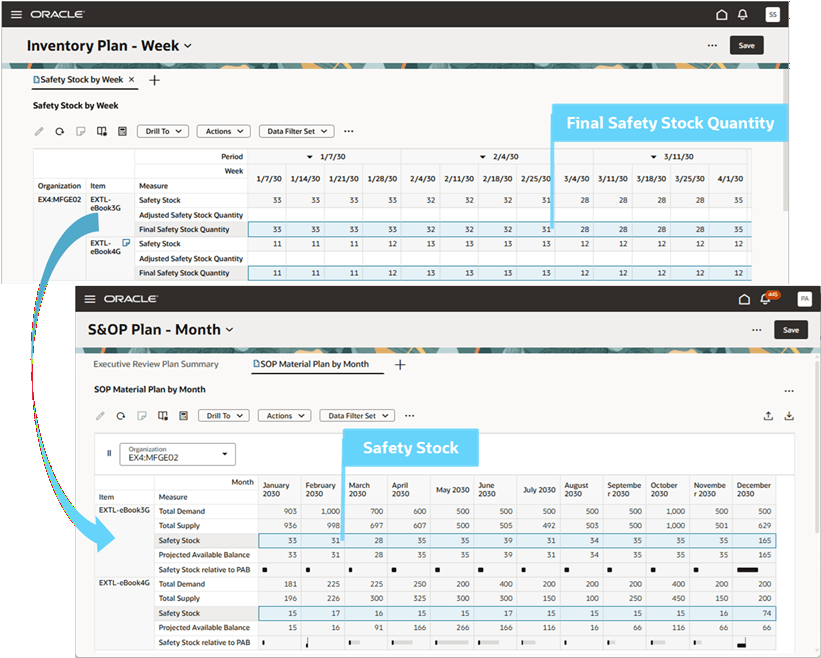
Demand Schedule Copies Final Safety Stock Quantity from an Inventory Optimization Plan to Safety Stock in a Sales and Operations Plan
Add Demand Schedule to a Sales and Operations Plan
To add an inventory optimization plan as a demand schedule for use in a sales and operations plan:
- Select a sales and operations plan from the list of values in the Supply Chain Planning work area plan selector.
- Select More Actions > Edit Plan Options.
- In the Supply step, select Demand Schedules.
- Select Add and then select an inventory optimization plan in the demand schedule drawer.
- Select Add to associate the demand schedule with the plan and close the drawer.
- (Optional) Add another inventory optimization plan as a demand schedule.
- Select Submit to save the plan options.
You must run the sales and operations plan and refresh with current data to use the Final Safety Stock Quantity measure from an inventory optimization plan as the Safety Stock measure in the sales and operations plan. The Safety Stock measure is used as input to plan inventory levels that are reported by the Projected Available Balance measure.
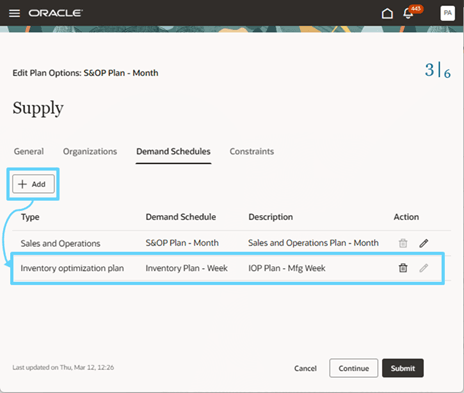
Add Demand Schedule in the Supply Step of Sales and Operations Plan Options
You can remove a demand schedule by selecting the Delete icon.
Handling Calendar Differences Between Inventory Optimization and Sales and Operations Plans
An inventory optimization plan can use a different calendar than the one used in a sales and operations plan. For example:
- Inventory optimization planning uses a manufacturing calendar with week (and period) time buckets but sales and operations planning uses monthly buckets.
- Inventory optimization planning uses a manufacturing calendar with period time buckets but sales and operations planning uses weekly buckets.
The rule to map time buckets between plans uses the latest week (or period) start date from the inventory optimization plan that falls within a sales and operations plan time bucket.
In the following example, the inventory optimization plan used as a demand schedule has a manufacturing calendar with telescoping week and period time buckets and the sales and operations plan has monthly buckets.
The latest week start date from the inventory optimization plan that falls within a sales and operations plan month is used for mapping time buckets.
- Week 5 starts on 1/31/2028 and falls within the Month 1 time bucket of 1/1/2028 – 1/31/2028.
- Week 9 starts on 2/28/2028 and falls within the Month 2 time bucket of 2/1/2028 – 2/29/2028.
- Week 13 starts on 3/27/2028 and falls within the Month 3 time bucket of 3/1/2028 – 3/31/2028.

Inventory Optimization Plan Weeks to Sales and Operations Plan Months
The latest period start date from the inventory optimization plan that falls within a sales and operations plan month is used for mapping time buckets.
- The period starting on 4/10/2028 falls within the Month 4 time bucket of 4/1/2028 – 4/30/2028.
- The period starting on 5/8/2028 falls within the Month 5 time bucket of 5/1/2028 – 5/31/2028.
- The period starting on 6/5/2028 falls within the Month 6 time bucket of 6/1/2028 – 6/30/2028.
- The period starting on 7/10/2028 falls within the Month 7 time bucket of 7/1/2028 – 7/31/2028.
- The period starting on 8/7/2028 falls within the Month 8 time bucket of 8/1/2028 – 8/31/2028.
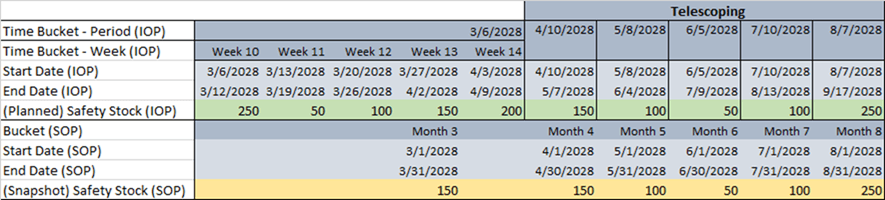
Inventory Optimization Plan Periods to Sales and Operations Plan Months
Differences Between Inventory Optimization and Sales and Operations Plan Horizons
An inventory optimization plan can have a time horizon that partially overlaps with a sales and operations plan. For example:
- An inventory optimization plan starts after the sales and operations plan starts. In this case, the Final Safety Stock Quantity measure value in the first bucket of the inventory optimization plan is used to backfill prior time buckets for the Safety Stock measure in the sales and operations plan.
- An inventory optimization plan ends before the sales and operations plan ends. In this case, the Final Safety Stock Quantity measure value in the last bucket of the inventory optimization plan is used for the Safety Stock measure to the end of the sales and operations plan horizon.
Use Inventory Optimization Plans in Planning Cycles
You can now use inventory optimization plans for planning cycle links.
To manage planning cycles:
- Select a sales and operations plan or a planning cycle from the list of values in the Supply Chain Planning work area plan selector.
- Select More Actions > View More > Planning Cycles.
- Select a planning cycle row and then select Edit.
The guided process for planning cycles consists of four steps: General, Stages, Participants, and Activities and Tasks. New capabilities related to inventory optimization planning are available in the General and Activities and Tasks steps.
- In the General step, select a plan to associate with the planning cycle. Supported plan types now include inventory optimization plans. Plans are used for drill-to links from activities and tasks to open a plan with context. The General step is also used to specify the name, description, start date, end date, and owner of the planning cycle.
- In the Activities and Tasks step, create a link to an activity or task, as follows:
- Select a row from the list of activities and tasks.
- Select More Actions > Edit. A drawer opens where you can edit the task or activity.
- Add an internal link to a table, graph, page, or page group. Drill-to links from activities and tasks use the plans associated with the planning cycle to open a plan with context.
- If desired, you can also add external links for your planning cycle tasks to generate hyperlinks in the worklists retrieved by the Planning Cycle Assistant. These provide direct links to planning pages and visualizations.
- Select Update to apply the changes to the task or activity.
- Make any desired edits to any of the other steps.
- Select Update to complete the guided process and save edits to the planning cycle.
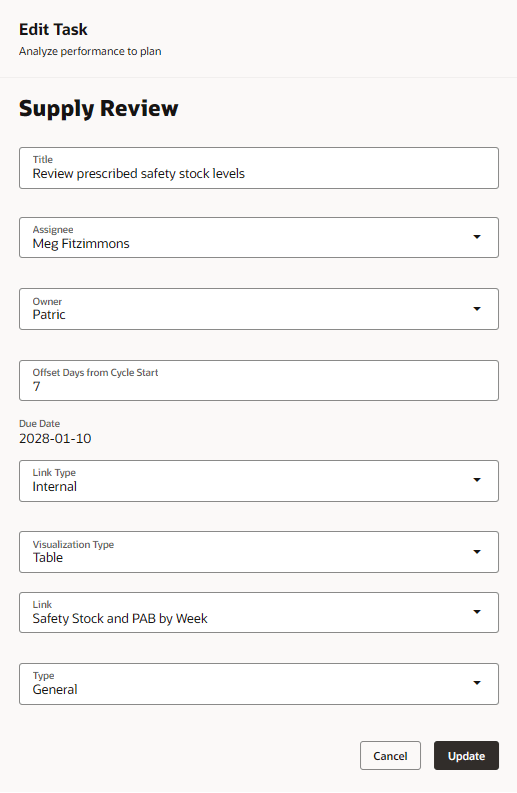
Planning Cycle Task Link to an Inventory Optimization Plan Table
To open a planning cycle:
- Select a planning cycle from the list of values in the Supply Chain Planning work area plan selector.
- The planning cycle opens in the work area.
- Use drill-to links to open a plan with table, graph, page, or page group context to perform a task. Select the link to open a drawer and then select a plan. There can be alternative plans that have the same plan type. The selected plan opens in a new browser tab with context.
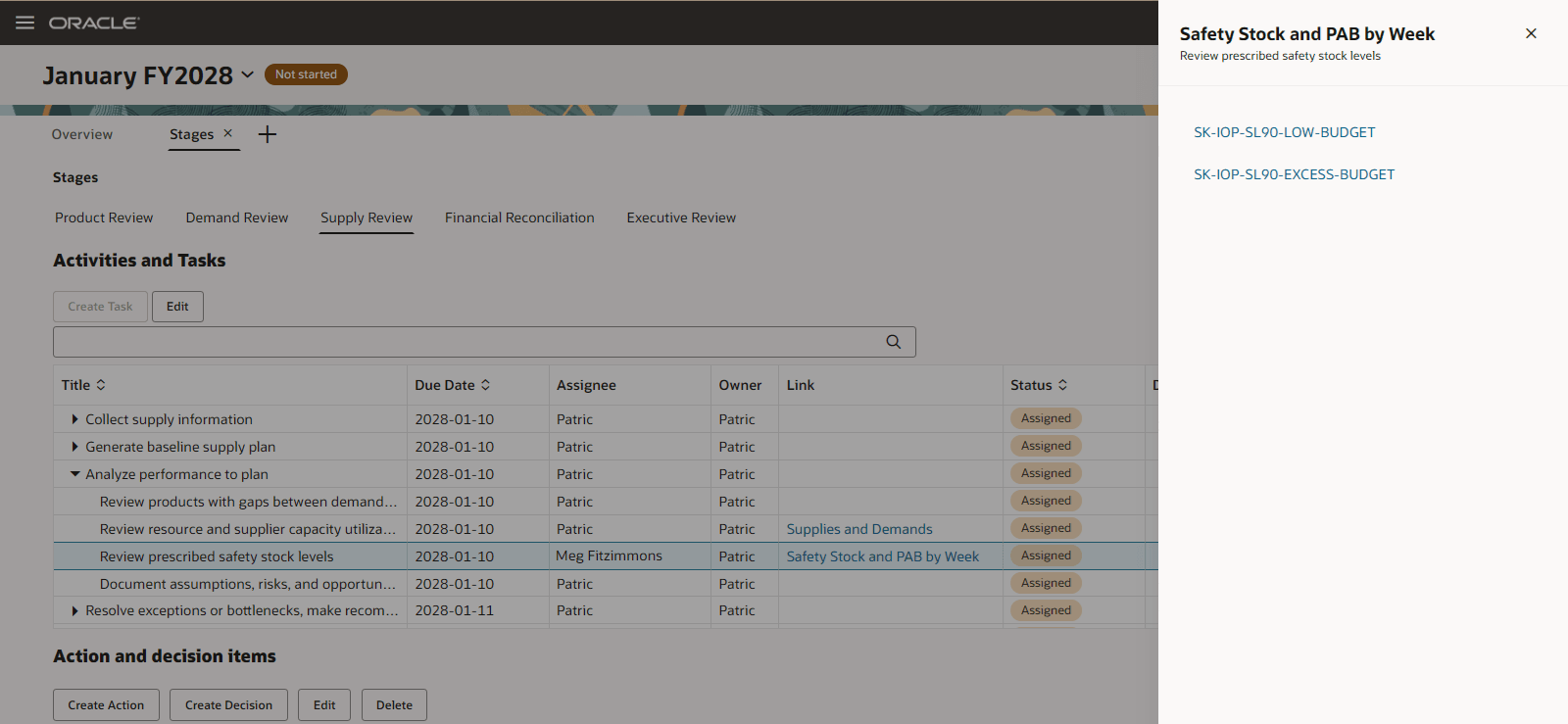
Task Link to an Inventory Optimization Plan Table from an Open Planning Cycle
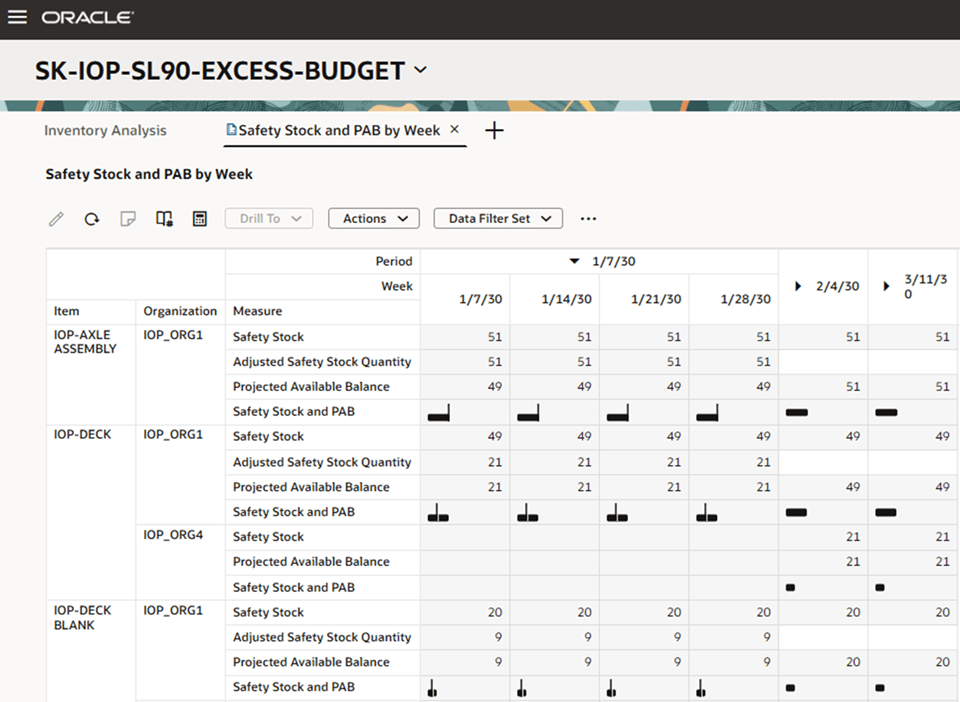
Inventory Optimization Plan Table
Steps to enable and configure
You don't need to do anything to enable this feature.
Tips and considerations
- Demand schedules use the Final Safety Stock Quantity measure from an inventory optimization plan to copy values to the Safety Stock measure in a sales and operations plan.
- Run a sales and operations plan with data refresh after adding a demand schedule.
- Safety Stock is an inventory type measure that uses the latest value to aggregate in the time dimension.
- Use the Items with Inventory Below Safety Stock exception to identify item and organization combinations where the Projected Available Balance measure value is less than the Safety Stock measure.
- Consider adding an inventory optimization plan’s segment group to the sales and operations plan’s dimension catalog to compare safety stock quantities at an aggregate level.
- Use data bars for measure comparison in a sales and operations plan table.
- You can add measure comparisons in a table by selecting the Measures icon in the toolbar.
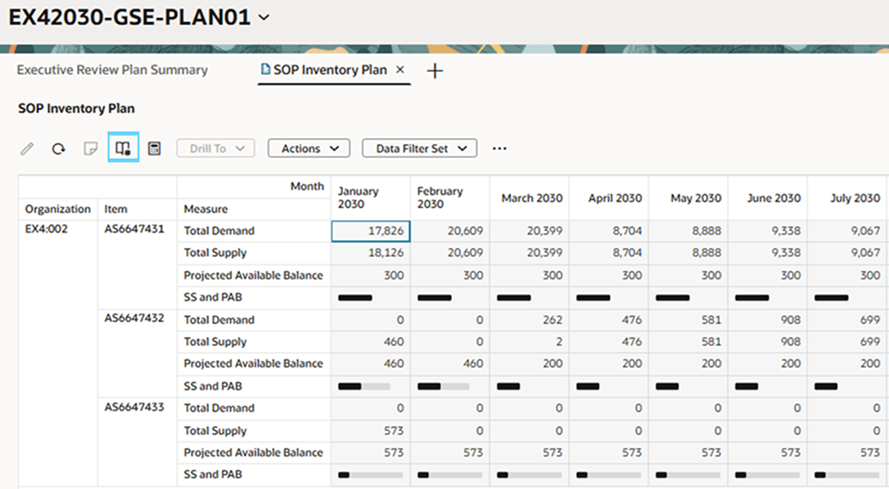
Data Bars That Compare Inventory Measures in a Sales and Operations Plan Table
Key resources
- Refer to the Cloud Applications Readiness content for the following Inventory Optimization Planning What's New 26C feature for more information on data bars for measure comparison in a table:
- Manage Plan Analytics for Inventory Optimization Plans
- Refer to the Cloud Applications Readiness content for the following Sales and Operations Planning What's New 26A features for more information on Planning Cycles:
- Redwood: Use Additional Capabilities to Manage Planning Cycles
- AI Agent: Planning Cycle Assistant
Access requirements
Users who are assigned a configured job role that contains these privileges can access this feature:
- Edit Plan Options (MSC_EDIT_PLAN_OPTIONS_PRIV)
- Run Plan with Snapshot (MSC_RUN_PLAN_WITH_SNAPSHOT_PRIV)
These privileges were available prior to this update.