Redwood: Contract Expert
Contract Expert now supports policy-document-based rule evaluation for structured contract terms in Redwood and the Word Add-in.
The Contract Terms tab in Redwood includes an embedded PDF preview, so users can review generated contract terms while working with Contract Expert. When structured terms are defaulted on a contract or manually added from a terms template enabled for AI policy document rules, Contract Expert runs automatically.
Contract Expert identifies the applicable policy document using the contract’s terms template and business unit. It evaluates current contract values against the policy rules and determines which clauses apply. Required clauses are added automatically. Optional clauses are shown for user review in the Expert clauses drawer. Users can select View Expert Clauses to review the clauses identified by Contract Expert, see why each clause was selected, and add optional clauses. If contract values change, users can select Run Expert Again to reevaluate the latest contract values and refresh the expert clause results. After Contract Expert adds or removes clauses, users can refresh the PDF preview to view the latest contract terms.
Contract Expert can also be used from the Word Add-in. When terms are opened for editing in Word, the terms are locked, Word becomes the active editing surface, and Contract Expert actions are available from the add-in pane for the lock owner. Changes made in Word are saved back to the application when the terms are uploaded.
Feature Flow
Redwood Contract Terms
- The user creates or opens a contract with structured terms.
- Terms are defaulted or manually added from a terms template enabled for AI policy document rules.
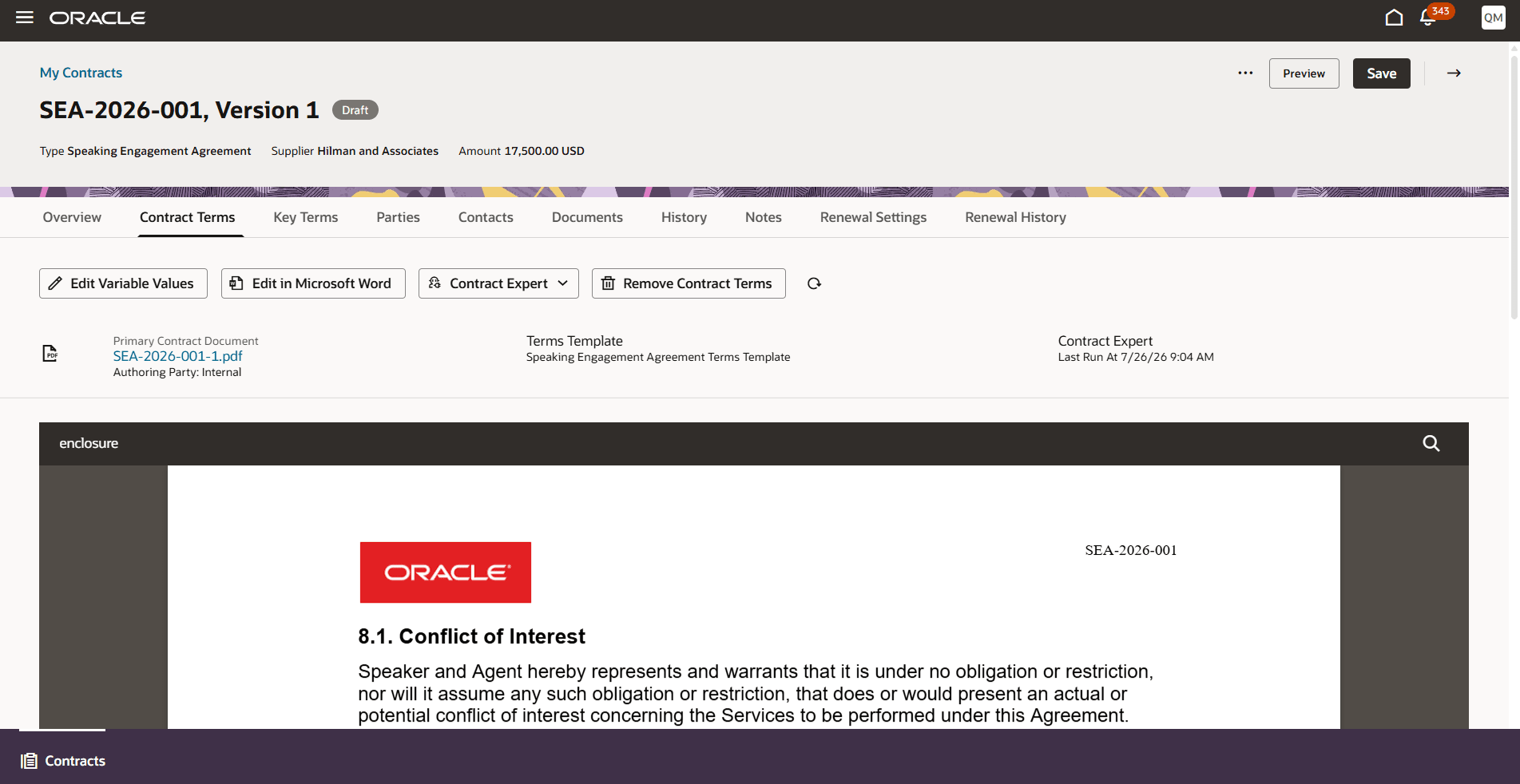
Contract Terms
- Contract Expert runs automatically after the terms are added.
- Contract Expert evaluates the current contract values against the matching policy document.
- Required clauses are added automatically when rule conditions are satisfied.
- Optional clauses are shown in the Expert clauses drawer for user review.
- The user can select View Expert Clauses to review clause details and the reason each clause was selected.
-
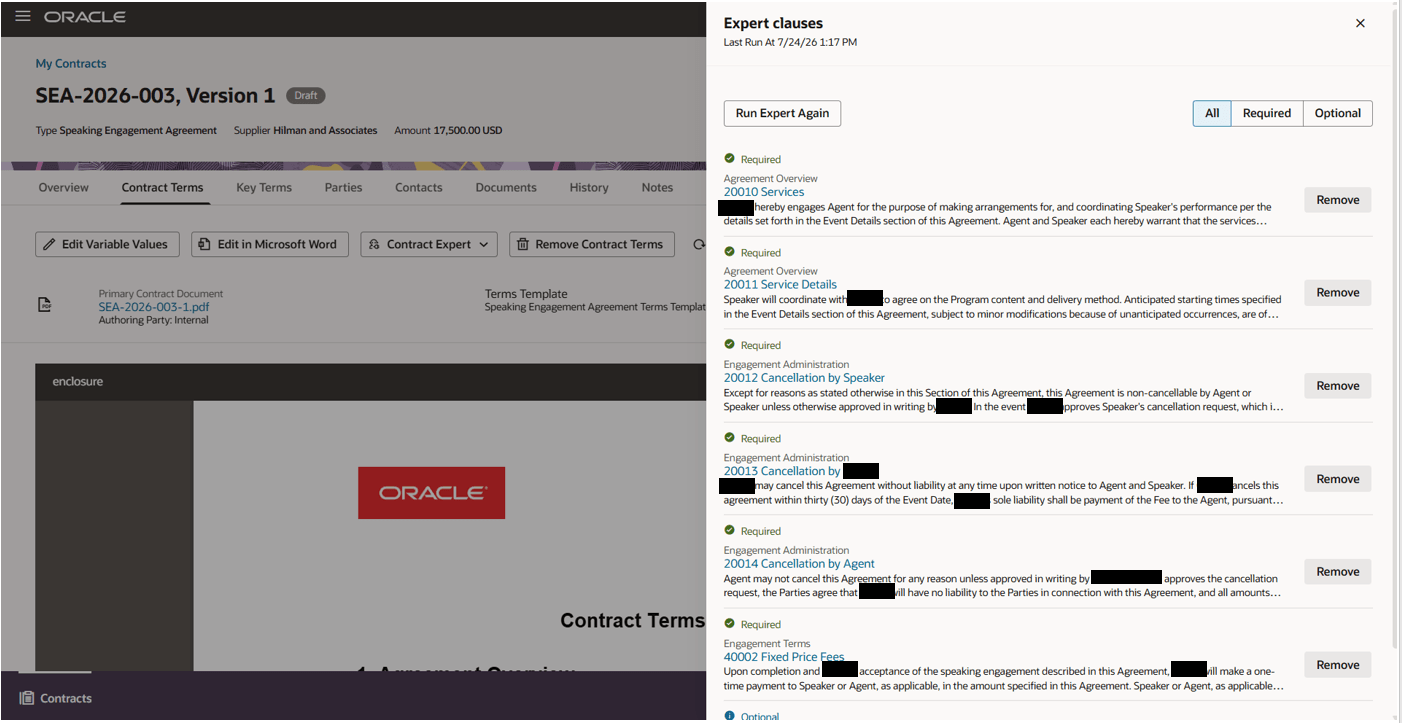
View Expert Clauses - Redwood
-
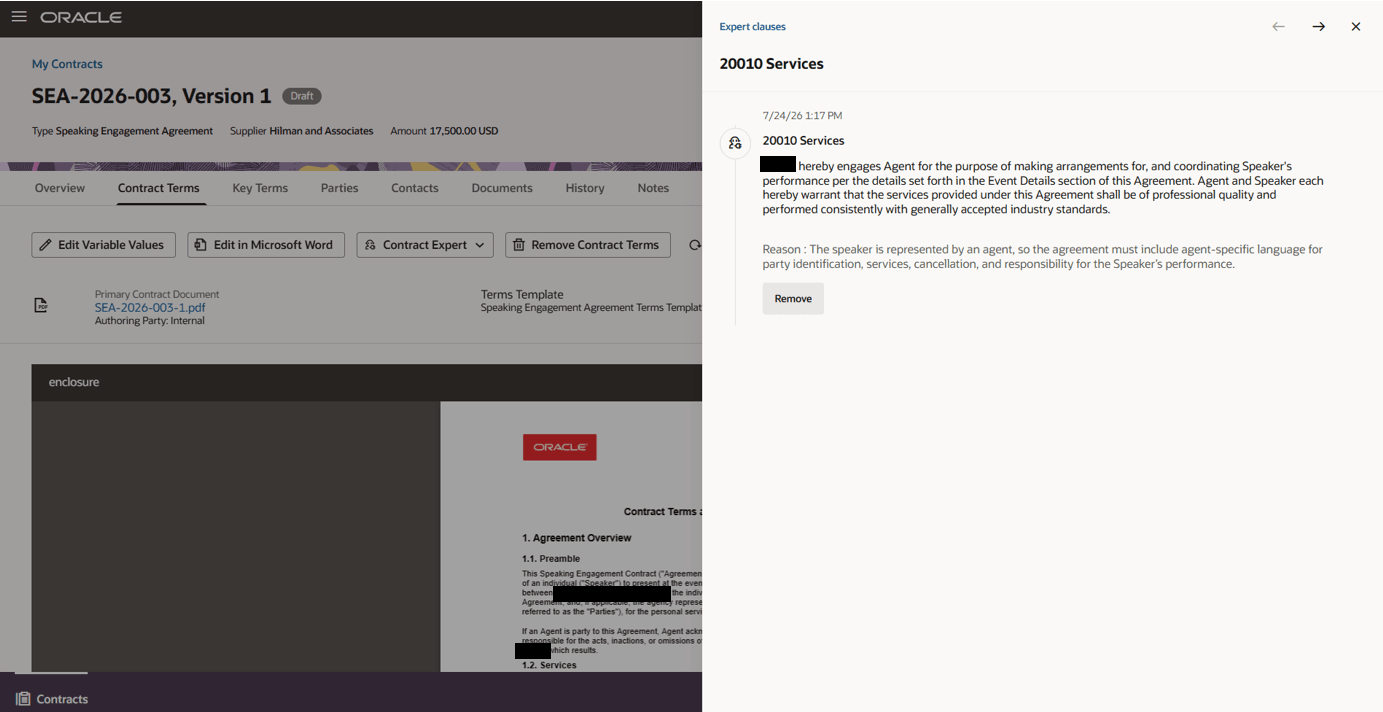
Clause Details - Redwood
-
- The user can add optional clauses or remove clauses, based on privileges.
- If contract values change, the user can select Run Expert Again.
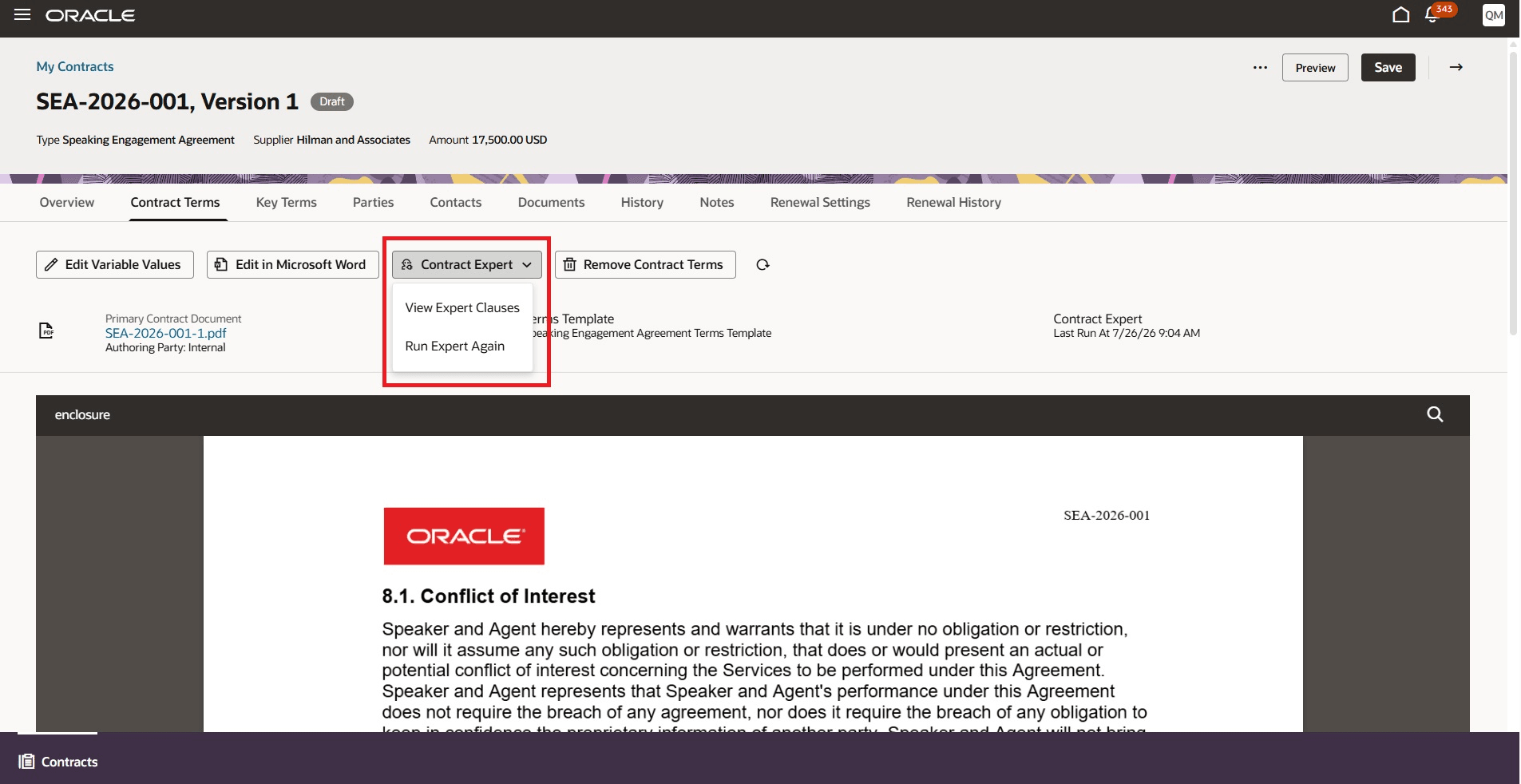
Contract Expert Actions
- The user can refresh the PDF preview to view the latest contract terms.
-
Run Expert Again
-
When users select Run Expert Again, Contract Expert reevaluates the latest contract values and structured terms against the matching policy document.
-
On rerun:
- The latest run replaces the previous Contract Expert results.
- Required clauses are reevaluated and applied when the rule conditions are satisfied.
- Optional clauses are refreshed based on the latest matching rules.
- Pending optional clauses from the previous run are replaced by the latest results.
- Clauses previously added by Contract Expert may be removed if the policy rule no longer applies.
- Manual user changes are preserved.
- Duplicate clauses aren’t added when the clause already exists in the contract terms.
-
Word Add-in
-
Users can open contract terms in the Word Add-in from either:
- Edit in Microsoft Word on the Redwood Contract Terms tab
- Contract search in the Word Add-in, followed by Edit Contract
When the terms are opened in Word:
- A terms lock is applied.
- Word becomes the active editing surface.
- Word becomes the source of truth for pending terms updates.
- Contract Expert actions are available from the add-in pane for the user who owns the lock.
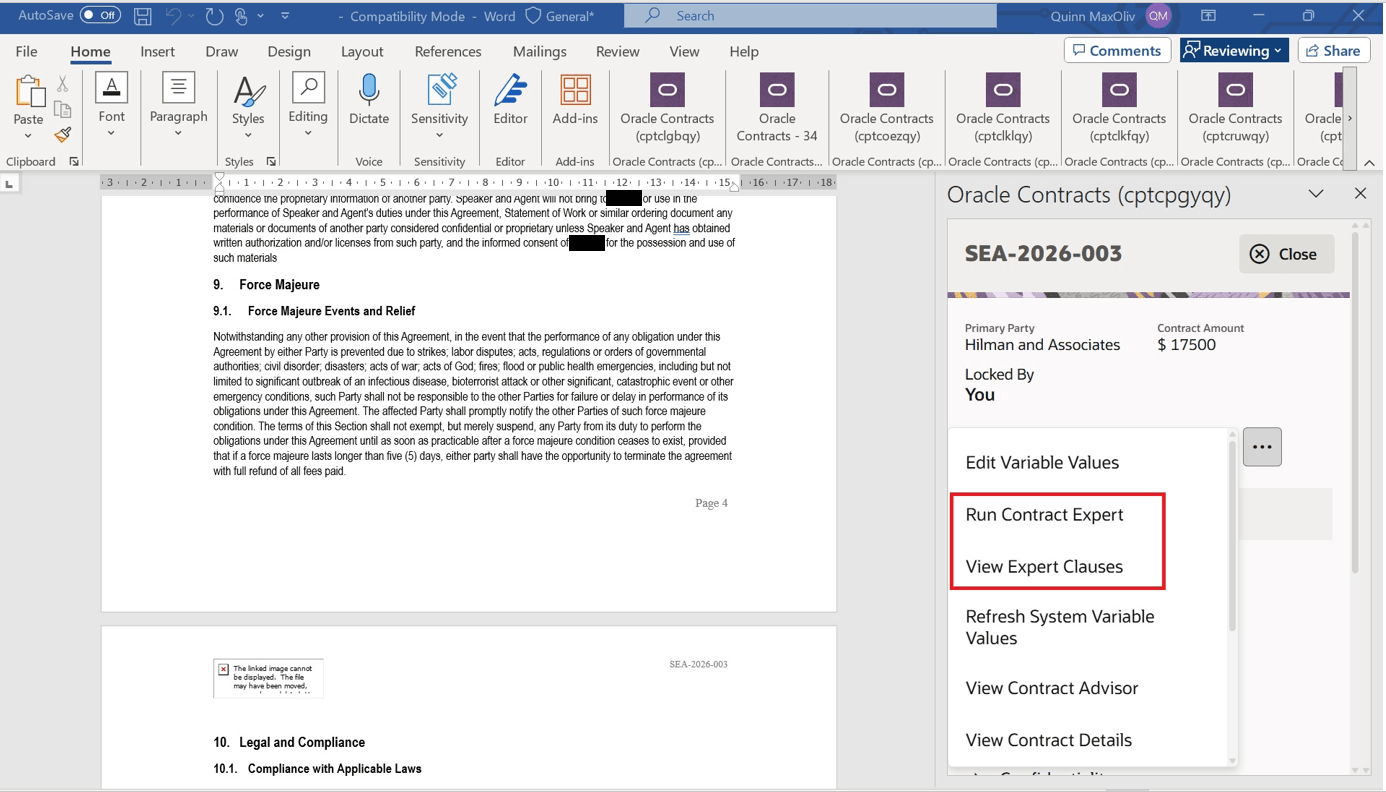
Expert Actions - Word Add-in
- The user can select View Expert Clauses or Run Expert Again from the Word Add-in.
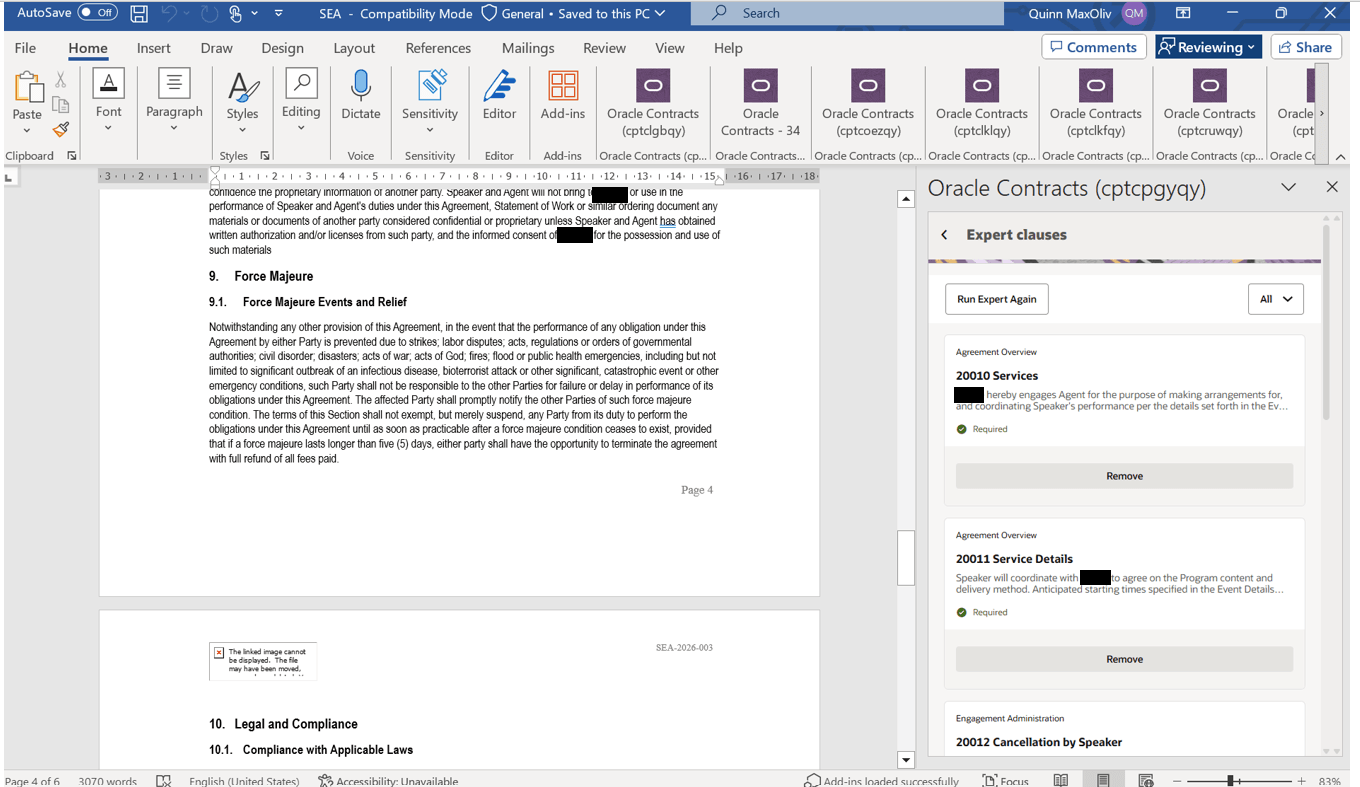
View Expert Clauses - Word Add-in
-
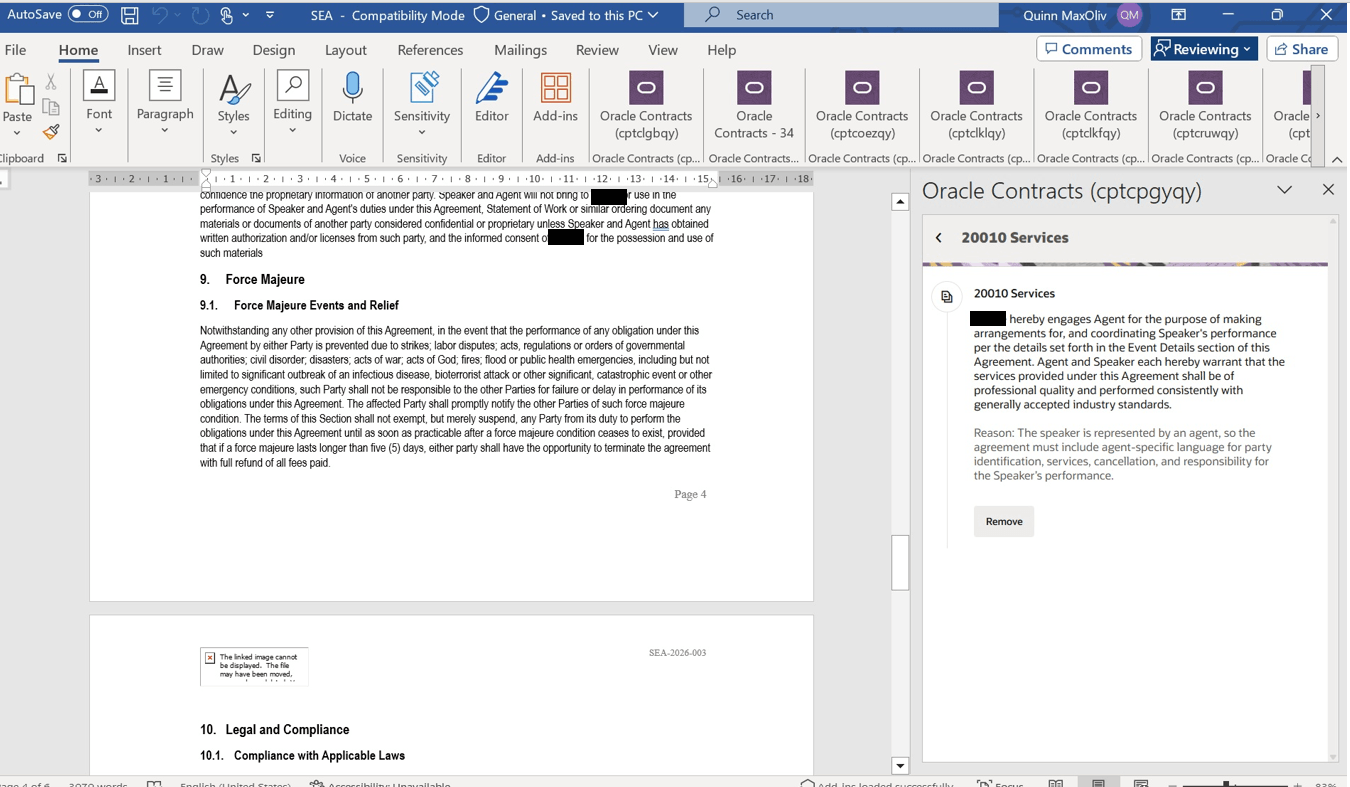
Clause Details - Word Add-in
- Required clauses are added to the Word document.
- Optional clauses can be reviewed and added from the Word Add-in.
- The user uploads the terms to save the Word changes back to the application.
Redwood Behavior While Terms Are Locked in Word
-
While the Word Add-in lock is active, Redwood follows the locked terms behavior.
- In Redwood:
- The Contract Expert menu isn’t shown.
- View Expert Clauses isn’t shown while the terms are locked.
- Run Expert Again isn’t shown while the terms are locked.
- Users can’t run Contract Expert from Redwood.
- Redwood shows only the locked-state actions, such as Unlock Terms.
- After the Word changes are uploaded, Redwood shows the latest committed terms.
- If Contract Expert was used in Word Add-in, Redwood can show the latest expert clause results for review, but the drawer opens in read-only mode for that contract version. In read-only mode, users can view the expert clause details, but these actions are hidden:
- Run Expert Again
- Add
- Remove
- Contract Expert rerun isn’t available in Redwood and Word Add-in at the same time.
Classic and Redwood Contract Expert Behavior
-
Contract Expert behavior depends on whether Enable AI policy document rules is selected on the terms template.
Contract Expert Behaviour
| Terms Template Setup | Contract Expert Behavior |
|---|---|
| Enable AI policy document rules isn’t selected | The template continues to use the classic Contract Expert experience with rules, questions and answers. |
| Enable AI policy document rules is selected | The template uses the policy document based contract expert experience in redwood contract terms and word add-in |
- For existing terms templates that use classic Contract Expert, there’s no change. Contract Expert continues to use the existing rule-based setup.
- For terms templates enabled for AI policy document rules, Contract Expert uses the uploaded policy document for the terms template and business unit. It evaluates current contract values, adds required clauses automatically, and shows optional clauses for review.
- A terms template uses one Contract Expert experience at a time. This keeps clause evaluation consistent for contracts created from that template.
Improve contract compliance and authoring efficiency by using policy-document-based rules to automatically identify and apply applicable clauses. Contract Expert reduces manual clause selection, provides visibility into why clauses are recommended, and enables users to reevaluate contract terms as contract values change, from either Redwood Contract Terms or the Word Add-in.
Steps to enable and configure
-
Prepare the Policy Document
-
Use the policy document to define the rules Contract Expert evaluates. The policy document defines when a rule applies and which clause should be added.
-
Prepare the policy information
-
Create a policy workbook for a specific terms template and business unit.
- The policy workbook should include a policy information sheet with details such as:
-
Policy Information
Field Example Policy Name Contract Expert Rules for Speaking Engagement Agreement Business Unit Vision Operations Terms Template Name Speaking Engagement Agreement Terms Template -
The business unit and terms template name are important because Contract Expert uses them to find the applicable policy document when it runs on a contract.
-
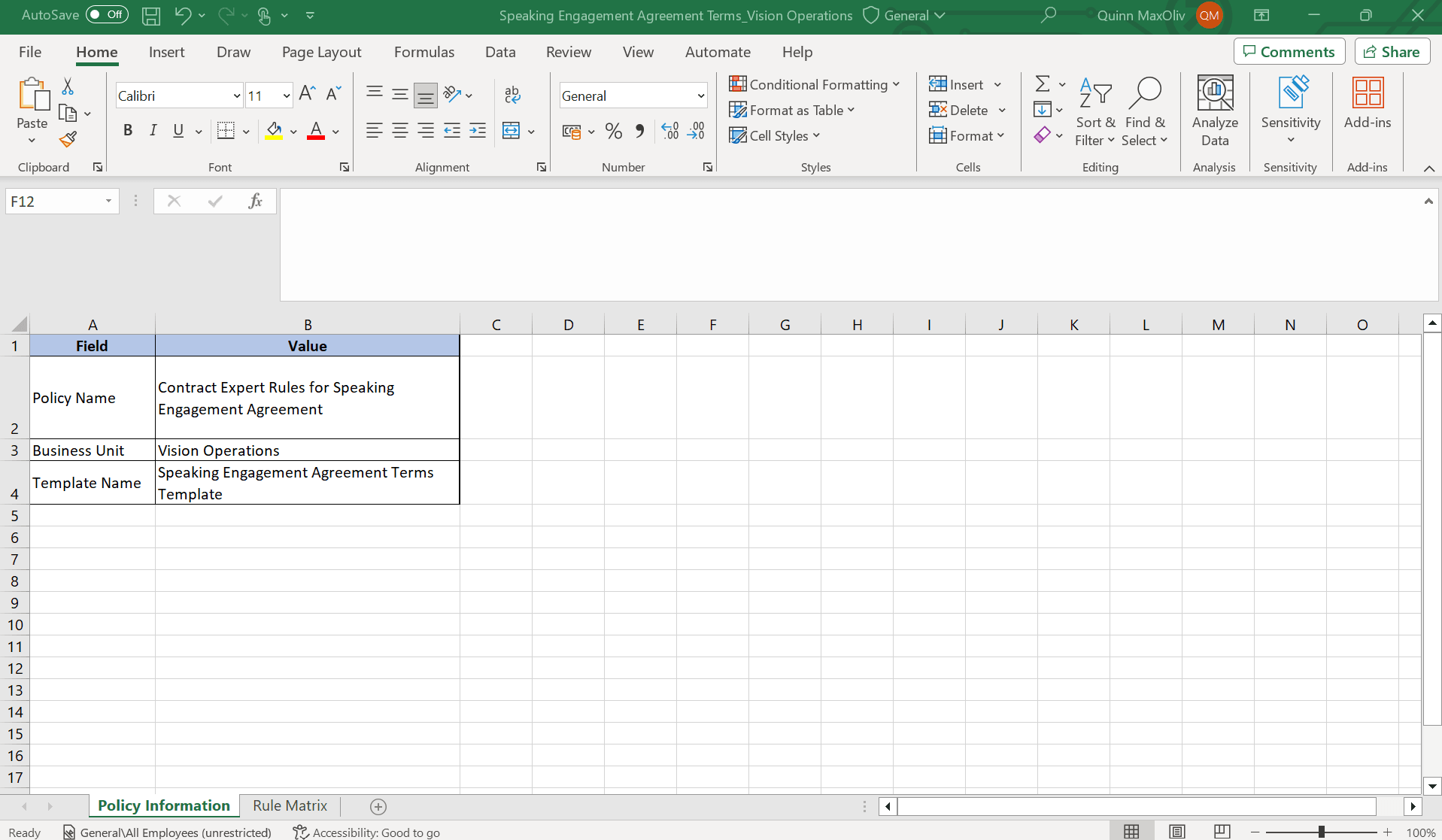
Policy Information
-
-
Define the rule matrix
-
In the rule matrix sheet, define the rules that Contract Expert should evaluate. Recommended columns:
- Rule ID
- Rule Name
- Rule Description
- Condition
- Execution Mode
- Result
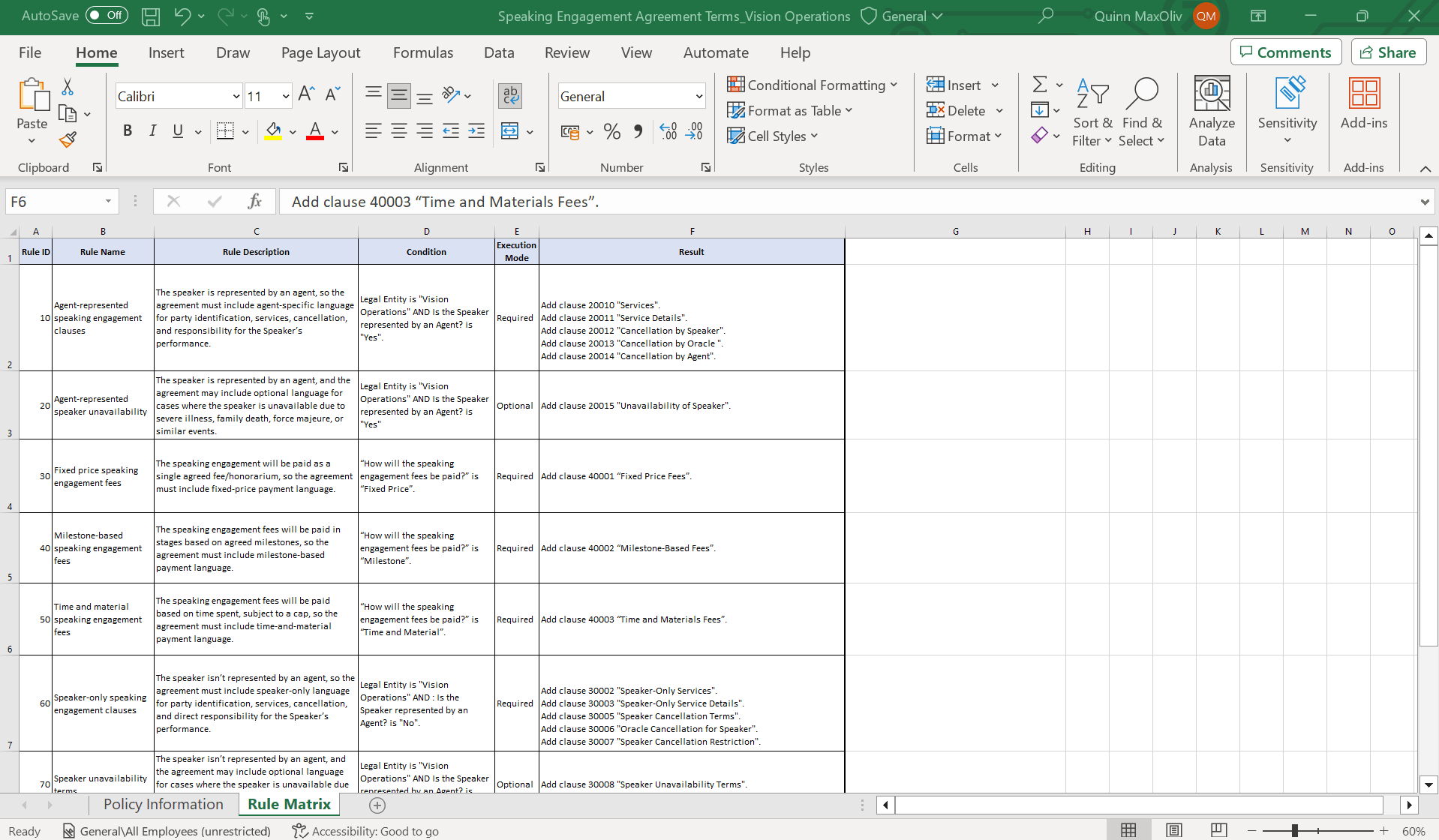
Policy Rule Matrix
-
Rule description
-
Use the rule description to explain why the clause is being added. This description appears as the Reason in the expert clause detail view.
-
Example: The speaker is represented by an agent, so the agreement must include agent-specific language for party identification, services, cancellation, and responsibility for the Speaker’s performance.
-
-
Condition
-
Define the contract values that must be true for the rule to apply.
-
Conditions can be based on contract values such as standard contract attributes, custom attributes, and descriptive flexfields.
-
Example: "Legal Entity" is "Vision Operations" AND "Speaker Represented by Agent" is "Yes".
-
-
Execution mode
-
Use one of these values:
-
Execution Mode Values
Execution Mode Meaning Required Contract Expert adds the clause automatically. Optional Contract Expert shows the clause for review before the user adds it
-
-
Result
-
The Result column identifies the clause Contract Expert should add when the rule condition is satisfied. Clause Title is mandatory and result is driven by Clause Title
-
Use this format: Add clause <Clause Number> "<Clause Title>".
-
Example: Add clause 20010 "Services".
-
If a rule adds multiple clauses, list each clause on a separate line in the Result column.
-
Example:
-
Add clause 20010 "Services".
-
Add clause 20011 "Service Details".
-
-
-
-
-
-
Upload and Publish the Policy Documents
-
Use the Policy Models work area to upload the policy documents that Contract Expert will use.
- You can upload multiple policy documents. Each uploaded policy document should represent a specific terms template and business unit combination.
-
Example file name: Speaking Engagement Agreement Terms_Vision Operations_Policy Document.xlsx
-
The file name can follow your organization’s naming standard, but the workbook must clearly identify the terms template and business unit.
-
-
Upload the policy document
-
Navigate to Policy Models.
-
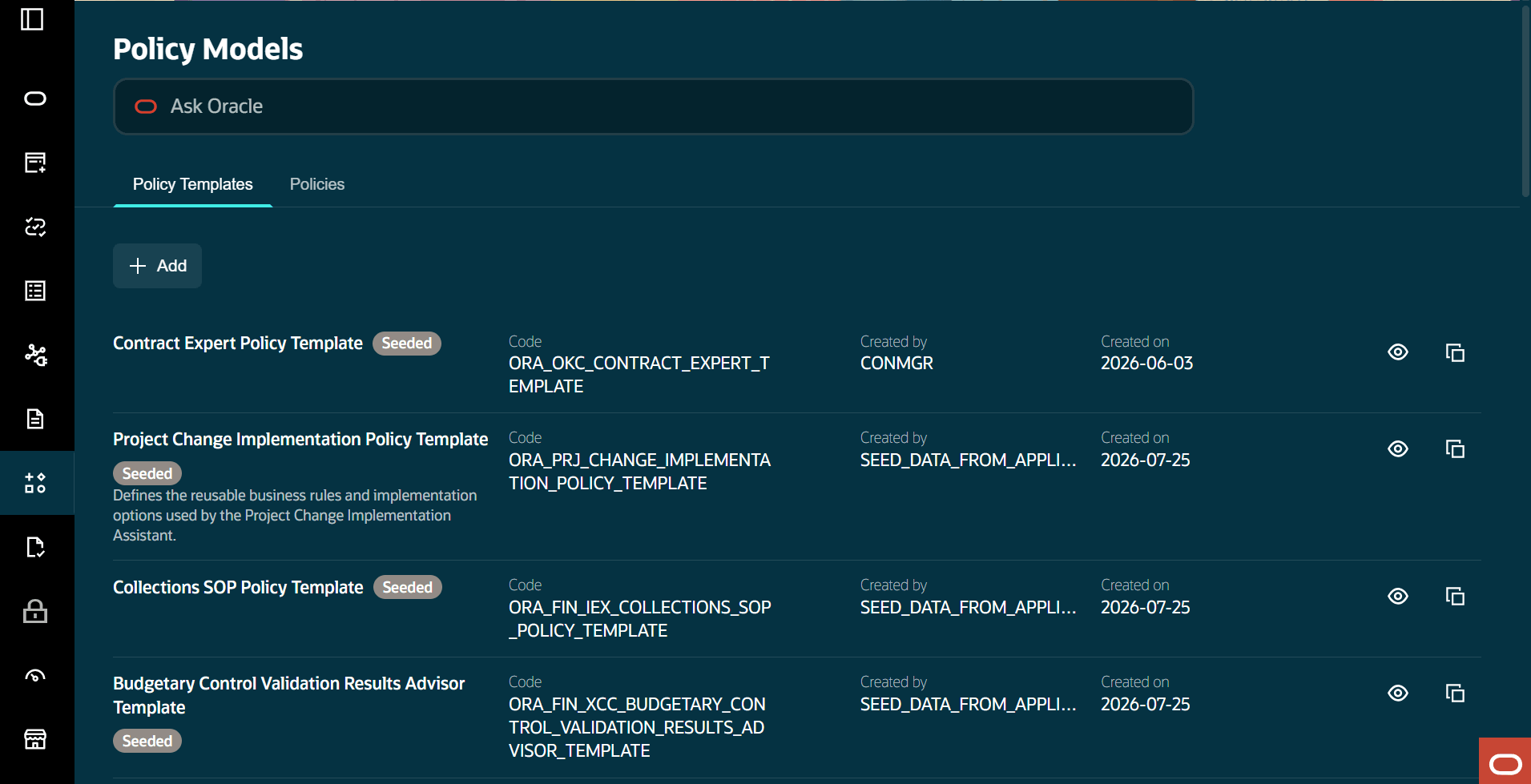
Click on Policy Model
-
-
On the Policy Templates tab, confirm that the seeded Contract Expert Policy Template is available.
-
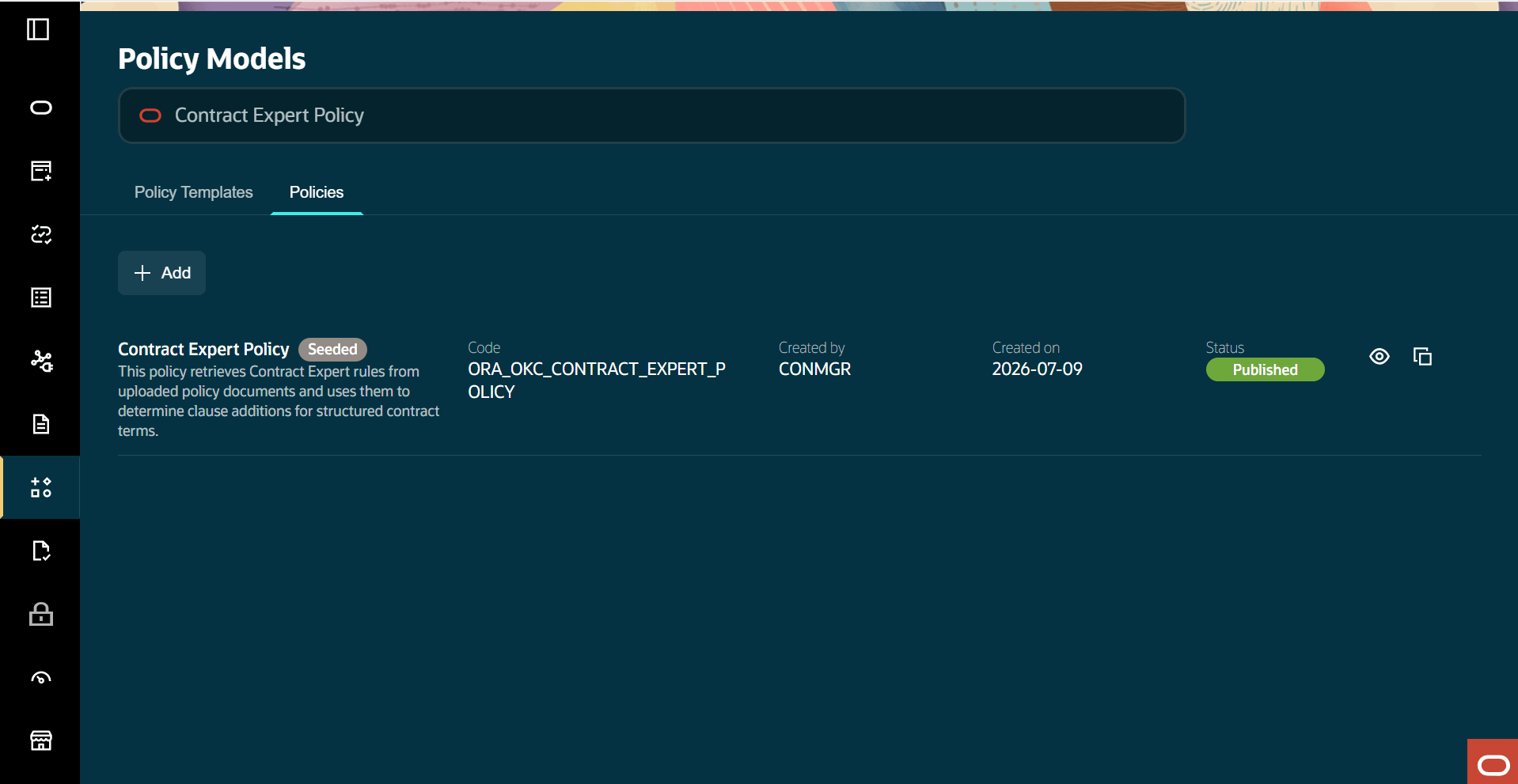
Search for Contract Expert Policy from Policies tab
-
-
Then go to the Policies tab and complete these steps:
-
Search for Contract Expert Policy.
- Open the policy using the view icon.
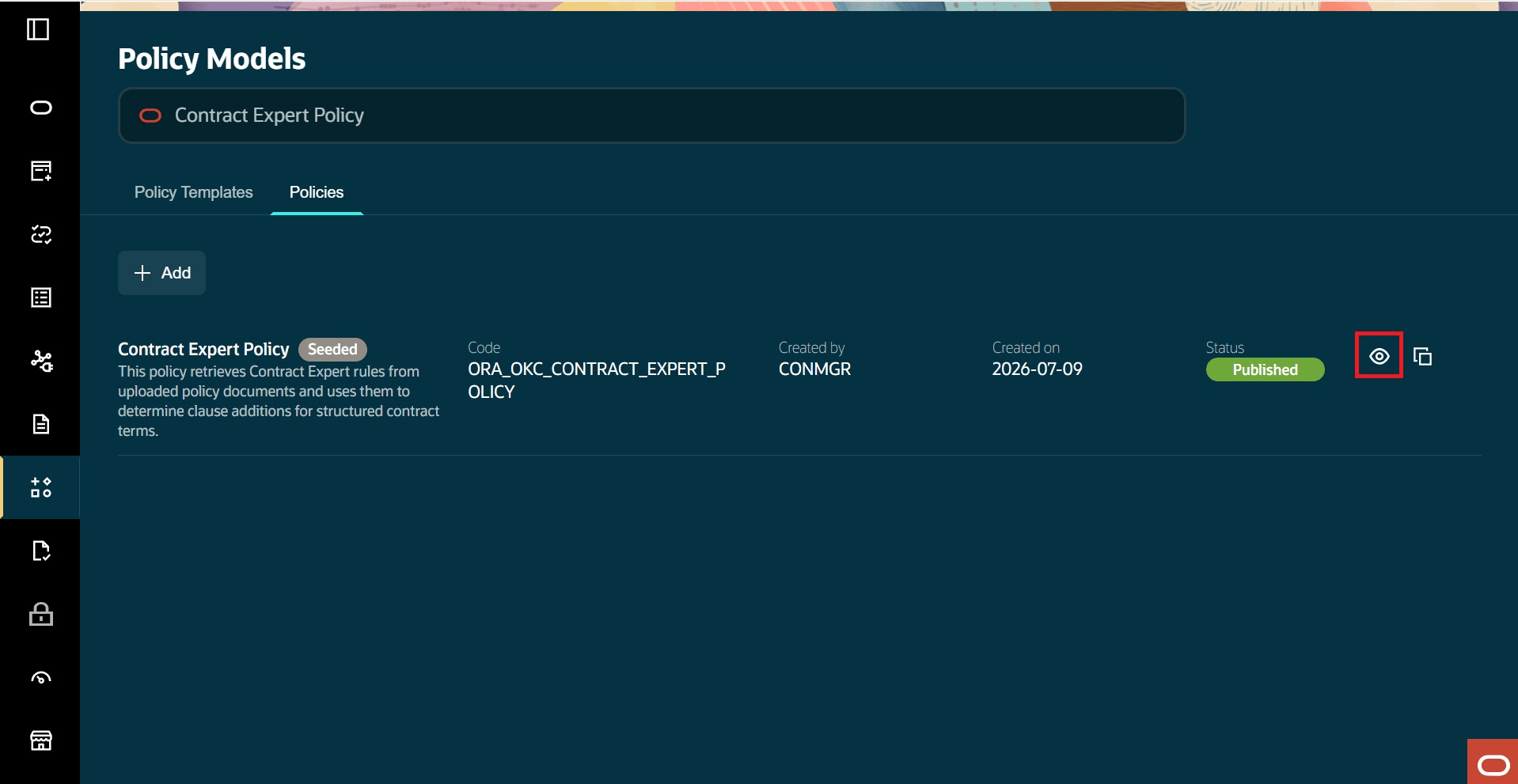
Click on View Icon
-
Select Customize.
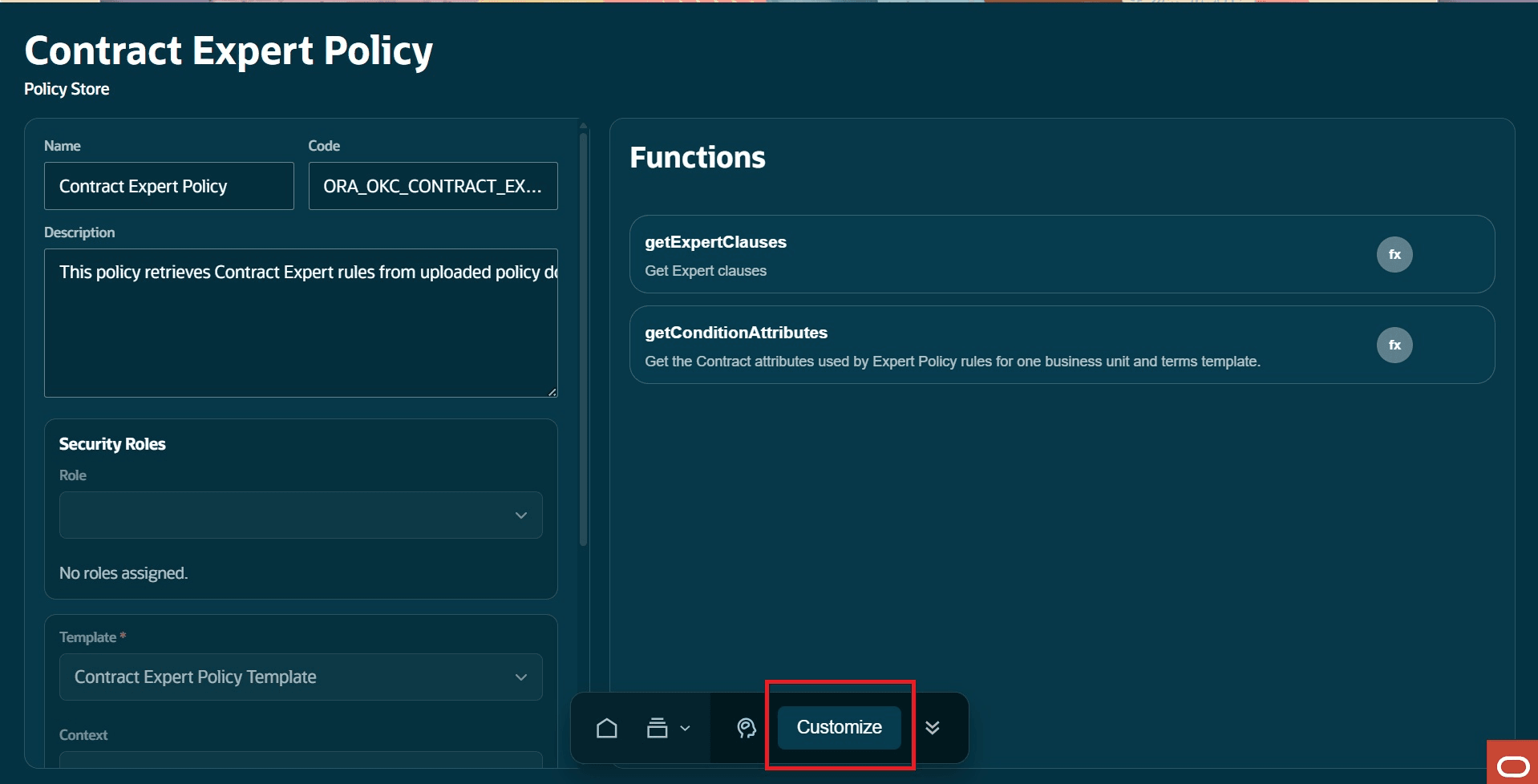
Click on Customize
- Select Choose File.
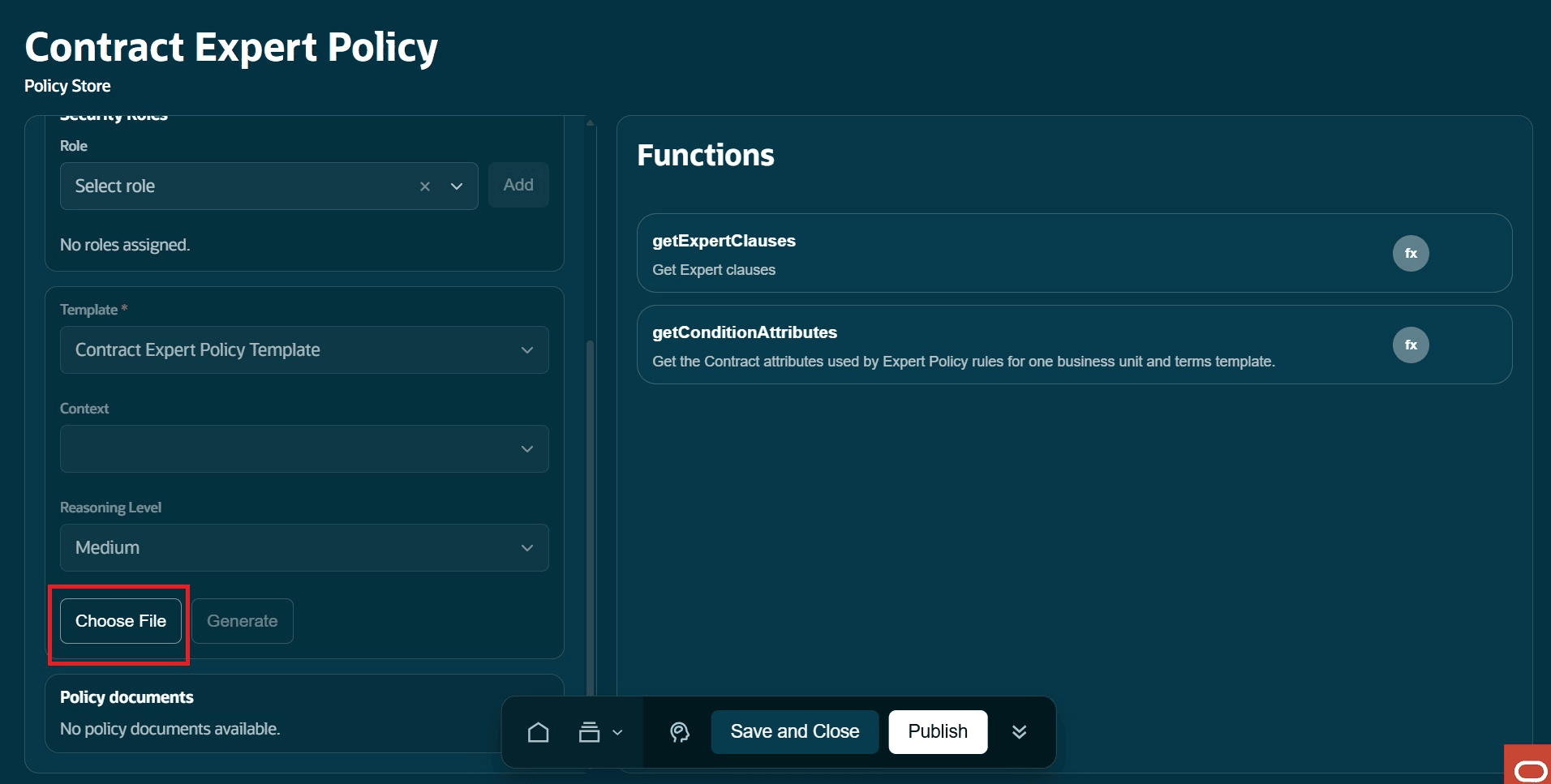
Click on Choose File
- Upload the policy documents.
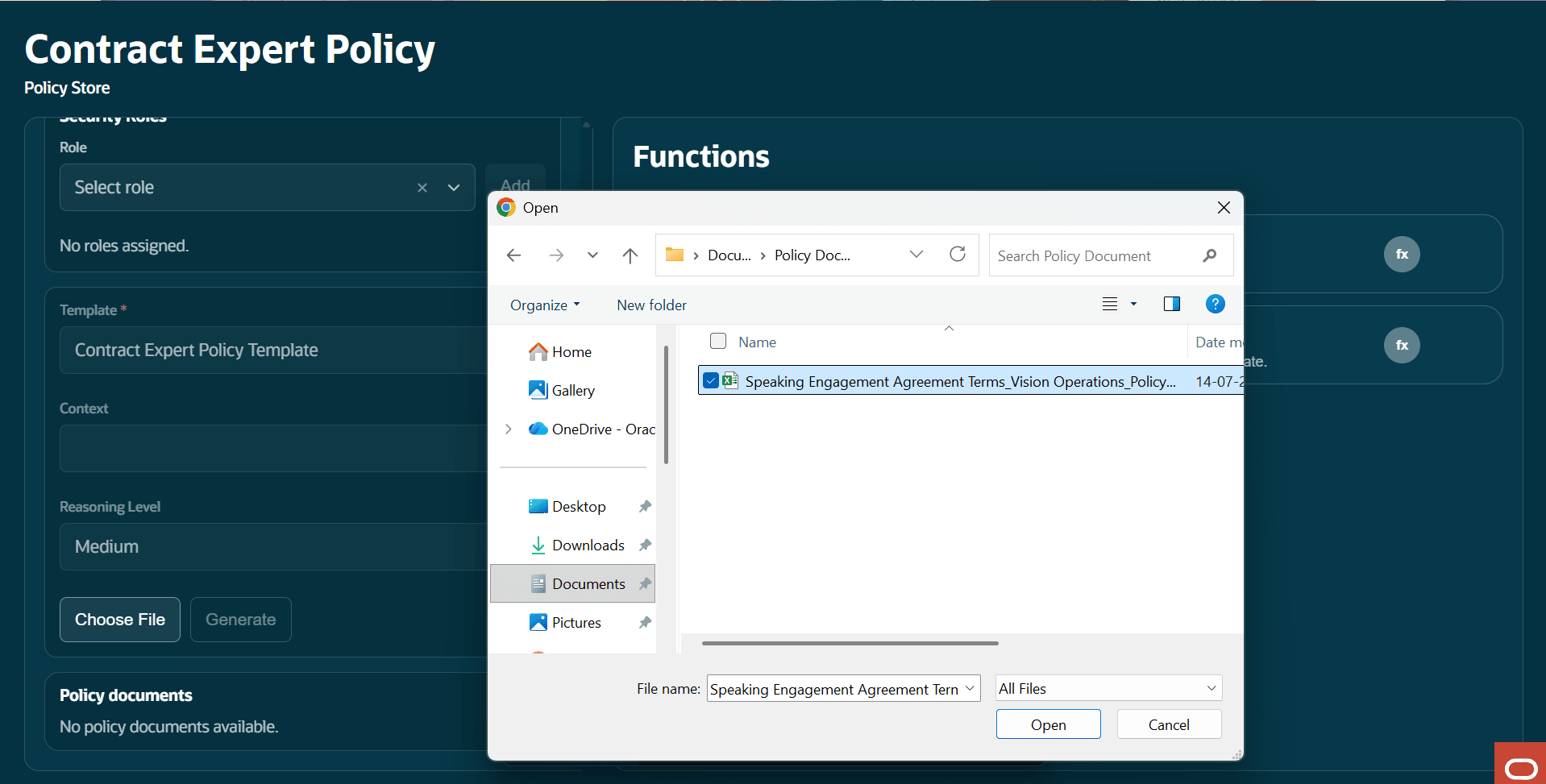
Upload the required policy documents
-
Select Generate.
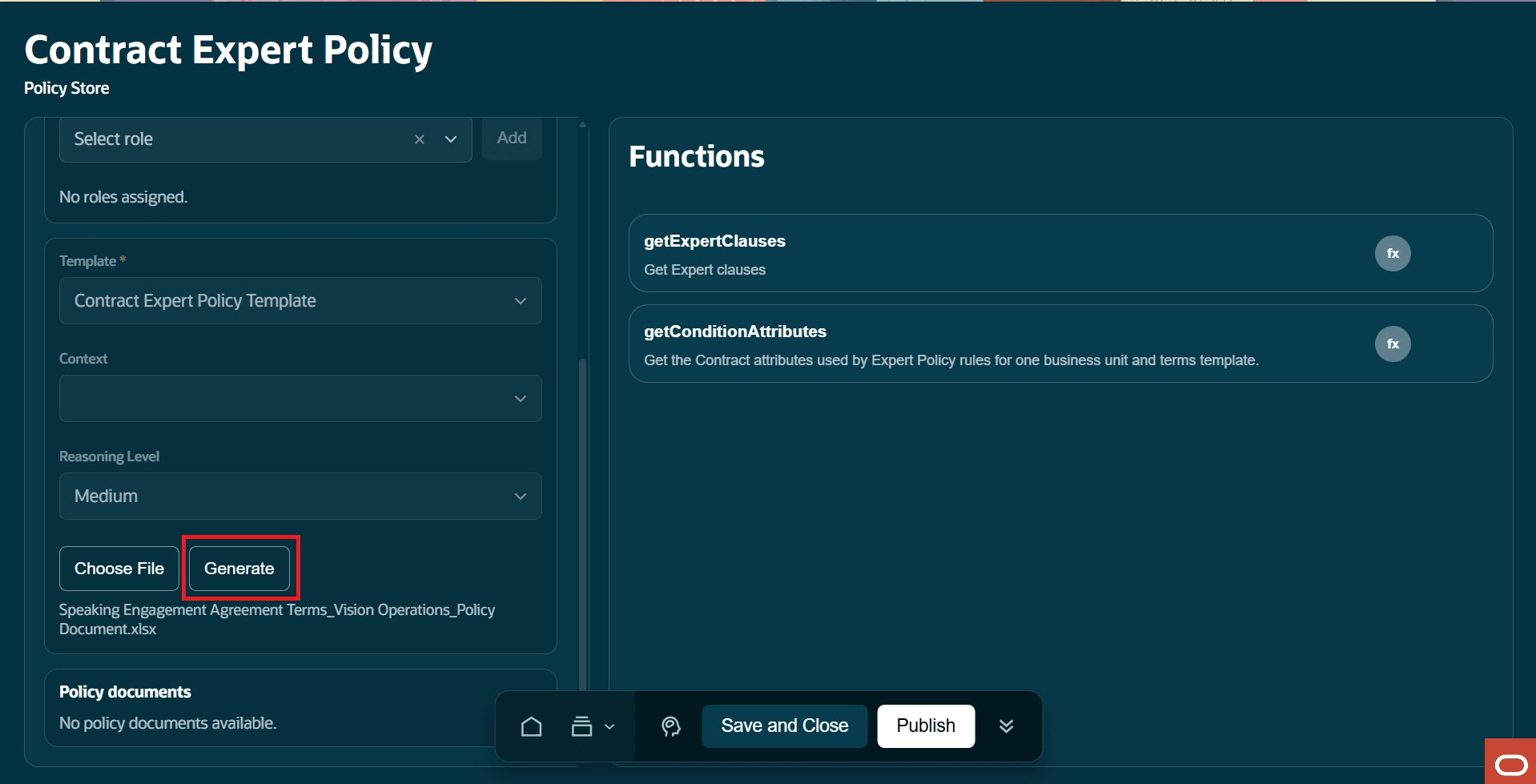
Click Generate
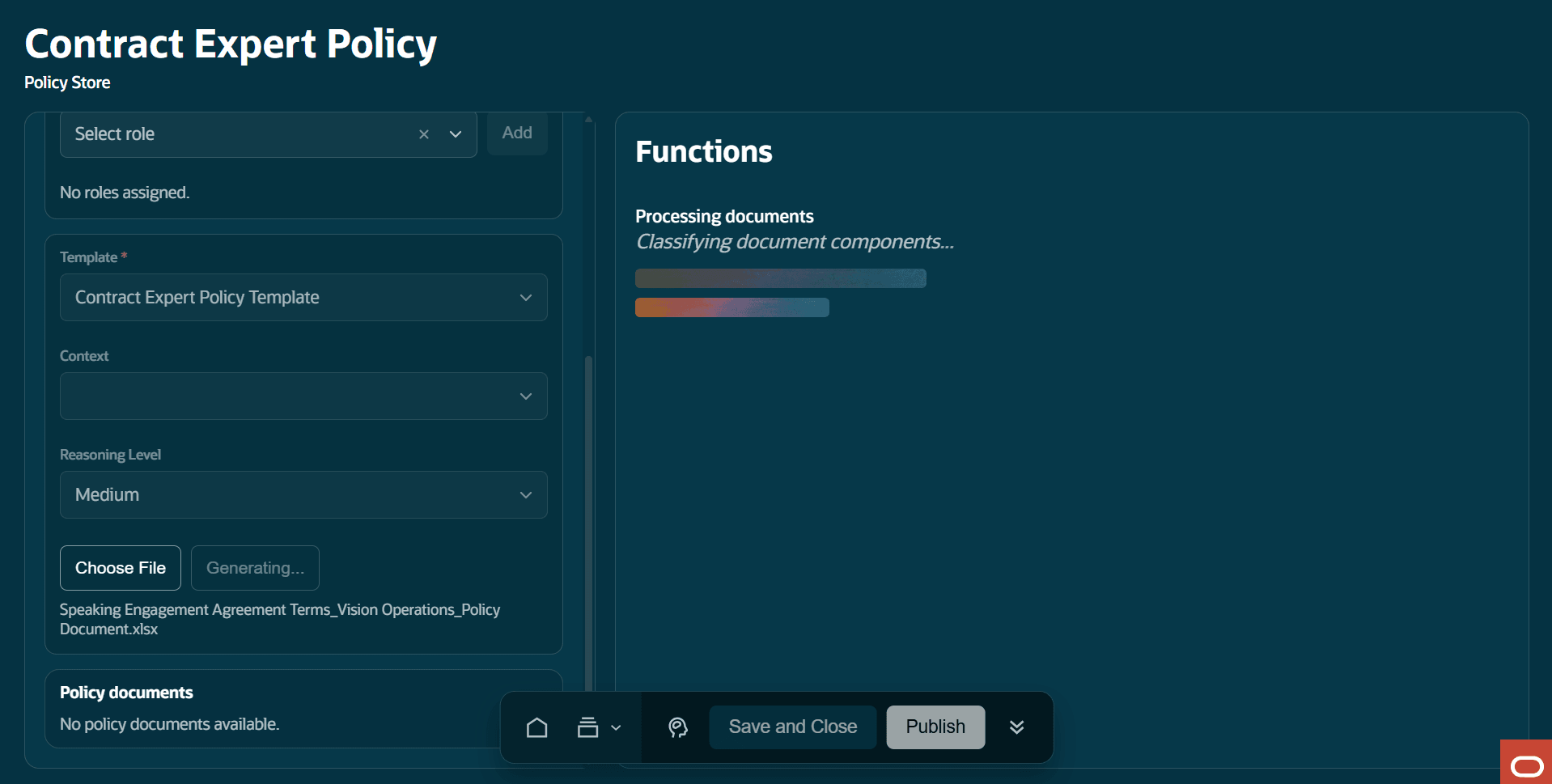
Notice the generation of the file
- Select Publish
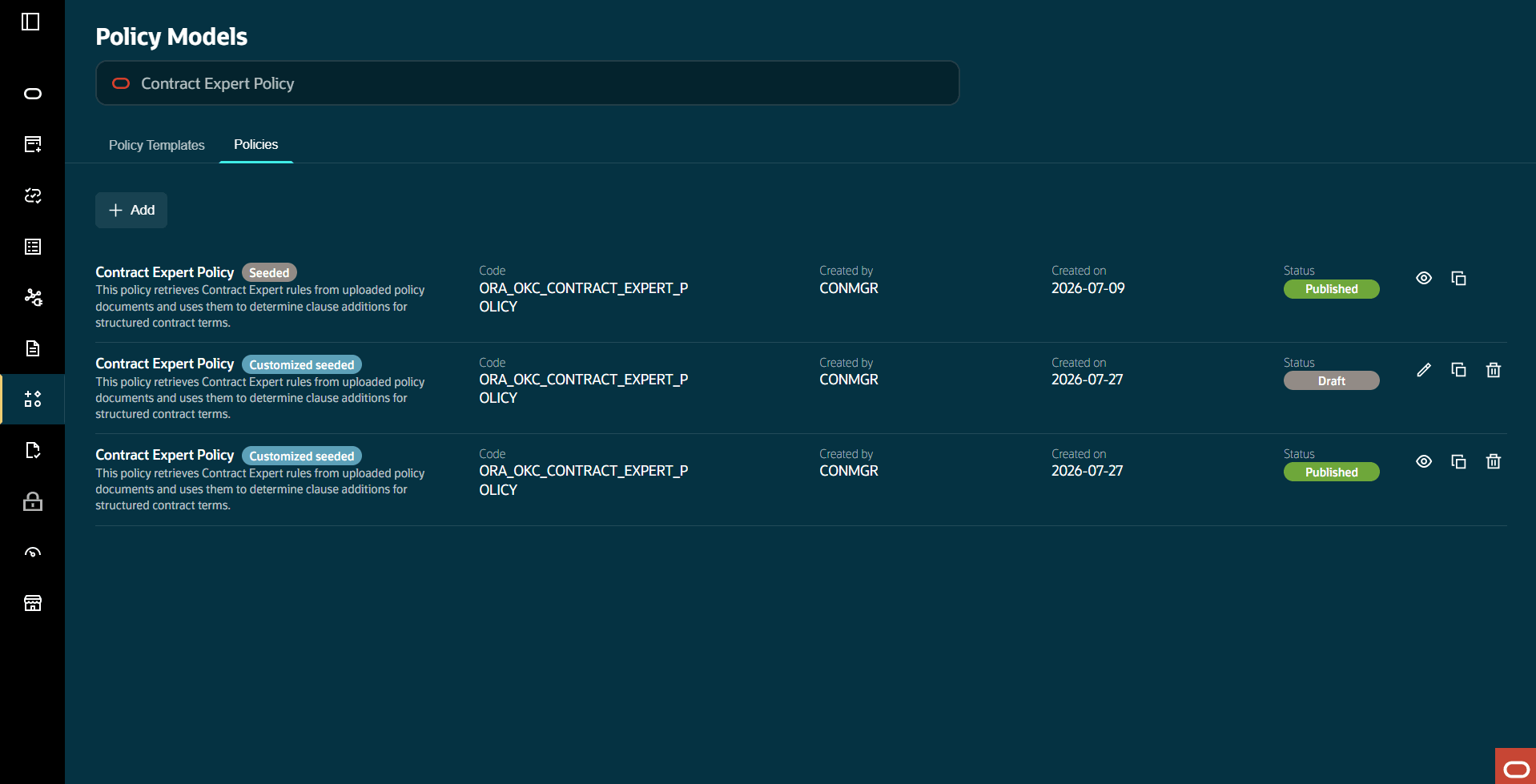
Published Policy
-
- After the policy is published, Contract Expert can use the uploaded policy documents during contract authoring.
-
-
- Configure the Terms Template
- Use the terms template setup to enable policy document rules and define where policy-driven clauses should be inserted in the contract terms.
- The policy document defines which clause should be added and when.
- The terms template defines where that clause should be added.
- Enable AI policy document rules
- Open the corresponding structured terms template.
- In the Contract Expert section:
- Select Enable.
- Select Enable AI policy document rules.
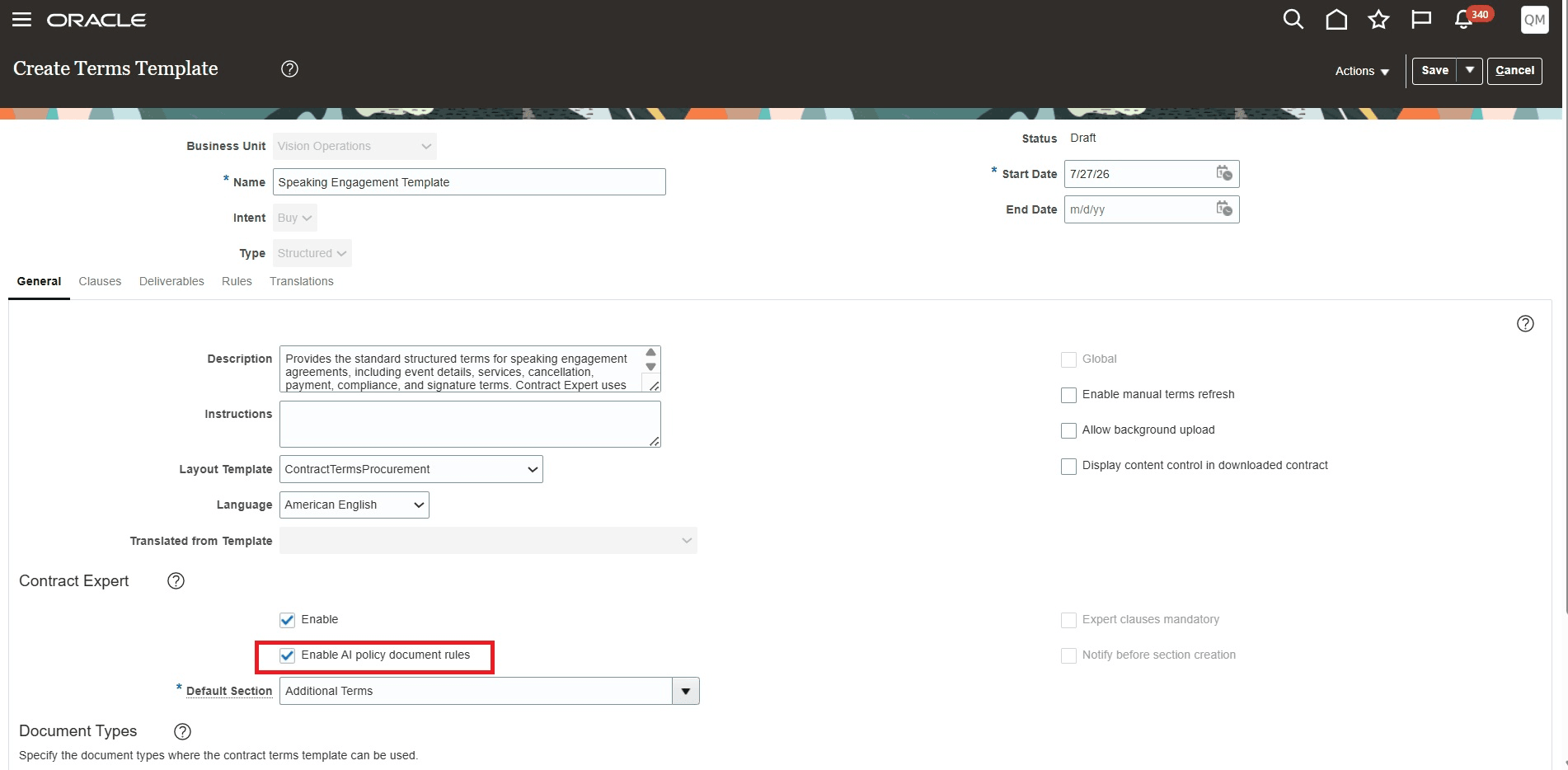
Enable AI policy document rules from Terms Template
- Select a Default Section.
- The default section is used as a fallback when Contract Expert needs to add a clause but no specific placement was defined for that clause in the terms template.
-
Example: Default Section: Additional Terms
-
When Enable AI policy document rules is selected:
- Contract Expert uses the uploaded policy document rules for this terms template.
- Required and optional clauses are determined from the policy document.
- Clause placement is controlled by conditional clauses inserted in the terms template.
- Classic rule-based Contract Expert setup isn’t used for this template.
- Define Conditional Clause Placement
- After the policy document is prepared and uploaded, go to the Clauses tab of the same terms template.
- For every clause listed in the Result column of the policy document, insert the same clause as a conditional clause in the terms template.
- This step is important because:
- The policy document defines what clause should be added.
- The terms template defines where the clause should be added.
-
Example: If the policy document result says:
-
Add clause 20010 "Services".
-
then the terms template should include clause 20010 "Services" as a conditional clause in the section or location where you want it to be inserted when Contract Expert runs.
-
-
Insert a conditional clause at the section level
-
Use section-level placement when the clause should be added at the end of a section.
-
Steps:
- Select the section in the terms template.
- Select Actions > Insert Conditional Clause.
- The dialog displays the selected section.
- The location defaults to At the end.
- Search for the clause by clause number, title, or keyword.
- Select the clause that matches the policy document Result column.
- Select OK.
-
When Contract Expert runs and the matching policy rule is satisfied, the clause is added at the end of that section.
-
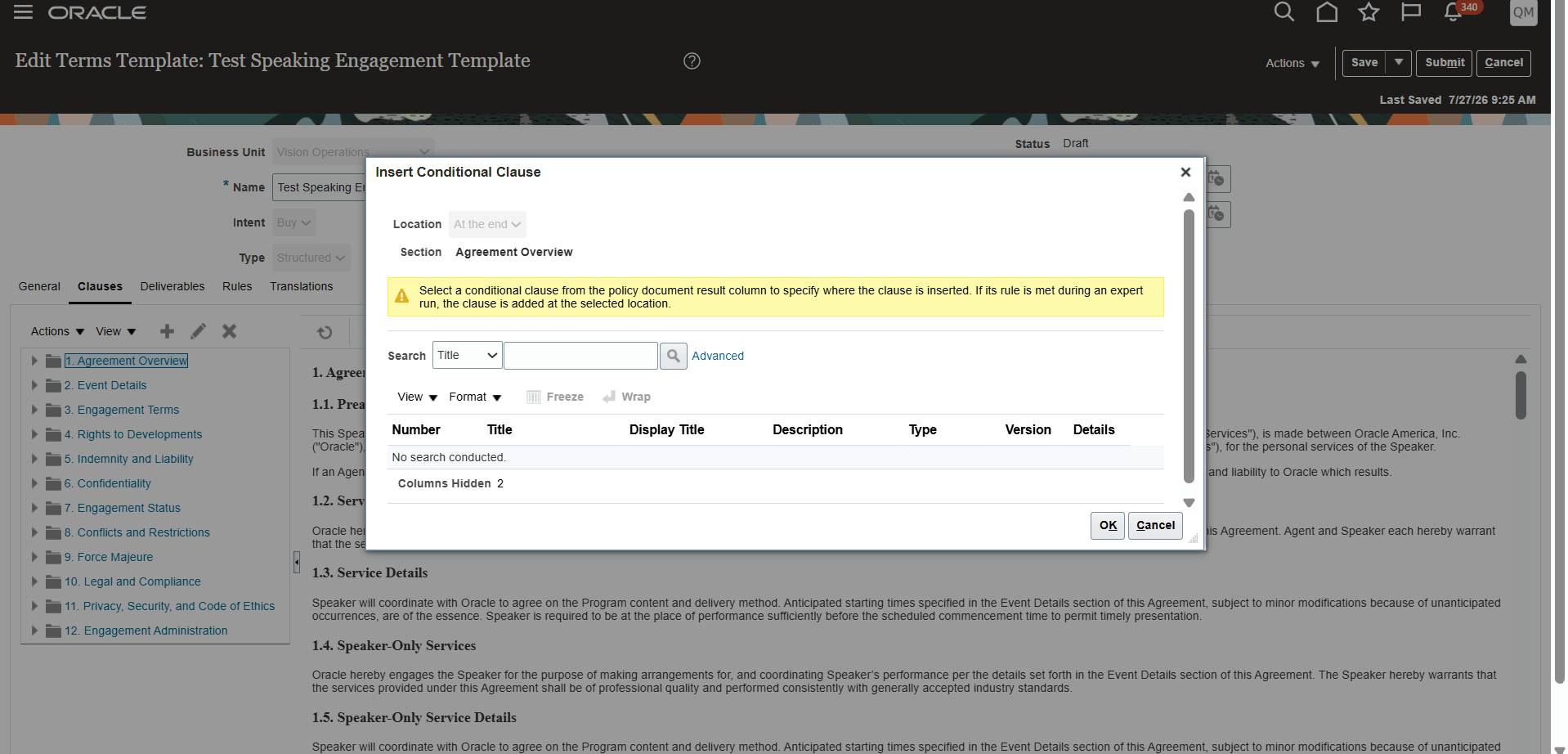
Insert Conditional Clause at the Section level
-
-
Insert a conditional clause at the clause level
-
Use clause-level placement when the conditional clause should be added before or after a specific clause.
-
Steps:
- Select the reference clause in the terms template.
- Select Actions > Insert Conditional Clause.
- The dialog displays the selected clause.
- Select the location, such as Before or After.
- Search for the clause by clause number, title, or keyword.
- Select the clause that matches the policy document Result column.
- Select OK.
- When Contract Expert runs and the matching policy rule is satisfied, the clause is added at the selected location.
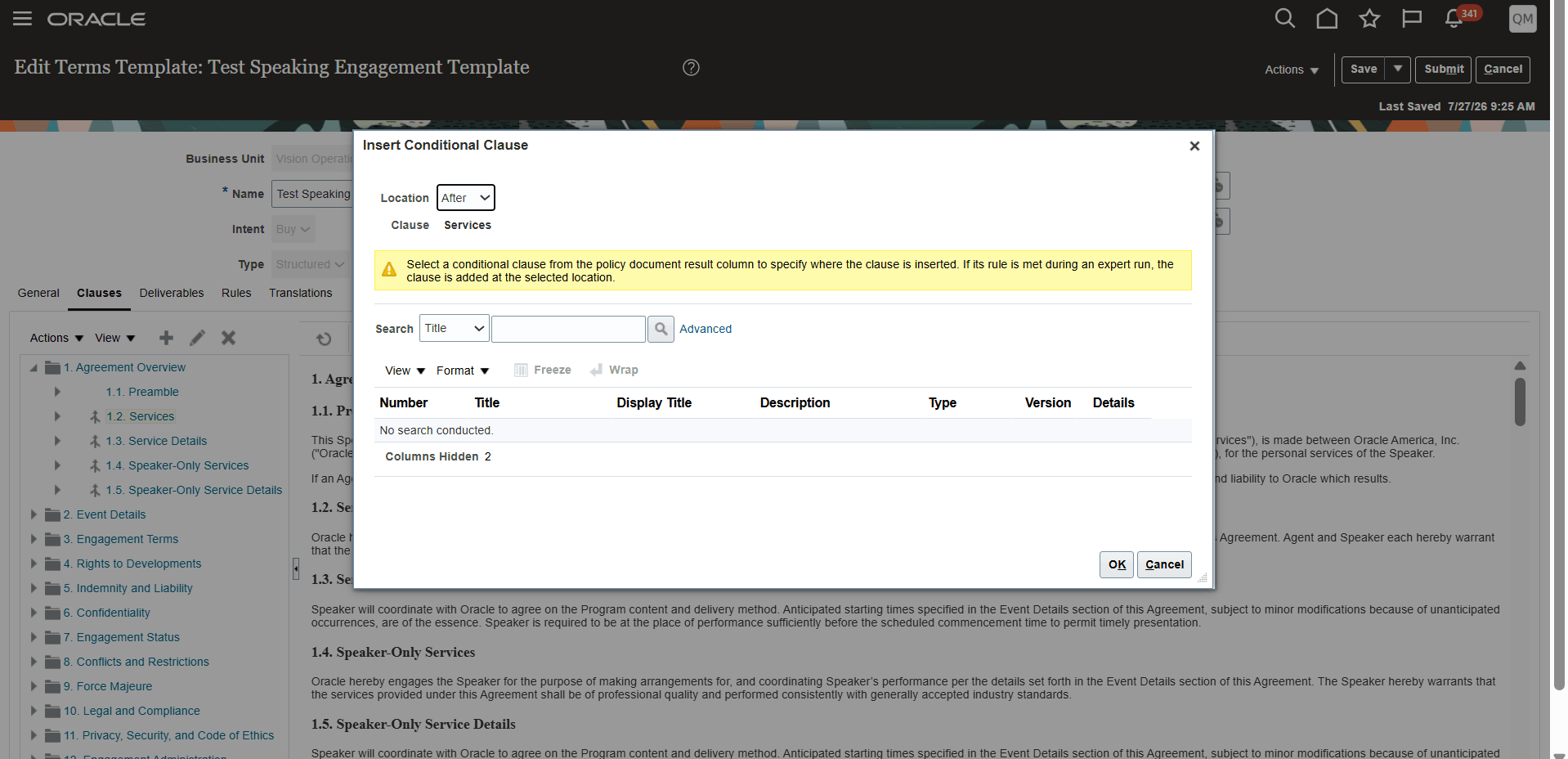
Insert Conditional Clause at the Clause level
-
- Review and Approve the Terms Template
-
Before submitting the template, make sure the policy document and terms template are in sync.
-
If the policy document contains these results:
-
Add clause 20010 "Services".
-
Add clause 20011 "Service Details".
-
-
Then the same clauses should be inserted as conditional clauses in the terms template where you want them to appear.
-
Important behavior:
- If a clause is listed in the policy document but isn’t inserted in the terms template, Contract Expert uses the template’s default section as fallback.
- If a clause is inserted in the terms template but isn’t returned by the policy document when Contract Expert runs, Contract Expert doesn’t add that clause.
-
After the terms template is configured:
- Save the template.
- Submit it for approval.
- After approval, use the template for contract authoring.
-
Access requirements
Access for policy-document-based Contract Expert depends on whether the user is configuring the policy workflow or running Contract Expert during contract authoring.
Administrator Access
-
Administrators who configure or customize the Contract Expert policy workflow in AI Agent Studio must have a configured job role with the required AI Agent Studio duty roles.
- The job role must include these duty roles:
Admin Access Duty Roles
| Duty Role | Role Code |
|---|---|
| Fai Genai Agent CX Administrator | ORA_DR_FAI_GENERATIVE_AI_AGENT_CX_ADMINISTRATOR_DUTY |
| Manage CX AI Agents | ORA_ZCA_MANAGE_CX_AI_AGENTS |
| Manage CX AI Agents | ORA_ZCA_MANAGE_CX_AI_AGENTS_HCM |
Enable Permission Groups
-
While adding the required duty roles to the job role, administrators must select Enable Permission Groups in Security Console.
- This action enables the permission groups associated with the role so users assigned to the job role can access the required Oracle AI Agent Studio and Contract Expert workflow capabilities.
- Steps:
- Go to Security Console.
- Search for the required job role.
- Open the role.
- Select Enable Permission Groups.
- Review the details.
- Select Enable Permission Groups in the dialog.
- Save the role changes.
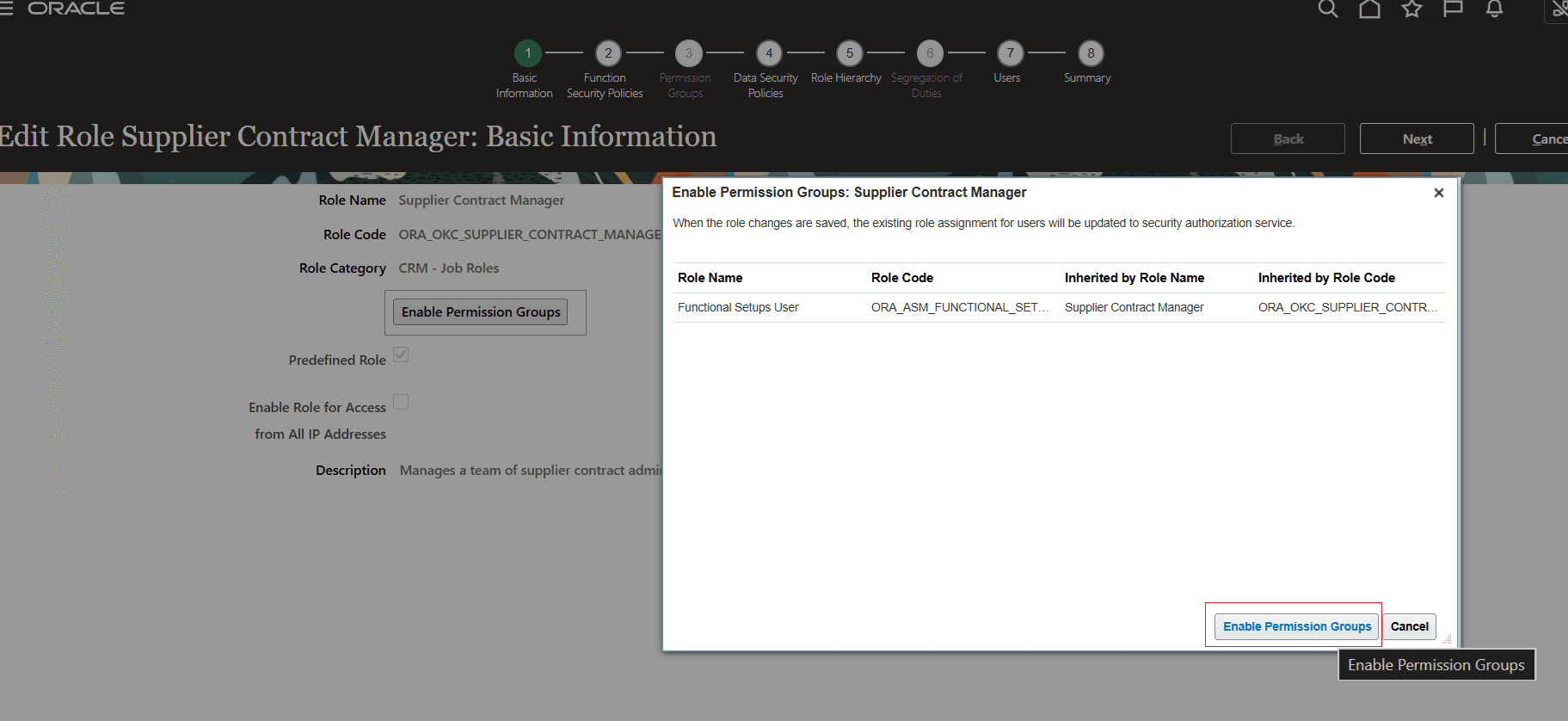
Enable Permission Groups
Administrators will also need permission groups to manage function templates, function template attachments, and prompt templates. Security views must be added as All Rows and All Fields for each permission group.
Required permission groups include:
- create Function Template
- delete Function Template
- read Function Template
- update Function Template
- create Function Template Attachment
- delete Function Template Attachment
- read Function Template Attachment
- update Function Template Attachment
- create Prompt Template
- delete Prompt Template
- read Prompt Template
- update Prompt Template
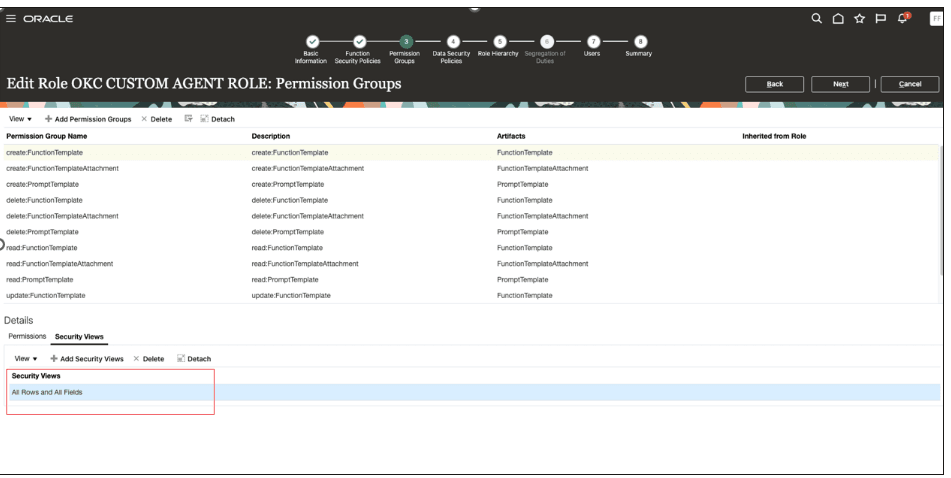
Permission Groups
Runtime User Access
Users who run Contract Expert during contract authoring must have access to invoke the Contract Expert workflow.
The required runtime duty role is:
Runtime Duty Role
| Duty Role | Role Code |
|---|---|
| Fai Genai Agent Runtime Duty | ORA_DR_FAI_GENERATIVE_AI_AGENT_RUNTIME_DUTY |
This duty role is added out of the box to these job roles:
- Customer Contract Manager
- Customer Contract Administrator
- Supplier Contract Manager
- Supplier Contract Administrator
- Enterprise Contract Manager
For runtime access, the user’s job role must also be added to the Contract Expert Policy workflow security. This allows the user to run Contract Expert from Redwood Contract Terms or the Word Add-in.
Contract Expert Privileges
In addition to workflow access, run time users need contract expert privileges to use Contract Expert actions.
Role and Privilege Information
| Action | Privilege |
|---|---|
| View Expert Clauses | OKC_AUTHOR_CONTRACT_TERMS_AND_CONDITIONS_TEMPLATE_PRIV |
| Run Expert Again | OKC_AUTHOR_CONTRACT_TERMS_AND_CONDITIONS_TEMPLATE_PRIV |
| Add optional clauses | OKC_AUTHOR_CONTRACT_TERMS_AND_CONDITIONS_TEMPLATE_PRIV |
| Remove optional clauses | OKC_AUTHOR_CONTRACT_TERMS_AND_CONDITIONS_TEMPLATE_PRIV |
| Remove required clauses | OKC_AUTHOR_CONTRACT_TERMS_AND_CONDITIONS_STANDARD_PRIV |