Manage production campaigns
You can now use the integrated Production Campaign to create, edit, calculate, and manage campaigns by organizations and campaign resources. This capability connects longer-term campaign planning with production work orders to organize shop floor activities on campaign resources around campaign-specific attributes, capacity, sequencing, and timing. Production Campaign considers campaign resource availability and attribute-based changeovers when calculating campaign timing. Production Scheduling then aligns upstream and downstream manufacturing stages with the sequenced activities on the campaign resource.
You can access Production Campaigns from Quick Links under Supply Chain Planning.
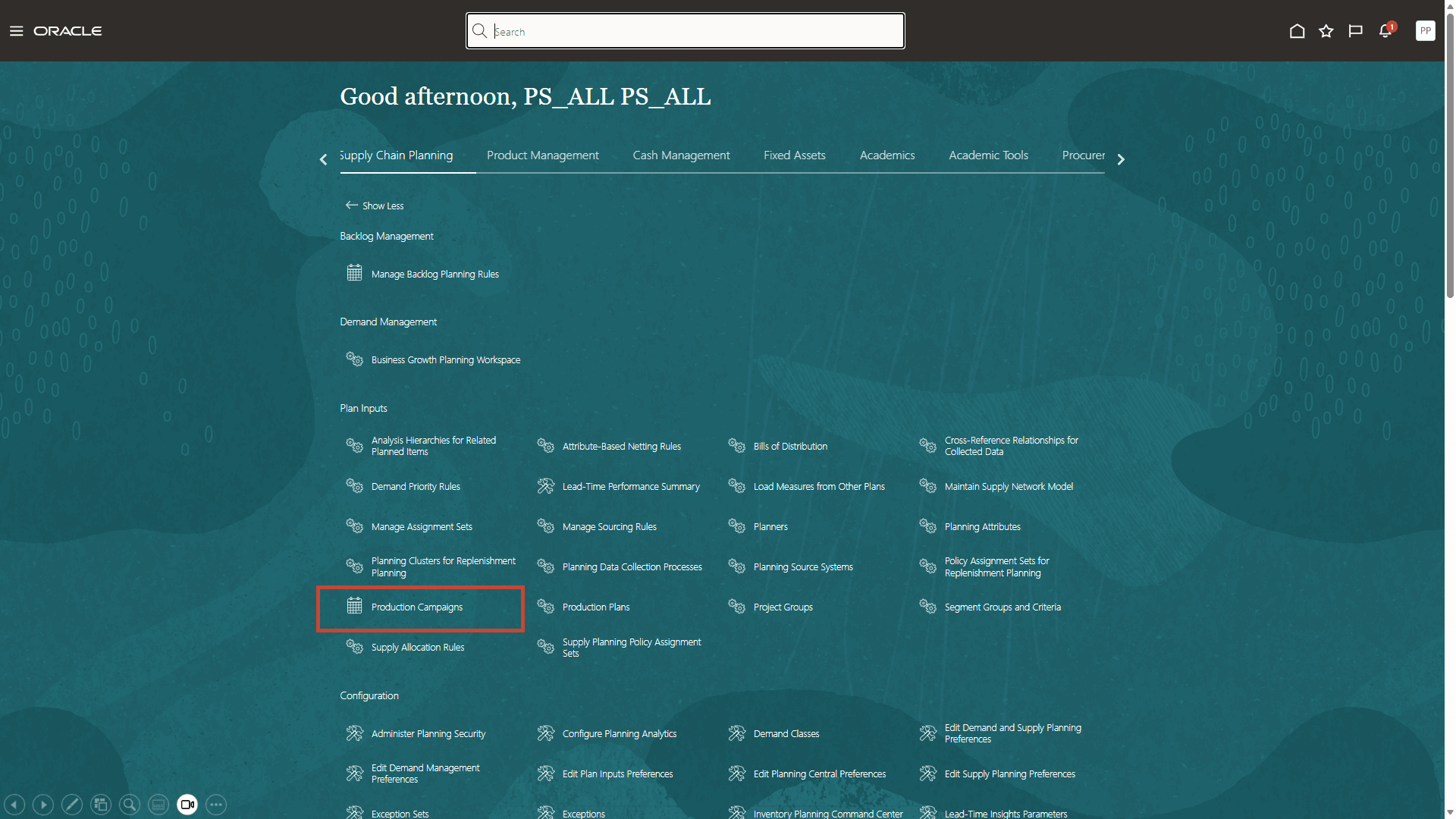
Production Campaigns quick link
A campaign plan can be viewed in a Gantt chart or in a tabular form, which can be maximized. A campaign plan is for the campaigned resources within an organization. You can use the action menu in each row to edit, delete, or complete a specific campaign or go to the campaign details page where you can assign work orders to the campaign and sequence them.
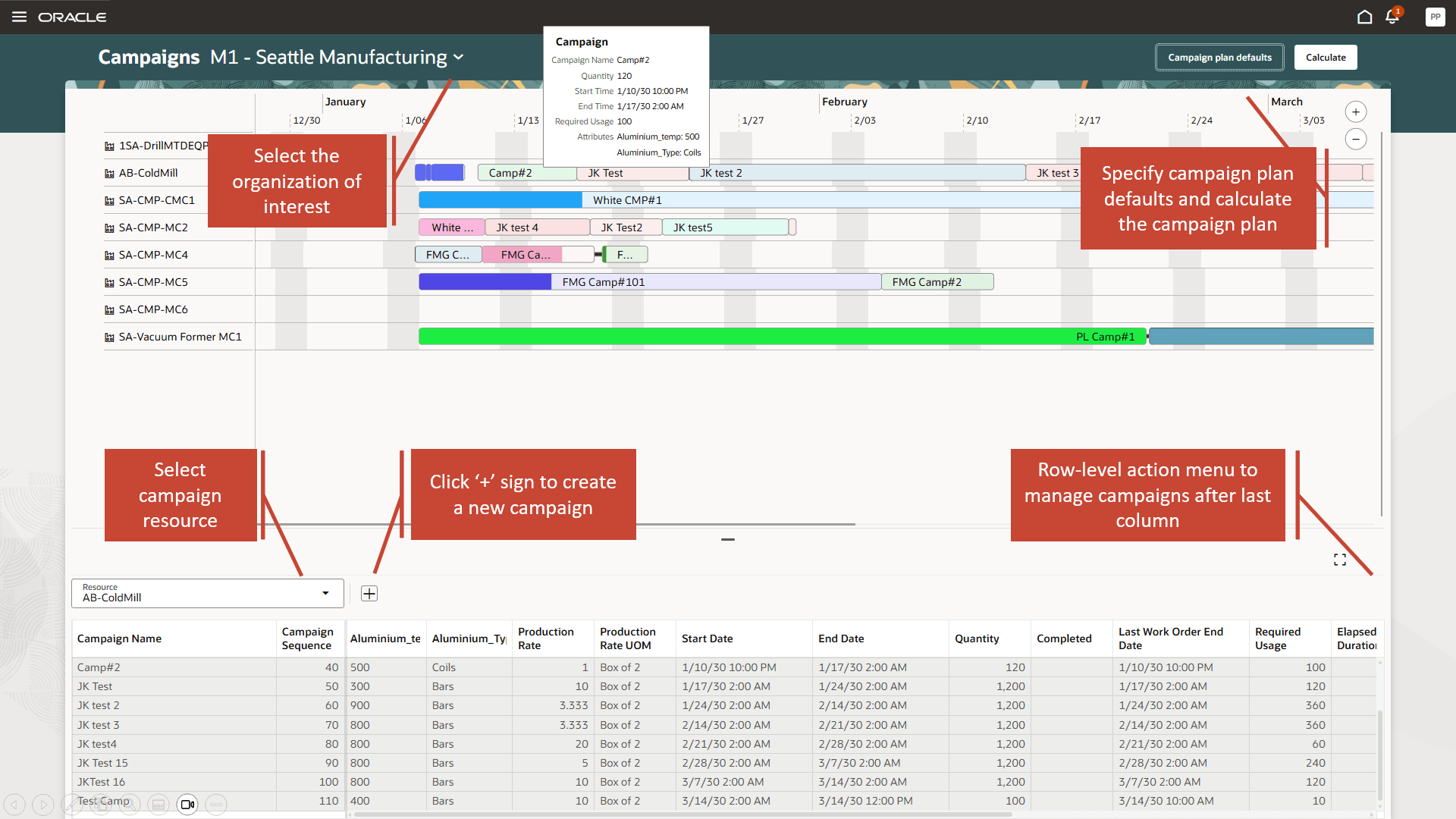
Viewing the production campaigns
Production Campaign workflow
Production Campaigns consider the first operation resource sequence within a work definition, which uses the campaign resource, for its calculation. The work order to campaign assignment and the work order sequence number within a campaign are passed into SCM Work Execution from Production Campaigns. A production schedule run within Production Scheduling is necessary to align upstream and downstream manufacturing processes and to update all relevant work order dates in SCM Work Execution.
Creating a campaign plan
Before you define production campaigns, ensure:
1. You declare the relevant work center resources as campaign resources directly in SCM Work Definition when assigning resources to work centers. Only work center resources with Default Units Available set to 1 can be declared campaign resources.
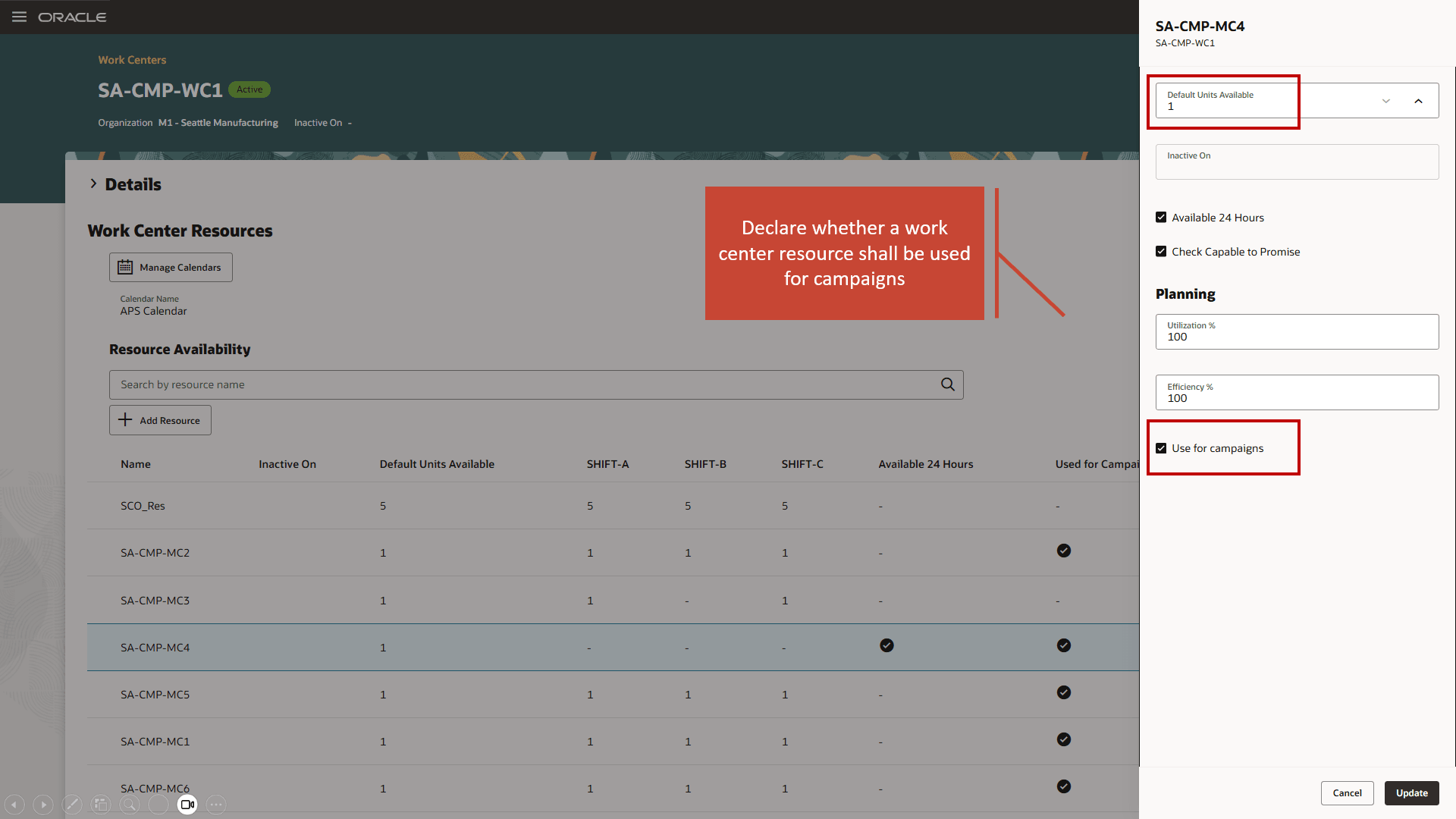
Defining Campaign Resources in Work Center Resources
2. In Production Scheduling Organizations > Resource Parameters, you must specify the campaign resource’s unit of measure. UOMs are used for the production rate definition for all campaigns on that work center resource.
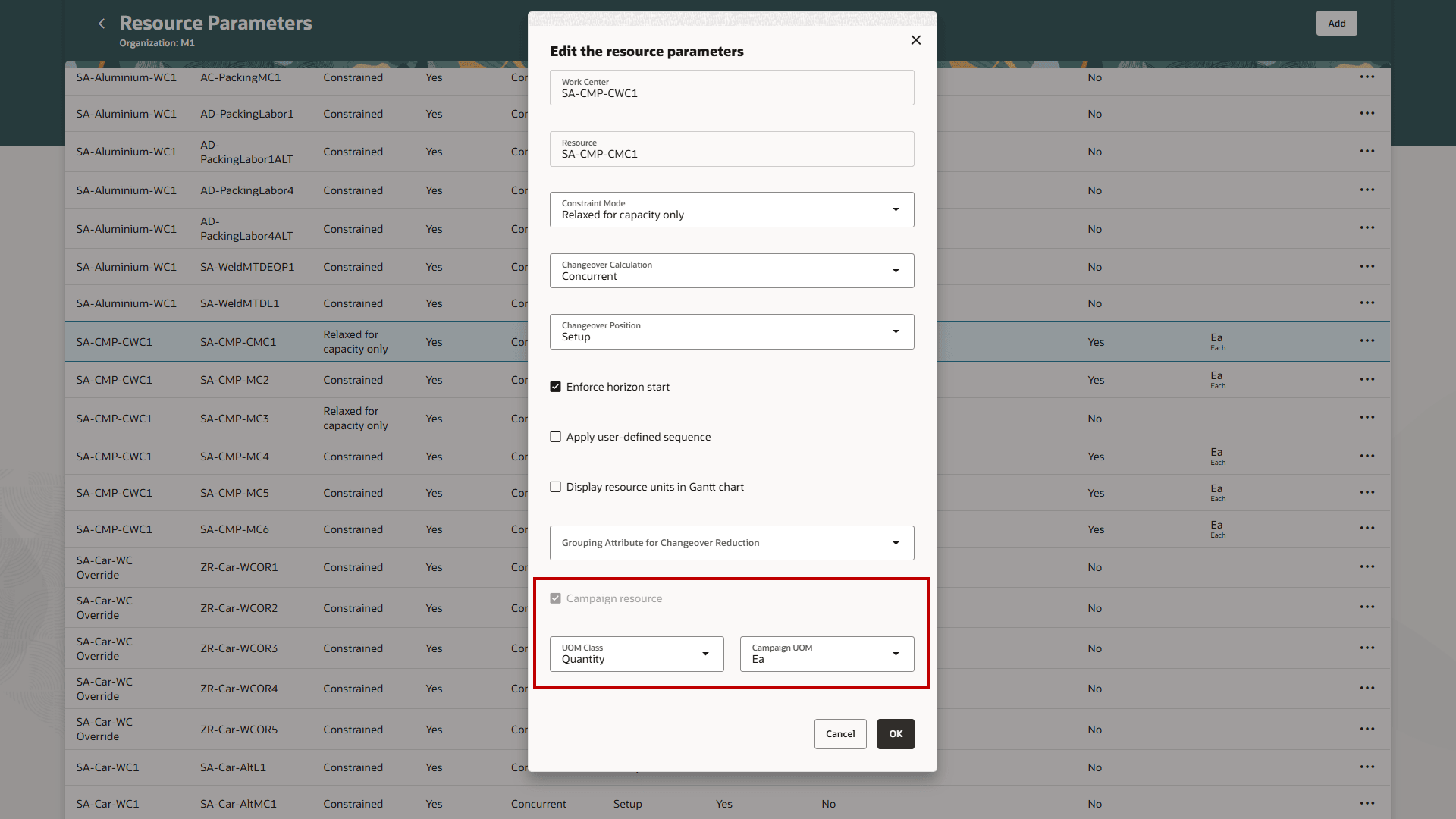
Specifying UOM for campaign resources
3. In Production Scheduling Organizations > Attributes, identify those resource attributes that you will use for campaigns on a given work center resource and select them under the Use for Campaigns column.
4. Specify the attribute values for the campaign attributes during campaign creation. Optionally, you can also set up attribute-based changeover rules, that will be applied between campaigns and between work orders within campaigns, depending on their attribution.
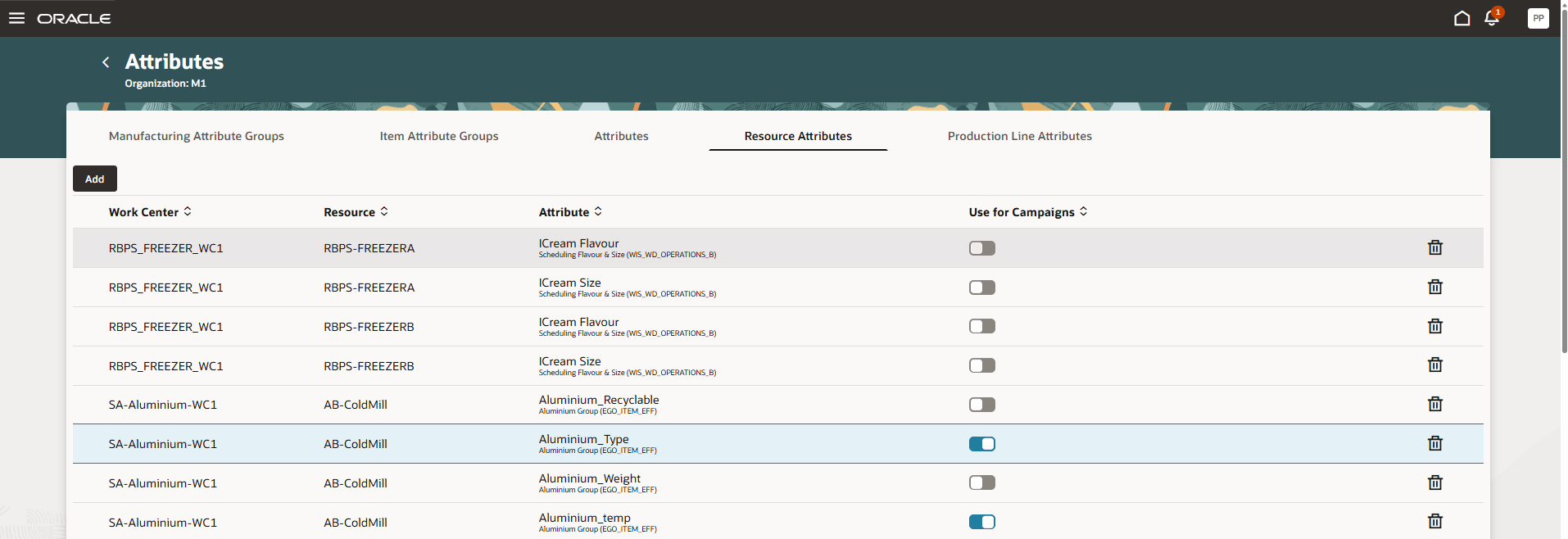
Declaring resource attributes as campaign attributes
5. Navigate to the Campaign Plan Defaults using the page-level action to specify campaign plan horizon settings.
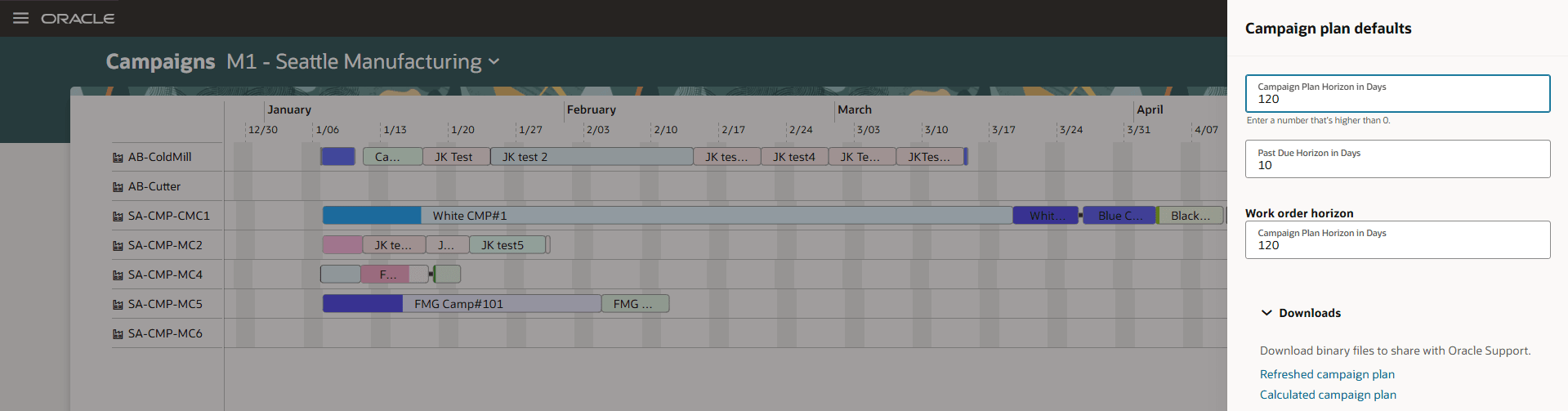
Specifying the defaults for campaign plan
Creating a new campaign plan
To create a new production campaign:
- Select the + icon above the campaigns table.
- In the side drawer enter the campaign name, production rate, campaign basis (the quantity or required usage hours), an optional earliest start date, and campaign attribute values.
- Specify a color you want, to be used by the campaign in the Gantt chart. Any campaign with the same attribute value combination will have an identical color.
A campaign is created. You can modify the campaign properties using the Edit option.
Note: You can’t edit a campaign’s production rate and attribute values after the work orders are assigned to the campaign.
For the portion of the campaign that is unassigned, corresponding to the campaign quantity minus the sum of assigned work order quantities, the calculate action applies the usage hours that correspond to the production rate from the campaign definition. For the assigned work orders, the resource usage hours from the work order operation-resources are used, which usually should match the campaign production rate, though this is not enforced.
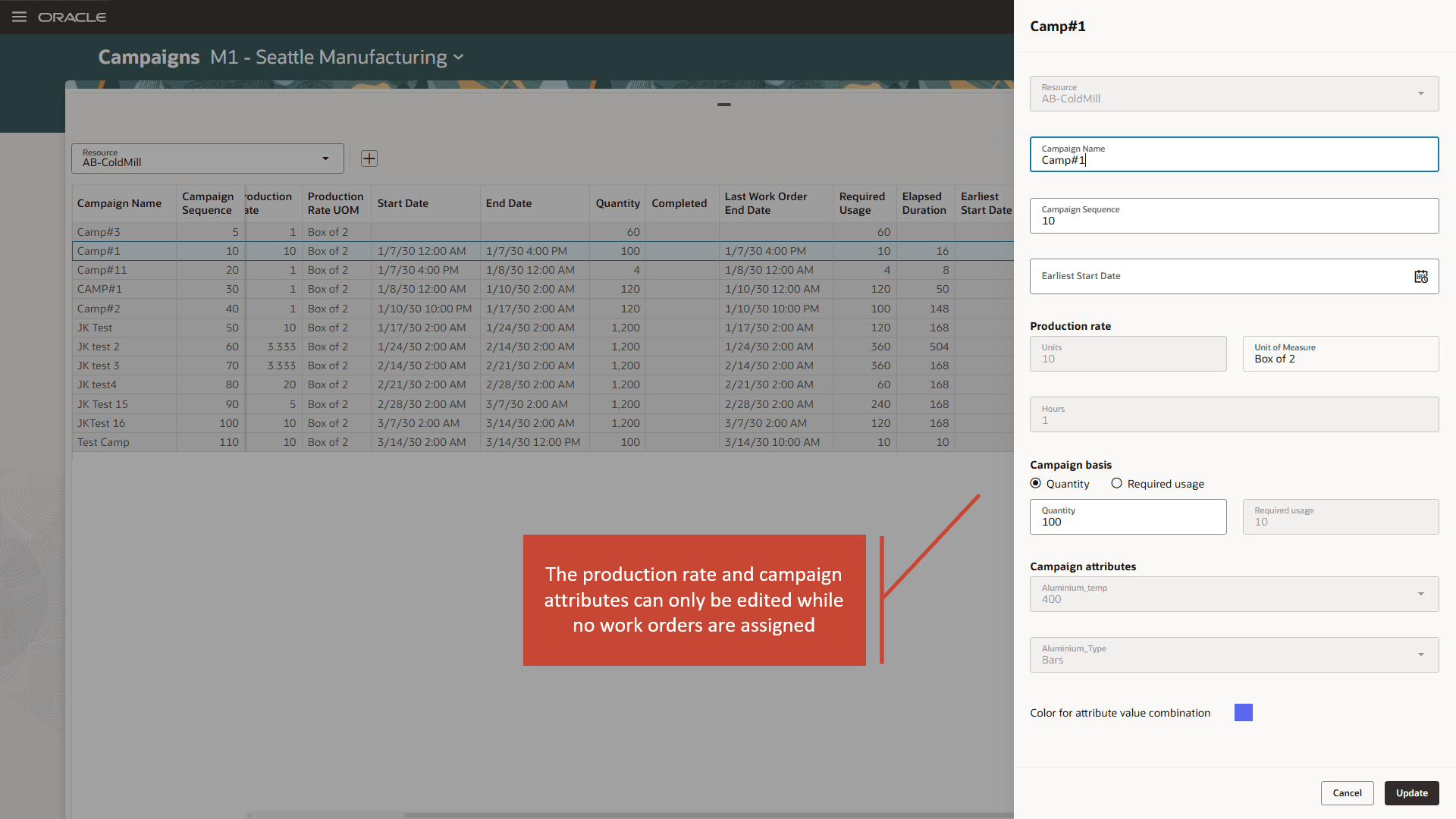
Editing a campaign
To manage the work order assignment into campaigns:
- Navigate to the Campaign Details page.
- Filter unassigned work orders. Uuse the Get Work Orders option to retrieve valid work order candidates based on the specified campaign attribute values. Only work orders with discrete and process work definitions can be assigned to campaigns.
- Select and assign work orders into the campaign.
- Filter the assigned work orders and establish their sequence within the campaign.
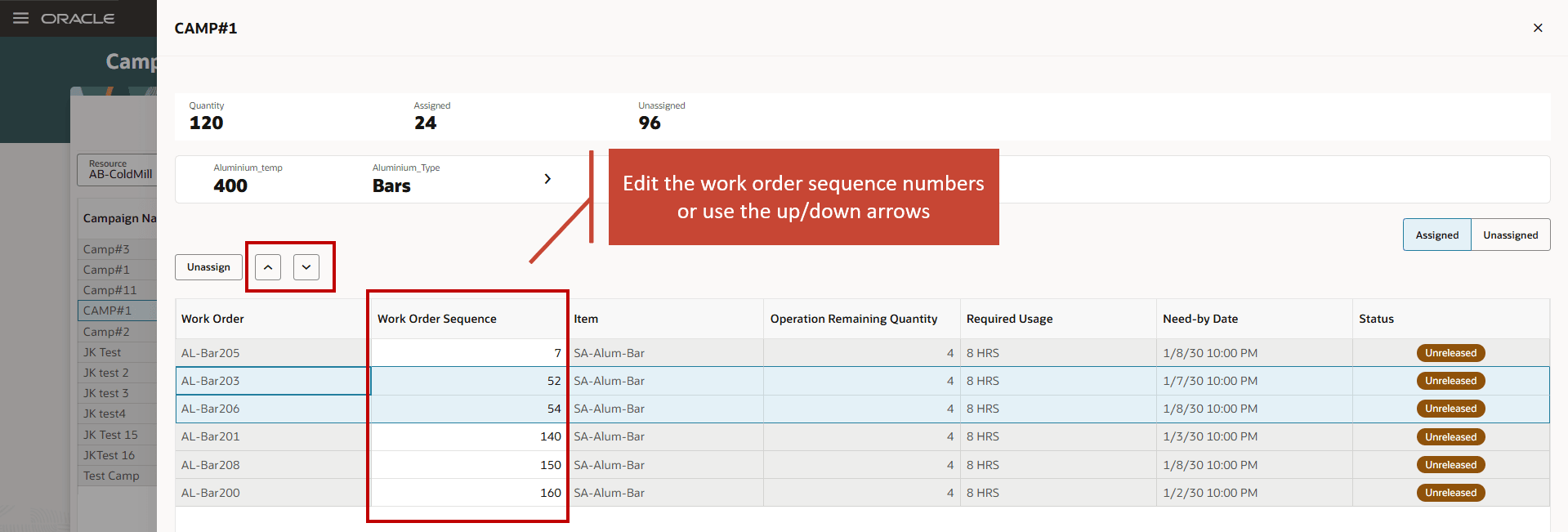
Sequencing work orders assigned to the campaign
Changing a campaign sequence
To modify a campaign sequence, edit the campaigns from within the campaigns table and set the campaign sequence numbers as desired. Then use the page-level action, Calculate, to derive the campaigns’ start and end times. During the campaign plan calculation, the campaign resource availability, which is managed in SCM Work Execution, and the attribute-based changeovers are considered, and campaigns are extended accordingly. The Calculate action considers the campaign to resource assignment and doesn’t make any offloading decisions.
Consideration for Campaigns in Production Scheduling
A production schedule considers campaign resources automatically in case they happen to be in schedule scope. The schedule scope is defined by horizon duration and item catalog and categories. There are no new schedule options to maintain.
While campaign information is currently not displayed in the schedule views, the Production Scheduling solve action respects the work order to campaign assignment, the campaign sequence, and the work order sequence within campaigns.
For campaigns that aren’t fully assigned with work orders, the solve action consumes the unassigned resource hours for this campaign, nevertheless. It consequently leaves a time gap after the last assigned work order so that the duration of the partially filled campaign in the production schedule matches what is calculated in the Production Campaigns. Work orders from subsequent campaigns are scheduled as per campaign sequence to start after this time gap. Note that this unassigned capacity consumption does not occur, if a campaign has work orders before horizon start, work orders that are already in progress, or work orders that are firm.
Work orders that run on a campaign resource, which are not yet assigned to a campaign, are scheduled at the end, that is, after all work orders that are assigned to campaigns.
Upstream or downstream resource constraints may impact how the work orders are scheduled on the campaign resource. For example, a work order in a campaign might be pushed later, if this is necessary due to upstream constraints. Best practice for Production Scheduling is to constrain campaign resources, but to relax all upstream and downstream resources. This ensures that the campaign resources, which typically are the bottlenecks in the manufacturing process, drive the production schedule.
Steps to enable and configure
Use the Opt In UI to enable this feature. For instructions, refer to the Optional Uptake of New Features section of this document.
Offering: Supply Chain Planning
Tips and considerations
If you want to use the Manage Production Campaigns feature, then you must opt in to its parent feature: Production Scheduling. If you’ve already opted in to this parent feature, then you don’t have to opt in again.
This feature supports managing campaigns on work center resources, but not on production lines.
Only single-capacity work center resources can be used for campaigning. Campaigns are not supported on work center resources with Default Units Available set to a value >1.
Access requirements
Privileges for this feature
| Privilege status | Privilege name and code |
|---|---|
| New | View Production Campaign MSC_VIEW_PRODUCTION_CAMPAIGN |
| New | Edit Production Campaign MSC_EDIT_PRODUCTION_CAMPAIGN |
| New | Run Production Campaign MSC_RUN_PRODUCTION_CAMPAIGN |
| Previously delivered | Monitor Supply Planning Work Area MSC_MONITOR_SUPPLY_PLANNING_WORK_AREA_PRIV |