Enable toolbar in pivot tables in compare mode
You can now use a centralized toolbar in the Compare Plans view for quick access to data filters. Apply real-time filters and reusable filter sets while comparing plans, using a consistent toolbar-driven interaction model that streamlines plan comparison and reduces the need to switch context. With data filters you can clear, save, or delete filter sets..
With this update, you can improve plan comparison speed and focus by using a single toolbar for filtering, reusing filter sets, refreshing, adjusting table display, and exporting comparison data. This reduces navigation and content switching during comparisons.
With the toolbar in Pivot table Compare mode you can:
- Quickly apply and reuse filter sets to focus on specific planning scenarios
- Customize the comparison view without leaving Compare Mode
- Refresh comparison data while preserving your analysis context
- Export the current comparison to Microsoft Excel for offline analysis and collaboration.
Access the toolbar
- Navigate to Actions > Compare Plans and Archives.
- Select up to three plans to compare.
- Select Compare.
All the visualizations you selected are displayed for comparison.
The toolbar appears above the Pivot table and provides access to filtering, view customization, refresh, and export actions.
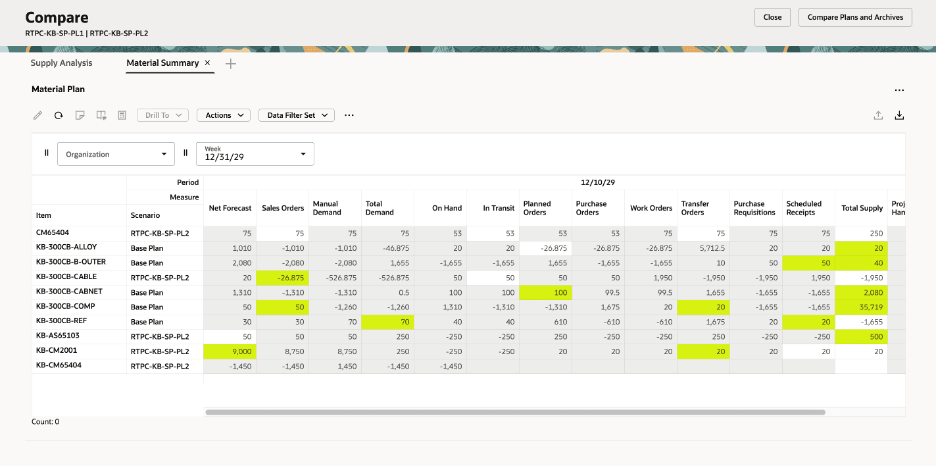
Toolbar in Compare mode
Manage data filters
Use the Actions menu to manage data filters while comparing plans.
Toolbar Actions
| Action | Description |
|---|---|
| Clear Filters | Removes all filters currently applied to the comparison. This option is available only when one or more filters are applied. |
| Save Filter Set | Saves the current filter configuration as a reusable filter set. This option is available after you apply or modify filters. |
| Delete Filter Set | Deletes the currently selected saved filter set. This option is available only when a saved filter set is selected. |
The comparison view is updated immediately after you perform any of these actions.
- Apply a saved filter set: Use the Data Filter Set list to apply a previously saved filter configuration.
When you select a filter set:
- The filters are applied automatically.
- All compared plans use the same filter criteria.
- All tables and visualizations are refreshed to display the filtered results.
The selected filter set remains active for the current session. If a filter set is saved in the layout, it is restored when the layout is reopened.
- Refresh comparison data: Select Refresh to retrieve the latest comparison data from the database.
Refreshing the comparison preserves:
- The selected plans.
- Active filters that are saved in the layout.
- The selected filter set that is saved in the layout.
- Customize the comparison view: Select More Actions to change how information is displayed in the Pivot table.
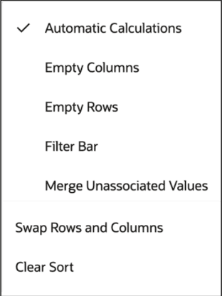
More Actions
You can:
- Enable or disable Automatic Calculations to recalculate derived measures automatically.
- Show or hide Empty Rows and Empty Columns.
- Show or hide the Filter Bar above the Pivot Table.
- Enable or disable Merge Unassociated Values to consolidate values that aren't mapped to a hierarchy.
- Select Swap Rows and Columns to transpose the Pivot Table while preserving the current filters and selections.
- Select Clear Sort to remove all sorting and restore the default sort order.
Export the comparison to Microsoft Excel
When you are working in Pivot Table view, select Export to Excel to download the current comparison as a Microsoft Excel (.xlsx) workbook.
The exported workbook reflects the current state of the comparison and includes:
- The selected item and measure.
- The selected time granularity and visible time buckets.
- The plans currently displayed.
- All applied filters, such as Location and Demand Class.
- The data currently displayed in the Pivot table.
The workbook includes a Pivot data worksheet containing the comparison data. The export is generated directly from the current view without reaggregating the data.
Disabled Actions in Compare Mode
The following actions are disabled in compare mode:
- Filter Bar: If the filter bar is enabled in the base plan prior to the compare mode being activated, it continues showing in the Compare mode. However, it cannot be disabled or enabled while in Compare mode.
- The Notes, Drill to, and Past Due Days options are unavailable in Compare mode.
Steps to enable and configure
You don't need to do anything to enable this feature.
Access requirements
Access Requirements
| Privilege | Title | Description |
|---|---|---|
| MSC_MANAGE_PLANNING_PAGES_PRIV | Manage Planning Pages | Allows users to create, view, edit, duplicate, delete, and organize Supply Chain Planning pages and page groups, including configuring their planning views and access settings. |
| MSC_VIEW_PLANNING_OBJECTS_REST_SERVICE_PRIV | View Planning Objects | Lets users view Planning objects—such as planning pages, page groups, tables, graphs, and pivot-table configurations—without granting permission to modify them. |