Use parent levels for plan items in plan options for category level plans
You can now define the item scope for a category-level sales and operations plan by selecting a higher parent category level in the Plan Definition step of Plan Options. For example, you can select a broader category level, such as Product Group or All Products, as the plan scope. During the supply step, the application retrieves the category-level members associated with the selected plan item level members.
This update simplifies the plan item scope configuration by reducing filter maintenance for category-level Sales and Operations Planning and improves the reliability and robustness of plan runs.
Key benefits:
- Configure aggregate plans using higher product hierarchy levels.
- Automatically derive Category Level Members based on the planning scope.
- Efficiently manage large numbers of category level members with search and bulk selection capabilities.
- Deliver an enhanced Redwood planning experience.
To use higher parent levels for plan items in plan options for category level plans:
1. Select a sales and operations plan from the list of values in the Supply Chain Planning work area plan selector.
2. Select More Actions > Edit Plan Options.
3. In the Plan definition step, select Scope.
4. In the Plan items section, select the hierarchy, level, and level members for the plan. For aggregate plan, the Category selected in Level can be higher than the parent level of Item. In this example, Wearables and Cardio Fitness Machines product groups are selected.
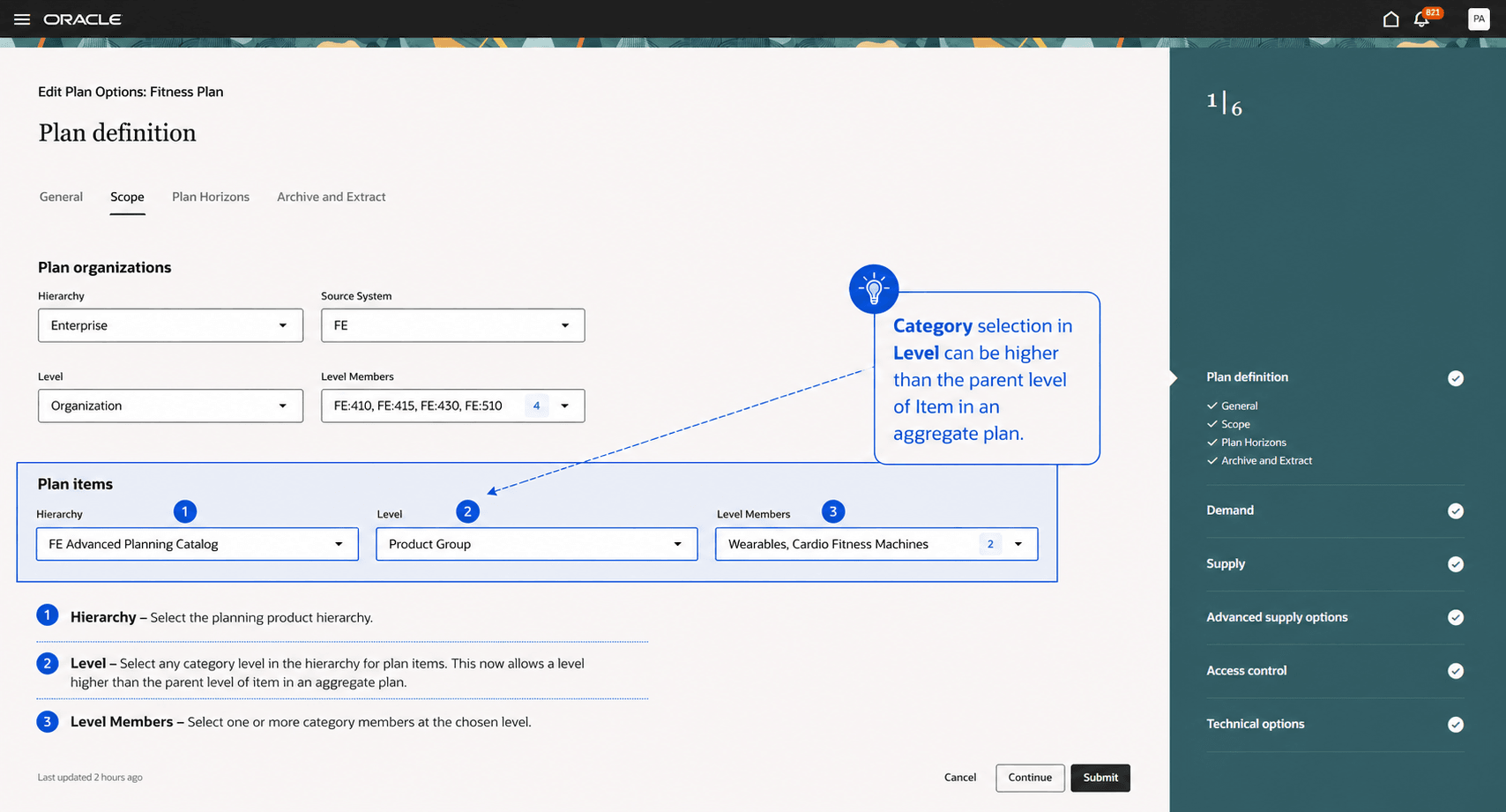
Plan items in the Scope step
5. Select Continue until you reach the Supply step.
6. In the Aggregate plan attributes section, select the category in Planning Product Level for category level planning. This category level is the parent level of Item and relates to the hierarchy selected in Scope.
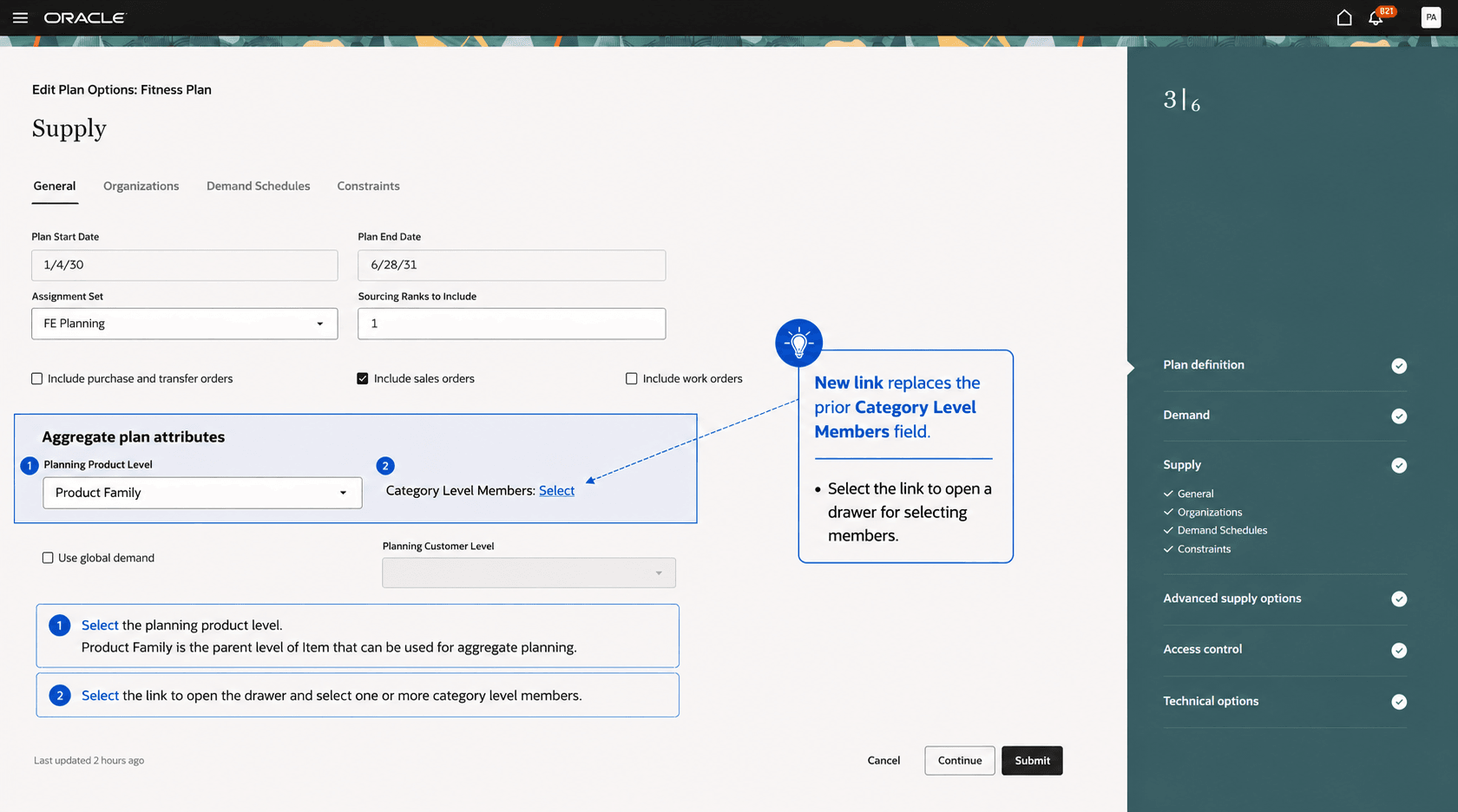
Aggregate plan attributes in the Supply step
7. Select Category Level Members. This link replaces the previous Category Level Members field. Select the link to open a drawer for selecting members.
8. In the drawer, review the category level members derived from the level members selected in the Scope step. In this example, Cardio Fitness Machines and Wearables product groups were selected in Scope. The displayed category level members are the product families that belong to those product groups.
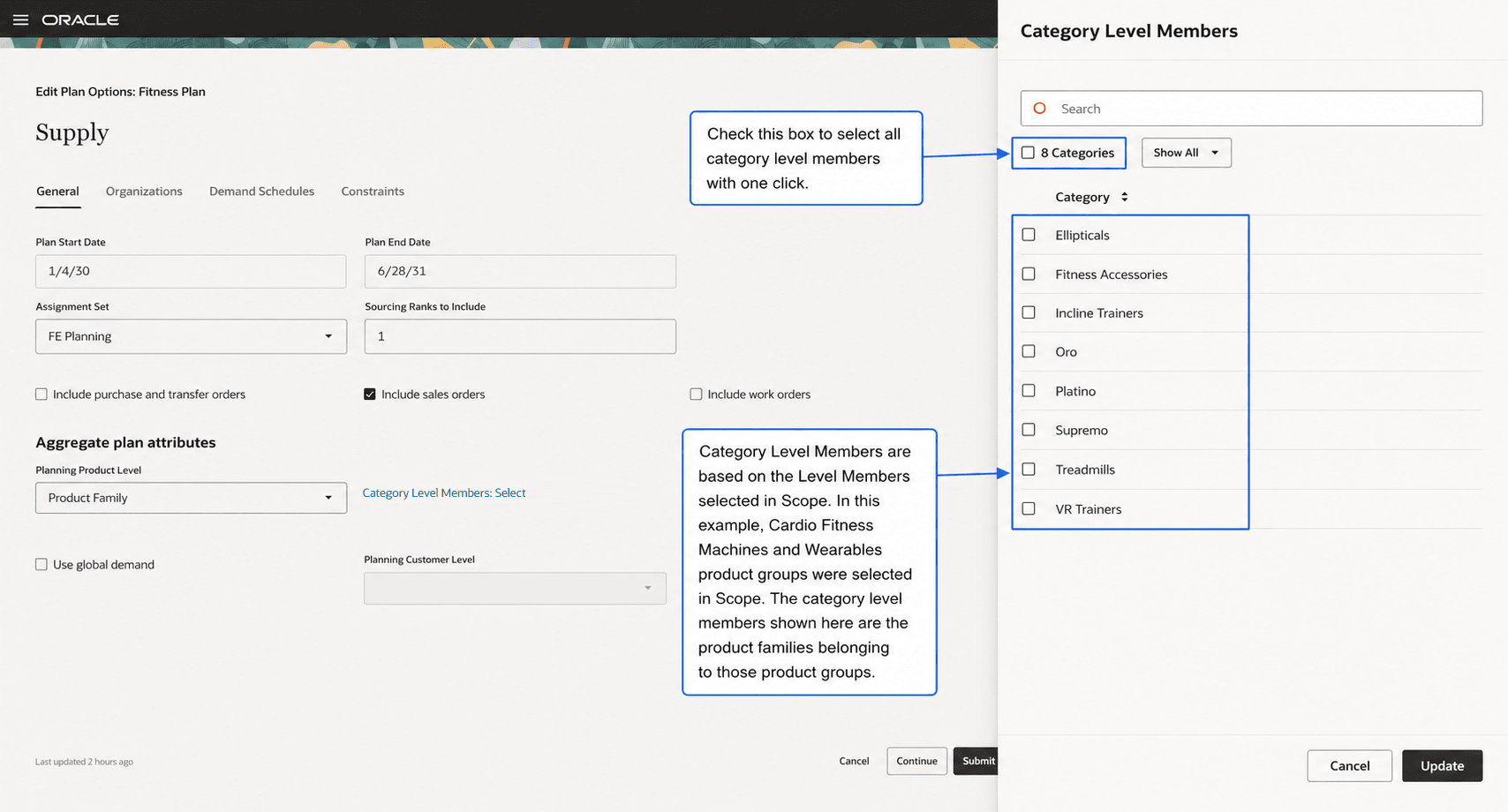
Category Level Members drawer
9. To include all displayed category level members, select the check box above the member list. Alternatively, select individual category level members.
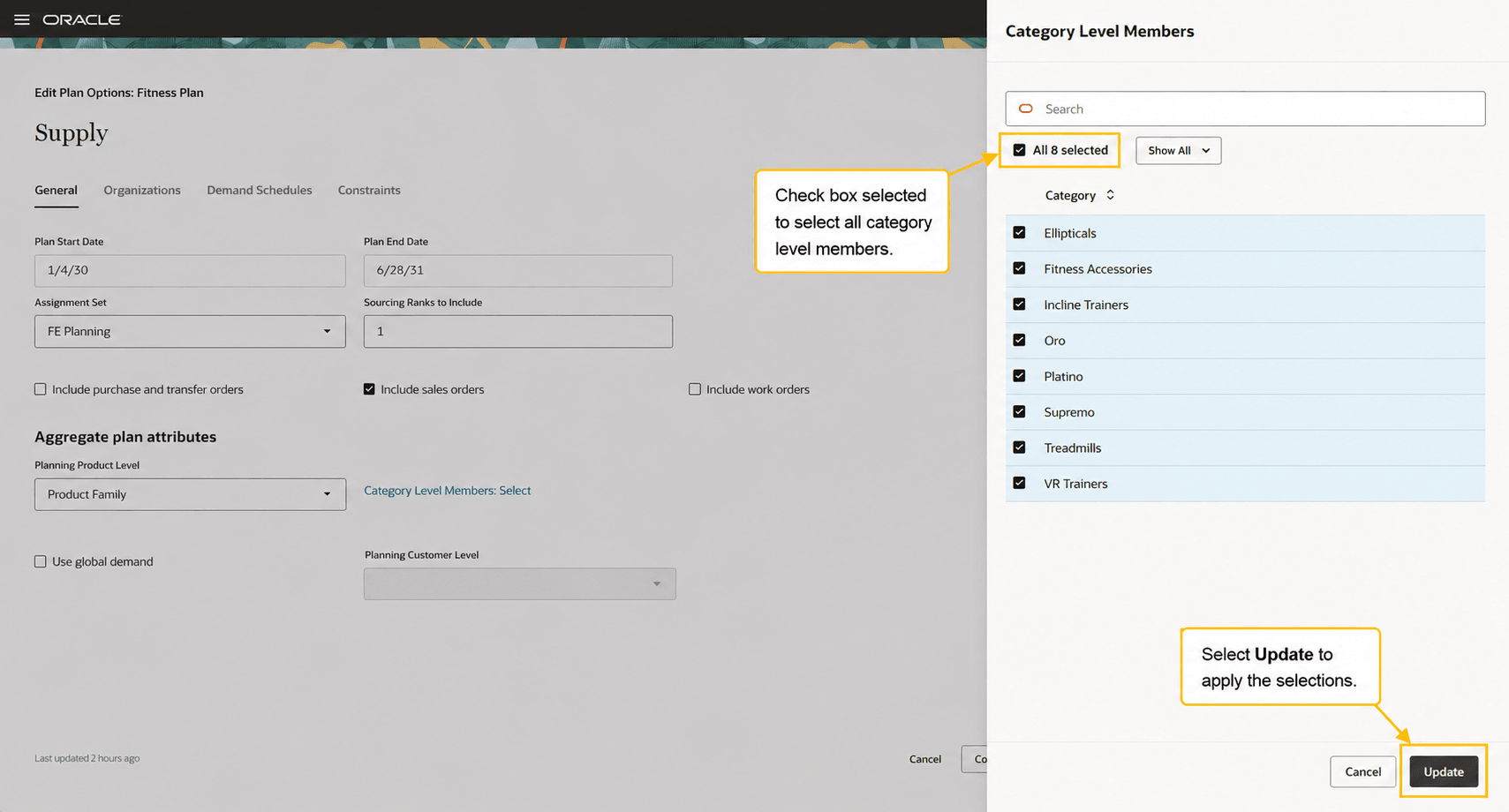
All members selected in the Category Level Members drawer
10. Select Update to apply the selected category level members and close the drawer.
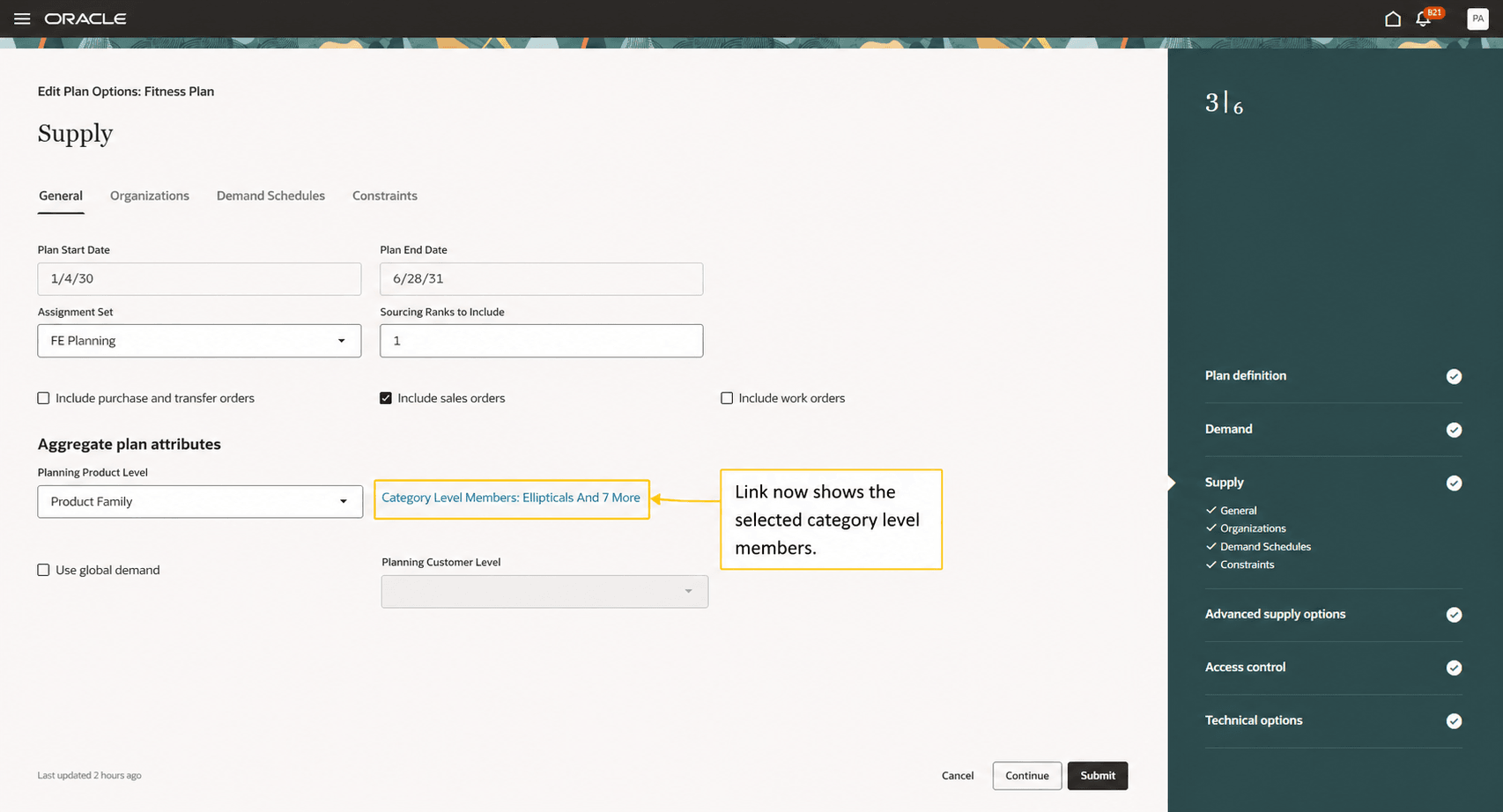
Category Level Members link displays selected members
11. Select Submit to save the plan options.
You must run the sales and operations plan and refresh it with current data for the plan options changes to take effect. Ensure that bills of resources are defined for the selected category level members and plan organizations.
Steps to enable and configure
You don't need to do anything to enable this feature.
Tips and considerations
- This is a Redwood feature. No updates were made to plan options in the Classic version. You must select the parent level of item for Level in the Scope tab and Planning Product Level in the Supply tab for category level planning in the Classic version.
- You don’t have to plan all level members at the category level in a sales and operations plan. For example, some categories can be planned at the item level in a category level plan if you don’t select those categories in the Category Level Members drawer.
Key resources
Refer to the Cloud Applications Readiness content for the following 25C Supply Chain Planning features for more information on the Oracle Fusion Cloud Supply Chain Planning work area:
- Redwood: Create Sales and Operations Plans and Edit Sales and Operations Plan Options Using a New User Experience
Access requirements
Users who are assigned a configured job role that contains these privileges can access this feature:
Privileges
| Privilege status | Privilege name and code |
|---|---|
| Existing | View Plan Options (MSC_VIEW_PLAN_OPTIONS_PRIV) |
| Existing | Edit Plan Options (MSC_EDIT_PLAN_OPTIONS_PRIV) |
These privileges were available prior to this update.