Filter exception results by column values and show exception types based on context
You can now apply column filters to narrow order-based and measure-based exception results, including when viewing by exception group. Filters carry over when you drill into Exceptions from pages such as Supplies and Demands, Demand Fulfillment, Resource Requirements, or a pivot table or graph, with filter conditions matched to each column's data type. Navigation context also narrows the exception groups and types shown to only those with matching details, hiding empty ones. At supported drill levels, counts recompute for those groups and types; at higher aggregation levels, relevant groups and types display without counts. You can clear context to return to the full, unfiltered Exceptions page.
With this update, you can improve exception investigation by filtering exceptions rows to focus on exception groups and types that are relevant to the current navigation context. This reduces noise and makes exception review more targeted across planning workflows.
This feature lets you:
- Filter exception details for an exception group or an exception using column filters.
- Apply navigation context to display relevant exception details on the Redwood Exceptions page.
It applies to supply plans, demand and supply plans, replenishment plans, demand plans, and sales and operations plans.
Column filters on the Redwood Exceptions page
- You can apply Column filters for exception details for order-based and measure-based exceptions, or for an exception group.
- Column filters can be applied after the application of navigation context to an exception to view the results.
- The column filter displays the applied filter condition.
- You can’t save column filters to saved searches on the Exceptions page.
A filter icon is displayed in the header of any column on the Exceptions page for which a filter condition has been applied. You can either select the column and clear the filter or click on the refresh icon in the Exceptions segment to clear column filters applied across multiple columns.
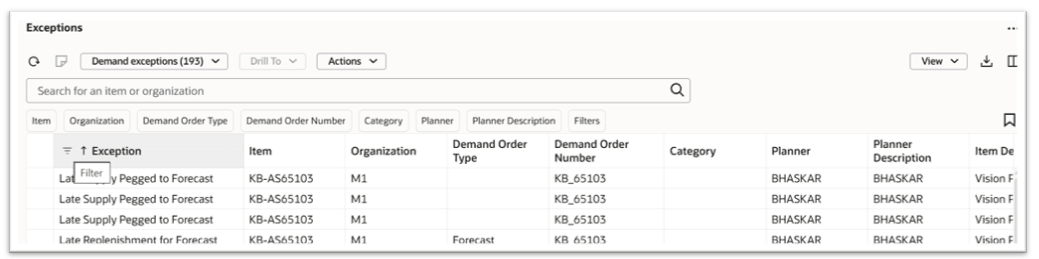
Column filter displayed for Exception column in Demand exceptions group
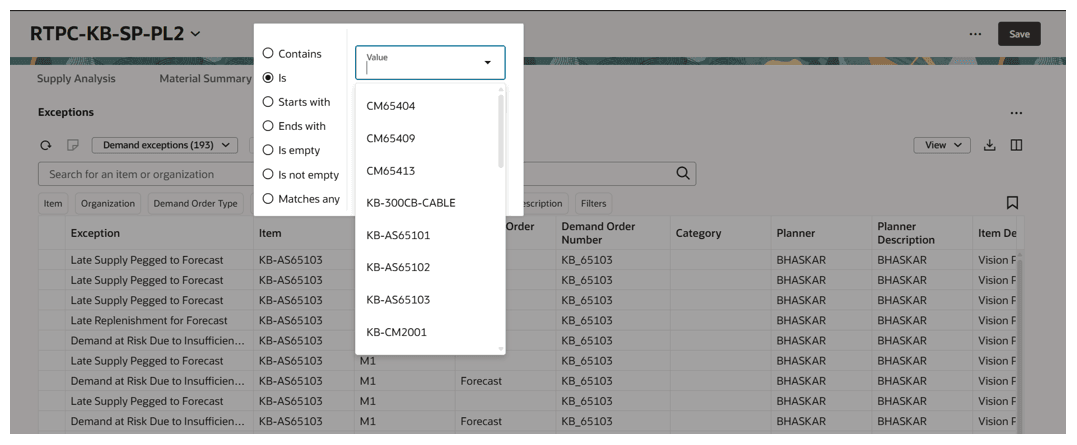
Column filter displayed for Item column which has string data type in Exceptions
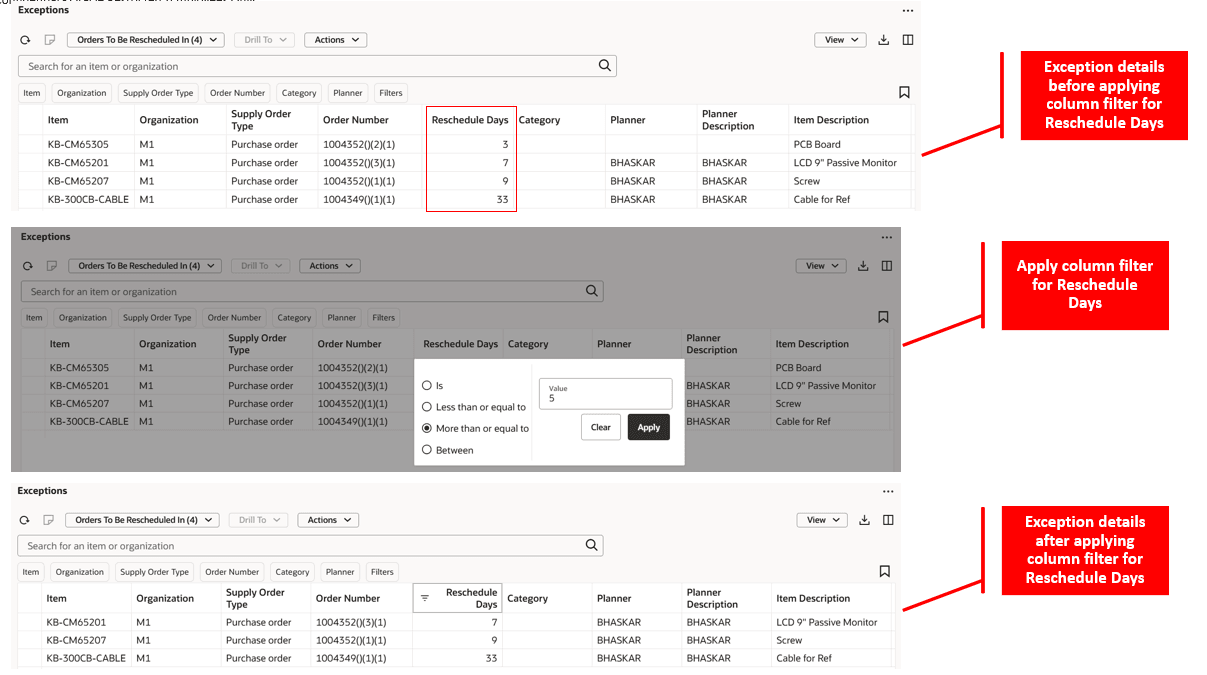
Exception details before and after applying column filter
Show exceptions and exception counts based on navigation context
- Navigating to the Exceptions page now displays relevant exceptions in an exception group or the exception details in an exception.
- Navigating to the Exception page now recomputes the count of exceptions in an exception group or the exception details in an exception.
- This applies to order-based and measure-based exceptions.
- Exception details and exceptions in an exception group that aren’t relevant based on the navigation context are hidden.
- If the navigation context has item and organization but the combination has only Demand Exceptions and Item Exceptions, then the remaining exception groups are removed from the Exceptions list of values.
- The counts of the exception detail are recomputed in the Demand Exceptions and Item Exceptions groups to apply only to the navigation context.
- If the navigation context leads to a target exception or exception group and the exception or exception group has a zero count, then it would still be displayed to allow the Exceptions page to be rendered for displaying other relevant exception groups and exception details.
Drills from aggregate levels to measure-based exceptions aren’t supported. The navigation context is passed only when the drill-from selections are at the available lowest level.
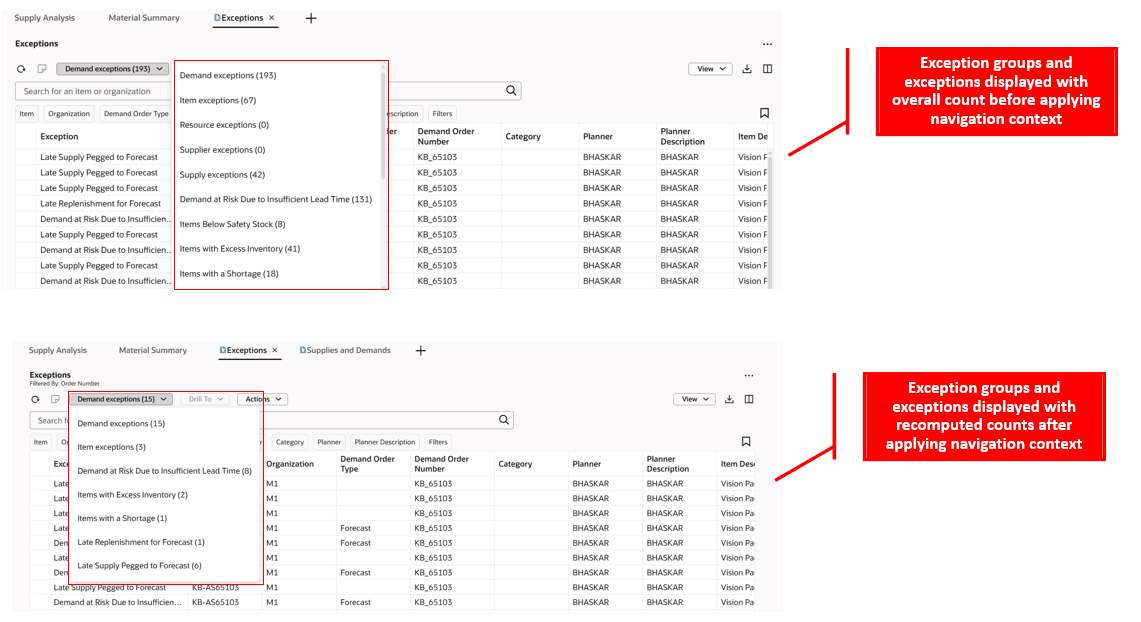
Exceptions page displays relevant details, including count after applying navigation context
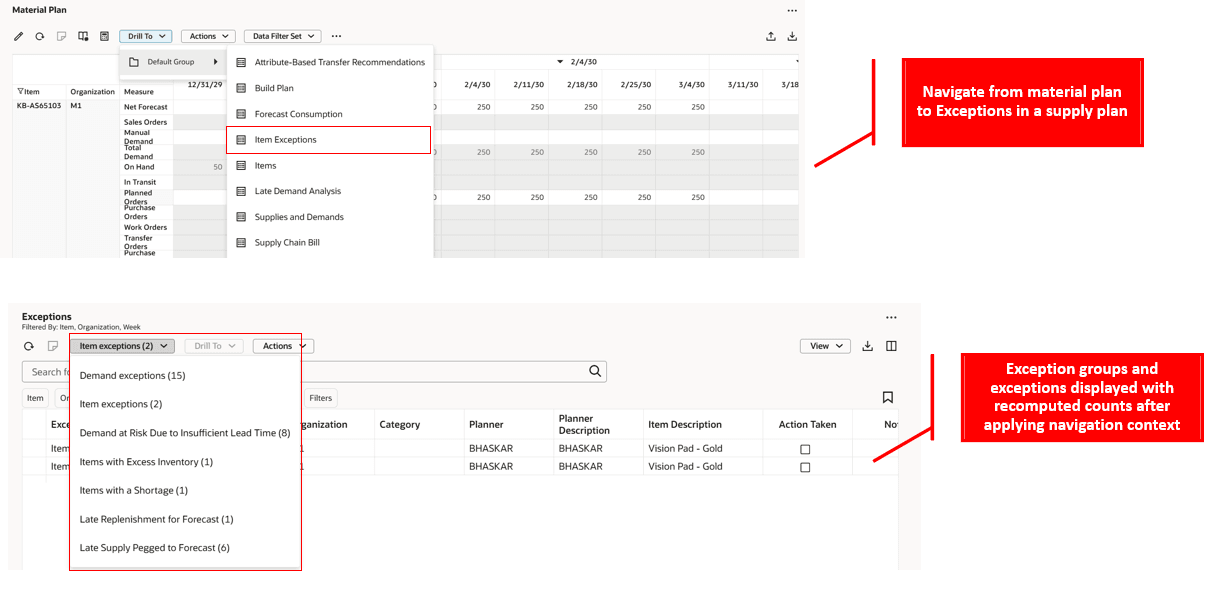
Exception groups and exceptions displayed with relevant details, applying navigation context drill from material plan in a supply plan
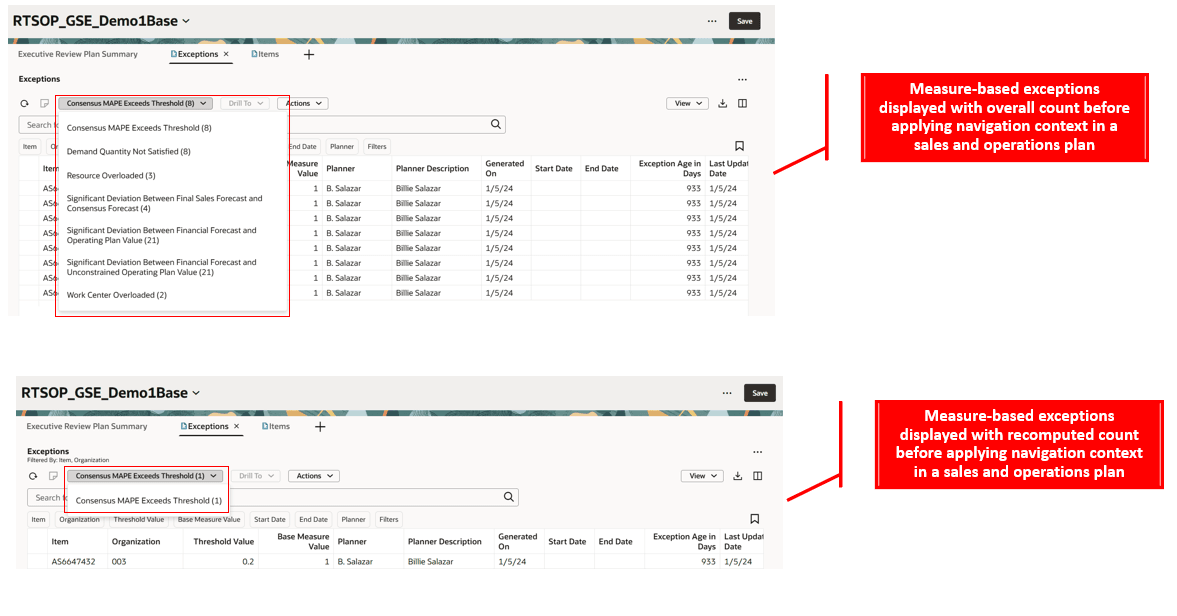
Exceptions displayed with relevant details, applying navigation context drill from Items in a sales and operations plan
Steps to enable and configure
You don't need to do anything to enable this feature.
Key resources
Refer to the 25C release update feature Redwood: Resolve Planning Exceptions More Efficiently Using a New User Experience for additional details on drill-to navigation context details for the Redwood Exceptions page.
Access requirements
Users who are assigned a configured job role that contains the following privileges can access this feature.
| Privilege status | Privilege name and code |
|---|---|
| Existing | Monitor Supply Planning Work Area MSC_MONITOR_SUPPLY_PLANNING_WORK_AREA_PRIV |
| Existing | Monitor Demand and Supply Planning Work Area MSC_MONITOR_DEMAND_AND_SUPPLY_PLANNING_WORK_AREA_PRIV |
| Existing | Manage Replenishment Planning MSC_MONITOR_REPLENISHMENT_PLANNING_WORK_AREA_PRIV |
| Existing | Manage Sales and Operations Planning MSC_MONITOR_SALES_AND_OPERATIONS_PLANNING_WORK_AREA_PRIV |
| Existing | Monitor Demand Management Work Area (MSC_MONITOR_DEMAND_MANAGEMENT_WORK_AREA_PRIV) |
These privileges were available prior to this update.