AI Incident Sentiment Analysis for Aministrators
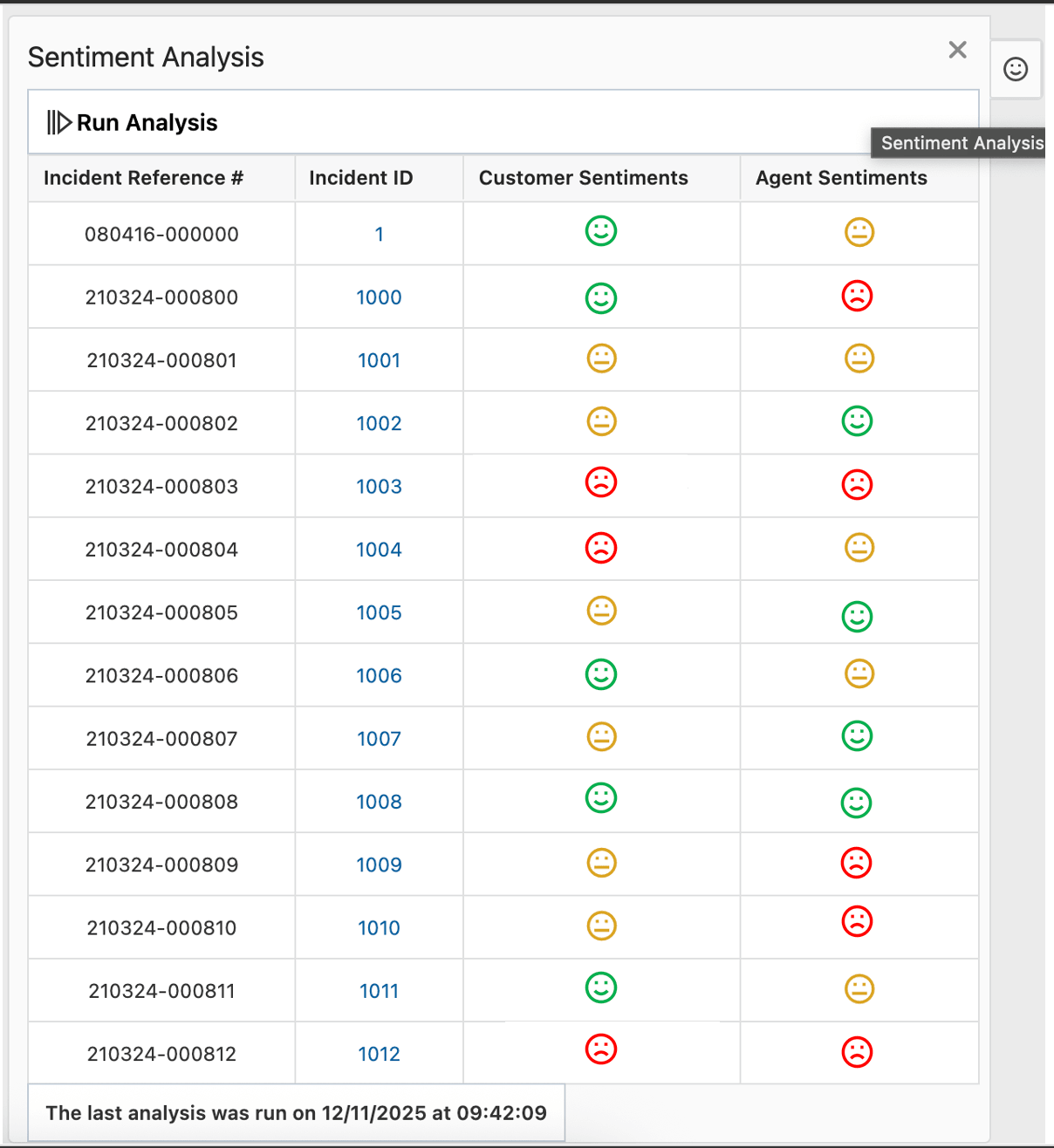
This new feature introduces AI based sentiment analysis for supervisors/administrators. This feature shows customer and agent sentiment for the list of incidents (threads) configured to be analysed and shows them under the emoji icon on the right side panel. The panel displays incident number, incident id (which is also the link to the incident) , customer sentiment and agent sentiment.
- A smile emoji in green color denotes the sentiment is happy.
- A frown emoji in red color denotes the sentiment is unhappy.
- A neutral emoji in yellow color denotes neutral sentiment.
On top of it, when the sentiment is not neutral, clicking on the emoji denotes aspect sentiment for that incident (if detected). Aspect based sentiment is sentiment for topics/objects/products/services that had a connotation/sentiment for it in the incident thread.
Business Value:
The Supervisor/Administrators can see how the agents are performing through the sentiment associated with customers and agents for incidents and take appropriate action if a pattern (such as certain subjects/products or certain customer) is observed.
Steps to Enable and Configure
To enable this feature you need to log a Service Request (SR).
This feature is on controlled availability, customers are requested to submit a Service Request(SR) to enable it. Once enabled, please follow the below steps to configure the feature.
- Configure your OCI Language Service end-point in the External Object and Integrations, making sure the integration type is REST and Allowed API methods include GET, PATCH, PUT, POST, and DELETE.
- On the Navigation bar on top left corner on BUI, go to Configuration > Administration > AI Studios > Sentiment Analysis > Incident Sentiment

- Click on Add New and follow these steps:
- Give the configuration a name
- Select your configured XO connection under Sentiment Analysis connection
- On the right side panel, under Configuration, Incident report (this report contains the incidents that the sentiment analysis will be run on) and Number of recent threads to be analysed (between 1 to 5).
- Under Profile access, select profiles for interface that will/should have access to run and see the analysis results
- Click on Save & Close.
- An emoji icon will appear on the right side panel.
Tips And Considerations
Please Note: The feature currently only can use OCI Language Services, which support only the below language:
- For shared instance: English, Spanish.
- For dedicated instance: English, Spanish, French, German, Portuguese
Access Requirements
You should have an active subscription of OCI Language Service
The feature is on controlled availability, please raise a Service Request to enable it.