Copy Case Documents to Document Record
Case Workers can directly transfer selected documents to the HCM Document Record for the Primary Contact of the Case. This is done by using the smart action Copy to Document Record.
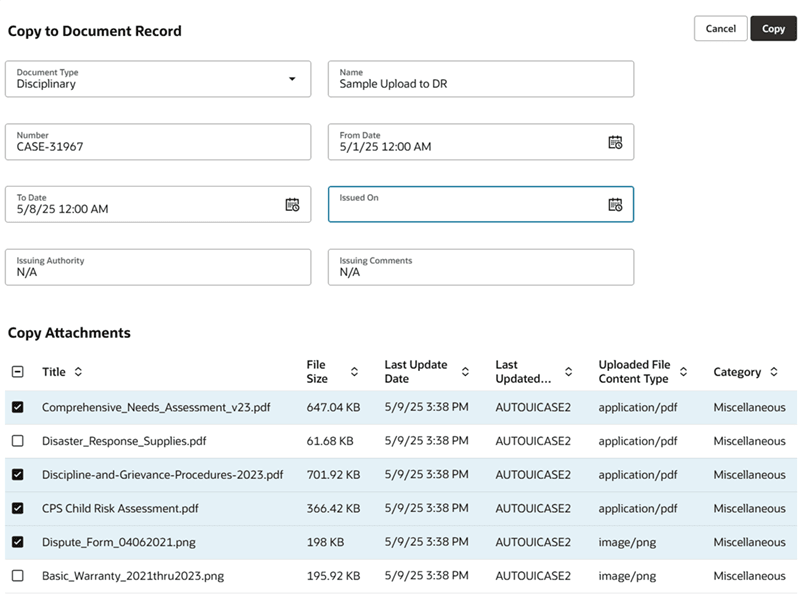
Copy to Document Record on Case Details page
After copying the selected Case Documents to the document record, a Case Note is created summarizing the copy operation.
Direct transfer of Case documents saves time and ensures security compliance.
Steps to enable and configure
The 'Copy to Document Record' SmartAction must be enabled to use this feature:
- Create or enter a Sandbox that has Application Composer as a chosen tool by going to Navigator -> Tools -> Sandboxes.
- From the Tools drop-down choose Application Composer.
- Click on the Smart Actions link.
- Type "Document Record" and Enter to search.
- Change the value for Enabled to Yes for the Smart Action "Copy to Document Record" for Cases.
- Close the Tab and return focus to the Application Composer.
- Under the Sandbox Mode drop-down, choose Preview as if Published.
- Click Yes to continue to enter the preview mode.
- Navigate to Help Desk -> Cases.
- Navigate to a case that has Documents (feel free to create a test Case if needed.)
- In the Action Bar, type Copy to Document Record to make certain the SmartAction is shown in the list.
- Return to Edit Mode in Application Composer.
- Publish the Sandbox.
Tips and considerations
- 'Copy to Document Record' can copy a maximum of 500 Case Documents to the document record of the primary contact.
- This feature is not available for CRM-striped Cases.
Access requirements
The privilege 'ORA_PER_HUMAN_RESOURCE_SPECIALIST_JOB' is required to access/edit the document record.