DCS Chat Summarization Assistant for Portal RI
In 26C, we introduce the DCS Chat Summarization Assistant, making it much quicker for users to understand past support conversations.
The AI assistant automatically analyzes chat transcripts and generates a concise summary of the key discussion points and outcomes.
When the feature is enabled, the summary appears directly on the Chat Transcript page in DCS portal, making important information easy to review.
The feature uses the out-of-the-box DCS Chat Summarization Assistant template in Fusion AI Agent Studio.
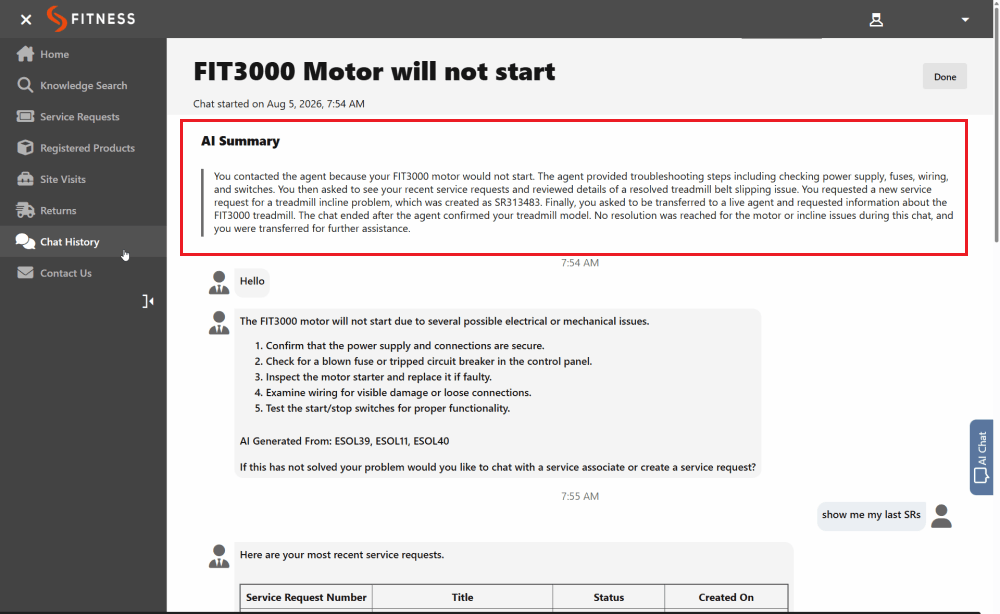
Generated AI Summary on chat transcript in DCS portal
The value for customers is immediate:
- Less time spent reading through long chat histories.
- Faster understanding of the support context.
- Improved productivity by helping users get to the information they need more quickly.
The benefit for portal developers:
- Quick enablement of the feature using the latest 26C DCS portal reference implementation
- Uses a standard AI Agent template in Fusion AI Studio
Steps to enable and configure
Enter Visual Builder Designer:
- Create a DCS app based from the 26C Reference Template
- Enable the Feature Flag
- Open your DCS web app
- Navigate to Variables - Constants - featureFlags
- Expand the AI features
- Select ChatSummary feature flag
- Set to "true" in the properties panel
- Check Agent Team Code
- Navigate to Variables - Constants - agentTeamCodes
- Expand the list
- Select chatSummary
- Note that the out-of-the-box agent is set
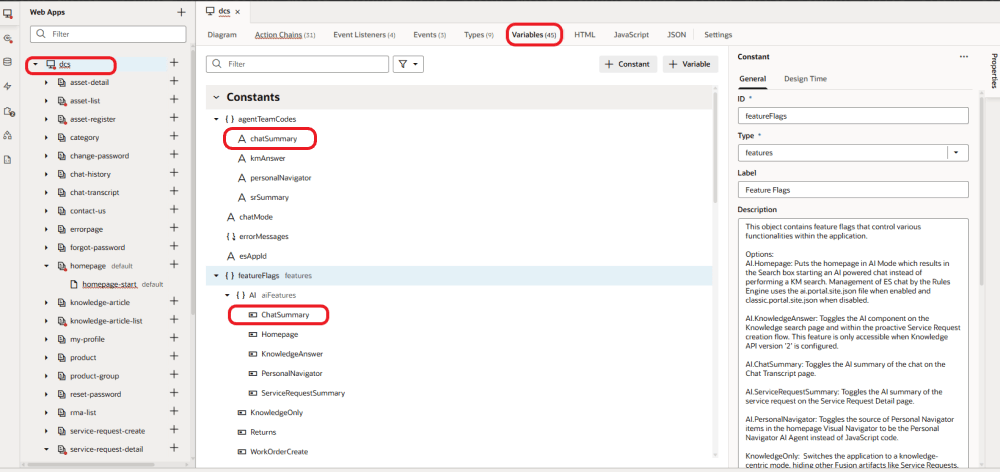
Constants to enable ChatSummary in DCS portal
- Check or modify the REST API scope for your DCS app
- Navigate to Services - Backends
- Expand Oracle Cloud Applications
- Select Fusion AI REST API Server and select to edit pencil icon
- Check that the scope {instance} parameter is the name of your fusion instance
urn:opc:resource:fusion:{instance}:fusion-ai/ - Click Save
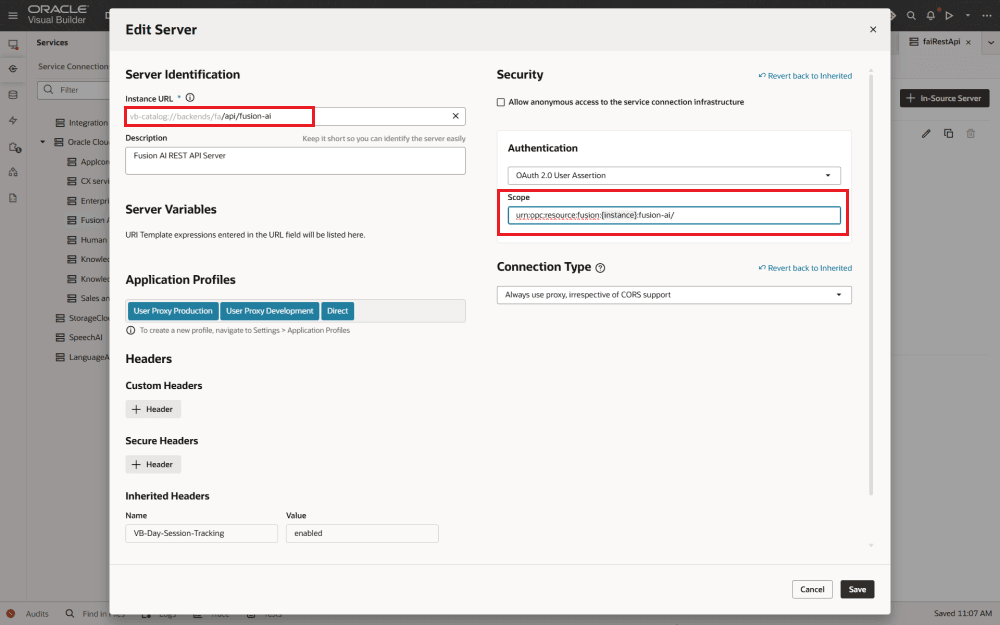
Check Fusion AI Service authentication scope
Test the feature in DCS portal staged app:
- Login to DCS Home Page as registered self-service user
- Expand the Page Navigator
- Click on Chat History and wait for the chat history list to load
- Select and open any existing chat and wait for the AI Agent to summarize the chat
- The AI Summary is displayed at the top of the chat transcript
Tips and considerations
N/A
Key resources
- Playbook How do I enable Digital Customer Service
- See detailed component documentation in Visual Builder.
- Get Started with AI Agent Studio
- Access Requirements for AI Agent Studio
Access requirements
- Sign in to the Oracle Visual Builder editor as a user with the Developer role to design your DCS portal experience.
- Sign in to Fusion AI Agent Studio with a CX user that has the right role and permissions if you want to preview or change the out-of-the-box DCS Chat Summarization Assistant template.