Overview of Configuring Help
Oracle provides contextual help right in the application, making it easier for users to find support, if needed, to complete their tasks. Contextual help is typically targeted at channel managers.
If you don't want partner users to see this help, then you have two options: you can either hide the actual help icons for all users, or you can keep the help that Oracle delivers for your channel users, but hide that help from your partner users.
What's a Help Icon?
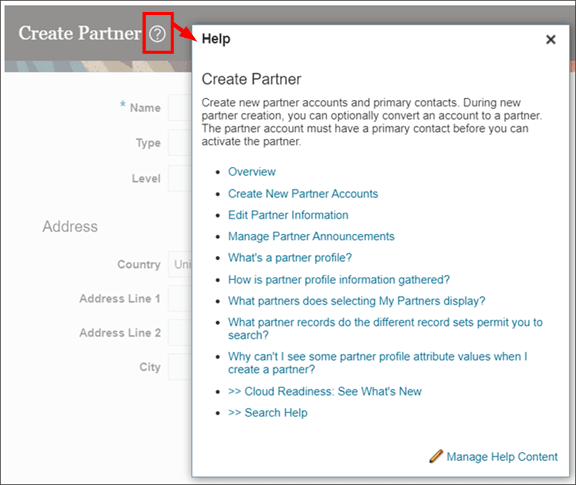
Many application pages have help icons displayed at the top of pages or inside page regions. These icons are visible on a page by default. Users can click these icons to open help windows that contain help text, links, or both. Here's what a help icon and help window look like:
Scenario 1: Hide All Icons
The help icons that open help windows are automatically displayed at the top of pages and regions, but you can optionally hide them for all users. Do this if you don't want your channel users and partner users to access Oracle's Help Center.
To hide (or show) all help icons, use the Set Help Options task in the Application Extensions functional area in the Setup and Maintenance work area. For more information, see "Hide or Show Help Icons" in this chapter.
Scenario 2: Hide Help Links for Partners
On the other hand, maybe you want to keep the help that Oracle delivers for your internal channel users, but hide that help from your external partner users. You can do this by creating your own version of Oracle's content and using help security groups.
Let's look at an example of a help window that displays on the Deal Registration page. In this example, you want only channel users to see the help, not partner users.
-
First, enable the Help Content Management feature and also give people access to create and edit help. Once you do this, people can add company-specific help to help windows.
See "Set Up Help" and "Give People Access to Create and Edit Help" in this chapter.
-
Then, create a help security group that includes only the job roles for channel users.
Do this so that you can secure your new help content with this help security group. This means that only people with channel user roles can see the help.
See "Create Groups to Limit Access to Added Help" in this chapter.
-
Next, hide the original predefined help topics that you don't want partner users to see.
-
Go to the page with the help window you want to modify, and click the help icon.
-
In the help window, click the Manage Help Content link.
-
In the Manage Help Content dialog box, you can hide links to the predefined help that you don't want partner users to see.
See "Determine Which Links Appear and in What Order" in this chapter.
-
-
Finally, create your own versions of those same topics. This is so that you can add the channel user help security group.
-
Go to the page where you want to add help and click the help icon.
-
In the help window, click the Manage Help Content link.
-
In the Manage Help Content dialog box, click Create.
-
Select the Text help type.
-
Select the channel user help security group that you previously created. Only users with roles in the security group will be able to see the help.
-
Set the status as Active if you want people to see your help in the help window.
-
Enter the title, which is the text of the link in the help window.
-
Enter your content in the text editor. Or you can click the Source Code Editing Mode icon to switch to an HTML editor.
In this example, simply copy the content from the original Oracle help topic (that you just hid) into the text editor. You're creating your own version of the Oracle help.
-
Save your work.
-
To check your work, click your link in the help window.
See "Add Your Content to a Help Window" in this chapter.
-