Territories, Assignment, and Channel Sales
Assuming that you have already configured your sales applications for direct sales and now you want to add a channel sales branch to your direct sales organization, this section won't go into great detail about territories and assignment.
Instead, this section provides a brief explanation of territories and assignment, the territory types used in channel sales, the type or types of assignment allowed for each channel sales object, and what the high-level process is to configure territories and assignment for channel sales.
For more detailed information about territories and assignment, see the following guides:
-
Getting Started with Your Implementation guide
-
Implementing Sales guide
What are Territories?
Territories define the jurisdiction that channel managers have over their partner accounts, partner sales representatives, and their associated transactions. Territories provide the rules for automatically assigning channel sales users to partner accounts, leads, deal registrations, and opportunities. The territory hierarchy defines resource responsibilities and controls access to your sales data.
What Territory Types Does Channel Sales Use?
Channel sales utilizes two territory types:
-
Partner territory: A Partner territory is for a specific partner. Partner territories define what the partner is authorized to sell and to what segment of the customer market. With partner territories, the territory type is Partner and there is a 1-to-1 relationship between partners and partner territories, so a partner organization has only one partner territory.
-
Channel Sales Manager territory: Sales channel territories are for the (internal) channel sales team. With sales channel territories, the territory type is Channel Sales Manager. The owner and members of the territories get access to the object. Depending on the object, these members can have more than view access.
The following coverage models define channel sales manager type territories:
-
Sales Account-Centric: This coverage type is defined by using the characteristics of the sales account, and specific inclusions and exclusions. For example, a channel manager is assigned to cover all the indirect opportunities where the end customer is located in California.
-
Partner-Centric: This coverage type is defined by the following characteristics or attributes of the partner organization:
-
Primary geographical location of the partner.
-
Organization Type of the partner (for example, private, public, government owned, nonprofit).
-
Size of the partner organization.
-
Three auxiliary dimensions are available for partners based on the customer categories classification model.
-
-
Individually Selected Partners. Select partners to directly assign to or exclude from a partner-centric territory. For example, a channel manager is assigned to a partner named AA Solutions. This channel manager will be assigned to all indirect opportunities where AA Solutions is the partner. The opportunities for included partners can be additionally qualified by product and sales channel.
Partner account assignment and opportunity revenue line assignment matches against partner-centric territories first and then against sales account-centric territories, while lead, and deal registration territory based assignment matches against Channel Sales Manager territories with "Sales Account" coverage.
What are Dimensions?
Dimensions are attributes that define the jurisdictional boundaries of territories. For example, you can use the geography dimension to define territories by country, state, or postal code. Every partner that falls within the defined geography is assigned to the territory and to the channel sales team for that territory. You assign partners, leads, deals, and opportunity items to the correct territories using dimensions. If a lead has a partner, the lead is matched against partner-centric territories.
How to Expose Dimensions
Use these steps to expose dimensions you want to add to territories.
-
Sign in with your sales administrator credentials.
-
Ensure you're in a sandbox.
-
Search for and select the Manage Territory Proposals task.
-
On the Manage Territory Proposals page, click Enable Dimensions and Metrics.
-
On the Enable Dimensions and Metrics page, click Edit.
-
From the Actions menu under Dimensions, select Add.
-
Select the dimensions you want to expose, and click OK.
-
On the Edit Enable Dimensions and Metrics page, click Save and Close.
-
From the Actions menu on the Enable Dimensions and Metrics page, select Load and Activate.
The Process Status on the Enable Dimensions and Metrics page displays Load scheduled, then Load in progress. You must wait for the load to complete before you can see the new dimensions on the Manage Territory Proposals page. You can select Refresh Status from the Actions menu to check on the load process. The load is finished when the Process Status displays Activation completed successfully.
How to Add Dimensions to a Territory
Use these steps to add dimensions to a selected territory.
-
Sign in with your sales administrator credentials.
-
Ensure you're in a sandbox.
-
Search for and select the Manage Territory Proposals task.
-
On the Manage Territory Proposals page, click the name of the territory proposal that contains the territory you want to edit.
-
From the list of territories in that territory proposal, click the name of the territory you want to edit.
-
In the Details area, click the Coverage tab.
-
Click the Add icon or, from the Actions menu, select Add.
-
On the Edit Coverage page, select the dimension you want to add from the Dimensions list.
-
Move the dimension members you want to add to the territory from the Available Dimension Members list to the Selected Dimension Members list.
-
Click Save and Close to save your work.
If you're adding these dimensions to a parent territory and you want the child territories to also use these dimensions, you must add the dimensions to each child territory. For example, if you add a customer size dimension to a parent territory and you want the child territories to use the same customer size dimension, then you must add the same customer size dimensions to each child territory.
What's Assignment?
Assignment is the process of deciding what goes where or to whom. There are three categories of territory assignment:
-
rule-based assignment
-
territory-based assignment
-
territory-based assignment + rule filtering
What are Mappings and Mapping Sets?
Mappings and mapping sets drive territory-based assignment. Mappings identify the dimensions, attributes, and territory filtering used during assignment processing.
There are three types of mappings:
-
Dimension Mapping: You use dimension mapping when the work object and candidate object attributes in the comparison are dimension attributes, such as Product.
-
Attribute Mapping: You use attribute mapping to compare and match attribute values between a work object attribute and a candidate object attribute. When the value of the candidate object attribute matches the work object attribute, the candidate is selected. You use attribute mapping when the work object and candidate object attributes in the comparison are non-dimensional attributes.
-
Literal Mapping: You use literal mapping to filter the candidate objects. This form of mapping enables the comparison of candidate attributes against a specific value you selected. The assignment engine compares the mapped candidate object attribute against the specified literal value.
You use mapping sets to group mappings so that you can create more than one mapping for each combination of work object and candidate object. Mapping sets determine which mappings are used, and their sequence of use in territory-based assignment. You only use mapping sets with territory-based assignment and territory-based assignment with rule filtering. Mappings sets are predefined for accounts, leads, opportunities, partner accounts, and deals. However, you can define additional mapping sets for each combination of work object and candidate object.
Where do I Find the Mapping Sets for Channel Sales Objects?
The mapping sets for each object are located in the following setup tasks:
The following table shows the channel sales objects and the name of the setup task used to configure mapping for each, including the Manage Sales Assignment Manager Objects task for Partner Accounts, the Manage Sales Lead Assignment Object task for Leads and Deal Registrations, and the Manage Sales Assignment Manager Objects task for Opportunities and Revenue.
|
Channel Sales Object Name |
Setup Task Name |
|---|---|
|
Partner Account |
Manage Sales Assignment Manager Objects |
|
Lead |
Manage Sales Lead Assignment Object |
|
Opportunity |
Manage Sales Assignment Manager Objects |
|
Revenue |
Manage Sales Assignment Manager Objects |
|
Deal Registration |
Manage Sales Lead Assignment Object |
How do I Configure Channel Sales Territories?
The following steps provide an overview of the territory configuration process for channel sales.
-
Configure the types of sales territories you plan to create:
-
If you're setting up channel sales territories based on geography, you must enable the geographical elements you plan to use during territory setup for the countries for which you imported geography reference information. Optionally, you can organize the geography elements into zones.
-
You must enable the territory dimensions you plan to use in your channel sales territories.
-
-
Set up the channel sales territories themselves. This step involves:
-
Creating a territory proposal. A proposal is a sandbox that permits you to update territories without affecting any existing territory setup, so it becomes useful when you want to readjust your territories in the future. When you change territories, your changes become active immediately.
-
Create the hierarchy of channel sales territories in the territory proposal starting with the top territory and working your way down.
-
Activate the territory proposal.
-
-
Configure your assignment options. Assignment behavior is controlled by a set of system profile options. By default, your sales applications do the following:
-
Automatically assigns sales territories to accounts whenever an account is created or updated.
-
Assignment of opportunities is manual: partner salespeople can either trigger the assignment process while editing an individual opportunity or the opportunities are assigned by the Sales Account Assignment Process which you set up to run periodically. Oracle sets manual assignment for opportunities as the default behavior to prevent performance issues for companies with large number of opportunities (100,000 and up). However, if your organization doesn't have such a large volume, you can have the application assign the opportunity automatically by setting the Assignment Submission at Save Enabled profile option to Yes.
-
-
Run the following assignment processes to assign account and opportunities respectively:
-
Request Account Assignments
-
Revenue Territory Territory Based Assignment
-
You must run these processes immediately after you activate your territories and then set them to run on a regular basis, to handle ongoing assignments. How frequently you run these processes depends on your business needs.
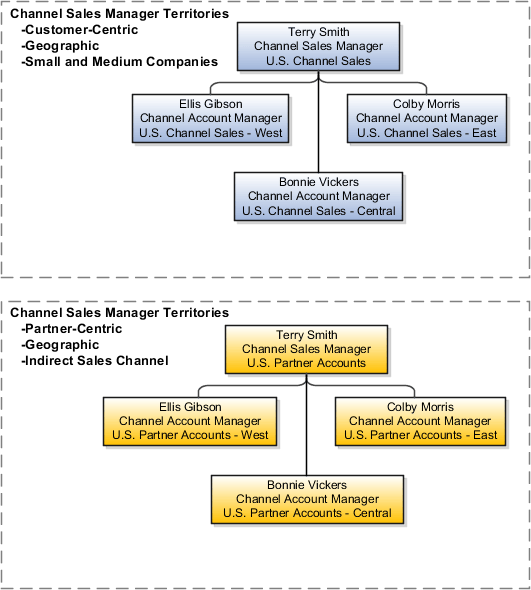
Example of Channel Sales Manager Territory
The following figure provides an example of a basic set of channel sales manager territories to support the two business use cases discussed throughout this guide. This example builds on the direct sales territory hierarchy established in the Getting Started with Your Implementation guide.
The channel sales manager territories are split geographically between Eastern, Central, and Western U.S. states. However, this example also uses the Company Size dimension to determine if the sales object should be assigned to the appropriate direct sales territory or to the appropriate channel sales manager territory. In this example, all objects where the company size is Large are assigned to direct sales, and all objects where the company size is Medium or Small are assigned to channel sales.