Enable the Sales Dashboard AI Agents
Enabling the Sales Analyzer and Narrative Insights agents in the Sales Dashboard involves 2 steps:
- You copy the agents Oracle provides in AI Agent Studio.
- You open Oracle Visual Builder Studio and enter the agent team codes of the copies in the enableAgents constant.
Copy Both Agents Provided by Oracle in AI Agent Studio
Copy both the Sales Analyzer and Narrative Insights agents provided by Oracle in AI Agent Studio and make a note of the Agent Team Code for each.
- Open AI Agent Studio ().
- Search for the agent by name (Sales Analyzer or Narrative Insights).
- Click Copy Template on the agent.
-
In the Copy Template dialog, enter a suffix that will be added to the agent name. For example: v1.
Your new agent opens for editing.
- In the agent edit page, click Publish.
- On the navigation bar at the bottom of the page, click Agent Teams.
- On the Agent Teams page, search for the agent by name.
- Make a note of the Agent Team Code for each agent. (for example: SALES_ANALYZER_V1 and NARRATIVE_INSIGHTS_V1). You need the codes to reference the agents in VB Studio.
Enter the Agent Team Codes in VB Studio
Enable the agents using VB Studio:
- Navigate to the Sales Dashboard and open VB Studio. ().
- On the sales-dashboard tab, click the Variables subtab.
- Under the Constants heading, click the enableAgents constant.
In the Properties tab, Default Value box, enter the following code, replacing the agent team codes in this example with your own:
 [{"Sales
                            Analyzer":"SALES_ANALYZER_V1"},{"Sales
                            Insights":"NARRATIVE_INSIGHTS_V1"}]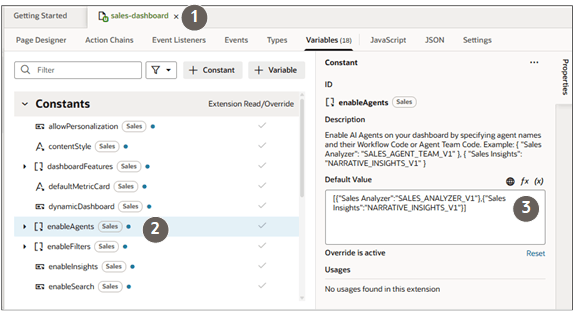
- Test and publish.