Configure Partial Term Matching
You can now selectively enable Partial Term Matching on fields of your choice. This helps refine the search experience for your users and increases the relevance of the search results on eligible fields without compromising performance.
By fine-tuning which fields support partial term matching, you can tailor your search results to your business needs and enhance the user search experience.
Here's how to select fields for partial term matching:
- Navigate to the tab in the Configure Adaptive Search setup
task. For every object, you’ll find Partial Term Matching
setting with an Edit icon as shown.
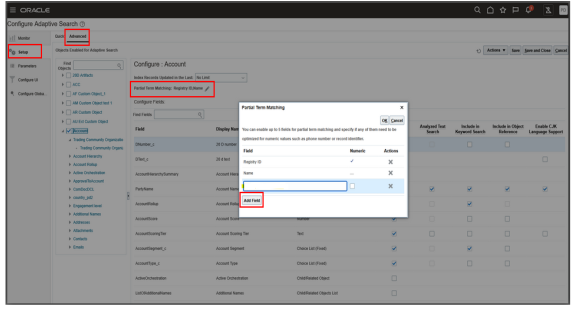
- By default, you might see some fields like the PUID or the main identifying field of the object already enabled.
- Select the Edit pencil icon to open the configuration modal.
- Select Add Field to add a new field.
- For any text fields that contain only numbers such as ID or phone fields, you should check the Numeric box so that the optimized searching can be done on it. This will ignore white spaces, brackets, hyphens and other such formatting while performing search.
- Add up to five fields. You can remove a field by selecting the Delete icon from the Actions column.
- Select OK to confirm your selections.
- Save changes on the main configuration screen.
- Do a publish (full or partial) for changes to take effect.