Control Access to Contracts Using Access Groups
You can now use access groups to control access to contract records. Access groups are an alternative way of granting data permissions to users. After creating an access group and assigning users to it, all group members receive access to contract data based on the object sharing rules defined for the group. These rules decide which contracts users can view and what type of access each user has such as Read or Full access.
Access groups can supplement existing data security policies. When both access groups and data security policies are configured, users receive the combined visibility granted by both mechanisms. If you want only the access provided by the access group to take effect, you must remove the visibility granted through existing data security policies, such as policies based on contract ownership or Business Unit based security or team membership.
Access groups work alongside functional security. They identify which contract records a user can access, while job roles continue to govern the actions the user can perform on those records.
System Access Groups for Contracts
The following system access groups are created for predefined contract-related roles. Users are added or removed from these groups automatically based on job role assignment.
- Customer Contract Administrator Group
- Customer Contract Manager Group
- Customer Contract Team Member Group
- Enterprise Contract Administrator Group
- Enterprise Contract Manager Group
- Enterprise Contract Team Member Group
- Supplier Contract Administrator Group
- Supplier Contract Manager Group
- Supplier Contract Team Member Group
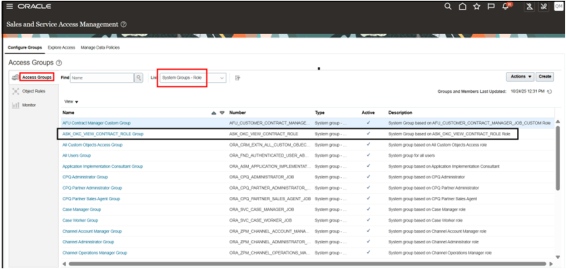
These groups are listed in the Access Groups section with Type = System Group and can't be modified.
Predefined Object Sharing Rules for Contracts
| Contract Area Based Rule | Predefined Rule |
|---|---|
| General Access Rules | All Contracts |
| Contract Owner Based Rules |
|
| Sales Contract Rules |
Business Unit Based
Resource Based
Resource Ancestor Based
Resource Organization Manager / Member / Ancestor / Descendant Based
|
| Procurement Contract Rules |
Business Unit Based
Resource Based
Resource Ancestor Based
Resource Organization Manager / Member / Ancestor / Descendant Based
|
Defining Custom Contract Access Rules
You can configure custom contract access rules using a wide range of contract attributes. These attributes allow you to precisely control which contract records an access group can see or act on, based on business criteria.
Some common attributes available for rule definition include:
- Business Unit
- Contract Status
- Intent
- Contract Type
- Contract Class
- Legal Entity
- Version Type
- Template Flag
- Contract Number
- Contract ID
- Created Date
- Amount
- Hold Reason
- All Extensible Attributes
- All Descriptive Flexfields
Once a custom rule is defined, one or more access groups can be assigned to it with the appropriate Read or Full level of access. You can also reference predefined system rules as predefined conditions when creating a custom contract access rule.
After you change access groups or object sharing rules for contracts, you must run the required scheduler jobs from the following four tabs in the Monitor section to ensure the changes are applied. These scheduler jobs include the following processes:
- Update Groups and Members
- Run when user or role assignments change.
- Publish Rules
- Run when object sharing rules or rule assignments are changed.
- Synchronize Custom Objects and Fields
- Run when custom objects, attributes are updated
- Perform Object Sharing Rule Assignment (Contract Object)
- Run to populate object sharing assignments
Running all applicable jobs ensures that access group membership, rule conditions, and contract visibility are fully synchronized across the application. The Perform Object Sharing Rule Assignment job, in particular, should be scheduled to run frequently, typically every 15 to 30 minutes, to keep contract access assignments up to date.
For more details about Sales and Service Access Management, see the Access Groups Oracle documentation:Overview of Access Groups.
Object Sharing Rules Example
You can use the following steps to create a rule to restrict access to confidential contracts using a Descriptive Flexfield (DFF) attribute. A descriptive flexfield is a configurable field you can add to your contracts object to captured business-specific data that's not delivered in the standard data model.
This rule ensures that users can access all contracts that belong to their own
Business Unit, except contracts marked as Confidential. If a contract’s
Confidential DFF attribute is set to
Yes, it's hidden from the user even if the user normally has
visibility to all other contracts in that Business Unit.
-
Create a new user.
-
Go to Tools, open the Security Console, and then select Users.
-
Create User, fill required fields (User Name, Email, Resource and so on).
-
Save the user.
-
-
Deep Copy the standard Customer Contract Administrator role
-
Go to Tools, open the Security Console, and then select Roles.
-
Search for the predefined Customer Contract Administrator role.
-
Use Copy to create a new custom role (for example, Customer Contract Administrator Custom Role).
-
Select Copy Role.
Copy Customer Contract Administrator Custom Role to create a new custom role.
-
Select Copy top role and inherited roles and then select Copy Role from the Copy Options dialog.
- Change the role name and role code based on your requirement and select Next.
-
Keep the Functional Security Policies and Permission Groups as is and select Next.
-
-
-
Remove Data Security Policies from the copied role.
-
Remove any data security policy (DSP) grants that directly provide contract visibility (you'll provide visibility through access groups). Keep functional privileges required to view or edit contracts.
-
From the Data Security Policies section, search for Grant on Contract for the Policy Name.
-
Remove all Grant on Contract policies from the Actions menu, by selecting Remove Data Security Policies.
-
In this example, we've 2 DSPs which are of policy name Grant on Contract, so remove them and select Next.
-
-
-
Add and Remove Roles from Role Hierarchy
-
From the Role Hierarchy search for the ZCA_ACCESS_GROUPS_ENABLEMENT_DUTY_CUSTOM role code and delete it.
-
“”
-
Then, select Add Role, search for the ORA_ZCA_ACCESS_GROUPS_ENABLEMENT_DUTY role, add it and select Next.
-
-
-
Select Submit and Close.
-
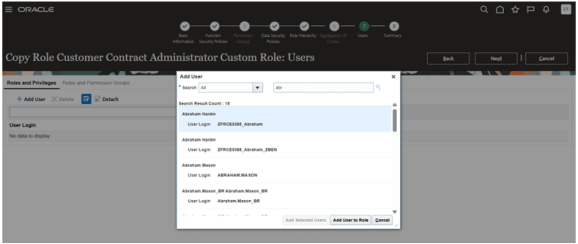
Add your newly created user (who's defined as a resource and employee) to the custom role. Also, you can add any other required users, provided they're defined as resources and employees.
-
After the custom role is created remove Grant on Contract policies from each of these custom roles, ensuring grants aren't given to the Customer Contract Administrator Custom Role indirectly.
-
In this example, remove the Grant on Contract policies from these custom roles:
-
OKC_CONTRACT_AUTHORING_DUTY_CUSTOM
-
OKC_CONTRACT_SEARCH_VIEW_DUTY_CUSTOM
-
OKC_CONTRACT_AMENDMENT_DUTY_CUSTOM
-
-
Search for each of these roles from Roles, select Actions and then Edit Role. In this example we're searching for OKC_CONTRACT_AMENDMENT_DUTY_CUSTOM.
-
Go to Data Security Policies, search for Grant on Contract policy name and then delete all the policies under the name Grant on Contract.
-
Repeat this for OKC_CONTRACT_SEARCH_VIEW_DUTY_CUSTOM and OKC_CONTRACT_AMENDMENT_DUTY_CUSTOM
-
-
Similarly, when you deep copy any other contract-related predefined role, the resulting custom duty roles will still contain the original Grant on Contract data security policies. To ensure that Access Groups fully control contract visibility, Grant on Contract policies must be removed from the corresponding custom duty roles.
-
-
Run these scheduled process:
-
Import User and Role Application Security Data
-
Retrieve Latest LDAP ChangesNote: Once these jobs are completed, run the Update Groups and Members job from the Monitor tab of Sale and Services Access Management.
-
-
The above custom role gets created as a system group under access groups. You can verify the access groups as follows:
-
Go to Tools, open Sales and Service Access Management, then select Configure Groups and navigate to the Access Groups page.
-
You'll see that the Customer Contract Administrator Custom Role Group is created as a system group
-
You can add additional group members as needed, and you'll also notice that the user included during the deep copy role creation is already present in the group
-
-
Create an object sharing rule for the Contract object
-
Go to Object Rules, select the object as Contracts and then you can either add a predefined rule or custom rule by clicking on Add Rule or create your own custom rule using Create Rule.
-

Object Rules creation page
-
-
For this use case, create a custom rule by clicking on “Create Rule”:
-
Enter the name of the rule, select the object as “Contract”,
-
Select the DFF attributes as Confidential Contract
-
Put the values as “Yes”
-
This signifies - if your contract contains a DFF attribute (for example, Confidential Contract) with the value Yes, the custom object sharing rule can use this attribute to grant access. Users who are members of the corresponding access group will then be able to view those restricted contracts.
-
If needed you can also add a predefined condition. Expanding the dropdown gives you the list of predefined rules.
-

Adding BU related Predefined rule leveraging Predefined Condition
-

Custom Rule on Confidential Contract DFF
-
-
-
Publish the rule
-
Ensure the rule is active and click on Publish from Actions menu. Alternatively, you can run the below “Publish Rules” ESS job from Monitor tab to publish the rules.
-

Saving and Publishing the created rule
-
-
To process and apply the above custom rules:
-
Go to the Monitor tab.
-
Run the required ESS jobs from all four subtabs as applicable:
-
Update Groups and Members
-
Publish Rules
-
Synchronize Custom Objects and Fields
-
Perform Object Sharing Rule Assignment (Contract Object)
-
-
Schedule these processes to run at regular intervals to support near real-time access updates. The Perform Object Sharing Rule Assignment job, in particular, should be scheduled to run frequently, typically every 15 to 30 minutes, to keep contract access assignments up to date.
-
-
Test user access
-
Log in as the test user
-
Navigate to:Contractsfrom Contracts List Page
-
Create or identify two sample contracts in the same Business Unit as the test user:
-
Contract A (Confidential): Set Confidential Contract = Yes
-
Contract B (Non-Confidential): Set Confidential Contract = No
-
-
Ensure the user belongs to the access group where the BU + “Confidential Contract = No” rule is implemented.
-
Run required ESS jobs (Perform Object Sharing Rule Assignment, Publish Rules, etc.) so the rule is applied.
-
Verify expected access behavior:
-
The test user should see Contract B (Restricted Contract = No).
-
The test user should NOT see Contract A (Restricted Contract = Yes), even though both contracts belong to their BU.
-
This confirms that the Access Group rule correctly excludes confidential contracts from the user’s visibility.
-
-