Search for Part Requirements
You can use the Part Requirements search page to search for parts and create reservations.
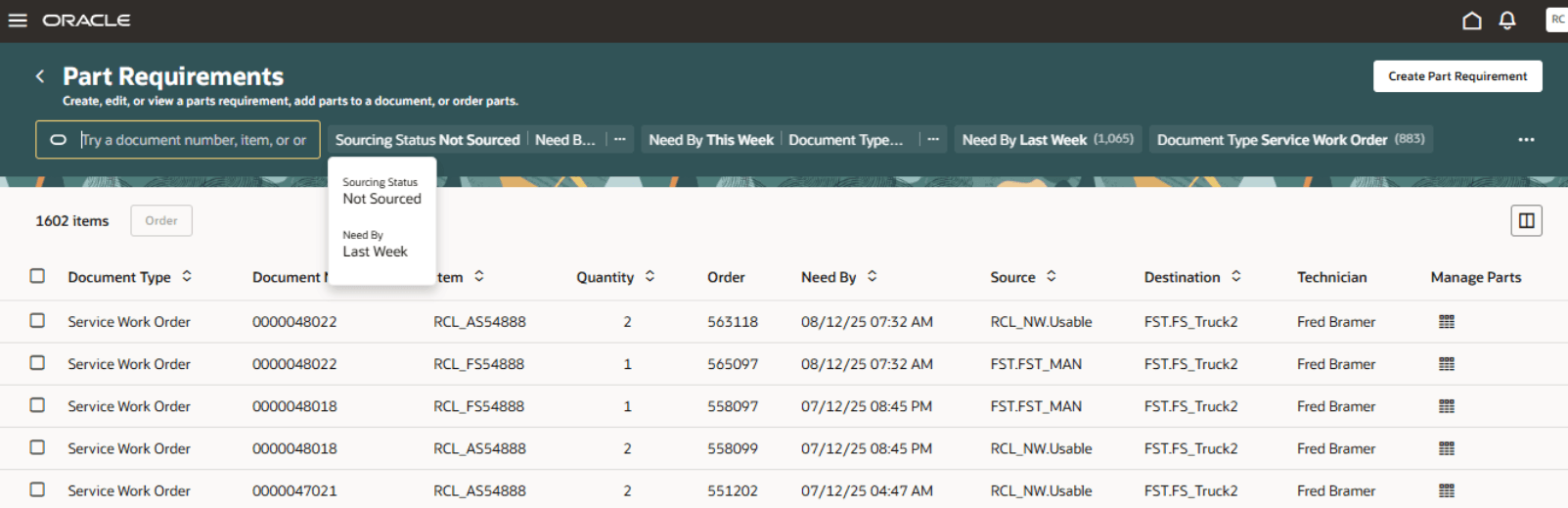
-
Search bar
-
Filter Chips suggestions bar
-
Magnifying Glass icon
-
Part Requirements results table
These are described in the following table:
|
Field Name |
Description |
|---|---|
|
Search bar |
Note: Technicians (users with
RCL_FSTECH_PARTS_REQUIREMENTS_SEARCH_PRIV privilege) will only see
the following document types:
The search bar opens with filter chips, which you can add or delete depending on your search needs. The selectable filter chips include:
Note: The search can display multiple filter chips
as a single combined search. If you apply one or more filters, click
out of the search bar for a few seconds, and then select a record in
the table, the selected criteria is saved as a recent search filter.
For example, if you search using the Sourcing
Status and Need By filter
chips, this criteria is combined into a new filter chip.
By default, the search page lists part requirements with Need by set to This Week. You can search for a value directly by entering it in the input field, Try a document number, item, order, or technician. For example, enter free text, which searches the following part requirements attributes:
Because the application supports autocomplete and fuzzy logic, you can partially type your search terms. The following attributes support autocomplete:
The Item attribute also supports fuzzy logic. |
|
Filter Chips suggestions bar |
The filter chips appear in the Search bar and provide suggestions for filtering your results set. For example, you might see a filter suggestion for a document type for the part requirements. You can select this filter chip to filter your results. When you select one of the filter chips in the suggestions bar, it’s added to the Search bar and filters the results table. |
|
Magnifying Glass icon |
You can use the Magnifying Glass icon to filter your results based on predefined filter chips and their associated values. Specifically, the magnifying glass shows filter chips with preselected values. Some examples are:
|
|
Part Requirements results table |
The Part Requirements results table lists the part requirements based on your search criteria and filters. You can also sort your results by selecting the arrows next to the column headers. When you first open the page, the part requirements are sorted by the document type. You can select the Order button for a selected part line to create transfer orders or reservations for parts. Note: The Order button is
disabled if the part line is either a service request or a service
work order with a transfer order or reservation that already
exists.
|
-
Select the Create Part Requirement button to open the Parts Requirements header page and add parts.
-
Select the Manage Parts icon to open the Part Requirements detail page and view header information and all part requirements.