Apply Tax According to Customer Site
Set up tax so Order Management can add tax to a sales order according to your customer's physical site. This is the way you set up the default tax that Order Management applies on a sales order for most customers.
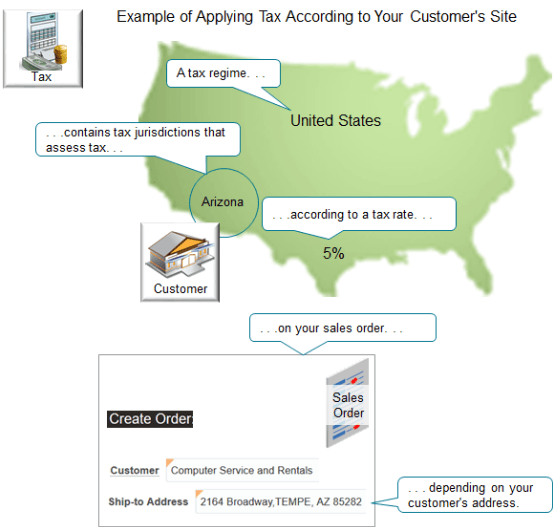
Here's an example of how you can set up tax:
Note
-
A tax regime, such as the United States, contains tax jurisdictions, such as the Arizona Department of Revenue.
-
The tax jurisdiction assess a tax on your sales according to its tax rate, and depending on your customer's address.
-
For example, if the tax rate in the Arizona tax jurisdiction is 5%, and if the net price on the sales order is $100, then the tax is $5.
You have a wide range of choices when setting up tax, depending on your supply chain's tax requirements. For example, you can specify tax according to the tax jurisdiction that applies at the ship-to site, the bill-to site, or a range of other locations.
Here's the flow that you use to set up the example in this topic:
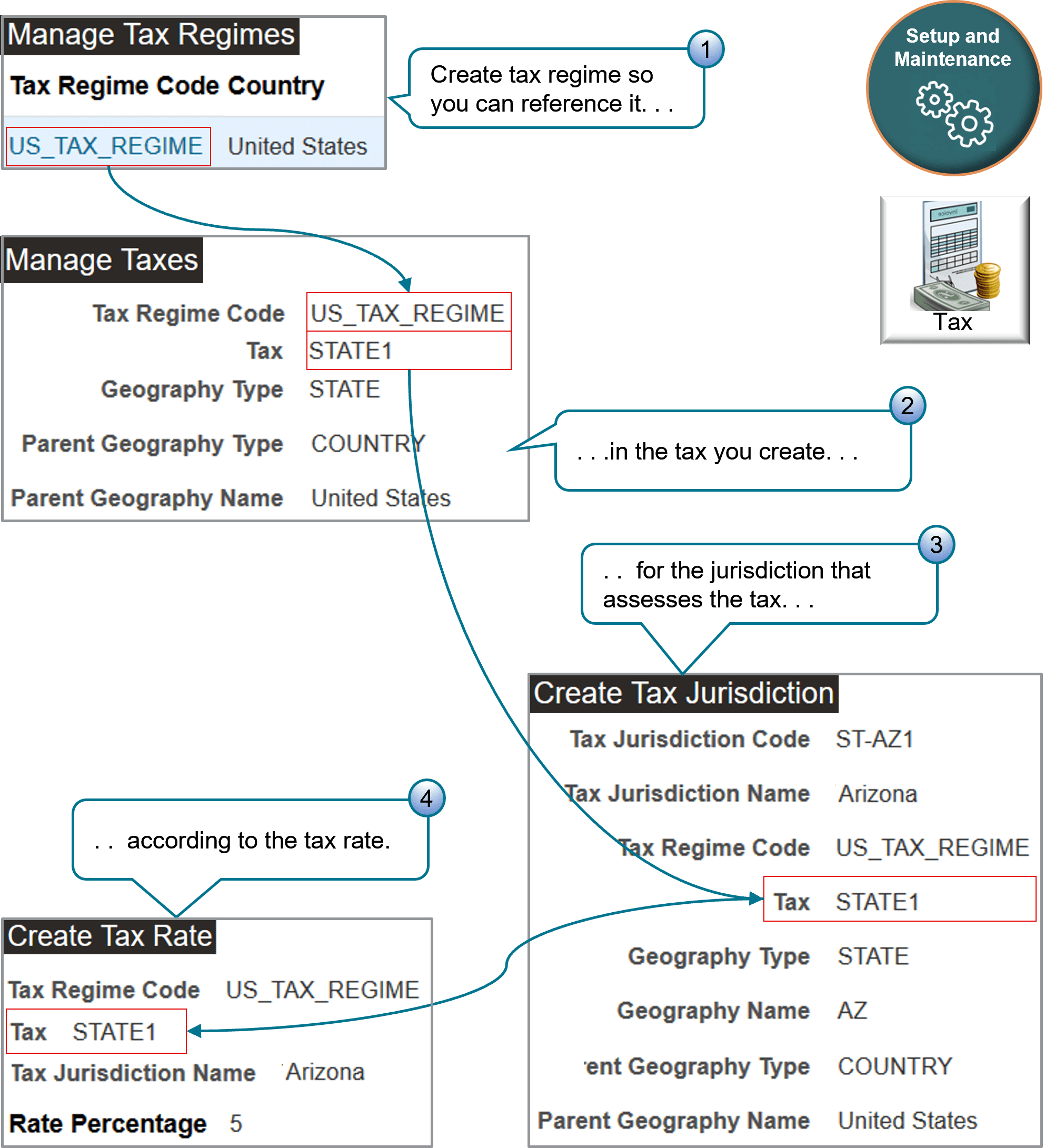
Here are the tasks you use:
|
Task |
Description |
|---|---|
|
1. Manage Tax Regimes |
Create a tax regime named USA_TAX_REGIME for the United States. |
|
2. Manage Taxes |
Create a tax named STATE1 at the state level for Arizona. |
|
3. Create Tax Jurisdiction |
Create a tax jurisdiction for the state of Arizona. |
|
4. Create Tax Rate |
Create the 5% tax rate to apply for the STATE1 tax. |
Each task maintains the tax hierarchy. For example:
-
The tax rate is in the USA_TAX_REGIME and the Arizona jurisdiction.
-
The Arizona jurisdiction and the STATE1 tax are in the USA_TAX_REGIME.
You create a relationship between your customer's site and the tax regime.
Summary of the Set Up
-
Create the tax regime.
-
Create the tax.
-
Create the tax status.
-
Create the tax jurisdiction.
-
Add the customer site.
-
Verify geography and collect data.
-
Test your set up.
For this example, assume:
-
You are in the Vision Operations business unit.
-
Your sales order must calculate tax according to the ship-to address on the sales order.
-
You set up tax for site 1036 of your Computer Service and Rentals customer, and their ship-to address is 2164 Broadway Tempe, AZ 85282.
-
The tax jurisdiction in Tempe charges a 5% tax.
For background details about how to set up tax, see Administering Tax Reporting on Oracle Help Center.
For other technical details, including lots of helpful screen prints, see Order Management Tax Best Practices and General Questions (Doc ID 2619517.1).
Create the Tax Regime
-
Go to the Setup and Maintenance work area, then go to the Manage Tax Regimes task.
-
Set these values:
Attribute
Value
Configuration Owner
Global Configuration Owner
Tax Status Code
STANDARD
Tax Rate Code
STD-DEFAULT
Tax Rate Type
Percentage
Order to Cash
Procure to Pay
Expenses
Contains a check mark.
-
In the Rate Periods area, set the values, then click Save and Close:
Attribute
Value
Rate Percentage
5
Set as Default Rate
Contains a check mark.
-
Set these values:
Attribute
Value
Tax Regime Code
US_TAX_REGIME
Configuration Owner
Global Configuration Owner
Tax
STATE1
Tax Status Code
STANDARD
Tax Jurisdiction Code
ST-AZ1
Tax Rate Code
STD
STD means standard.
Tax Rate Type
Percentage
Order to Cash
Procure to Pay
Expenses
Contains a check mark.
-
In the Rate Periods area, set the values, then click Save and Close > Done:
Attribute
Value
Rate Percentage
10
Set as Default Rate
Doesn't contain a check mark.
Add the Customer Site
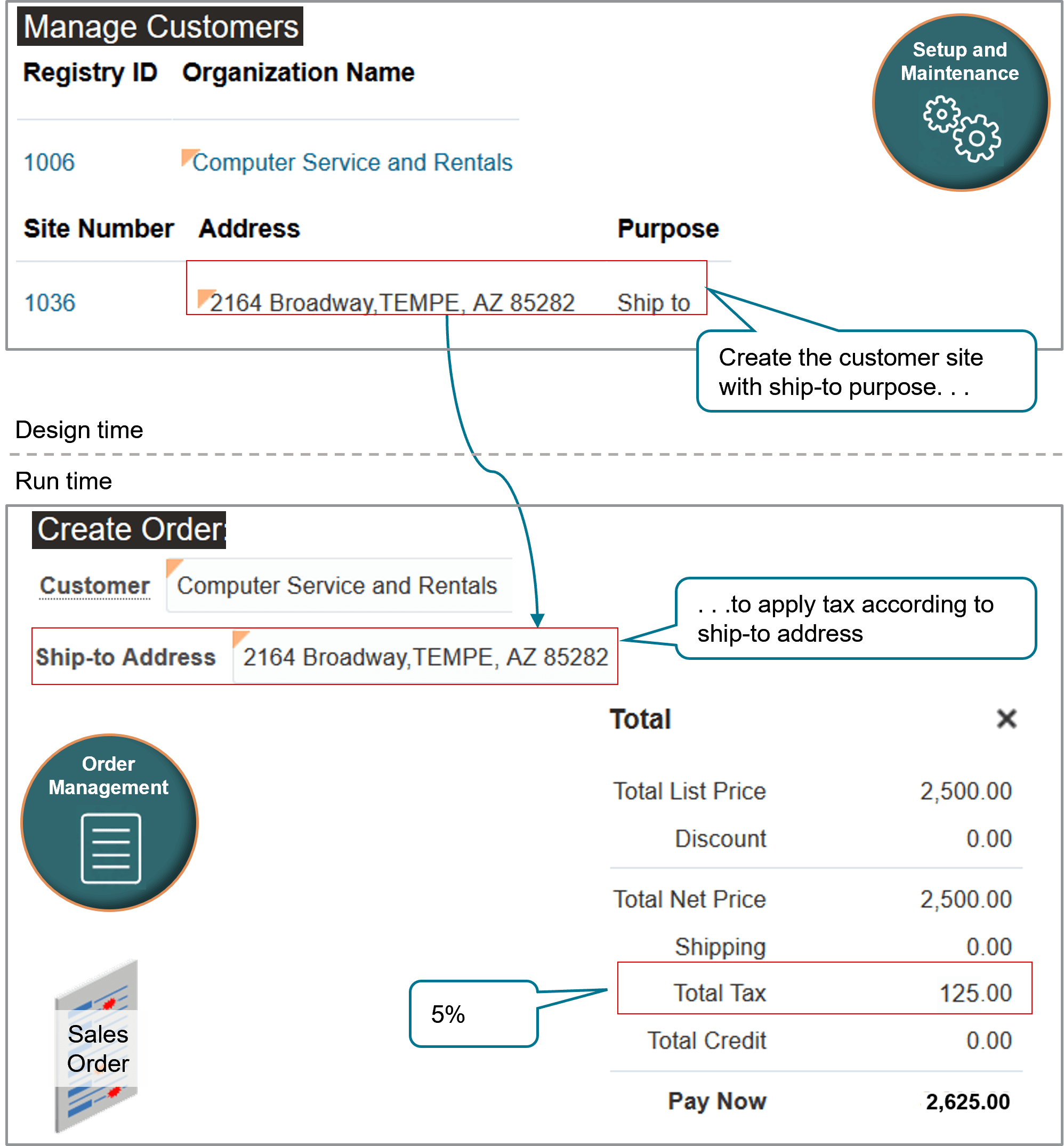
Use the Manage Customers task to create a site for your Computer Service and Rentals customer. You specify the purpose as ship-to so you can use the ship-to address on the sales order to determine the tax to apply:
Try it:
-
On the setup page, go to the Manage Customers task.
-
On the Manage Customers page, search for the value:
Attribute
Value
Organization Name
Computer Service and Rentals
-
In the search results, in the Sites area, click Actions > Create.
-
On the Create Account Site page, set the values:
Attribute
Value
Account Address Set
Vision Operations Set
Country
United States
Site Number
1036
Address Line 1
2164 Broadway
City
TEMPE
State
AZ
Postal Code
85282
-
In the Address Purposes area, click Actions > Add Row, set the values, then click Save and Close > Done:
Attribute
Value
Purpose
Ship To
Verify Geography and Collect Data
-
On the setup page, go to the Manage Geographies task.
-
On the Manage Geographies page, search for the value:
Attribute
Value
Country Name
United States
-
In the search results, click the row that has United States in the Country Name column, then click Actions > Manage Geography Validation.
-
On the Manage Geography Validation page, in the Geography Mapping and Validation area, verify the values for the State:
Geography Type
Map to Attribute
Tax Validation
State
State
Contains a check mark.
Collect Data
-
Go to the Plan Inputs work area.
Don't use the Plan Inputs task that's available in the Setup and Maintenance work area. Use the Plan Inputs work area instead.
-
In the Plan Inputs work area, click Tasks > Collect Planning Data.
-
In the Collect Planning Data dialog, set your source system, then move reference entities to selected entities:
-
Customer
-
Geographies
-
Organizations
-
-
Submit.
For details, see Collect Planning Data for Order Management.
Test Your Set Up
-
Go to the Order Management work area and create a sales order:
Attribute
Value
Customer
Computer Service and Rentals
Business Unit
Vision Operations
Ship-to Address
2164 Broadway, Tempe, AZ, 85282
-
Add an order line:
Attribute
Value
Item
AS54888
Quantity
1
Amount
2,500
-
Click the total at the top of the sales order, then verify that the tax rate is 5%, which is the STD-DEFAULT rate you set up according to the ship-to address:
Attribute
Value
Total List Price
2,500.00
Discount
0.00
Total Net Price
2,500.00
Shipping
0.00
Total Tax
125.00
125 is 5% of 2,500, so this rate is correct.
Total Credit
0.00
Pay Now
2,625.00
-
Change the ship-to address to any other value.
-
Click the total at the top of the sales order, then verify that the tax rate is 10%, which is the STD rate you set up to apply when the ship-to address isn't 2164 Broadway, Tempe, AZ, 85282:
Attribute
Value
Total List Price
2,500.00
Discount
0.00
Total Net Price
2,500.00
Shipping
0.00
Total Tax
250.00
250 is 10% of 2,500, so this rate is correct.
Total Credit
0.00
Pay Now
2,750.00