Managing Tax Settings
The Tax Settings module enables administrators to more easily track tax configuration settings and enable and disable them according to their requirements.
The Tax Settings interface is updated to a modern design, offering improved integration with EPM Cloud and a more streamlined user experience. This upgrade makes tax configuration and reporting easier, reduces manual work, and helps users adapt quickly to future updates. This interface also provides a consistent experience across all EPM Cloud applications.
Migrating to New Tax Settings
The existing Tax Settings was available via Application -> Configuration -> Tax Settings. Now, a "Migrate" option is available in the Tax Settings UI.
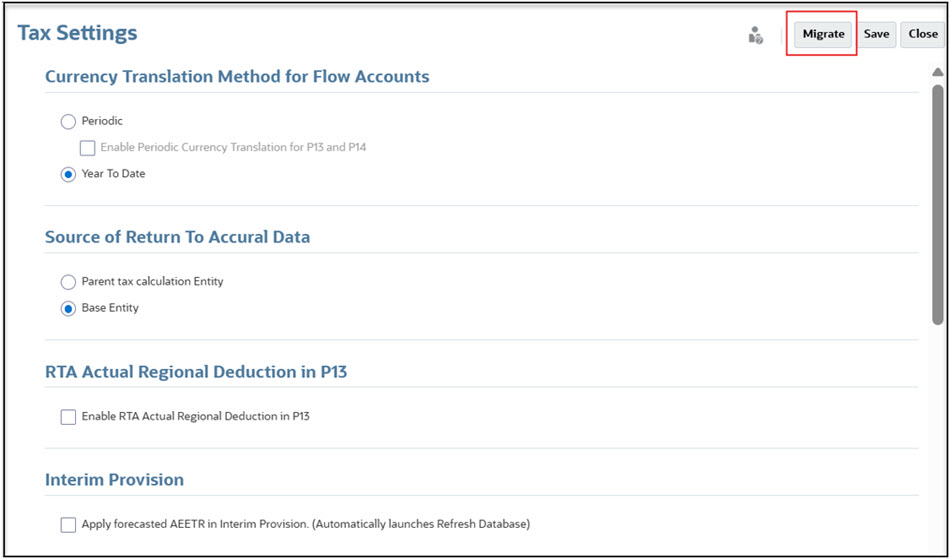
When you select "Migrate," you will see a confirmation dialog.
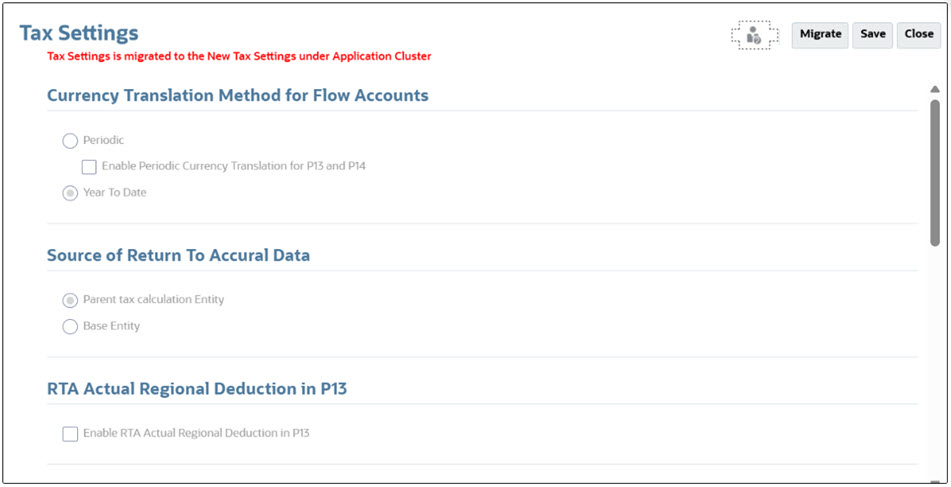
After you click OK to confirm the migration, the old interface will be disabled, and you can access the new Tax Settings directly from the "Tax Settings" card in the Application cluster (Home -> Application -> Tax Settings).
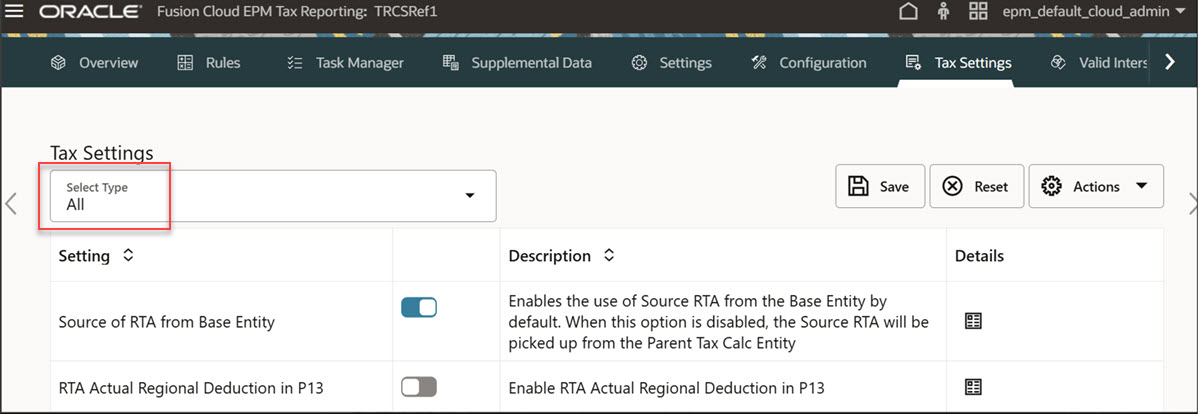
You can select either All or a specific settings type (for example, Interim Provision is selected in the screenshot below).

Note:
No new settings have been added.Note:
If you go to Tax Settings card within the Application cluster without migration and try to save any setting, then the below Confirmation dialog box appears: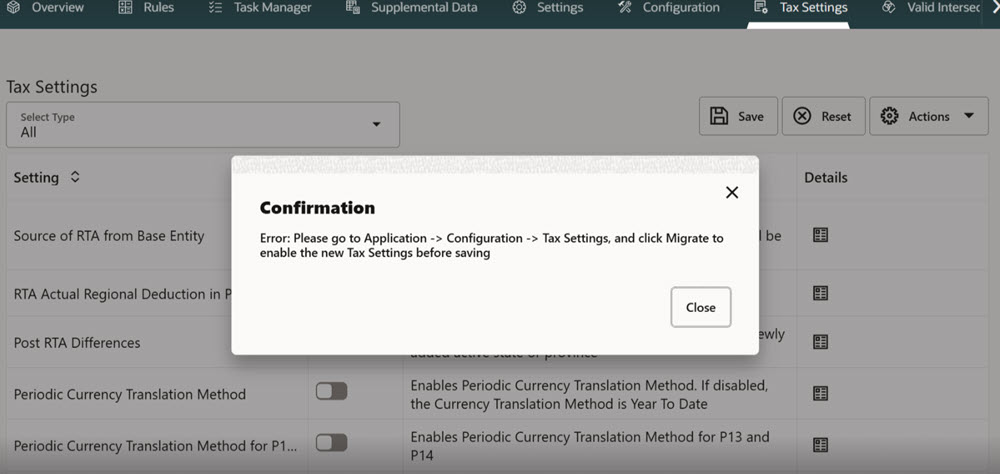
To manage tax settings:
- On the Home page, click Application, then Tax Settings.
- From the Setting Type dropdown, select the type of setting that you want to modify, for example, All, Interim Provision, CbCR, or Others.
- Optional: To view a detailed description of the setting, click the Details icon next to the setting.
- To enable or disable the setting, use the slider icon
 next to the setting.
- To save the setting selection, click Save. When you receive the saved confirmation message, click Close.
- Optional: To reset the selection and clear unsaved changes, click Reset.
- Optional: To restore settings to the default values, from the Actions menu, select Restore Current Type, or Restore All.
Note:
This action reverts all settings to their original default values. From the warning message, click Yes if you want to continue. When you receive the restored confirmation message, click Close.See also: Available Tax Settings