Working with Custom Dimensions – Example Usecase
This example usecase illustrates how custom dimension is used with CbCR Automation Rule.
- CbCR Automation provides data mapping from Tax and Book Data for any custom dimension to CbCR accounts using the CbCR Automation form.
- Apply the Automation Source Product attribute to the Total Product member in the Product dimension.
- Apply the Automation Source Business Unit attribute to the Total Business Unit member in the Business Unit dimension.
- Once applied, these members will appear as selectable source dimensions in the CbCR Automation form.
For example in the screenshot below we have 2 CbCR automation rules:
- To map data from account 90000 for Total Product and Total Business Unit to the CbCR Account: Revenue – related parties.
- To map data from current tax expense per return from current provision to the CbCR Account National Income Tax Paid.

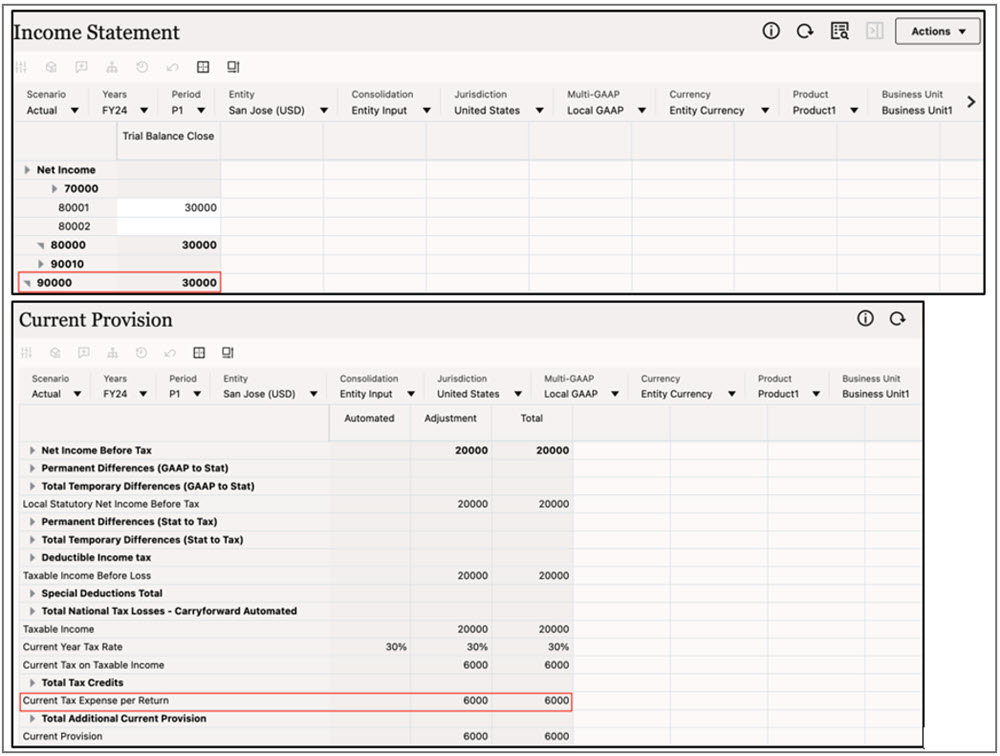
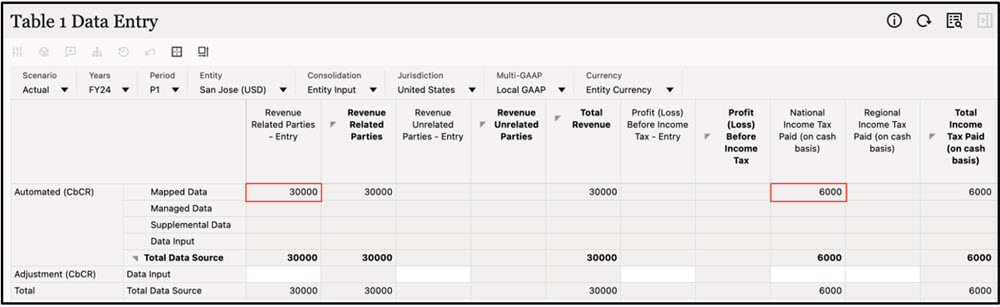
In the screenshot below, 30000 is pulled from Income Statement into the CbCR account Revenue related parties and 6000 is pulled from Current Tax Expense per Return to National Income Tax Paid.
Data from Income Statement and Current Tax Expense per Return in Current Provision:
Data pulled to Revenue Related Parties - Entry and National Income Tax Paid in CbCR Table 1 Data Entry form:
Note:
If you do not select any source custom dimension in the CbCR Automation form (for example in the screenshot below, no values have been selected for Source Product and Source Business Unit), data from the Consol cube will be mapped to the CbCR accounts using default custom dimension members for example, TRCS_No Product and TRCS_No Business Unit.