Example Use Case for Calculating Tax Losses and Credits
RTA for Tax Losses
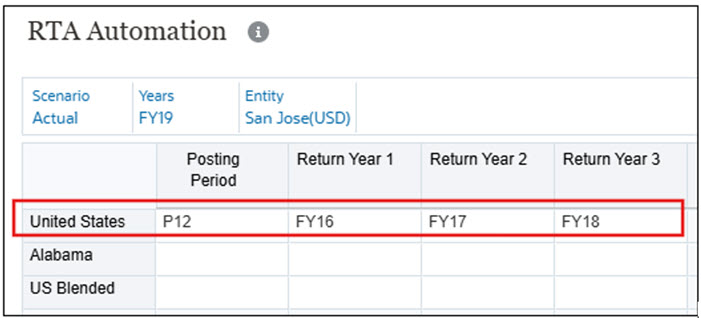
- Setup an RTA Automation, with Source Years FY16, FY17, FY18 and Target as FY19 for
P12 posting.
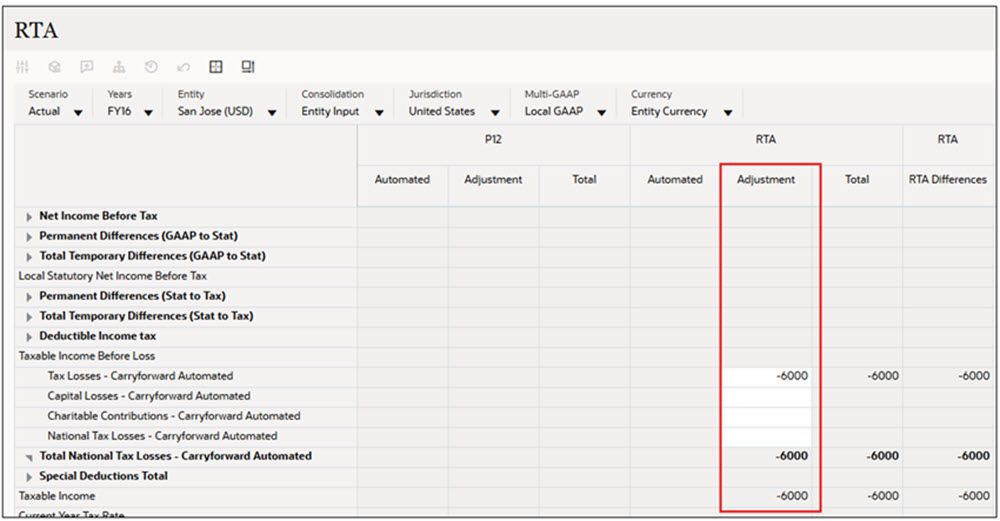
- Enter data in the RTA form for Tax Losses accounts for any or all source years and
the RTA period. For example, the following amounts are added under "Tax Losses –
Carryforward Automated" for all the source years: -6000 for FY16, -5000 for FY17,
and -7000 for FY18. Example screenshot for FY16 below.
- Consolidate for Target year (FY19) and posting period.
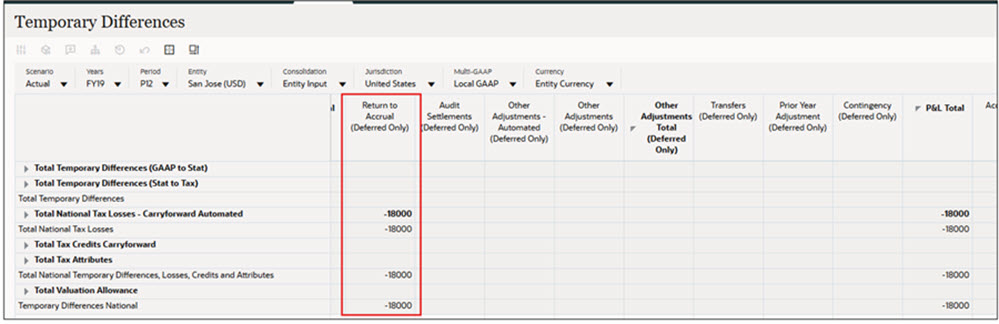
- Check data in Return to Accrual (Deferred Only) column/movement in Temporary
Differences form for Target year, posting period.
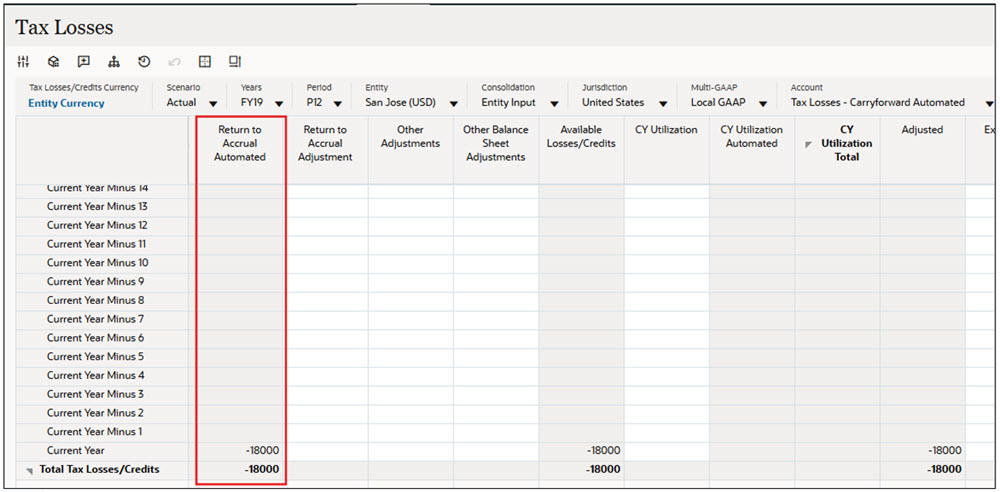
- This same amount should be visible under new movement member Return To Accural
Automated (TRCS_TLCRTAAutomated) in Tax Losses.
Note:
After running consolidation, full RTA amount (for example, 18000) appears in FY19 under Return To Accural Automated(TRCS_TLCRTAAutomated) for the Current Year. However, the RTA can be adjusted for applicable years as required.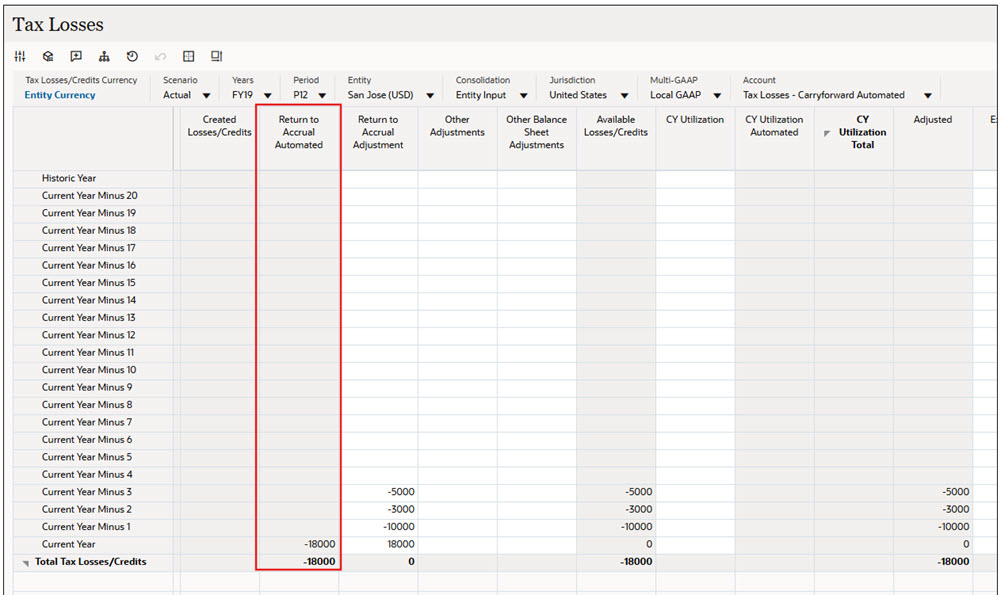
RTA for Tax Credits
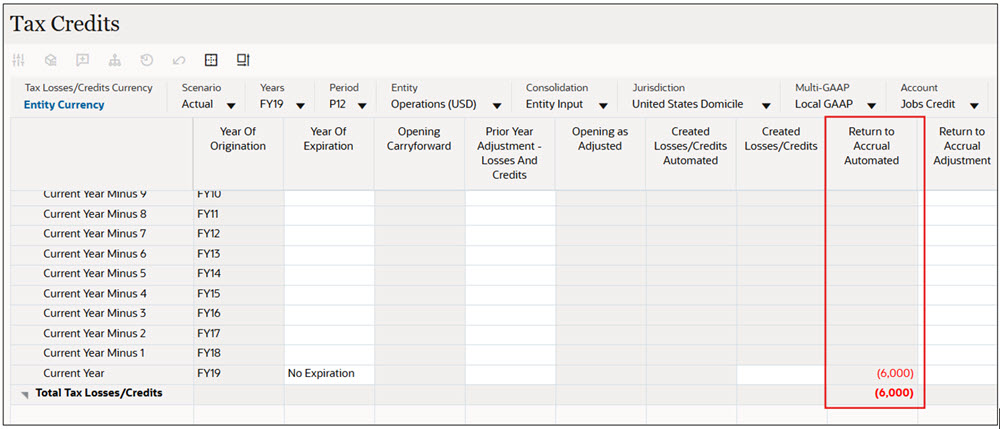
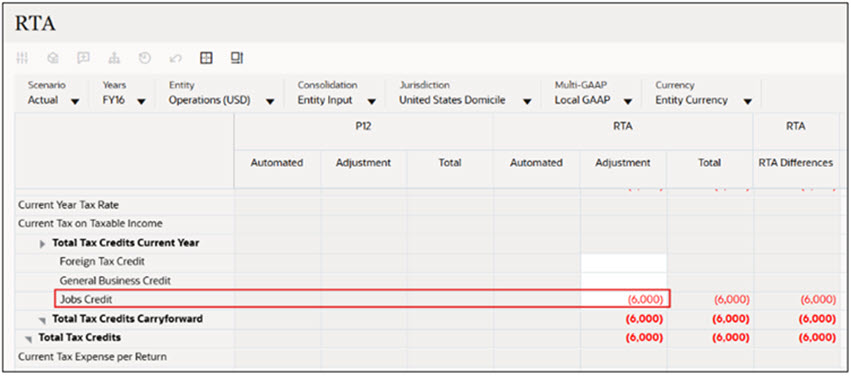
- Similar to Tax Losses, enter data in the RTA form for Tax Credits accounts for any
or all source years and the RTA period. In the example below, -6000 amount is added
under Jobs Credit for FY16.
- Consolidate for Target year (FY19) and posting period P12.
- Check data in Return to Accrual (Deferred Only) column/movement in Temporary
Differences form for Target year, posting period.
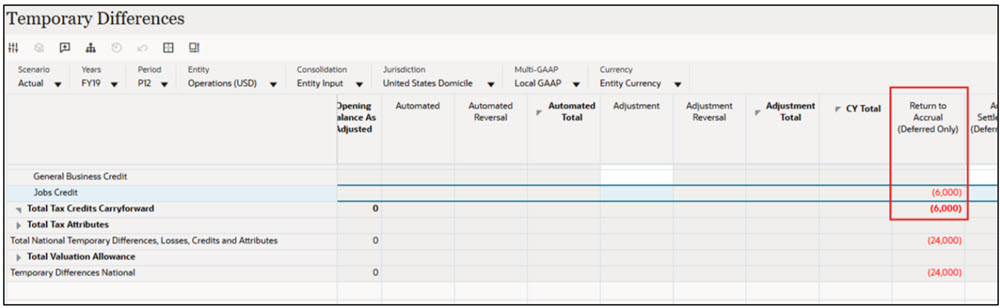
- This same amount should be visible under new movement member Return To Accural
Automated (TRCS_TLCRTAAutomated) in Tax Credits.