Redwood: Ask Oracle Landing Page
To access the Redwood Experience, go to Settings and Actions > Try the New Redwood Experience. A new browser tab opens the Welcome Page.
Note: Unless you log in as an ADMIN user, you will only see the Redwood version of the pages that you already have access in the original pages.
The Ask Oracle page is the landing page for Redwood. From Ask Oracle, you can select a Redwood UI page from the Suggestions or narrow the Suggestions down by entering the first few letters of the page that you are looking for. When you select the item in the Suggestions list, you see the Redwood page for that item.
Suggestions
The Suggestions list starts with recently viewed pages first and then lists the remainder of the available Redwood pages. The list of Redwood pages You can use the mouse or the keyboard to scroll down and see all of the pages.
Let's see what the Ask Oracle page looks like and review the sections using the screen shot below.
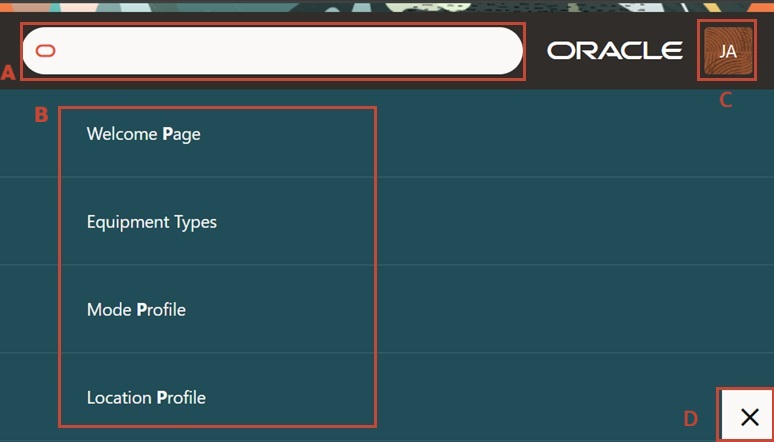
Here is a short description of the section highlight in red in the image above.
|
Portion of Page |
Description |
|---|---|
|
A: Ask Oracle |
Type the first few letters of a Redwood page that you want to use. Ask Oracle only searches based beginning letters. |
|
When you first access the Ask Oracle page, you see the suggestions populated with all of the Redwood pages to which you have access. The pages in this list reflect your OTM menu. You can replace this list by using Ask Oracle to search for pages. |
|
|
C: User Profile |
Click to see User Profile. The User Profile is Redwood version of the Settings and Actions page. This page is read-only. |
|
D: Close Ask Oracle |
Click to close the Ask Oracle page and return to the Welcome page. |
Related Topics
Redwood: About the Redwood Experience
Redwood: Working with Qualifiers
