Working with the Cubed Together Flag
Cubing is the process of grouping inventory into outbound containers based on the maximum volume and maximum weight defined at the container type level. The computation of volume and weight is based on the items/weight/volume dimensions defined at the item's appropriate Unit of Measure (UOM) level. The cubing rules feature allows customers to define how cubing should take place. It is based on various breaking criteria such as weight, volume, and other item attributes within the max volume and max weight limits.
In the Cubing Rules UI → ordering criteria, there is an additional flag called Cube Together. This flag allows you to group inventory within a container. In other words, if your ordering criteria is set to Order dtl cust field 1 and the flag cubed together is set to yes, all of the order details for the unique order dtl cust field 1 will be in the same box without being limited by break by count.
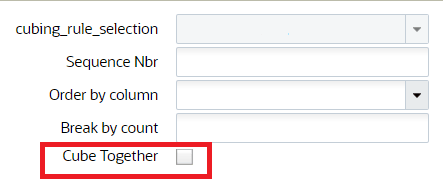
Cube Together Example
You may want to include a shipment of books together for one classroom. In your order you are saving the class id in the Order dtl cust field 1, and you have the cubed together flag set to yes. If the complete class fits in a box, all contents for that class will allocate to one box.
If another class's contents can completely fit in the same box, then the system will add the class contents to this box. However, if a complete class cannot fit into a box, it will get a full box and it's remaining items can still be combined with other classes that can fit completely in that box. This will reduce the occurrence of classes getting spread out and mixing with other classes.
Cubing Logic
WMS will first check to make sure that product for the same order going to the same customer destination (in this example, a classroom) is cubed into the smallest possible OBLPN type. This is so that all product going to a single classroom will be cubed into a single box wherever possible, making it easier for teachers to sort the books.
You may have scenarios where you are shipping several products, but you need to keep some of the products for the same individual or customer in the same box. Using the example of a school, you need to split products for a single classroom into multiple OBLPns, but you want to keep products for one student in the same OBLPN.
Once all classroom OBLPNs are created, next, cubing will combine multiple classrooms on the same order into a single OBLPN wherever possible given the item and OBLPN type dimensions. This allows you to reduce shipping costs. Instead of shipping one box for every classroom, if product can fit, you can send multiple classrooms in a single box while keeping all of the product for a single classroom together.
Product going to the same classroom should never be split across multiple OBLPNs if it can fit in a single OBLPN. Orders eligible for consolidation will follow the same cubing logic as non-consolidation orders, except all product for ALL orders on the same wave must be considered, as opposed to product for one order at a time.
Configuration and Use Cases
Use Case 1 – Department Store
In the following example of a Department Store, when you have the Cube Together flag set to No for the Order Number, orders will not be spread across multiple boxes. When you have the Cube Together flag set to yes for the Order Detail and Item group code, multiple orders can be cubed in a single box.
| Column | Cube Together (Yes/No) |
|---|---|
| Order_Number | No |
| Item group code | Yes |
|
Order Dtl Cust Field 1 (Department) |
Yes |
| Behaviour | In this example, we need to cube together for a department store and ensure each department has all of the items from their order in one box, and item group codes are all in one box. While performing cubing, items for multiple departments within an order can be cubed in single box |
The following tables are examples/use cases of how Cube Together functionality works using the configuration above of Order Number “No” and Order Detail Custom Field “Yes”:
OBLPN Type Configuration
This table (LPN Type Config) indicates the max volume for each box.
| LPN Types | Max Volume |
|---|---|
| Box-1 | 40 |
| Box-2 | 210 |
| Box-3 | 400 |
In this use case, we are cubing by item, item group code, and department.
| Order | Seq | Qty | Items | Item Group code | Volume | Department |
|---|---|---|---|---|---|---|
| Ord1 | 1 | 10 | Boots | Shoes | 140 | Women |
| Ord1 | 2 | 5 | Tennis | Shoes | 50 | Women |
| Ord1 | 3 | 5 | Sandals | Shoes | 30 | Women |
| Ord1 | 4 | 10 | Necklace | Jewelry | 20 | Jewerly |
| Ord1 | 5 | 5 | T-Shirt | Clothes | 30 | Men |
| Ord1 | 6 | 5 | Pants | Clothes | 60 | Men |
| Ord1 | 7 | 5 | Sweaters | Clothes | 100 | Men |
Shoes are going into box 3, and jewelry and clothes are going into box 2.
| Carton | Item | Item Group Code | Qty | Department | LPN Type |
|---|---|---|---|---|---|
| LPN1 | Boots | Shoes | 10 | Women | BOX-3 |
| LPN1 | Tennis | Shoes | 5 | Women | BOX-3 |
| LPN1 | Sandals | Shoes | 5 | Women | BOX-3 |
| LPN2 | Necklace | Jewerly | 10 | Jewerly | BOX-2 |
| LPN2 | T-Shirt | Clothes | 5 | Men | BOX-2 |
| LPN2 | Pants | Clothes | 5 | Men | BOX-2 |
| LPN2 | Sweaters | Clothes | 5 | Men | BOX-2 |
In this case, the necklace could have gone in its own box, but you allow it to be cubed together with the other LPN2 items, as long as things are not being split.
Use Case 2 - School
The following is another example of having Cube Together flag set to No for the Order Number and Yes for the Order Detail. When you have the Cube Together flag set to No for the Order Number, orders will not be spread across multiple boxes. When you have the Cube Together flag set to yes for the Order Detail, multiple orders can be cubed in a single box.
| Column | Cube Together (Yes/No) |
|---|---|
| Order_Number | No |
| Order_Dtl.Custom_field_2 (Student) | Yes |
| Behaviour | In this example, we need to cube together for multiple students and ensure each student has all of the books from their order in one box. While performing cubing, books for multiple students within an order can be cubed in single box, books for single student will not be spread across multiple boxes. |
The following tables are examples/use cases of how Cube Together functionality works using the configuration above of Order Number “No” and Order Detail Custom Field “Yes”:
In this use case, we are cubing by student and classroom. Ann (first grade) needs three books, Mark (first grade) needs two books, Lisa (second grade) needs two books, and Tom (second grade) needs two books.
| Order | Seq | Qty | Student | Classroom | Item | Destination |
|---|---|---|---|---|---|---|
| Ord1 | 1 | 1 | Ann | First Grade | Math1 | XYZ Middle School |
| Ord1 | 2 | 1 | Ann | First Grade | Science1 | XYZ Middle School |
| Ord1 | 3 | 1 | Ann | First Grade | History1 | XYZ Middle School |
| Ord1 | 4 | 1 | Mark | First Grade | Math1 | XYZ Middle School |
| Ord1 | 5 | 1 | Mark | First Grade | History1 | XYZ Middle School |
| Ord1 | 6 | 1 | Lisa | Second Grade | Math 2 | XYZ Middle School |
| Ord1 | 7 | 1 | Tom | Second Grade | Math 2 | XYZ Middle School |
In this example, LPNs are split up by student. LPN 1s are going into BOX-2 and LPNs 2,3, and 4 are going into BOX-1.
OBLPN Type Configuration
The following table lists the LPN Type configuration. The max weight for box 1 is 4 pounds. The max weight for box 2 is 2 pounds.
| LPN Types | Max Weight |
|---|---|
| Box-1 | 2 |
| Box-2 | 3 |
| Box-3 | 5 |
| Carton | Student | Class | Qty | Item | LPN Type |
|---|---|---|---|---|---|
| LPN1 | Ann | First Grade | 1 | Math1 | BOX-2 |
| LPN1 | Ann | First Grade | 1 | Science1 | BOX-2 |
| LPN1 | Ann | First Grade | 1 | History1 | BOX-2 |
| LPN2 | Mark | First Grade | 1 | Math1 | BOX-1 |
| LPN2 | Mark | First Grade | 1 | History1 | BOX-1 |
| LPN3 | Lisa | Second Grade | 1 | Math2 | BOX-1 |
| LPN4 | Tom | Second Grade | 1 | Math2 | BOX-1 |
In this example, LPNs are split up by classroom. LPN 1s are going into BOX-3, and LPN 2s are going into BOX-1.
| Carton | Student | Class | Qty | Item | LPN Type |
|---|---|---|---|---|---|
| LPN1 | Ann | First Grade | 1 | Math1 | BOX-3 |
| LPN1 | Ann | First Grade | 1 | Science1 | BOX-3 |
| LPN1 | Ann | First Grade | 1 | History1 | BOX-3 |
| LPN1 | Mark | First Grade | 1 | Math1 | BOX-3 |
| LPN1 | Mark | First Grade | 1 | History1 | BOX-3 |
| LPN2 | Lisa | Second Grade | 1 | Math2 | BOX-1 |
| LPN2 | Tom | Second Grade | 1 | Math2 | BOX-1 |
Multi-Pass Cubing Workflow
To set up a shipment which allocates several order items in one box, complete the following steps:
- Go to the Order Headers screen.
- Click on Order Detail.
Let's say you have twelve items that you want to have shipped together.
From the Outbound LPN Type screen, you can view details for your OBLPN such as description, dimensions, and weight.
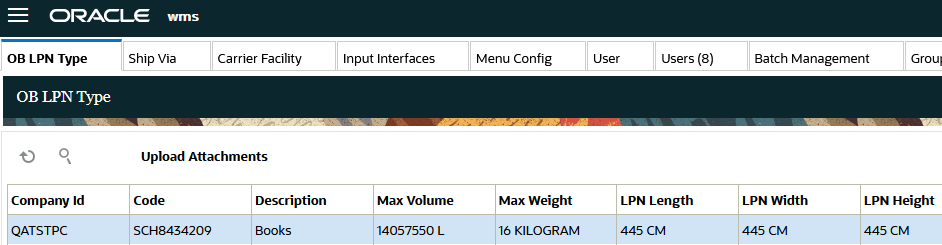
When the Cube Together option is set, and your items reach a box’s capacity, Oracle WMS Cloud will automatically add any remaining items you specified to keep together in an additional box.
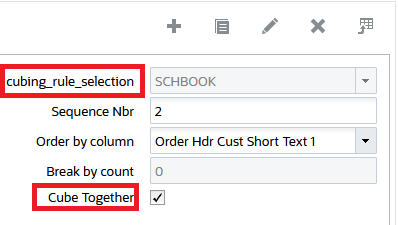
Once you have completed your cubing rule specifications, they will display in Ordering Criteria.
