Intelligent Wave Summary
In the Wave Inquiry Summary UI, you have a comprehensive and efficient way to review and analyze waves, bringing advanced AI capabilities to your warehouse management system.
AI Wave Summary Button
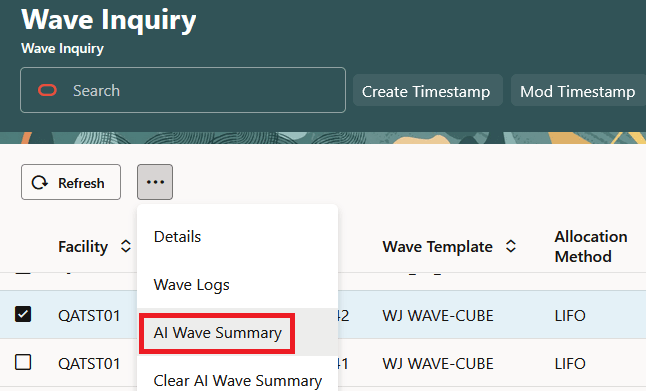
TheAI Wave Summary button, in the wave inquiry header, provides quick access to valuable insights.
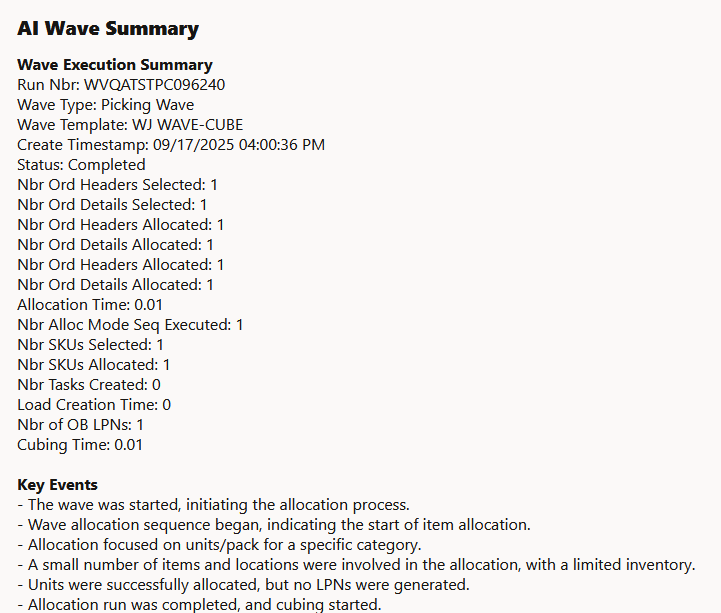
Click this button to open up a pop-up window, displaying an AI-generated summary of the wave execution, including key details and potential issues. The button is enabled only for specific wave statuses: 'Completed', 'Completed, Not Fully Allocated', 'Completed, Nothing Allocated', and 'Failed', ensuring relevant information is readily available.
Customized Wave Summaries
Different pop-up summaries are generated based on wave types and statuses, providing tailored insights. Summaries for 'Completed' and 'Failed' statuses offer a clear understanding of the wave execution for:
- Picking Waves and Wave-based Replenishment
- Replenishment Waves
- Lean Time Replenishment Waves
- AI Summary features are not supported for all languages that the WMS supports. For languages not supported by AI, the summary will default to English.
- AI Summary features are enabled by default in North America and Europe geographies. Customers elsewhere will have to raise an SR if they want this feature as this requires authorization of data communication to one of the two geographies
Wave Inquiry and Wave Inquiry Detail UI
From the Wave Inquiry and Wave Inquiry Detail UIs:
- You can view all records related to a wave run, ensuring a comprehensive overview.
- Action buttons, such as 'Substitute Item', are readily accessible, allowing users to take immediate action.
- Advanced search capabilities enable users to filter and find specific wave inquiries efficiently.
Permission-Based Access
- Group Permission for 'Wave Inquiry / AI Wave Summary' determines user access.
- By default, this permission is disabled, allowing administrators to grant access to specific user groups.
Wave Inquiry UI - Replenishment Wave
The Wave Inquiry UI for Replenishment Wave includes the following new fields:
- Total Wave Time: This field will display the overall duration of the wave, providing a clear understanding of the time taken for the entire process.
- Task Creation Time: Warehouse managers can now pinpoint the exact moment when tasks are generated, allowing for better task management and resource allocation.
- Allocation Time: Knowing the allocation timing is crucial for optimizing inventory management. This field will reveal when the allocation process occurs, helping you identify potential bottlenecks.
- Number of Tasks Created: A clear indication of the workload generated by each wave, enabling better workforce planning.
- Total Quantity Allocated: Provides insight into the volume of inventory allocated, aiding in stock management and ensuring efficient resource utilization.
Search by Replenishment Trigger Modes
You can search by Replenishment trigger modes via the following search fields in the Wave Inquiry UI:
- Minimum Capacity: Quickly find waves triggered by minimum capacity thresholds, ensuring you can replenish stock promptly.
- Reactive Replenishment: Identify waves generated through reactive replenishment strategies, allowing for immediate analysis and response.
- Percentage of Max: Locate waves based on percentage-based replenishment triggers, enabling precise inventory management.
- Order Based Replenishment: Focus on waves created for order fulfillment, helping you prioritize customer orders efficiently.
- Movement Request Based Replenishment: Search for waves related to movement requests, providing a comprehensive view of inventory adjustments.
This search feature is also available as an optional column in the Wave Inquiry UI, ensuring a clutter-free interface. You can enable and customize your search criteria, adding this field when needed for tailored analysis.
Clear AI Wave Summary Button
From the Wave Inquiry UI, the 'Clear AI Summary' button allows you to manually clear the wave summary information stored in the database, offering the ability to refresh and update wave details whenever needed.
The Clear AI Wave Summary button is useful for:
- Wave Summary Generation: After a wave run, the system automatically generates a summary, including order selection, sequencing, and allocation strategies.
- Wave Failure and Resolution: If a wave fails, the manager can troubleshoot and resume the wave.
- Clearing Summary Data: Upon resuming a failed wave, the 'Clear AI Summary' button removes the previous summary data from the database, reflecting the wave's new 'Completed' status.
- Regenerating Summary: Users can click the 'AI Wave Summary' button to create an updated summary, providing a fresh analysis of the wave's performance.
Steps to Enable
To enable AI Wave Summary in the Wave Inquiry UI:
- Enable the Group Permission 'Wave Inquiry / AI Wave Summary.'
To access AI Wave Summary:
- From Redwood Desktop, click Ask Oracle.
- Select the record(s) and click the More Actions elipses button (...).
- Click AI Wave Summary.
- An AI Summary pop-up will appear with the AI Wave Summary: