Step One: Create a Scheduled Job
Each metric is configured to work with specific AI/ML algorithms and defines the type of input data required, as well as the expected output.
Currently, we support AI/ML functionality for the following metrics:
- Order Cycle Time
- Order Waiting Time
- Order Picking Time
- Intelligent Cycle Count
Using the Scheduled Jobs UI
You can schedule the generation of training data for your AI/ML models directly through the Scheduled Jobs UI.
In the CRUD pane, users will find a dropdown menu where they can select the appropriate job type. To initiate the data generation process, choose:
"Generate Training Data for [Metric]"
This action creates a scheduled job that prepares the data needed for model training.
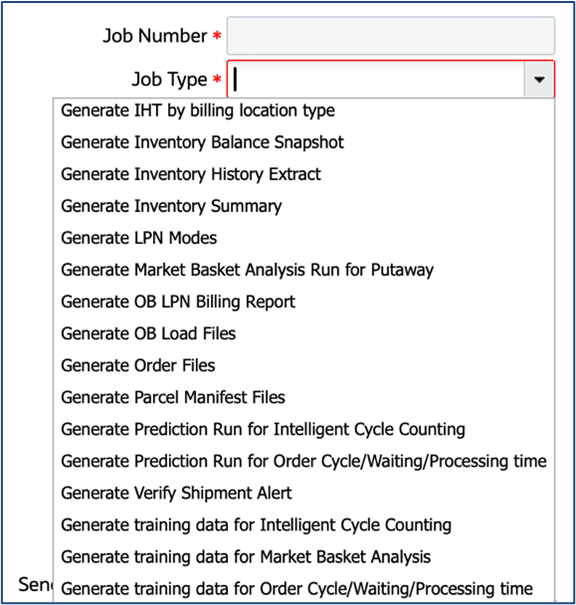
Selecting one of the above job types from the dropdown will expand additional Job Parameters, which must be configured before scheduling the job:
- Username (mandatory): Enter a valid WMS login. This identifies the user associated with the job.
- From Date: The starting date for the data to be included in training.
- To Date: The ending date for the data range.
- Past Number of Days: Alternatively, you can specify a rolling window of past days to pull data from (e.g., last 30 days).
- Each record thus generated is defined by a unique composite key (business key).
- The job will add, or update records based on the key.
For every run of the scheduler, the job will be logged under Scheduled Job Detail UI. Logs should be provided for each job run. If the job fails, logs will be updated accordingly with the Failed job status.
Automating AIML Metric Prediction Runs
Users will have the ability to generate this metric through a scheduled job. This will predict the number of orders during a user specified time. Users can configure the scheduled job in Scheduled Jobs UI and will create the data required to build the model.
Generating Prediction Runs
The above job type is available in the CRUD panes of the Scheduled Job UI.
- Selection of the above job type from the drop down will further expand the Job parameters:
- Username
- Training Run Number
- Orders -
-
- Wave number - (optional)
- Order Type(s)
The result of the model is available in Prediction Run UI when a user clicks on the corresponding details button in Prediction Run UI. By selecting the run number users will be able to see the results of the specific run. Output results will be stored separately per KPI/Metric and per prediction run and will be different for each metric.
The output data will also record if it was the result of a "default" template for that KPI/Metric.