Enhance Warehouse Efficiency with Item-Specific UOM Conversions
Item-Specific UOM Conversions allow receiving and storing inventories with one UOM class while fulfilling orders or handling corresponding billings in another UOM class. This functionality enables processing of purchase orders, inbound shipments, and sales orders using UOMs different from an item’s primary UOM.
The system tracks inventory in the Primary UOM while allowing customers and external systems to interact with UOMs more relevant to their operations. The Item-Specific UOM Conversion UI defines conversion factors between the base UOM of the item’s primary UOM class and the base UOM of the target UOM class.
UOM Conversion
An item-specific conversion record is interpreted as: Target Base UOM = Conversion Factor × Item Primary Base UOM
You can interface JSON, Item-Specific UOM Conversion to enable the creation of UOM conversion records using the following API:
POST .../wms/lgfapi/v10/stage/item_specific_uom_conversion/Item-specific conversion records apply to individual items. If an item-specific conversion record already exists for an item, a new record with the same item, primary base UOM, and target base UOM combination cannot be created. Once a transaction occurs using an item-specific UOM conversion record (such as a purchase order, inbound shipment, or sales order), the conversion record cannot be deleted or modified.
The item-specific UOM conversion supports interfacing with purchase orders, inbound shipments, and sales orders.
- You can define conversion factors between base UOMs of different UOM classes. When defining a SKU's facility UOM, the conversion factor is automatically handled at the Base UOM level, eliminating the need for separate conversion definitions.
- In case of partial receipts or ASN updates, the shipped/ordered UOM quantity will be shown in proportion to the primary UOM. The conversion between primary UOM and ordered UOM ensures accurate quantity tracking post-receiving. Modifications in received LPN quantities will also update the corresponding IB Shipment.
- When interfacing a PO with a different UOM class than the item's primary UOM, ASNs can be automatically created (if CREATE_ASN_FOR_EACH_PO is set to "yes"). The ASN will inherit the shipped UOM as per the PO’s ordered UOM.
Inbound Shipments
Inbound shipments can include expected quantities in the shipped UOM. The following fields are available in XML and PSV formats for inbound shipment verification:
- shipped_uom
- shipped_uom_qty
- shipped_uom_received_qty (calculated from primary UOM)
Example:
A conversion record is required between the Base UOM of the Primary UOM class and the Base UOM of the target UOM class for SKU01.
| IB Shipment | Expected Quantity | Received Quantity | Primary UOM | SKU | Shipped UOM Quantity | Shipped UOM | Status |
| ASN01 | 250 | 0 | Each | SKU01 | 5 | Kgs | In-Transit |
After Partial Receiving (200 Eaches received):
| IB Shipment | Expected Quantity | Received Quantity | Primary UOM | SKU | Shipped UOM Quantity | Shipped UOM | Shipped UOM Received Quantity |
| ASN01 | 250 | 200 | Each | SKU01 | 5 | Kgs | 4 |
Sales Orders and Shipping
Sales orders can be processed and tracked in the ordered UOM, even when it differs from the item’s primary UOM.
Fields in XML, PSV, and JSON formats are available for OBLPN and Pallet shipping info:
- ordered_uom
- ordered_uom_qty
- ordered_uom_shipped_qty (calculated from primary UOM)
OBLPN Shipping Info (OLO) and Pallet Shipping Info (PLO) files reflect these fields.
The following are supported file format to enable the HOST to have the Interclass UOM:
- Container Shipped Load - LLS
- Outbound Load/Parcel - SLS
- ORDER_OUTBOUND_LOAD_EXPORT - PLS
- SHIPMENT_VERIFICATION - SVS
Updated/Modify Item-Specific UOM Conversions
To modify an existing UOM conversion:
- Navigate to the Item UOM Conversion screen.
- Select an item and update the necessary fields.
- Click Save to confirm the changes.
- If no conversion exists and the ordered UOM belongs to a different class than the primary UOM, the system will fail the interface.
- Existing same-class UOM conversions remain unchanged.
- To Create Item-Specific UOM Conversion:
- Go to the Item UOM Conversion screen.
- Click Create and populate the necessary fields and
- Click Save to store the UOM.
| Field | Description | Required |
| Item | Select the item for which the conversion is defined. | Yes |
| Target Base UOM | Specify the target base unit of measure. | Yes |
| Target UOM | Specify the target unit of measure. | Yes |
| Target UOM Class | Choose the appropriate UOM class. | No |
| Conversion Factor | Enter the conversion factor between UOMs. | Yes |
| Item Primary Base UOM | Displays the item’s primary base unit of measure. | Yes |
| Item Primary UOM | Displays the item’s primary unit of measure. | Yes |
| Item Primary UOM Class | Displays the item’s primary UOM class. | No |
- Item Specific UOM Conversion / Can Configure Item Specific UOM Conversion
- Item Specific UOM Conversion / Can Delete Item Specific UOM Conversion
- Item Specific UOM Conversion / Can Edit Item Specific UOM Conversion
Without the necessary group permissions, attempts to process UOM conversions for purchase orders, inbound shipments, or sales orders will fail. Ensure the correct setup before initiating these transactions.
Introducing Item Specific Intra-Class UOM Conversions
With Item-Level Intra-class UOM (Unit of Measure) conversions, you can now set specific conversion factors for each SKU within the same UOM class. This means every item can have its own unique way of converting quantities, giving you more accuracy and flexibility in your warehouse operations.
This functionality build on the existing item-specific UOM framework, making it easier for warehouses to handle items that require different conversion rates within the same UOM class. You can now use these SKU-specific conversions in input and output interfaces, APIs, mobile transactions, and anywhere quantity calculations are needed. The system will apply the item-level conversion instead of the global conversion for more precise results.
Previously, only global conversion rules could be used, which sometimes required manual adjustments if you had items with different conversion needs. Now, with Item-Level Intra-class UOM conversions, Oracle WMS Cloud supports more accurate inventory tracking and more efficient operations—helping you reduce manual work and improve inventory accuracy.
How Intra-class UOM Conversion Logic Works
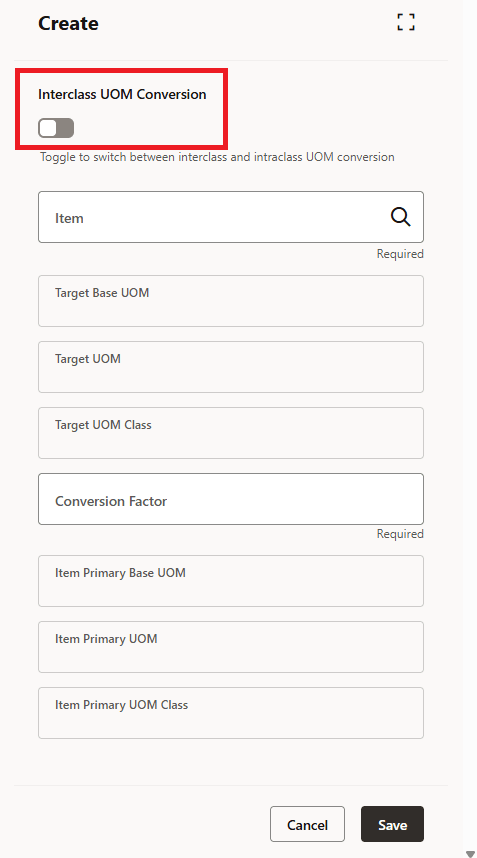
Intra-class UOM (Unit of Measure) conversion makes it easy to convert quantities between different units within the same UOM class for your inventory items. When using the Item Specific UOM Conversion page in the Redwood UI, you'll first see the standard mode where you can define inter-class conversions.
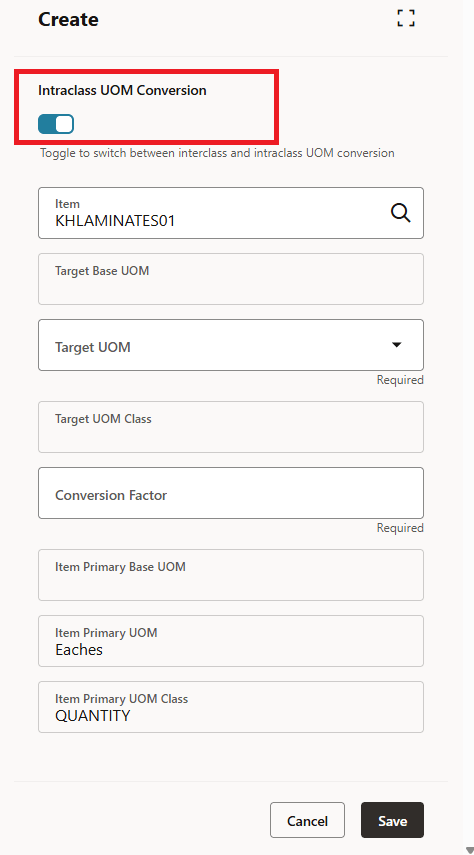
To set up an intra-class conversion, simply switch to the Intraclass UOM mode. This enables the fields specifically needed for defining intra-class conversions. In Intraclass UOM mode, you’ll enter the Item, the Target UOM, and the Conversion Factor. The system automatically creates a unique conversion record for each combination of an item’s Primary UOM and a Target UOM. Only one record is allowed for each item and UOM pair to ensure conversions stay consistent and free of conflicts.
Conversion Logic: 1 Target UOM = Conversion Factor x Primary UOM.
When you open the Item Specific Conversion screen, the system defaults to Inter-class mode. In this state, all Intra-class specific fields are disabled, and only standard inter-class fields are active.
When you switch the toggle to Intra-class UOM Conversion, the form transitions to Intra-class mode. The system auto-populates the item’s Primary UOM and Primary UOM Class based on the Item selection. A user must then enter the Target UOM and Conversion Factor, based on the conversion formula: 1 Target UOM = Conversion Factor × Primary UOM.
SUPPORTED ITEM SPECIFIC INTRA-ClASS UOM
Item-specific intraclass UOM conversion is available only for unit of measures (UOMs) that are not used as a Pack or Case UOM for an item. This means you cannot define intraclass conversions if the item’s barcode is set up as a Pack or Case UOM.
On legacy screens, intraclass conversion records are visible in read-only mode—they cannot be created, duplicated, or edited there, but you can still delete them. All creation and updates for intraclass UOM records should be done in the Redwood UI, specifically using the Item Specific UOM Conversion View screen.
INTRA-CLASS LOGIC & VALIDATIONS
To ensure accuracy and avoid conflicts, the following rules and validations are in place:
- Intraclass UOM does not support Pack or Case UOM for an item.
- Intraclass UOM can only be created or edited in Redwood UI (read-only on legacy screens).
- If a UOM is already used in intraclass conversions, it cannot be set as a Pack or Case UOM.
- If intraclass conversions exist for an item, you cannot update the item’s primary UOM.
- For Infer UOM, intraclass conversions only apply if the barcode's UOM is not a Pack or Case UOM.
ITEM MASTER AND INTERFACE IMPACTS
Intraclass conversions are managed only in the Redwood Item Specific UOM Conversion UI.
Key Restrictions:
-
Pack/Case UOM Restriction:
If a UOM already has item-specific intraclass rules defined, the system will not allow you to assign it as the Pack or Case UOM for that item. Error message: “%uom used in Item specific conversion, cannot be used as package UOM.”
-
Primary UOM Change Restriction:
If there is an intraclass conversion defined for an item, you cannot change the primary UOM. Error message: “Item in use. Cannot change primary UOM for item %s.”
These same restrictions apply to integrations and interfaces. If you attempt such changes through the Item interface (for example, using stage tables), those records will fail with the same error messages. This consistency ensures proper item configuration and helps avoid conflicts in your warehouse operations.
INTRA-CLASS SUPPORT via INPUT INTERFACE
When creating ASNs, POs, Planned Loads, Orders, Work Orders, or Movement Requests in WMS, the system always converted the incoming UOM to the item’s primary UOM using the global conversion factor.
With intraclass UOM conversion, if a specific conversion is set between the item’s primary UOM and the incoming (interfaced) UOM, the system will now use the intraclass conversion instead of the global one.
How It Works During Interface Processing:
- The system first checks for an intraclass conversion between the item’s primary UOM and the interfaced UOM.
- If an intraclass conversion exists, it applies that conversion.
- If none exists, the system falls back to the standard/global UOM conversion.
This supports greater accuracy and efficiency throughout your inventory and order management processes.
Example: IB Shipment / Purchase Order
| SKU | Primary UOM | Target UOM | Conversion Factor | Comments |
|---|---|---|---|---|
| SKU01 | Each | Box | 24 | 1 Box Equals to 24 Each |
User interfaces ASN01 with 5 Boxes.
Primary UOM = Each.
Global conversion = 1 Box = 12 Each.
| ASN | Shipped/PO Quantity | UOM | SKU |
|---|---|---|---|
| ASN01 | 120 (24x5) | Each | SKU01 |
If Intra-class was not defined, qty would be 60 (12 × 5).
Example: Sales Order
| SKU | Primary UOM | Target UOM | Conversion Factor | Comments |
|---|---|---|---|---|
| SKU01 | Pieces | Barrel | 300 | 1 Barrel equals to 300 Each |
User interfaces ORD01 with 5 Barrels.
Primary UOM = Each.
Global conversion = 1 Barrel = 200 Each.
Since Intra-class exists: 5 × 300 = 1500 Each
| Ord | Ordered Qty | UOM | SKU |
|---|---|---|---|
| ORD01 | 1500 (300 × 5) | Pieces | SKU01 |
If Intra-class was not defined, the quantity would be 1000 (200 × 5).
API SUPPORT - INTRACLASS UOMS
APIs may get quantities in different units of measure, depending on how suppliers or their systems send the data. To keep inventory records correct, the system now checks for item-specific intraclass UOM conversions for each API input. If there is a conversion rule set up for the item, the system will automatically change the quantity from the incoming UOM to the item’s Primary UOM. This improvement makes sure that quantity calculations are correct, even if the same unit of measure means different actual amounts for different items. This applies to these documents received through APIs:
- Purchase Order
- Sales Order
- Movement Request
- Planned Load
- Manufacturing API
- Receive LPN: The system uses item-based intraclass UOM conversion rules when receiving LPNs through the API.
- Cycle Count: The From MHE Cycle Count Info API also uses item-specific intraclass UOM conversions to calculate the counted quantities.
IMPACTS ON OUTPUT INTERFACE
In the Outbound Interface, the system now changes quantities from the Primary UOM back to the UOM that was sent by the customer, using the intraclass UOM conversion. This allows external systems to see the quantities in the same units they used when sending the data.
This update applies to all formats of these interfaces:
- Inbound Shipment Verifications Export
- Container Outbound Load Export (LLS)
- Order Outbound Load Export (PLS)
- Outbound Loads Export (SLS)
- OBLPN Shipping Info (OLI)
- Pallet Shipping Info (PLO)
IMPACTS ON RECEIVING
Now the receiving process supports item-specific intraclass UOM conversions whenever you receive inventory in an Ordered UOM.
If a conversion rule exists for the ordered UOM, the system will use it to convert the quantity to the item’s Primary UOM.
If there isn’t an item-specific rule, the system will use the Global UOM conversion automatically.
This helps you receive items in the packaging provided by your supplier (such as box, bundle, or crate) and still keep an accurate count in the item’s Primary UOM without any manual work.
HOW IT WORKS DURING RECEIVING:
- You receive items in the Ordered UOM or any UOM different from the item's Primary UOM.
- The system looks for an item-specific intraclass UOM conversion between the received UOM and the Primary UOM.
- If a conversion is found, the system uses it to convert the quantity to the Primary UOM.
- If no conversion is found, the system uses the global conversion factor instead.
- Inventory is always updated in the Primary UOM.
| SKU | Primary UOM | Target UOM | Conversion factor | Comments |
|---|---|---|---|---|
| SKU01 | Each | Box | 24 | 1 Box equals 24 Eaches |
The ASN is created for 50 Boxes of SKU01.
A global conversion also exists: 1 Box = 12 Eaches.
| ASN | Shipped Qty (Primary) | Shipped UOM Qty | SKU |
|---|---|---|---|
| ASN-01 | 1200 Each (50x24) | 50 Box | SKU01 |
During RF receiving, the user receives 15 Boxes.
What system does
- Checks for item-specific conversion first > 1 Box = 24 Each
- Converts 15 Boxes > 15 × 24 = 360 Each
- Updates shipment and inventory in Each, and displays quantity in Box
OTHER TRANSACTIONS WHERE Intra-class IS SUPPORTED
SWITCH UOM: CTRL+K
The SWITCH UOM checks item-specific intraclass UOM conversion rules whenever you change the UOM context using CTRL + K or when the UOM is inferred from an item barcode. If the system finds a matching intraclass conversion, it applies that conversion. If not, it uses the global UOM conversion instead.
INFER UOM
The INFER UOM feature applies when the system needs to determine the UOM from a vendor item barcode and when you have configured a transaction to infer the UOM from item barcodes.
How Infer UOM Works:
-
When you enable Infer UOM from Item Barcode and scan a vendor barcode, the system checks intraclass UOM conversions only for non-package UOMs during cycle count.
-
For Pack and Case UOMs, the system never infers the UOM. It always uses the exact UOM defined in the barcode, even if intraclass conversions exist.Note: If an Item has both Item Facility UOM defined and an Intra-class UOM conversion configured, the system does not support weight and volume calculations based on the Intra-class definitions in release 25B.
ITEM SPECIFIC UOM CONVERSION: CALCULATION SUPPORT
A “Calculate interface qty” action button available in the Item Specific UOM Conversion – Redwood UI lets you to quickly calculate how a quantity in a target UOM converts to the primary UOM, using the selected item-specific UOM conversion record.
HOW IT WORKS
When you select an item-specific UOM conversion record and clicks “UOM Quantity Calculator”, a calculator form opens showing:
| Field | Description | What You Should Enter |
|---|---|---|
| Conversion Type | Shows the type of UOM conversion being applied. | Auto-populated — no input required. |
| Alternate Item Codes | Displays the item code selected for UOM conversion. | Auto-populated — no input required. |
| From-UOM | The Unit of Measure of the quantity you want to convert from. | Select the UOM you currently have. |
| Qty in From-UOM | Quantity value in the selected From-UOM. | Enter the numeric quantity that needs to be converted. |
| To-UOM | The Unit of Measure you want to convert to. | Select the UOM you need the result in. |
The Target UOM dropdown adjusts based on the selected conversion type:
-
Interclass conversion > shows all target-base UOMs
-
Intra-class conversion > shows only the defined target UOM
-
No extra permissions are required; the action button is available to all roles.
-
The calculator is available only in the Redwood UI.
-
The calculated values are not stored and are intended purely for user validation.
-
The To-UOM shows all the UOMs from the item’s primary UOM class
Item-Specific UOM Conversions Across Interfaces
Item-Specific UOM Conversions allow receiving and storing inventory using one unit of measure (UOM) class while fulfilling orders or managing billing with a different UOM class. This supports accurate processing of purchase orders, inbound shipments, sales orders, work orders, and movement requests, even when the involved UOMs differ from the item's primary UOM class.
The system tracks inventory in the Primary UOM while enabling external systems and customers to use UOMs more relevant to their operations.
Interface for Creating Item-Specific UOM Conversions
You can use the following API to define conversion records between UOM classes:
POST
.../wms/lgfapi/v10/stage/item_specific_uom_conversion/
For more information, please refer to Interface spec file - Oracle WMS Cloud Information Center > Documentation tab > click the link under Current Documentation > refer to the WMS Interface Specifications document
Each record defines a conversion between an item’s primary base UOM and a target base UOM from another class.
Input Interface Support
- Work Order and Planned Load Interfaces
- Support UOMs from different classes.
- The system applies item-specific UOM conversions when available.
- If no item-specific conversion exists, the system defaults to standard conversions within the same UOM class.
- If no valid conversion is available, the interface transaction fails.
- Movement Request Interface
- Supports processing with UOMs from different classes.
- Two additional fields are available in the Movement Request Detail screen:
| Field | Description |
ordered_uom |
UOM in which the order was placed |
ordered_uom_qty |
Quantity as per the ordered UOM |
These fields help track movement requests accurately when ordered in a different UOM class.
Output Interface Support
- OBLPN and Pallet Shipping Info Files
The system includes the following fields in XML, PSV, and JSON formats:
| Field | Description |
ordered_uom |
Ordered unit of measure |
ordered_uom_qty |
Ordered quantity in the specified UOM |
ordered_uom_alloc_qty |
Allocated quantity in the ordered UOM |
ordered_uom_packed_qty |
Packed quantity in the ordered UOM |
curr_qty_in_ordered_uom: Current inventory quantity in the ordered UOM (Inventory List)ordered_uom_code: Code for the ordered UOMshipped_qty_in_ordered_uom: Quantity shipped in the ordered UOM (Order Detail List)