LPN Inquiry
Using the Mobile LPN Inquiry (rf.inbound.cwrflpninquiry) screen, you can search an LPN (Inbound or Outbound ) to fetch the details such as LPN status, LPN’s current location, received shipment details (for IBLPN), ship-to facility or ship to name details (for OBLPN), lock count, pallet number, inventory lines, and so on.
To configure and perform Mobile LPN Inquiry, do the following:
- Configure a Mobile LPN Inquiry (rf.inbound.cwrflpninquiry) screen.Note: For more details on configuring a screen, refer Configuring Menus for Users section in the online help.
- While configuring the screen, select and configure the screen parameters based on
your requirement. As per the parameter configuration, the Mobile LPN Inquiry
screen displays multiple details of scanned LPN.Note: For more details on the behavior of Mobile LPN Inquiry screen parameters, see the Mobile Screen Parameters document. To access the latest Mobile Parameters, go to the Oracle WMS Cloud Information Center From the top of the page, click on the Documentation tab, then click the link under Current Documentation.
- Go to the Mobile LPN Inquiry screen.
- Enter or scan an LPN or Container Number.
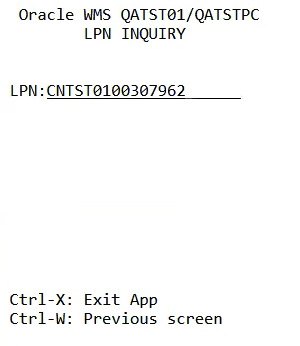
Based on the screen parameter configuration, the system displays multiple details of LPN. The details vary for IBLPN and OBLPN.
- If you scan an IBLPN, the system displays the following details.
- Putaway Type
- Container Status
- LPN’s current location
- Lock code count
- Received Shipment Number
- SKUs that are part of LPN
- SKU’s quantity along with UOM
- SKU’s inventory attributes, expiry date, or batch number (if SKU is tracking these and the screen parameters are configured to display these)
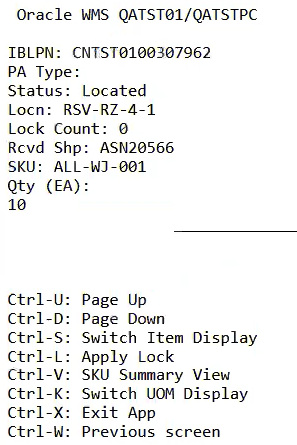 Note: If the scanned LPN is a multi-SKU LPN, hit “Ctrl+D” hot key to view the remaining inventory line (SKU) details.
 - If you scan an OBLPN, the system displays the following details.
- Container Status
- LPN’s current location
- Ship-To Facility code (for facility order or store order)
- Customer Number (for customer order)
- Ship to Name (for customer order)
- Lock code count
- Pallet Number
- SKUs that are part of LPN
- SKU’s quantity along with UOM
- SKU’s inventory attributes, expiry date, or batch number (if SKU is tracking these and screen parameters are configured to display these)
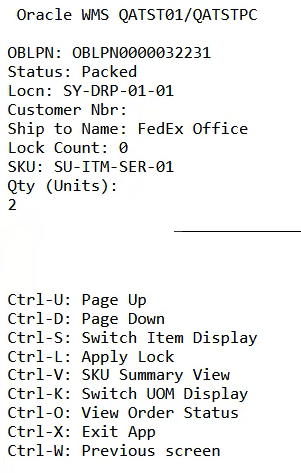
Note: While inquiring an LPN, the system displays inventory lines with Current Quantity = 0 in any Container Status, because of the following reasons:- To keep the historical track of LPN inventory lines that are modified to Cancelled/Consumed status with current quantity = 0.
- OBLPNs in “Outbound Created” status may have in-transit quantities with current quantity = 0.
- If you scan an IBLPN, the system displays the following details.
The following table describes the behavior of hot keys on the Mobile LPN Inquiry screen.
| Hot key | Behavior |
| Ctrl – U: Page UP | Navigates you to previous page of LPN details. |
| Ctrl – D: Page Down | Navigates you to next page of LPN details. |
| Ctrl – S: Switch Item Display | Switches the item field display as per screen parameter “item-field-display” configuration. |
| Ctrl – L: Apply Lock | Navigates you to Lock/Unlock screen for the inquired LPN. (if a valid Lock/Unlock LPN screen is configured in screen parameter “lock-unlock-lpn-screen”) |
| Ctrl – V: SKU Summary View | Displays SKU details. |
| Ctrl – K: Switch UOM Display | Navigates you to change UOM. |
| Ctrl – O: View Order Status | Displays the LPN’s order and order status. (only for OBLPN Inquiry) |
| Ctrl – X: Exit App | Navigates you to the Mobile main menu. |
| Ctrl – W: Previous Screen | Navigates you to previous screen. |