System Directed Putaway
The Mobile Transaction “Directed Putaway” is used to putaway cases/pallets to a storage/picking location. The system directs you to a specific putaway location.
To initiate Directed Putaway:
- Go to the transaction “Directed Putaway”.
- Scan the LPN on the label of the pallet or case that needs to be putaway.
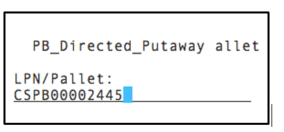
The screen directs you to a putaway location.
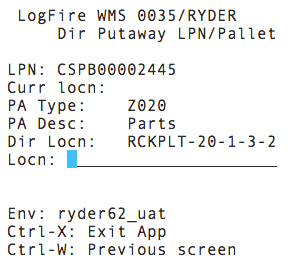
- To complete the putaway, go to the directed location prompted and scan the location barcode.
You can override the putaway location by choosing another available location in the same zone.
To override the putaway location, do the following:
- In ‘Directed Putaway’, scan another available location (Locn field) in the same
zone.
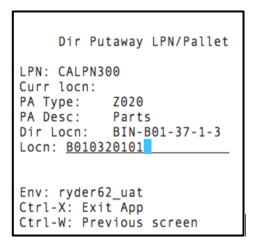
The system displays a pop-up message “Override Dir Location?”
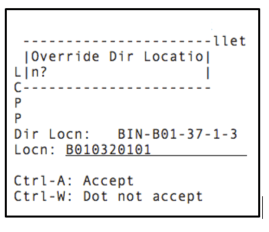
- To accept the overriding of the location prompted, press Ctrl-A.Note:
- If you override with a location that is full or insufficient to putaway the LPN, the system displays an error message “Insufficient Capacity”.
- You can also get a list of alternate locations by entering CTRL-K. Once you enter CTRL-K, the system will show the next location based on putaway method priority.
Direct Putaway Improvements to Matching SKU Logic for Multi-SKU LPNs
Directed Putaway process supports logic for Multi-SKU License Plate Numbers (LPNs).
When you enable the "Search Location with Matching SKU" option in the Putaway Priority UI, following flow is set on priority, where:
- The system first searches for locations with a matching SKU for the item with the largest quantity on the LPN.
-
- If multiple matching locations are found, then the system uses the location putaway sequence to prioritize.
- If no matching SKU is found, then the system moves to the next most-represented SKU on the LPN.
- If no locations match any SKU from the LPN, then the system searches for available locations without a matching SKU.
Matching SKU Search to Split Putaway of Multi-SKU IBLPN
To maximize efficiency, operations may store identical SKUs in the same location whenever possible. However, when the same SKU is stored across multiple areas, it can lead to unnecessary travel time during picking, counting, or replenishment. By placing similar SKUs together, you reduce picker travel time, speed up replenishment and cycle counting, and improve organization and visibility of stock on the floor.
During Split Putaway of Multi-SKU IBLPNs, if the Putaway Type is configured with “Search Location with Matching SKU” enabled in the Putaway Method Priority screen, the system now evaluates each item in the LPN individually to determine the most suitable putaway location based on SKU match.Sequence of location determination
For each item during split putaway, the sequence of location determination remains the same as:
- Full LPN putaway logic (with matching SKU enabled), and
- Split Putaway of Single-SKU IBLPN
Example Scenarios
The enhancement is illustrated using the example below.
| SKU | Quantity | Putaway Type (determined per item) |
|---|---|---|
| SKU-1 | 10 | PA1 |
| SKU-2 | 5 | PA2 |
| SKU-3 | 5 | PA3 |
| Putaway Type | Locations | Putaway Sequence | Inventory Present |
|---|---|---|---|
| PA1 | LOC1 / LOC2 / LOC3 | 001 / 002 / 003 | LOC2 has 8 units of SKU-1; LOC3 has 5 units of SKU-1 |
| PA2 | LOC4 / LOC5 / LOC6 | 004 / 005 / 006 | LOC5 has 2 units of SKU-2; LOC6 has 2 units of SKU-2 |
| PA3 | LOC7 / LOC8 | 007 / 008 | All locations empty |
Putaway Method Priority configuration
- Putaway Method = Location Sequence
- Putaway Search Mode = Most Empty by Units
- multi-sku-lpn-mode = Split LPN Into Active Locations
| Allocation Seq | SKU | Quantity | To Location | Comments |
|---|---|---|---|---|
| 1 | SKU-1 | 5 | LOC3 | LOC2 & LOC3 contain SKU-1; LOC3 chosen as it is Most Empty by Units |
| 2 | SKU-1 | 2 | LOC2 | Next preference is LOC2 has SKU-1 |
| 3 | SKU-1 | 3 | LOC1 | Next eligible location |
| 4 | SKU-2 | 5 | LOC5 | LOC5 & LOC6 both contain SKU-2; LOC5 chosen due to higher Putaway Sequence |
| 5 | SKU-3 | 5 | LOC7 | LOC7 chosen due to higher Putaway Sequence |
| Allocation Seq | SKU | Quantity | To Location | Comment |
|---|---|---|---|---|
| 1 | SKU-1 | 10 | LOC1 | LOC1 is Most Empty by Units |
| 2 | SKU-2 | 5 | LOC4 | LOC4 is Most Empty by Units |
| 3 | SKU-3 | 5 | LOC7 | LOC7 chosen due to higher Putaway Sequence |
- There is no change to the logic that determines the Putaway Type during split putaway.
- “Search Location with Matching SKU” is supported only when Putaway Method = Location Sequence.
- It is not supported when Putaway Method = Market Basket Analysis Radial / Radial, because radial logic requires a permanent pivot location and does not align with matching-SKU-based search.