Users, Groups, and Menus (UI and Screen)
Cloud WMS users have to belong to atleast one group. A user can belong to one or many groups but while logging on, they can only have one default group. If the user belongs to multiple groups, they can change to their required group from the login UI drop-down. Every user within a group will share the same UI, Mobile and VBCS menus.
Permissions can be set at group level in order to control access to the screens within each of the respective menus/menu type. Permissions are available for various actions within a screen. You can also restrict access to a particular screen by not adding that particular screen to the respective menu.
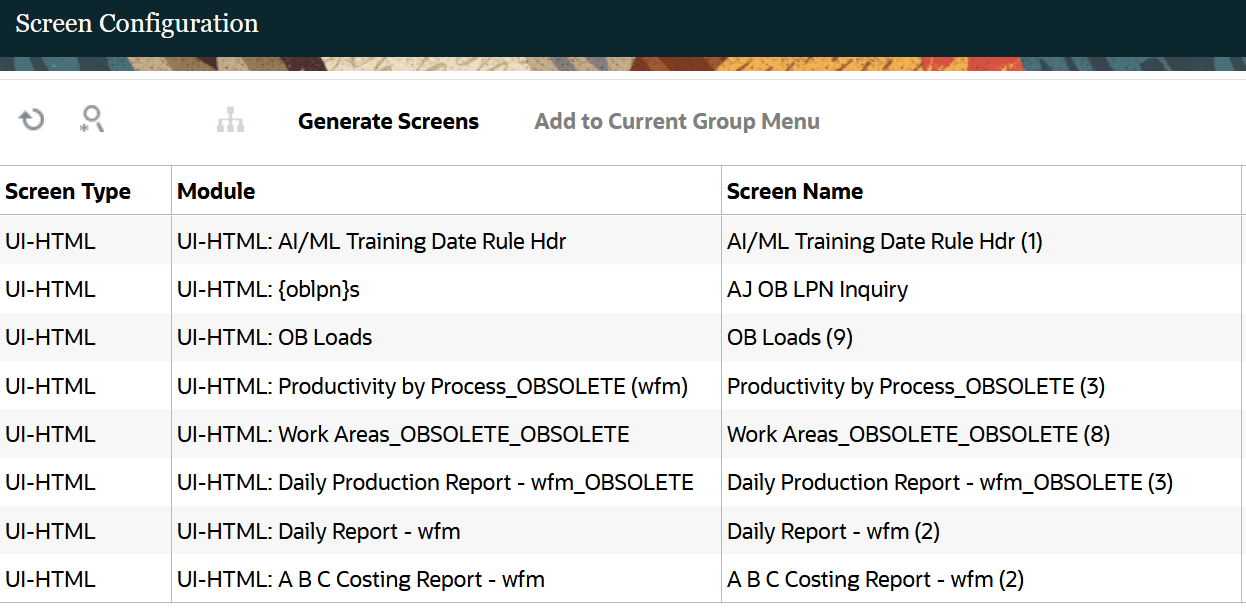
The UI menu is a series of screens that are accessible to the user in WMS via the browser. See a screenshot of a UI screen below:
What is an Mobile menu?
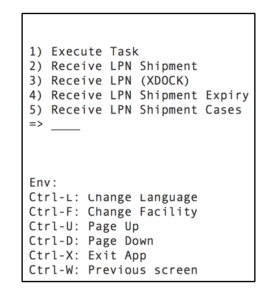
All supported transactions that are made using the Mobile on the warehouse floor aredisplayed using its appropriate Mobile menu screens. The screens, or modules, perform processes such as Receiving, Putaway, Picking, and Loading. You can see a screenshot of an Mobile menu in the image below:
When using the Mobile gun, the user must make sure that the Mobile is in the correct facility. You can view the facility at the top right of the Mobile menu:
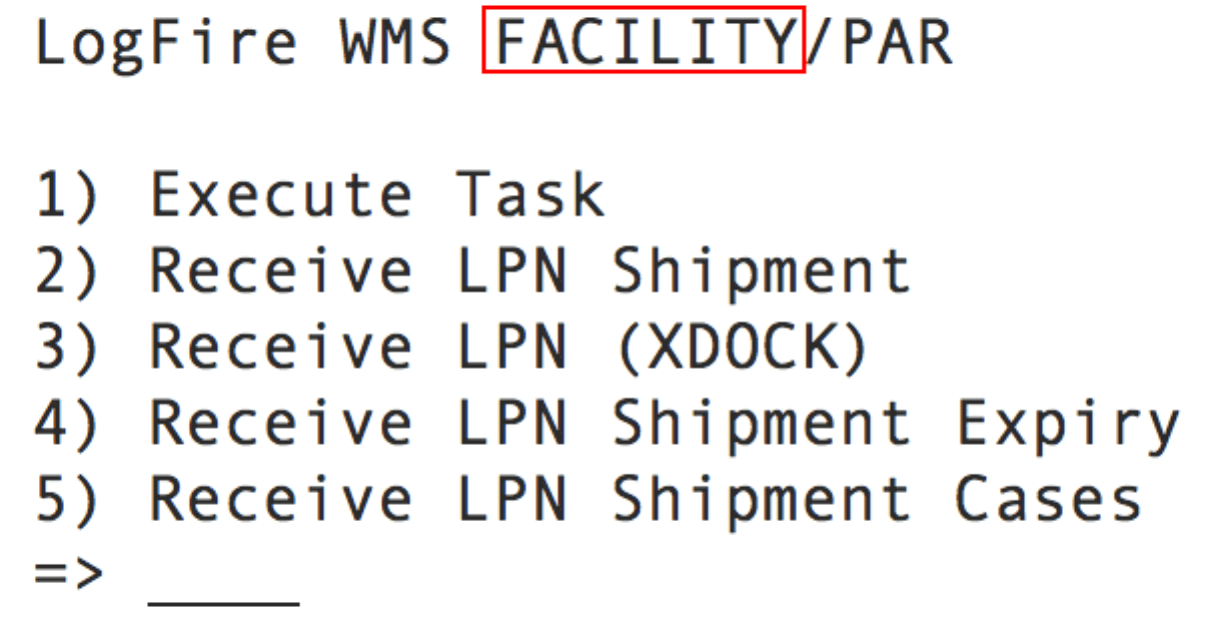
To change facilities, press Ctrl-F and type in the Facility code.
The Company context is automatically determined by the system when you scan any company or company/facility-specific entity like Inbound Shipment, Purchase Order, Item, Inbound Load, Outbound Load etc. The Company context can not be changed explicitly by the user.
Purge Retention Period
This button to allow administrators to define the duration of the data to be retained in the system before purging. When you click the Purge Retention Period button, you can enter the retention duration in the Purge Retention Period (In Years)* field, which defaults to 3 years and can be adjusted to any value between 1 and 5 years.
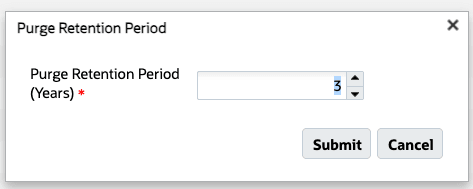
The Submit option remains disabled when the field is blank or contains an invalid value and is enabled only after a valid retention period (1–5 years) is entered.