AI Agent Studio and Fusion-Specific Configuration
WMS 26A AI Agents
WMS is shipping 3 AI Agents for Fusion AI Studio. These are pre-seeded in Fusion and automatically available as of the Feb 6 CWB Fusion patch bundle or later. All are available as runnable agents and two are available as templates. Runnable agents are not editable but are easier to setup and start using out of the box.
| Agent | Runnable | Template |
| Wave Research Advisor | Yes | No |
| Task Management Assistant | Yes | Yes |
| Inventory Expiry Agent | Yes | Yes |
Other Data Source Setup - Credentials Tab
Fusion AI Studio interacts with WMS via a new AI Studio feature called “Other data source”, which is available in the “Credentials” tab as shown in the screenshot. Fusion is seeded with a blank entry named WMSENV. IDCS in both Fusion and WMS must be configured . And this WMSENV entry must be edited using the instructions in AI Studio-WMS-IDCS_configuration.pdf.
Configuring Fusion Permissions
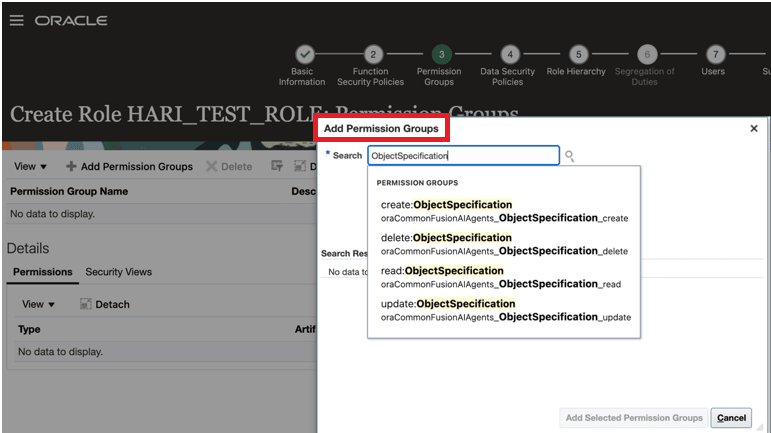
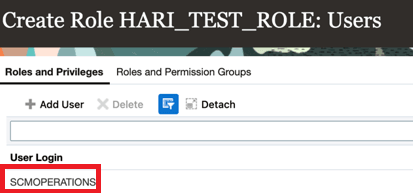
In Fusion 26A, please follow the steps below to add this role and permission. This is in addition to the roles/permissions required for Fusion AI Studio. In this example, the additional role is being created and added to the SCMOPERATIONS user which already has the roles needed for AI Studio agents. In 26B this additional setup will not be required.
Add Permission Groups
Permission Group Added

Role Added to User
Agents and WMS Business Objects
- In the “Business objects” tab, there should be a seeded business object called WMS26A. This business object is linked to the WMSENV data source
- In the first “AI Agent Studio” tab, searching for WMS should show the two templates listed in the table above. Agent teams can be created from templates and users can edit them.
- In the “Agent teams” tab, searching should list all three runnable agents listed in the table above. There will be other WMS agent teams, but these are not meant to be used directly. They are used by the Wave Research Advisor
Configuring WMS
- View the runnable agents and note down the agent team codes.
- In the WMS UI, find the AI Agents screen (only available in Redwood) and set these up.
- From the Groups screen, open the agents drill-down screen and add the agents that you wish to allow a group to access.
- Users will see the agents assigned to their groups in the AI chat window in WMS.
For additional details, see AI Agent Configuration in WMS