AI Agent: Task Management Assistant
The Task Management Assistant in Oracle WMS is an AI-powered agent that helps you manage tasks efficiently. It enables you to identify and prioritize orders that are at risk, manage associated tasks, and assign tasks to users. With the Task Management Assistant, you can perform various actions such as:
- Search for “Orders at Risk” that have not shipped by the required dates (example: orders that haven’t shipped by today).
- Get list of such orders, including order number, required ship date, customer name and create timestamp.
- View tasks associated with a specific order number.
- Prioritize order tasks in the agent workflow (example: reprioritize tasks for urgent orders).
- If an order is in created status and no tasks are associated with it, reprioritize the order itself.
- Assign a task to a user.
Here is a snapshot of the Task Management Assistant’s capabilities:
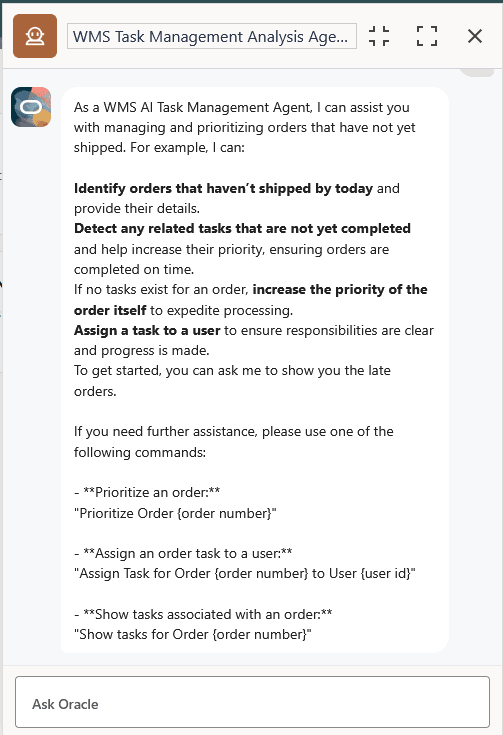
Before you use the AI Agent, you have to complete the key configurations mentioned below in Steps to Enable and Configure. Once you complete all configurations, you can launch the AI Agent and use prompts to perform specific tasks.
Here are some sample prompts/questions that could be useful when interacting with the Task Management Assistant:
| Sample Prompt/Question | Task Management Assistant’s Behavior |
| Can you share all orders that are not shipping today? | Displays the first 20 late orders. |
| What orders are missing shipping date? | Displays the first 20 late orders. |
| Show tasks for Order {order number} | Displays tasks for the order and are not prioritized (priority=0) yet.If no tasks are associated with the order, returns a generic message. |
| Assign Task for Order {order number} to User {WMS user id} | Assigns all tasks for the order to the specified user. |
| Prioritize Order {order number} | Reprioritizes the “ready” status tasks for the order.If the order is in “created” status, reprioritizes the order priority itself. |
| Out-of-scope or non-functional questions | Returns a generic message. |
Steps to Enable and Configure
- Configure “AI-AGENT-STUDIO” on the SaaS App Configuration (SaasAppConfigView) UI with required fields.
- Create AI Agents (Task Management Assistant) with “Agent Team Code” on the
AI Agent Configuration (AiAgentConfigView) UI.Note: Agent Team Code must be unique to the company and match the team code in Fusion AI Agent Studio.
- Assign the AI Agent to the desired group.
- On the Redwood UI, hover over Ask Oracle Button and click “Ask” button to
launch AI Agent pane. From the list of AI Agents, select your Task
Management Assistant.
On the Redwood Mobile, you can click Ask button to launch AI Agent pane.
Note: If only one AI Agent is configured, the system launches the configured AI Agent. - Provide your prompts to perform specific requests as mentioned above.
See AI Agent Configuration in WMS for detailed configuration steps for enabling the Task Management Assistant AI Agent in WMS.