AI Agent: Wave Research Advisor
The Wave Research Advisor AI Agent is an intelligent, automated solution designed to simplify and enhance your review of warehouse wave runs. By analyzing data from wave logs, metrics, and related entities, the agent delivers immediate, consolidated insights without requiring users to navigate multiple screens or pages.
Using a workflow format, the Wave Research Advisor Agent empowers warehouse supervisors and outbound managers to more efficiently monitor wave performance, quickly identify and address issues, and focus on optimizing operations.
Here's a snapshot of the Wave Research Advisor Agent's capabilities:
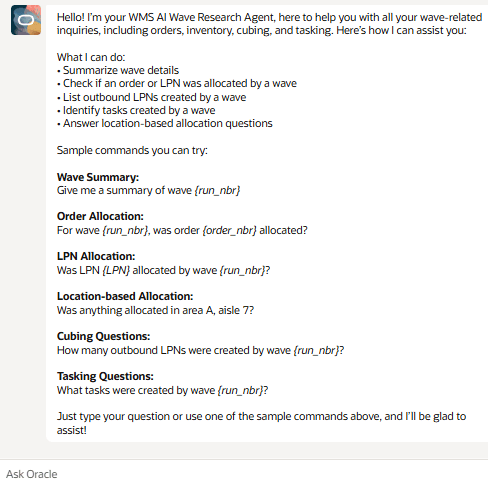
To implement this AI Agent, we have introduced the following in Redwood:
- A new app configuration “AI-AGENT-STUDIO” on the SAAS App Configuration (SaasAppConfigView) UI to connect with Fusion AI Agent Studio.
- A new UI screen AI Agent Configuration (AiAgentConfigView) to add AI Agents.
- A new action button AI Agents on the Groups UI to assign AI Agents to a group.
- New Agent Code Parameter parameter which allows you to configure launching agents from the Wave Inquiry screen.
- A new elipses button “Ask” on the Redwood UI and Redwood Mobile to launch AI Agents.
Before you use the AI Agent, you have to complete the key configurations mentioned below in Steps to Enable and Configure. Once you complete all configurations, you can launch the AI Agent and use prompts to perform specific tasks.
KEY SCREEN PARAMETERS – WAVE INQUIRY UI
Wave Research Advisor Parameter
You can also launch the agent directly from the Wave Inquiry UI in Redwood which will allow you to easily pull in wave information when you are working with the agent.
- From Screens -> Screen Parameters, assign the agent code Parameter Value (Wave Research Advisor) for the ai-agent-code parameter. Then assign the Parameter Value Wave Summary {run_nbr} to the ai-agent-selected-row-question parameter.
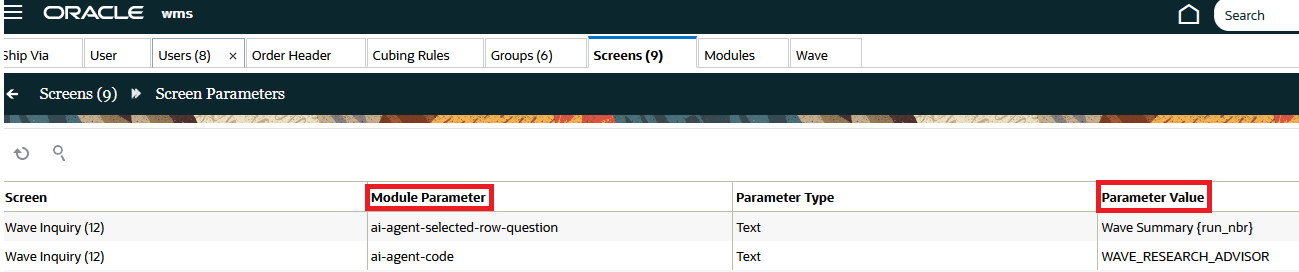
Screen Parameter Value
- From the Redwood Groups UI, select a group for which you want to assign the AI Agent.
- Click More Actions (elipses button to the right of the Refresh button) (…), then AI Agents action button.
- On the AI Agents screen, click Create.
- To assign an AI Agent to the selected group, select an AI Agent from the drop-down list.
- Click Save.
- You’ll then be able to launch the Wave Research Advisor agent via “Ask Oracle.” From the Wave Inquiry UI.
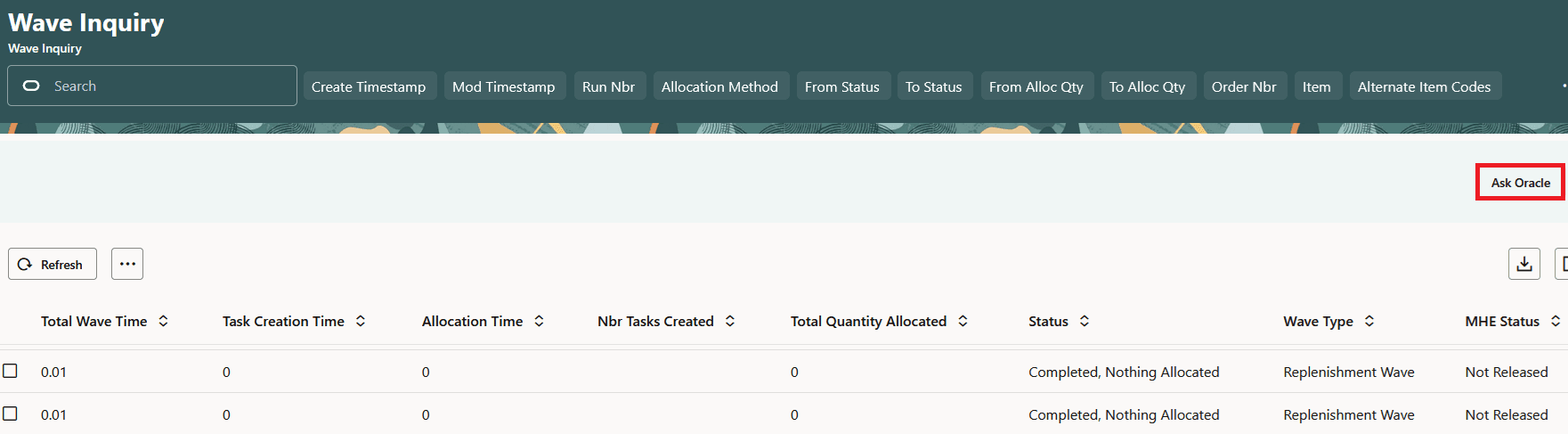
AI Agent Selected Row Question Parameter
A new screen parameter, ai-agent-selected-row-question, is available on the Wave Inquiry UI. This parameter allows users (or admins) to define a default question template containing a placeholder ({{{} {run_nbr}{}}} or similar) which will then populate the AI Agent Chat window.
If the user selects exactly one row and the ai-agent-selected-row-question parameter is populated:
- The system substitutes the selected row's field inside the brackets. (e.g.,
{run_nbr}
- The resulting question is automatically sent as the initial message to the AI agent when the chat opens.
- If the placeholder does not match any available field, the literal template string is sent as the initial chat message (e.g., "Wave summary {wave_nbr}").
For example:
The following is an example of two selected rows with the Wave Summary run number and Task creation run number:
Summary {run_nbr}
Task created {run_nbr}
SELECT AI AGENT
Once you have your agent configured, you have the option to switch to a different agent from inside the agent chat window.
To switch to a different agent, click the Select AI Agent button.

Here are some sample prompts/questions that could be useful when interacting with the Wave Research Advisor agent:
| Category | Sample Prompt/Question | Example Answers |
|---|---|---|
| Orders |
|
|
| Orders |
|
|
| Orders |
|
|
| Location based queries |
|
|
Steps to Enable and Configure
See AI Agent Configuration in WMS for the configuration steps for enabling the Wave Research Advisor AI Agent in WMS.