AI Agent Configuration in WMS
The following are configuration steps for enabling AI Agents in WMS:
Steps to Enable and Configure
To connect with the Fusion AI Agent Studio app in WMS, do the following:
- On the SAAS App Configuration UI, click Create.
Note: You must access the SAAS App Configuration UI from the Redwood UI in WMS.
- From the App Name drop-down list, select AI-AGENT-STUDIO.
- Enter ALL of the following mandatory fields detailed in
the table below.Note: Prerequisite – make sure FA IDCS Oauth2 with grant-type JWT confidential app is configured.
For more information about Fusion Identity Cloud Service (IDCS) setup, see sections 3 and 4 of the AI Studio Integration for WMS document.
- Click Save.
Refer to the following table for each parameter’s meaning and the format required.
| Field Name | Description | Details |
|---|---|---|
| Base URL | FA AI Studio Base URL |
Fusion base URL where AI Studio is hosted. https://xxx.fa.us6.oraclecloud.com |
| App parm3 | IDCS Token URL | https://idcs-xxx.identity.oraclecloud.com:443/oauth2/v1/token |
| App parm4 | Client id of the WMS confidential app in FA IDCS |
|
| App parm5 | Fusion IDCS confidential application scope. |
Example: urn:opc:resource:fusion:{tenant-pod}:fusion-ai/ . It can vary if your Fusion base URL is a custom URL. Please confirm as described in the Fusion IDCS confidential application setup section. (See section 3.1 “Create a Confidential Application” in the AI Studio Integration for WMS document. |
| App parm8 | Private Key for the WMS confidential app in FA IDCS |
A valid RSA private key. This is used to sign the access token request. It should be in the format of PKCS#1. Note: App parm8 is encrypted in the database
and not displayed in the grid view (but it is editable).
|
| App parm9 | Public x509 cert | Corresponds to private key entered in parm8 field. |
To add the AI Agent to the list of available WMS AI Agents, do the following:
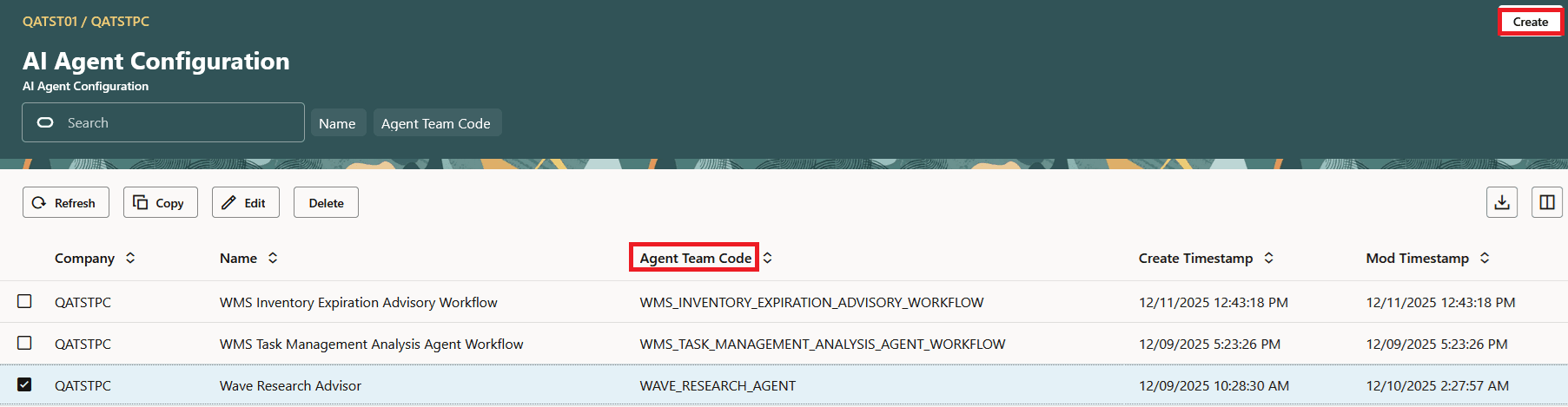
- Once you’ve added the AI Agent Configuration UI from Modules, you’ll be able to access it from Redwood Desktop -> Configuration Tab or -> searching from Ask Oracle.
- From the AI Agent Configuration UI, click Create.
- Enter your AI Agent Name and Agent Team Code.
- Click Save.
Required Configuration Via Groups
Additionally, you need to assign access to agents by assigning them to Groups. To add an AI Agent to a group, do the following:
- From the Redwood Groups UI, select a group for which you want to assign the AI Agent.
- Click More Actions (elipses button to the right of the Refresh button) (…), then AI Agents action button.
- On the AI Agents screen, click Create.
- To assign an AI Agent to the selected group, select an AI Agent from the drop-down list.
- Click Save.
To access the AI Agent in WMS after it is configured:
- From the User drop-down, select Try the New Redwood Experience.
- Hover your cursor over the Ask Oracle button, and an elipses slide-out button will appear. Click the elipses button.
- From the list in WMS, select the AI agent and enter a prompt to get started.