Cross-Dock Configuration
To allocate orders for cross-dock, two conditions must be met:
- The order must have the appropriate order type configured;
- The ordered SKU and quantity must exactly match the contents of the LPN being received.
- The ordered SKU detail must have the “Required LPN” field populated with the LPN number for the LPN being received.
Step 1: Create the Cross-Dock Order Type
- Go to the “Order Type” screen and click the Create button to create a new order
type. Make sure that the “Flowthrough” and “Partial allocation” flags are
checked.
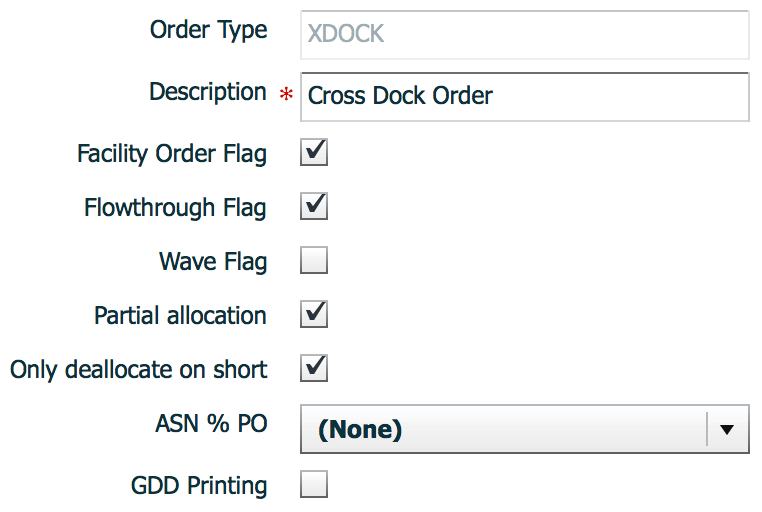
- Click “Save”.
Step 2: Adding the Mobile Screen for Cross-Dock Receiving
The next step is to add a receiving module specific to Cross-Dock.
- Go to “Screen Configuration”.
- Click on “Generate Screens” and select one of the following:
- “Recv {lpn} Load” if receiving via Loads.
- “Recv {lpn} Shipment” if receiving via ASNs.
- Press “Save” when you have finished.
- Once the Mobile screens are added, the cross-dock specific functionality must be enabled within its parameters. To access the module’s parameters, select the module and click on Details.
- Within the parameters, select the “xdock-mode” module parameter and click Edit.
Select the appropriate cross-dock mode from the drop-down.
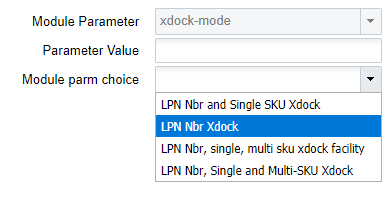
Cross Dock Parameter Description
- None: Cross dock functionality is disabled.
- LPN Nbr, single or multi sku xdock: Cross dock functionality is enabled for single and multi-SKU LPNs. Cross dock orders do not need to populate the “Required Container Number” in the Order detail record.
- LPN Nbr Xdock: Cross dock functionality is enabled for single and multi-SKU LPNs. It will only work if its cross dock orders have the “Required Container Number” populated in the Order detail record. *Auto creation of cross dock orders is not possible with this option.
- LPN Nbr and single-SKU Xdock: Cross dock functionality is enabled for single SKU LPNs. Cross dock orders do not need to populate the “Required Container Number” in the Order detail record.
- Click “Save”.Note: Cross-dock functionality is supported through the below Mobile transcation screens based on the configuration of the xdock-mode screen parameter.
- Receive IB Shipment
- Receive IB Load
- Distribute LPN
- Putaway
Company Parameter Configuration impacting Cross-Dock Functionality
| Company Parameter | Valid Values | Functionality | Additional Comments |
|---|---|---|---|
| XDOCK_ORD_INV_ATTR_CHECKS |
|
Controls if LPNs allocated through cross-dock should have inventory attributes matching that on order details.
|
From the Company Parameters UI, search for the XDOCK_ORD_INV_ATTR_CHECKS parameter key. Click Edit to set the parameter value |

Allocate a Multi-SKU LPN to more than one Order for the Same Destination
Also, with the Cross-Dock parameter (xdock-mode), you can allocate a multi-SKU LPN to multiple orders for the same destination if the company parameter MULTISKU_LPN_XDOCK_ONE_ORDER_ONLY is set to “No.”
From the Company Parameters UI, search for the MULTISKU_LPN_XDOCK_ONE_ORDER_ONLY parameter key. Click Edit to set the parameter value.
Executing Cross-Dock
- Before the ASN can be received, it must be checked into a dock door.
- If you are using appointments, go to the “Appointment” screen, select the appointment, select a dock door from the drop-down, and click “Check In”.
- If appointments are not used, go to the “Inbound Loads” screen, select the Inbound Load, select an appointment, click “Check In”.
- Select a dock door from the drop-down, and click “Submit”.
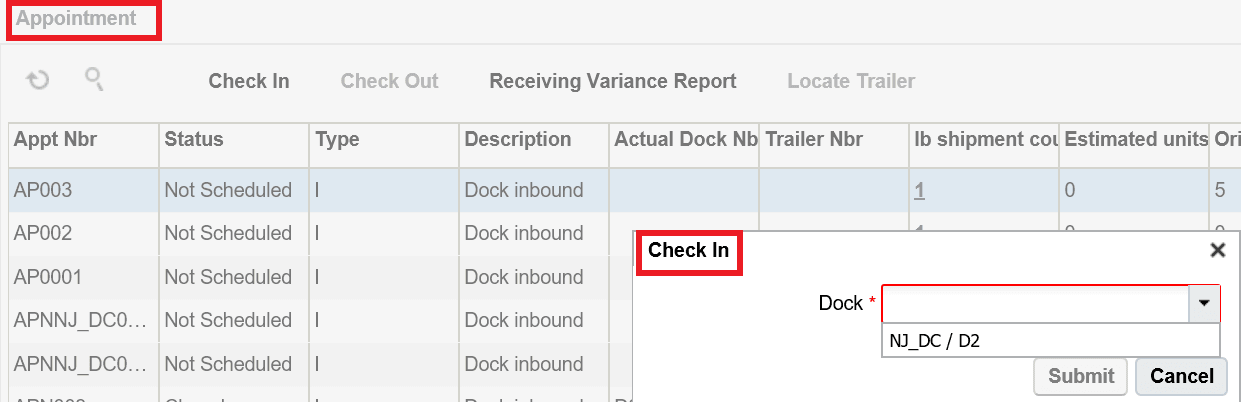
- After the ASN is checked in, you may now receive merchandise with a handheld device.
Go to the “Receive ASN XDock” module. Scan the dock door – the Shipment and
Trailers, if specified, will auto-populate. If the trailer is not populated, the
user must enter the trailer number and press tab to proceed.
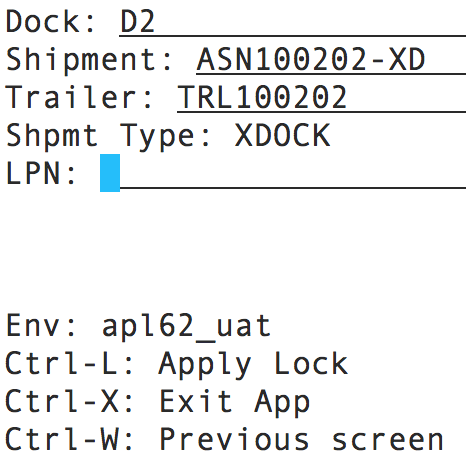
- Scan the LPN number.
- If the LPN number is specified in the ASN, Oracle WMS Cloud recognizes the LPN’s contents and displays a message. Press Ctrl-A to proceed.
- If the LPN number is not specified in the ASN (blind receipt), the system
will then prompt the user for the SKU and quantity.
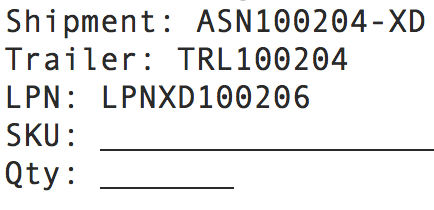
Enter the Item Code and quantity. Press Ctrl-E to close the LPN.
- If everything was done correctly, the system will display the message “XDock allocation succeeded”. Press ctrl-A to proceed.
Cross-Dock Receiving with Auto-Order Creation
If some information about the to-be-cross-docked LPN is known beforehand, there is an option to receive such shipments without having to manually create an order. This requires the use of the ASN interface with specific fields populated.
Step 1: Configure the Oracle WMS Cloud for cross-dock
To enable automatic creation of cross-dock orders during receipt, two facility parameters must be modified.
- Go to the “Facility Parameters” screen.
- Select parameter key “AUTOCREATE_XDOCK_ORDER_TYPE” and click edit. For the value, type in the cross-dock order type code. Click “Save”.
- Select parameter key “AUTOCREATE_XDOCK_SHIPMENT_TYPES” and click edit. For the
value, type in the cross-dock shipment type code. Click “Save”.
- If the shipment type has not been created, go to the “ASN Types” screen
and use the Create button to create one.

- If the shipment type has not been created, go to the “ASN Types” screen
and use the Create button to create one.
Step 2: Create the Cross-Dock ASN file
Open the “ISSR” interface file.
Populate the basic ASN information. See example below:

When creating the ASN file for cross-dock, three fields are required in order for this process to work:
- Shipment_type (column H): the ASN type for cross-dock shipments.
- lpn_nbr (column D): the LPN number for the cross-docked merchandise. If the LPN number is not known, this method will not work.
- recv_xdock_facility_code (column AA): the facility (warehouse) that is
receiving the ASN. Enter the appropriate facility code.
Once the ISSR file is complete, upload it to Oracle WMS Cloud. From the “Input Interfaces” screen, select the “Inbound Shipment” from the drop-down.
- Click “Upload Files”, select the ISSR file, and click OK.
- Click “Run Interface” to process the file. If everything was done correctly, Oracle WMS Cloud will display the message “Interface completed”.
- For receiving, receive this ASN like any other cross-dock flow. During receipt, the system will automatically create a cross-dock order for the received LPN.
Cancel Orders after Shipment Verification
Oracle WMS Cloud allows you to cancel unallocated order details. You can cancel order details that have the “Required Container” field populated with the Inbound LPNs that were not received. This is controlled in the Shipment Type UI with the “Unallocated order details to cancel on ASN Verify” mode. The “Unallocated order details to cancel on ASN Verify” mode has the following options:
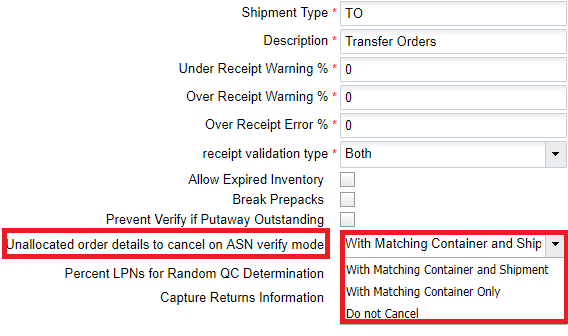
- With Matching Container and Shipment: When a shipment is verified, the application cancels unallocated order details that have the “Required Container” field populated with the Inbound LPNs that were not received, provided that the ‘Shipment Number’ order detail field is also populated.
- With Matching Container Only: When a shipment is verified, the application cancels unallocated order details that have the ‘Required Container’ field populated with the Inbound LPNs that were not received, regardless of whether the ‘Shipment Number’ order detail field is populated or not. This is useful for customers dealing with cross-dock orders that do not have the ‘Shipment Number’ order detail field populated.
- Do Not Cancel: No unallocated order details are cancelled.
Honor Expiry Date Range Rules for Cross Dock
Warehouses that handle perishable or date-sensitive inventory must ensure that products ship within an acceptable expiry window. If cross-dock processing does not consider expiry rules, users may allocate inventory that is too close to expiry or does not meet customer shelf-life requirements.
WMS considers Expiry Date Range rules during cross-dock processing across receiving, putaway, Distribute LPN, and Receiving API flows. This helps customers improve product freshness, reduce returns, and apply consistent shelf-life controls before inventory is allocated to outbound orders.
Expiry Date Range In Cross-dock Flowthrough Rules
Use the Expiry Date Range action in the Crossdock Flowthrough Rules UI to configure expiry date range criteria for cross-dock eligibility.
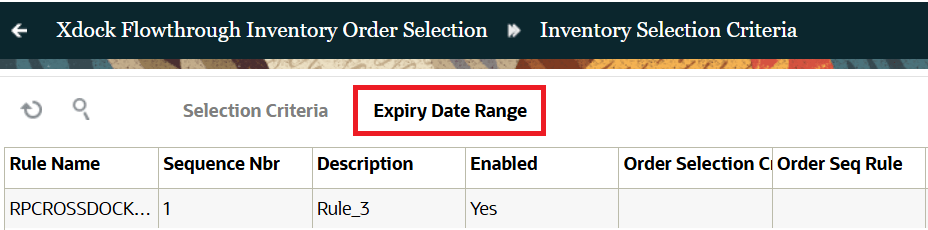
When users select this action, WMS opens the Expiry Date Range UI from Wave Template. Users can select an Expiry Date Range rule from the drop-down field that lists the configured expiry date range rules. This setup helps users define which expiry-tracked inventory is eligible for cross-dock. All you need to is:
- Configure expiry date range criteria directly from Crossdock Flowthrough Rules.
- Select an Expiry Date Range rule during Create, Copy, and Edit actions.
- Access to this action is controlled by the permission: Crossdock Flowthrough Rule / Can configure selection criteria rules. Ensure that the non-admin users need the permission enabled.
Honoring Expiry Date Range For Cross-Dock
WMS honors Expiry Date Range rules for cross-dock in these flows:
- Receive by Shipment
- Receive by Load
- Receiving API
- Putaway
- Distribute LPN
When inventory-orderselection-rule is configured, WMS evaluates incoming inventory against the selected Crossdock Flowthrough Rule. WMS considers Inventory Selection Criteria, Expiry Date Range, Order Selection Criteria, and Order Sequence Rule together.
If inventory meets the expiry rule and an eligible order exists, WMS cross-docks the inventory. If inventory does not meet the expiry rule, WMS receives the inventory without cross-docking.
- If the rule is blank, WMS keeps the existing cross-dock behavior.
- If the configured rule is invalid or disabled, WMS stops the rule-based cross-dock flow and displays a warning.
- Pallet cross-dock behavior is not changed when Pallet Handling is set to LPN or Pallet Receiving.
RECEIVING API
The Receiving API supports Expiry Date Range validation during cross-dock. This gives API-based receiving flows the same expiry control as mobile receiving flows.
Key points:
- API receiving can use the configured Crossdock Flowthrough Rule.
- WMS validates incoming inventory against expiry date range, inventory criteria, order criteria, and order sequence rule.
- If inventory qualifies, WMS cross-docks it to an eligible order.
- If inventory does not qualify, WMS receives it without cross-docking.
- If no eligible order exists, WMS returns the standard cross-dock error.
PUTAWAY
Putaway considers Expiry Date Range rules when cross-dock is triggered during putaway.
WMS applies the configured Crossdock Flowthrough Rule during putaway cross-dock. Inventory must meet the expiry date range and other configured rule criteria before WMS cross-docks it.
If inventory does not qualify, WMS continues with the normal putaway or receiving flow. If the rule is blank, WMS keeps the existing putaway cross-dock behavior.
DISTRIBUTE LPN
Distribute LPN honors Expiry Date Range rules when cross-dock is triggered from the distribution flow.
Key points:
- WMS checks the configured expiry date range before cross-docking distributed inventory.
- WMS evaluates expiry date range with inventory selection, order selection, and order sequence rules.
- If inventory qualifies and an eligible order exists, WMS cross-docks it.
- If inventory does not qualify, WMS receives it without cross-docking.
- If the rule is blank, WMS keeps the existing Distribute LPN cross-dock behavior.