Cycle Count Execution (Mobile)
There are three ways to run Cycle Counts with Redwood Mobile, each varied by level of detail:
- Cycle Count Location (By # of LPNs in a location): Prompts you to input the number of LPNs in the scanned location.
- Cycle Count LPN (By LPN count): Prompts you to scan each LPN in the Location. Any IBLPN not scanned in a CC session will be updated as “Lost”.
- Cycle Count LPN Detail
By SKU quantity: Prompts you to scan the LPN, SKU, quantity and its Inventory Attributes (Batch Number, Expiry Date, Serial Number) in the location. Here you input the quantity for each LPN.
By SKU Scan: Prompts you to scan the LPN and SKU in the Location. For the quantity value, you have to scan once for every SKU in the LPN. This option does NOT validate inventory attributes in the LPN.
The following sections describe the steps you would take to execute each CC type.
Cycle Count Location
- Enter Mobile transaction “Cycle Count Location”.
- Scan the location that will be cycle counted.
- Input the number of LPNs in that location.
- Press Ctrl-E to end the count.
- If the LPN quantity inputted is incorrect, RF prompts you to use the detailed Cycle Count transaction (option 0 - Cycle Count LPN Detail).
Cycle Count LPN
- Enter Mobile transaction “Cycle Count LPNs”.
- Scan the location to be cycle counted.
- Scan the LPNs in the location.Note: if you scan an LPN that does not exist in the location, the RF prompts the message “Rescan the same LPN”. When you rescan the same LPN, WMS makes the inventory adjustment to record the new LPN into the location.
- Continue step 3 until all LPNs are scanned.
- When you are done scanning all the LPNs, press Ctrl-E to close the count.
- If WMS thinks there are still LPNs left to be scanned, the system prompts the message “Remove LPNs from Location?”, followed by a list of LPNs that have not been scanned. Press Ctrl-A to proceed with the inventory changes.
- If the Cycle Count was correct, RF will prompt the message “Count completed for location”.
Cycle Count LPN Detail
- Enter Mobile transaction “Cycle Count LPN”.
- Scan the location to be cycle counted.
- Scan the first LPN in the location. Scan the SKU and quantity for the current
LPN.
- If the LPN has the “LPN is Pallet” flag set to “FALSE”:
- If the LPN has the “LPN is Pallet” flag set to “TRUE”:
- Cases per Tier refers to the “LPNs per Tier” field in the item’s detail in the Item Master.
- Tiers per Plt refers to the “Tiers per Pallet” field in the item’s detail in the Item Master.
- If the quantity is incorrect, the RF will prompt message “Reenter quantity for
this item”.
- If you reenter the same LPN, SKU and quantity, the adjustment is made.
- If you are counting a multi-SKU LPN, the RF displays a warning message for SKUs that are not counted.
- If the quantity is correct, the RF screen blinks and you can continue scanning the rest of the LPNs in the location.
- When all the LPNs have been counted, press Ctrl-E to end the count.
- If there are LPNs that have not been counted, the system prompts a message “Remove LPNs from Location?” to ensure this change. When you accept with Ctrl-A, the uncounted LPNs are set to “Lost” status and the inventory adjustment is made.
- If all the LPNs are counted, the system prompts the message “Count completed for location.”
Note: LPNs in “Allocated” status cannot be “Lost”.
Cycle Count Caveats
- WMS always validates the LPN’s Inventory Attributes (Batch Number, Expiry Date and Serial Number), if the SKU requires it.
- LPNs that are allocated to a wave cannot be “Lost” during a Cycle Count transaction.
- LPNs in “allocated” or “partially allocated” statuses cannot be Cycle Counted.
Reserve LPN Number Count
The Reserve LPN Number Count (Resv-LPN Nbr Cnt) Redwood mobile transaction supports counting either LPNs or pallets. Users begin in LPN-count context and can press CTRL-H to switch to pallet-count context; pressing CTRL-H again switches back. The selected context remains active until the user exits the transaction.
Once an LPN count has begun, the user must finish that count before changing context. For locations containing both pallets and LPNs, users can submit either a pallet count or an LPN count during a single transaction.
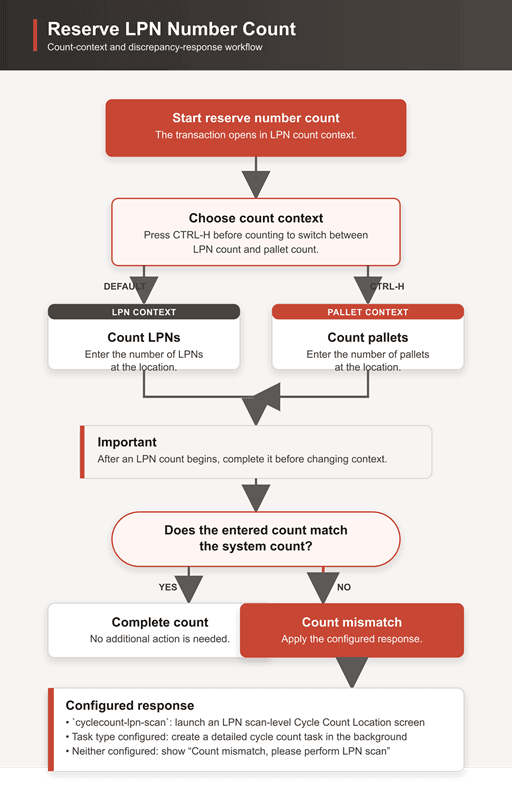
When pallet count is considered, the system creates a Summary Audit View record that includes both the expected and actual pallet counts.
- If a location contains a mix of LPNs and pallets and a user performs a pallet scan, the system counts only the LPNs within the scanned pallets. Any loose LPNs are excluded from the count. In these scenarios, LPN-level counting is recommended.
- A new screen parameter, cyclecount-lpn-scan, has been added to the Resv-LPN Number CountRedwood mobile module. This parameter applies only to pallet count mode and must be configured without detailed counting as detailed counting is not supported in pallet count mode . To support LPN scans within a pallet, the associated CC Location screen must have the prompt-for-pallet parameter set to Yes.
Capture overall quantity parameter
Reserve LPN Number Count will add a record to the Summary Audit View module with the relevant audit details. The task-type-description and task-type-priorityparameters allow you to enable and control detailed cycle count task creation. When configured, a task is created in the background if the expected LPN count or total SKU quantity differs from the system-maintained values.
This allows the summary-count user to continue working while another user completes the detailed count from the task pool, without displaying task-creation failures.
The behavior is controlled by the capture-overall-qty screen parameter:
| Parameter | Value | Behavior |
|---|---|---|
| capture-overall-qty | No / Disabled | Uses the existing process: users enter the location and LPN count only. |
| capture-overall-qty | Yes / Enabled | Enables the enhanced process: users scan the location and SKU, then enter the LPN count and total physical quantity for the SKU. |
Definitions
- LPN Count: The number of LPNs present for the scanned SKU at the scanned location.
- Overall Inventory Count / SKU Quantity: The total physical quantity of the scanned SKU at that location, regardless of batch number, inventory attributes, or serial numbers.
When enabled, users scan a location and SKU, then enter the number of LPNs and total SKU quantity. The entered quantity is validated against the system’s overall quantity for that SKU.
Steps to Enable and Configure
- In CCAdjustmentHdrView, set recount-task-assign-user to enable user assignment for recount tasks created through rejection.
- Configure cyclecount-lpn-scan in the Resv-LPN Nbr Cnt Redwood mobile module with a valid Cycle Count Location screen for pallet-count mismatches. Leave content count blank and ensure the target screen supports pallet scanning.
- Set capture-overall-qty to Yes in the Reserve LPN Number Count module to collect SKU, LPN-count, and overall-quantity information.
- Configure task-type-description and, optionally, task-type-priority to create detailed cycle count tasks automatically when an LPN-count or quantity discrepancy is detected.