Optimize Putaway Operations with Enhanced Cart Support, Task Criteria, and Location Flexibility
You can optimize your Putaway process using PUTAWAY cart support, task criteria, and location flexibility. Cart numbers and their positions are displayed directly in the Container View, enabling easy tracking and effective task allocation.
If a Putaway task is interrupted, it can be resumed without interruption with all critical details preserved, minimizing errors.
Cart management is optimized with capacity alerts that notify when a cart is full, preventing overloading. Outdated cart data is automatically cleared after task completion, maintaining a clean and organized workflow. Built-in validation checks prevent duplicate or incorrect moves, ensuring accurate inventory allocations.
For handling failed LPNs during Putaway, the system displays the following error messages:
- For partial failures, “Remove LPN Scan” screen while keeping the successful ones in the cart.
- For single failures, the system automatically removes the failed LPN after scanning the drop location.
- For complete failures, all failed LPNs are removed by scanning the drop location. After removal, cart details are updated, successful items remain allocated, and activity logs ensure traceability.
When a designated storage location is unavailable, the system quickly identifies alternate locations, ensuring uninterrupted workflows and efficient item handling.
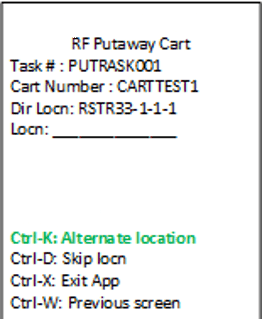
The "Ctrl-K: Alternate Location" option appears in the Location prompt, while the "Ctrl-K: Alternate Location for current LPN" option is available in the LPN/Position prompt.
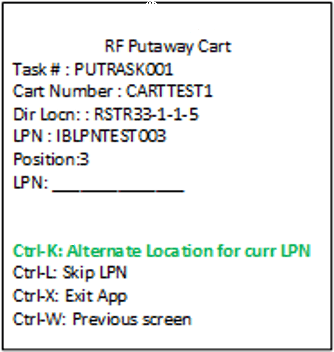
The latter is specifically used to update the location only for the prompted LPN when it cannot fit within the designated space. Upon pressing Ctrl-K, the system will perform a Reason Code Selection Check as outlined.
For more detailed information on Cart Based Putaway Enhancements, see the following video:
User driven putaway mode for full-LPN and split-LPN allocations
Operators can scan an accessible LPN first, then confirm its system-directed location, rather than following task-sequence order. Controlled by the new putaway-cart-mode parameter; system-driven remains the default.
A new putaway-cart-mode screen parameter is available in Mobile Putaway Cart (rf.inbound.cwrfputawaycart) with these options:
- System Driven – Retains the existing system-directed behavior and is the default.
- User Driven – Allows the operator to select an LPN first and then receive the system-directed putaway location.
For full-LPN allocations in User Driven mode, the operator scans the LPN and is then prompted for its allocated location. The existing Alternate Location for Current LPN flow remains available through Ctrl-K, including applicable reason-code prompts, eligibility checks, and allocation updates.
For split-LPN allocations, User Driven mode follows this general flow:
The operator continues with the selected LPN until its pending allocations are completed, and then selects another LPN from the cart or pallet. If unallocated inventory remains at the end of the task, the system prompts for a drop location. When skip-detail-scan-for-allocated-lpn = Yes and all inventory in the scanned LPN is allocated to a single location, the system can take the operator directly from the LPN scan to the system-directed location, skipping SKU, Batch/Expiry/Attribute, quantity, and serial-number prompts.
Putaway an entire pallet with fewer scans
The Use Pallet as Cart flow now supports full-pallet putaway. When all remaining LPNs on the pallet are fully allocated to the location scanned by the operator, RF Putaway Cart no longer requires each individual LPN to be scanned. Instead, the system displays a message indicating that the pallet can be put away to the scanned location. After confirmation, the system completes the putaway for all applicable LPNs and ends the Putaway Task.
- For an Active location, the system consumes all LPNs from the pallet into the active location and performs the associated pallet, cart-position, and inventory-history updates.
- For a Reserve location, all LPNs are located to the reserve location. Warehouses can also determine whether those LPNs remain associated with the pallet or are automatically depalletized.
The existing LPN prompts continue when any inventory on the pallet:
- Is allocated to a different location.
- Is only partly allocated.
- Is not allocated.
This ensures full-pallet confirmation is used only when the entire remaining pallet can be accurately processed as a unit.
Control depalletiziation during full-pallet putaway
A new depalletize-on-pallet-putaway screen parameter is available in Mobile Putaway Cart (rf.inbound.cwrfputawaycart) to control what happens when a full pallet is put away to a Reserve location. This configuration gives warehouses greater control over how pallet relationships are maintained after reserve putaway.
| Setting | Behavior |
|---|---|
| No/Blank | LPNs remain associated with the pallet. This is the default behavior. |
| Yes | LPNs are depalletized from the pallet during putaway. |
Control SKU scanning and quantity entry for split putaway
A new item-barcode-scan-for-split-putaway screen parameter provides greater control over scanning requirements during split putaway. The parameter is available in Mobile Putaway Cart (rf.inbound.cwrfputawaycart) with the following choices:
| Setting | RF Putaway Cart Behavior |
|---|---|
| Prompt SKU / Blank | Prompt for both SKU and quantity. This is the default behavior. |
| Do not prompt SKU | Skip the SKU scan and prompt only for quantity. |
| Scan each SKU | Prompt for SKU only; quantity entry is skipped. Each SKU scan puts away one Allocation UOM. |
With Scan each SKU, the SKU screen refreshes after each scan and displays the remaining allocated quantity until the full quantity for the allocation line has been processed. These options allow warehouses to reduce unnecessary RF interactions while retaining the level of scan validation appropriate for their operation.
Resolve batch, expiry date, and attribute conflicts during split putaway
RF Putaway Cart also improves inventory accuracy when an allocated or partly allocated IBLPN contains multiple inventory records for the same SKU. When item-barcode-scan-for-split-putaway is set to Prompt SKU, Blank, or Scan each SKU, the system detects conflicts after the SKU is scanned and prompts the operator for the information needed to identify the inventory actually being handled.
Prompts are based on the item's configuration:
- Batch Nbr is requested only for items configured to track Batch Number.
- Expiry Date is requested only for items configured to track Expiry Date.
- Attributes A-G are requested only when the applicable attribute is configured as Required, Don't Validate or Required, Validate and Allow User Override.
When conflicts occur, Batch Number or Expiry Date is resolved first. For items tracking both Batch and Expiry Date, scanning the Batch is sufficient to identify the applicable inventory record. Attribute conflicts are then resolved one attribute at a time as necessary. Conflict prompting does not occur when item-barcode-scan-for-split-putaway = Do not prompt SKU.
Validate inventory against the allocation
The enhanced flow also prevents operators from inadvertently selecting inventory that does not match the scanned IBLPN or its allocation. If the scanned Batch, Expiry Date, or Attribute combination is not present in the IBLPN, the system displays error 4872 – "Inventory not present for scanned %s". If the inventory exists in the IBLPN but is not allocated to the scanned location, the system indicates that the scanned inventory is not allocated to that location.
After a conflict is resolved, the system processes the selected inventory line and determines quantity handling from its allocated quantity:
- With Prompt SKU / Blank, the system proceeds to quantity entry and displays the quantity associated with the selected allocation line.
- With Scan each SKU, quantity is consumed from the selected allocation line by the Allocation UOM.
Serial-number validation also follows the inventory selection. For example, if an IBLPN contains one set of serial numbers for Batch 1 and another set for Batch 2, selecting Batch 1 permits only serial numbers associated with Batch 1. A serial number associated with a different inventory line is rejected.
Steps to enable and configure
- Configure the applicable screen parameters for Mobile Putaway Cart in the rf.inbound.cwrfputawaycart module.
- For User Driven split putaway, review the existing skip-detail-scan-for-allocated-lpn setting if you want fully allocated LPNs directed to a single location to bypass detailed SKU, Batch/Expiry/Attribute, quantity, and serial scans.
- No additional configuration is required for Batch, Expiry Date, Attribute, or Serial Number conflict validation beyond the applicable item tracking configuration and the selected item-barcode-scan-for-split-putaway behavior.
Mobile Putaway Cart Parameters
| Screen Parameter | Available Values | Default | Purpose |
|---|---|---|---|
| putaway-cart-mode | User Driven, System Driven | System Driven | Determines whether operators select the LPN first or follow the existing system-directed flow. |
| depalletize-on-pallet-putaway | Yes, No | No | Determines whether LPNs are depalletized when a full pallet is put away to a Reserve location. |
| item-barcode-scan-for-split-putaway | Prompt SKU, Do not prompt SKU, Scan each SKU | Prompt SKU | Controls SKU scanning and quantity-entry behavior for split putaway. |